Quick Start
Get up and running with WaveSpeedAI in minutes.
From advertising campaigns to short films, e-commerce visuals to social media content — creative professionals and developers worldwide trust WaveSpeedAI for fast, high-quality AI generation.
For policies, billing details, and FAQs, see User Guide & FAQ.
1. Create an Account
Sign up at wavespeed.ai with your Google or GitHub account.
Eligible new users may receive $1 in trial credit for supported models. Registering a new email address alone does not guarantee eligibility.
2. Explore the Platform
Main Pages
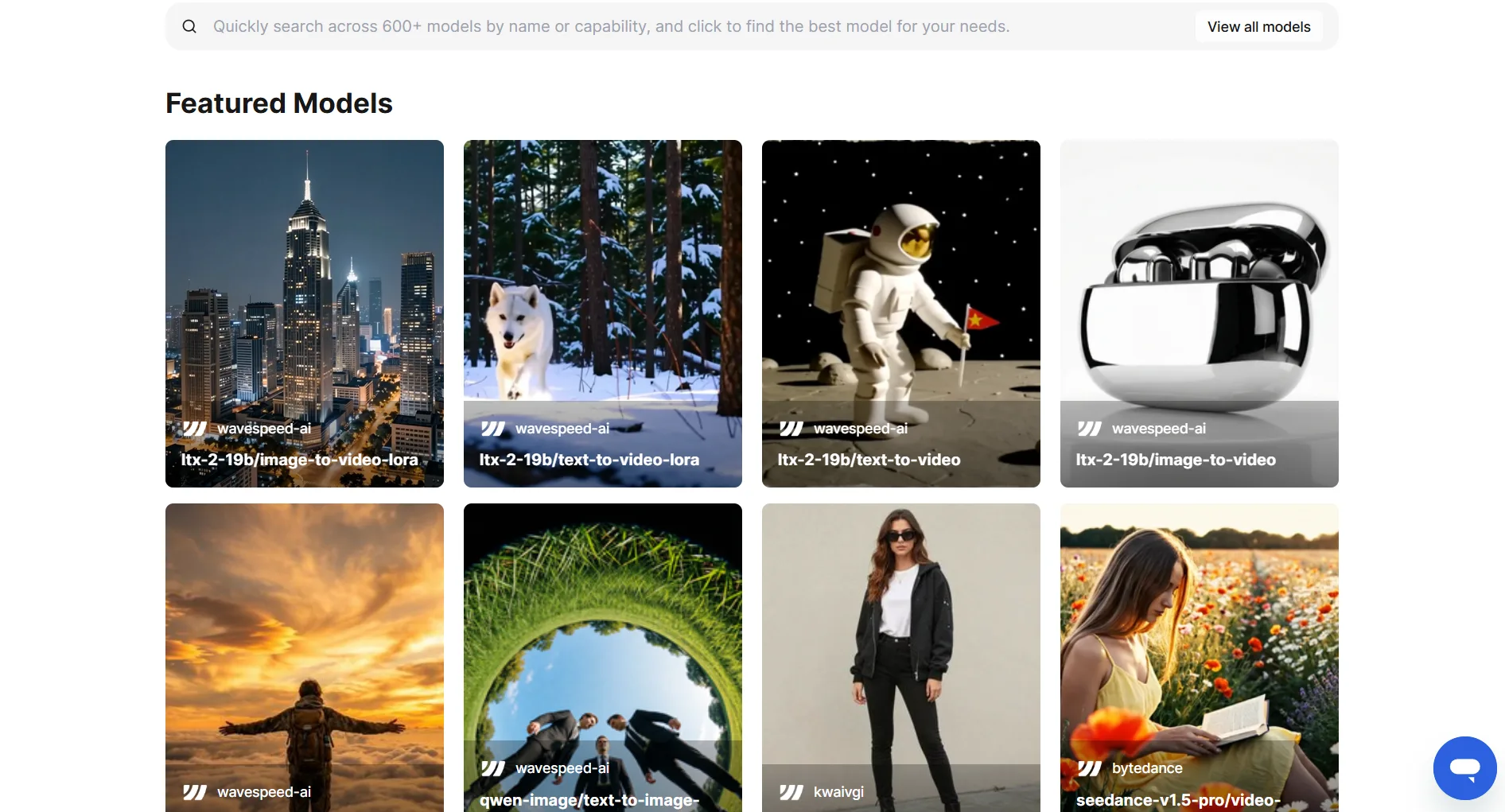
| Page | URL | Description |
|---|---|---|
| Models | wavespeed.ai/models | Browse 1,000+ models for image, video, and audio |
| History | wavespeed.ai/history | View generation history and download temporary outputs |
| LLM | wavespeed.ai/llm | Try our latest LLM model collection |
| Templates | wavespeed.ai/apps/trending-templates | Browse ready-to-run AI templates |
Resources
| Resource | Description |
|---|---|
| Download App | Desktop app for Windows, macOS, Linux |
| Doc | Documentation |
| Blog | Tutorials and announcements |
| Be a Creator | Join our creator program |
| Affiliate | Affiliate program |
| Contact Sales | Enterprise inquiries |
3. Choose Your Path
Web Interface (No Coding Required)
The easiest way to get started — no API key needed:
- Go to wavespeed.ai/models
- Select a model
- Enter your prompt and click Run
Playground Tabs
Each model page has four tabs:
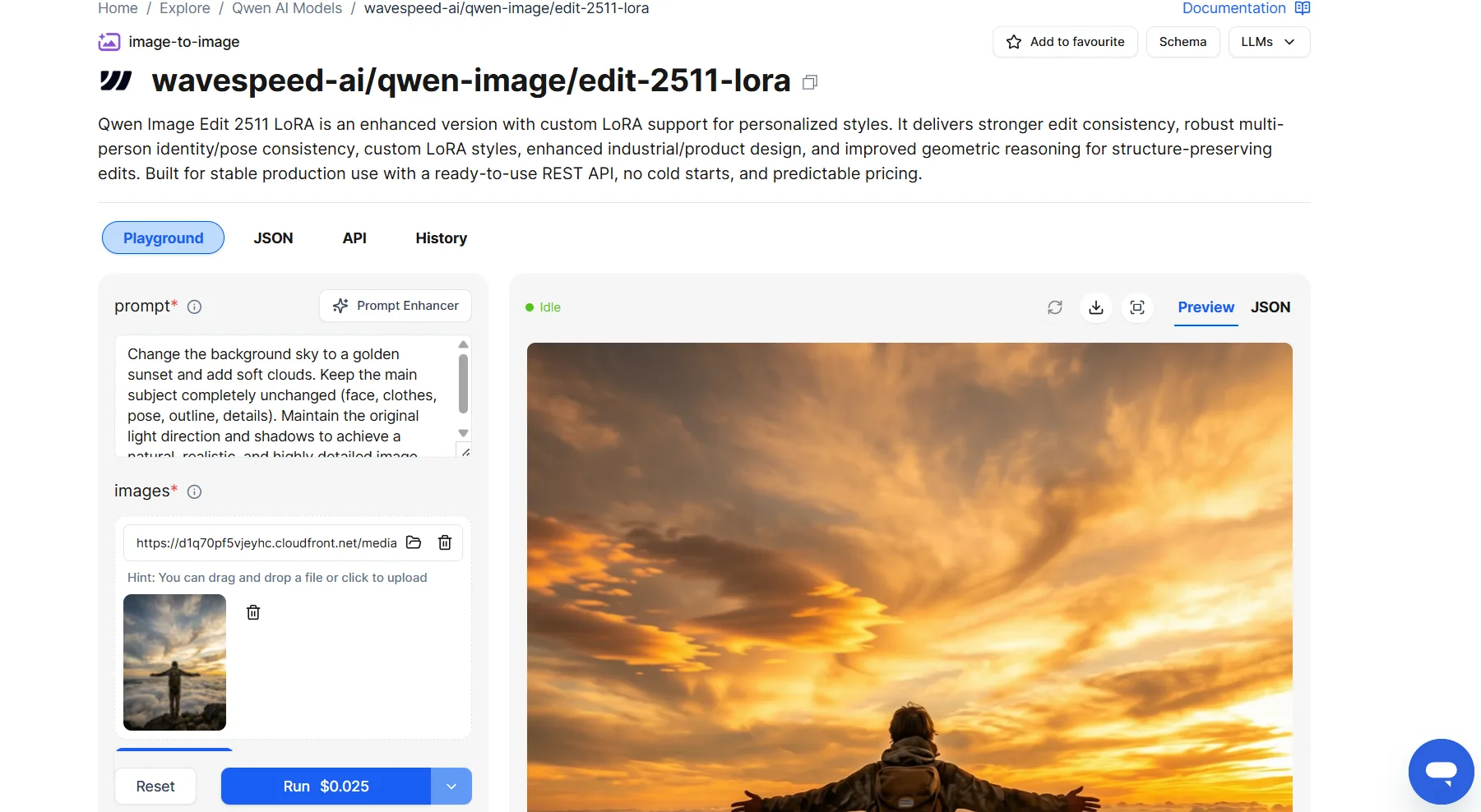
- Playground — The main interface where you configure parameters and run the model.
- JSON — Shows your current input as JSON format, useful for debugging or copying to your code.
- API — Provides ready-to-use API code (cURL, Python, etc.) based on your current parameter settings. Great for developers who want to quickly integrate.
- History — View your previous generations for this specific model.
Toolbar
In the top-right corner of each model page, you’ll find:
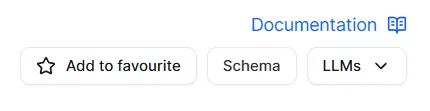
- Add to favourite — Click the star icon to save this model to your favorites for quick access later.
- Schema — View the model’s detailed input/output schema, helpful for understanding available parameters.
- LLMs — Some models support multiple LLM backends. Use this dropdown to switch between them.
Prompt Enhancer
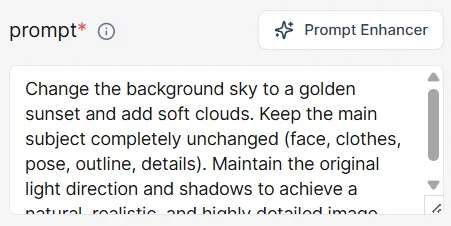
Located next to the prompt input field, the Prompt Enhancer automatically improves your prompt for better results. Note: This feature has an additional cost per use.
Run Button & Batch Mode
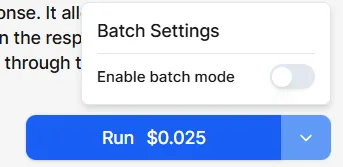
The Run button displays an estimated cost before you click. Remember, the final charge may vary slightly.
Batch Mode OFF:
Batch Mode ON:
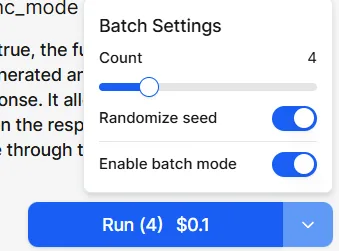
- Batch Mode — Enable this to generate multiple outputs at once. When enabled, billing is calculated per image/output generated.
- Safety Checker — A content moderation filter that screens outputs. This is enabled by default on the web interface to ensure compliance with content policies.
API & Developer Tools
For programmatic access, choose your integration method:
| Method | Best For | Guide |
|---|---|---|
| REST API | Developers building custom integrations | API Docs → |
| Python SDK | Python developers | SDK Guide → |
| Desktop App | Non-developers, local usage | Desktop Guide → |
| ComfyUI | AI artists, node-based workflows | ComfyUI Guide → |
| N8N | No-code automation | N8N Guide → |
4. For API Users
Get Your API Key
- Go to API Keys
- Enter a memorable name and click Generate
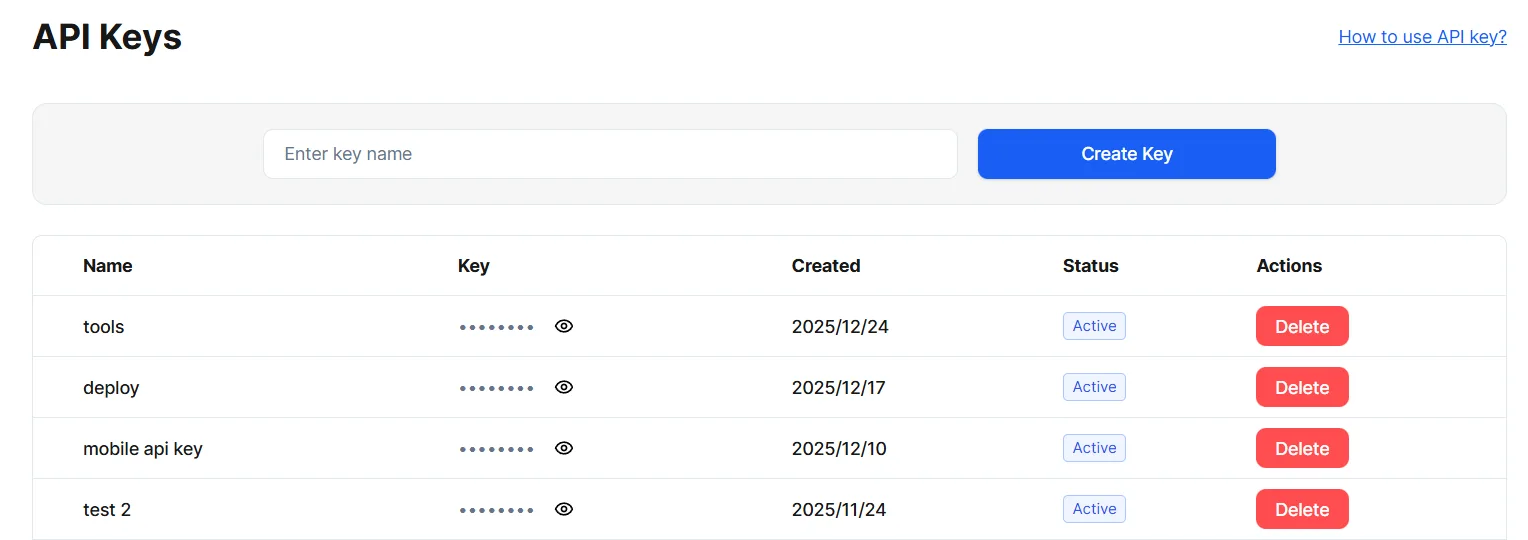
Important: API keys are active as soon as they are generated; a top-up is not required to activate them. Some models require a paid organization, and billable requests require sufficient credits.
Team permissions: Owners and Admins have full API access. Developer keys run models and read the organization’s predictions and balance, but cannot read itemized charges or usage statistics. Billing keys read balance, charges, and usage, but cannot run models. Invoices, payments, and organization billing information are dashboard-only. See API Authentication and Role Permissions.
Security Best Practices: Treat your API key as a secret. Store it in environment variables, never expose it in frontend code, and rotate it regularly.
For more details, see our Authentication Guide.
Code Examples
Python SDK
import wavespeed

try:
    output = wavespeed.run(
        "wavespeed-ai/z-image/turbo",
        {"prompt": "A cat wearing a space suit", "size": "1024*1024"},
        timeout=3600.0,
        poll_interval=2.0,
    )
    print(output["outputs"])
except Exception as error:
    raise SystemExit(f"Generation failed: {error}") from error
cURL
curl --fail-with-body --connect-timeout 10 --max-time 60 \
  -X POST "https://api.wavespeed.ai/api/v3/wavespeed-ai/z-image/turbo" \
  -H "Authorization: Bearer $WAVESPEED_API_KEY" \
  -H "Content-Type: application/json" \
  -d '{"prompt": "A cat wearing a space suit", "size": "1024*1024"}'
5. Popular Models
Image Generation
| Category | Models |
|---|---|
| Text-to-Image | GPT Image 2, Nano Banana 2, Seedream 5.0 Lite |
| Image-to-Image | Nano Banana 2 Edit, Seedream 5.0 Lite Edit, Qwen Image Edit |
Video Generation
| Category | Models |
|---|---|
| Text-to-Video | FLUX 3, Seedance 2.5, WAN 3.0, MiniMax H3, Sora 2 |
| Image-to-Video | Seedance 2.5, WAN 3.0, Kling 3.0, MiniMax H3, Veo 3.1 |
Audio & Music
| Category | Models |
|---|---|
| Voice | ElevenLabs, Minimax (voice cloning supported) |
| Music | Minimax Music 02 |
Advanced Tools
| Category | Models |
|---|---|
| Digital Human | InfiniteTalk, Kling Motion Control |
| Content Moderation | Text Moderator, Image Moderator, Video Moderator |
| 3D Generation | SAM3, Hunyuan3D |
| Vision & Detection | Moondream3 Detect |
| Other | Face Swap, Video Editing, Image/Video Upscaling |
With 1,000+ models covering image, video, audio, 3D, and more — WaveSpeedAI is your all-in-one platform for AI generation.
Browse all models at wavespeed.ai/models.
6. LoRA Support
WaveSpeedAI supports both training custom LoRA models and using existing LoRA models in your generations.
Train Your Own LoRA
Create personalized AI models without coding:
- Upload Dataset — Compress 10-20 diverse images into a .zip file
- Set Trigger Word — Define a unique identifier (e.g., “p3r5on”) for your model
- Configure Parameters — Adjust steps, learning rate, and LoRA rank
- Train — Click “Run” and wait for completion
- Use or Download — Access via URL or download the .safetensors file
Note: Training time depends on dataset size and parameters (e.g., steps). Actual training often takes longer than the estimated time displayed. Please be patient. If a timeout or system error occurs, refunds are processed automatically.
Use Existing LoRA Models
Apply LoRA models from Hugging Face or Civitai in your API calls:
- Format: Only
.safetensorsfiles are supported - Path: Use
owner/model-name(Hugging Face) or direct URL (Civitai) - Scale: Controls LoRA influence strength (default: 1)
- Trigger Word: Include in your prompt to activate the LoRA style
Compatibility: LoRA must match the base model exactly — same model name, version, and parameter size.
Learn more: Train LoRA Guide | Use LoRA Guide
7. Need Help?
- Billing & Account: See User Guide & FAQ
- Technical Support: support@wavespeed.ai
- Live Chat: Click the chat icon in the bottom-right corner of our website