
Stop Training, Start Creating: Use LoRA on WaveSpeedAI
Learn how to find LoRA models on Hugging Face and Civitai, match them to the correct base model, and use them on WaveSpeedAI.

Introduction
LoRA is a lightweight way to adapt a base model to a certain style, subject, or visual behavior without retraining the entire model from scratch.
In this guide, we will show you how to find LoRA models online and use them on WaveSpeedAI. You will learn how to choose the right LoRA, verify that it matches the correct base model, and load it properly in the playground.
Model Selection
When creating images or videos with AI, prompts alone are sometimes not enough to control fine details. If you want more consistent styling for poses, clothing, rendering texture, or other visual elements, a LoRA can help you guide the result more precisely.
You can find many publicly shared LoRAs on open platforms such as Hugging Face and Civitai. Some are designed for broad art styles, while others focus on very specific looks, poses, outfits, or rendering behaviors.
However, there is one rule you should never ignore: the LoRA must exactly match the base model you plan to use. That means the same model family, the same version, and the same parameter size whenever the model has multiple sizes.
For example, a LoRA designed for Wan 2.2 cannot be used on Wan 2.1 or any other model. Similarly, a Wan 2.2 14B LoRA cannot be used on Wan 2.2 5B.
If these do not match, the output may drift, the style may break, or the model may fail entirely. Always check the model page carefully before using a LoRA.
Before you load any LoRA, use this quick checklist:
- Check the model family: the LoRA must be made for the same base model family.
- Check the version: do not mix one version of a model with another.
- Check the parameter size: if a model has multiple sizes, such as 5B and 14B, the LoRA must match the exact size.
- Check the file format: prefer a single .safetensors LoRA file.
- Check the file size: if the file looks unusually large, confirm that you did not download the full base model by mistake.
On WaveSpeedAI, LoRAs are typically loaded from a single .safetensors file. Avoid formats such as .PickleTensor, .zip, or .GGUF, because they are not supported for LoRA loading.
Also pay attention to file size. LoRAs are usually under 2 GB, and many are much smaller. If the file is unusually large, you may have selected the wrong artifact, such as the full base model or a compressed bundle.
The two most common places to find LoRAs are Civitai and Hugging Face.
LoRA on Hugging Face
This section covers how to find a LoRA on Hugging Face, confirm that it matches the right base model, and load it into WaveSpeedAI.
Step 1: Search for LoRAs on Hugging Face.
Begin by typing LoRA into the search bar to explore related repositories.
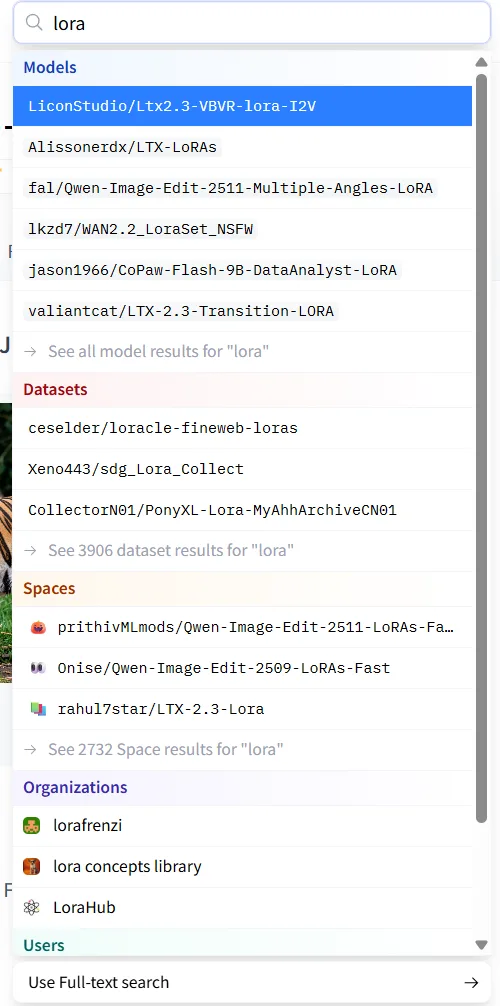
Next, click See all model results for “LoRA” to view the full results page.
For better results, include the base model name, version, and parameter size in your query, such as Wan 2.2 14B LoRA or Qwen-Image LoRA.
Step 2: Open a compatible LoRA and read the model page carefully.
On Hugging Face, LoRA models usually specify the compatible base model and parameter size in the title or description.
For example, prithivMLmods/Qwen-Image-Anime-LoRA is designed for Qwen-Image and is intended for anime-style generation.

As shown on the page, Qwen-Image-Anime-LoRA is published by prithivMLmods and is specifically designed for the Qwen-Image base model.
Step 3: Open a compatible WaveSpeedAI model.
Next, switch to WaveSpeedAI and open a compatible model such as wavespeed-ai/qwen-image/text-to-image-lora. We will use it to load and run this LoRA.
On the model’s playground page, you will find the prompt field and the loras section for loading LoRA models.
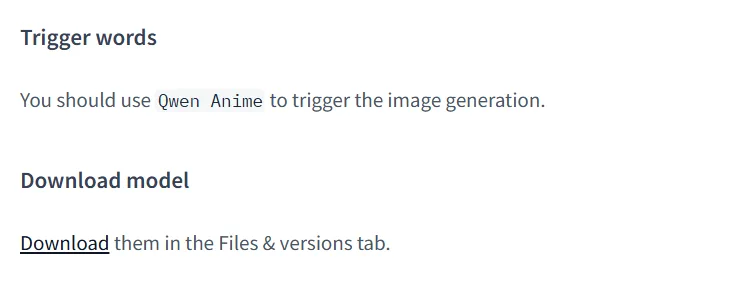
When writing your prompt, remember to include the LoRA’s trigger word whenever the model card requires one. You can usually find that information in the Hugging Face Model Card.
For instance, on the prithivMLmods/Qwen-Image-Anime-LoRA page, scroll down to the Model Card to find usage notes and the trigger word.
Step 4: Add the LoRA in WaveSpeedAI.
Next, configure the LoRA-related parameters in the WaveSpeedAI playground.
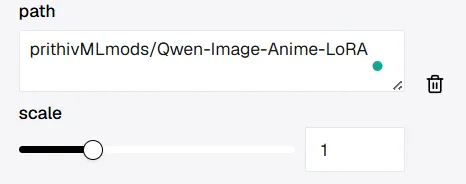
First is path. This tells WaveSpeedAI which LoRA file or repository to load.
Click + Add Item to reveal an input field. The qwen-image/text-to-image-lora pipeline allows adding up to three LoRA models.
If the LoRA is hosted on Hugging Face, WaveSpeedAI supports two common reference formats:
<owner>/<model-name>, using the repository path shown on the model page- The direct file URL, copied from Files and versions
Another method is to open Files and versions, right-click the download icon, choose Copy link address, and paste the copied URL into path.

If the author provides multiple LoRA variants, such as high-noise and low-noise versions, read the notes carefully and choose the one that matches your intended use case.
In the loras settings, the scale slider controls how strongly the LoRA influences the base model.
In most cases, the default value 1 works well. If the effect is too weak, increase it slightly. If the style becomes too strong or unstable, lower it a bit.
Seed controls randomness. When you reuse the same seed while changing the prompt, the overall composition tends to stay more consistent, which makes comparison easier.
Step 5: Run the LoRA.
At this point, the workflow is simple: add the trigger word to your prompt, set the LoRA path, keep scale at a reasonable starting value such as 1, optionally set a seed, and then click Run.
Here is an example of the kind of result you can generate after loading the LoRA:

LoRA on Civitai
Civitai is a creator-focused platform with a large number of shared LoRAs. It is especially useful when you want to browse by style, theme, or example output.
This workflow is similar to Hugging Face, but there is one important difference: on Civitai, you usually load the LoRA by direct URL, not by repository shorthand.
Step 1: Search for a compatible LoRA on Civitai.
The search workflow is similar to Hugging Face. Use the base model name, version, and parameter size together with the keyword LoRA to narrow the results, for example Wan 2.2 14B LoRA.
For example, if you want a style similar to Baldur’s Gate 3, you can look for a matching LoRA on Civitai and inspect its compatibility information carefully before using it.
Step 2: Read the model details before loading anything.
For LoRAs hosted on Civitai, WaveSpeedAI does not support the <owner>/<model-name> shortcut format.
Instead, you should use the direct URL of the LoRA file. That makes it especially important to confirm the model information before loading it.
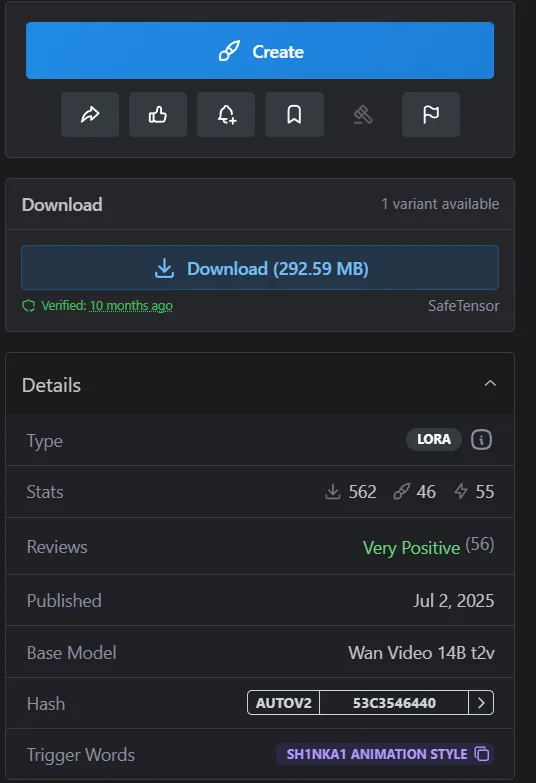
In the model card, focus on Base Model and Trigger Words first. In this example, the base model is Wan Video 14B t2v, and the trigger word is 3d render in bg artstyle.
Step 3: Open a compatible WaveSpeedAI model.
Open WaveSpeedAI and choose a compatible model such as wavespeed-ai/wan-2.1/t2v-720p-lora. You can also use other WaveSpeedAI models that support LoRA loading, such as wavespeed-ai/wan-2.1/i2v-720p-lora.
As with Hugging Face, you add the LoRA trigger word to the prompt and place the LoRA file URL in path.
Use scale to control how strongly the LoRA influences the base model. The default 1 is usually a good starting point. You can also use seed for comparison and reproducibility.
Some models also expose additional parameters, but WaveSpeedAI already provides practical defaults for most use cases.
If you want to refine the result further, you can adjust those settings. Just remember that higher values for parameters such as num_inference_steps usually increase generation time.
Step 4: Copy the correct download URL.
On Civitai, make sure you use the SafeTensor version of the LoRA whenever that option is available.
Then right-click Download, copy the link address, and use that URL in the WaveSpeedAI path field.
Step 5: Paste the URL into WaveSpeedAI and run the model.
In the playground of wavespeed-ai/wan-2.1/t2v-720p-lora, open the loras section, click + Add Item, paste the copied URL into path, add the trigger word to your prompt, and then run the model.
If you are not sure how to prompt a LoRA effectively, check the examples provided by the author. Civitai model pages often include prompts, settings, and output references.
Here, we copy the prompt from the author’s example to try generating our own game-style character.
The output may differ slightly from the author’s example, but that is normal. Start with the reference prompt, then refine the style, camera language, materials, or mood until the output fits your goal.
Conclusion
By this point, you have seen how to find LoRAs on Hugging Face and Civitai, check whether they match the correct base model, and use them on WaveSpeedAI.
LoRA does not replace taste or creativity, but it does give you more control once you know what you want. The better you get at choosing the right LoRA, matching it to the right model, and refining your prompts, the better your results will be.
Try a few examples, compare the outputs, and keep iterating. Once you get comfortable with the workflow, LoRA becomes one of the most practical ways to push your generations closer to your intended style.
Related Articles

Kling 4.0 Is Coming: What We Know, and How to Prepare on WaveSpeedAI

MiniMax H3 Now Makes Images: Text-to-Image and Image Edit APIs Live on WaveSpeedAI
Gemini Omni 1.1 Flash API on WaveSpeedAI: 360p to 4K, Video Edit and Reference-to-Video
Kling O3 4K Adds Video Edit and Video Reference
MiniMax H3 Adds Video Edit, Video Extend, and a 540p Tier