Web Interface
The complete guide to using WaveSpeedAI through the browser.
New to WaveSpeedAI? Start with Get Started with Web for a quick tutorial.
Platform Pages
Models
Models is your main workspace for AI generation.
Finding Models:
- Browse by category — Use the sidebar to filter (Text to Image, Image to Video, etc.)
- Search — Find models by name, provider, or capability
- Favorites — Click the star icon to save frequently used models
Image Generator
Image Generator provides a curated selection of the best AI image models — ideal if you’re not sure which model to use.
- Hand-picked top image models (Nano Banana, Seedream, GPT Image, FLUX, etc.)
- Text to Image and Image Editing
- No coding required — just enter a prompt and generate
Video Generator
Video Generator provides a curated selection of the best AI video models — ideal if you’re not sure which model to use.
- Hand-picked top video models (WAN, Seedance, Kling, Veo, etc.)
- Text to Video and Image to Video
- Some models generate synchronized audio automatically
LLM
LLM provides a chat interface for large language models:
- Chat with leading LLMs (GPT, Claude, etc.)
- Vision support for image understanding
- Conversation history
History
History shows all your generation history:
- Generated media files are temporary and generally available for up to 7 days
- Click any item to view details
- Download outputs before they expire
- Copy task ID for support requests
- Use Show API requests when available to inspect the request body for a web-generated task
Templates
Templates helps you start from ready-to-run prompts and model setups:
- Browse popular image, video, and workflow templates
- Open a template in the playground and adjust the prompt or parameters
- Discover practical model combinations for common creative tasks
Tools and Apps
Tools and app pages package common creative workflows into simpler interfaces. They are useful for quick web usage, but developers should still use the selected model page, API tab, and schema when building an integration. The API examples show the underlying model endpoint and exact request body for the current settings.
Model Page Features
Tabs
| Tab | Description |
|---|---|
| Playground | Configure parameters and run the model |
| JSON | View your input as JSON (useful for API integration) |
| API | Get ready-to-use code in cURL, Python, JavaScript |
| History | View your previous generations for this model |
Model README
Important: Every model has a README at the bottom of the page. Read it before using the model.
The README is located directly below the Playground on each model page — scroll down past the generation interface to find it:
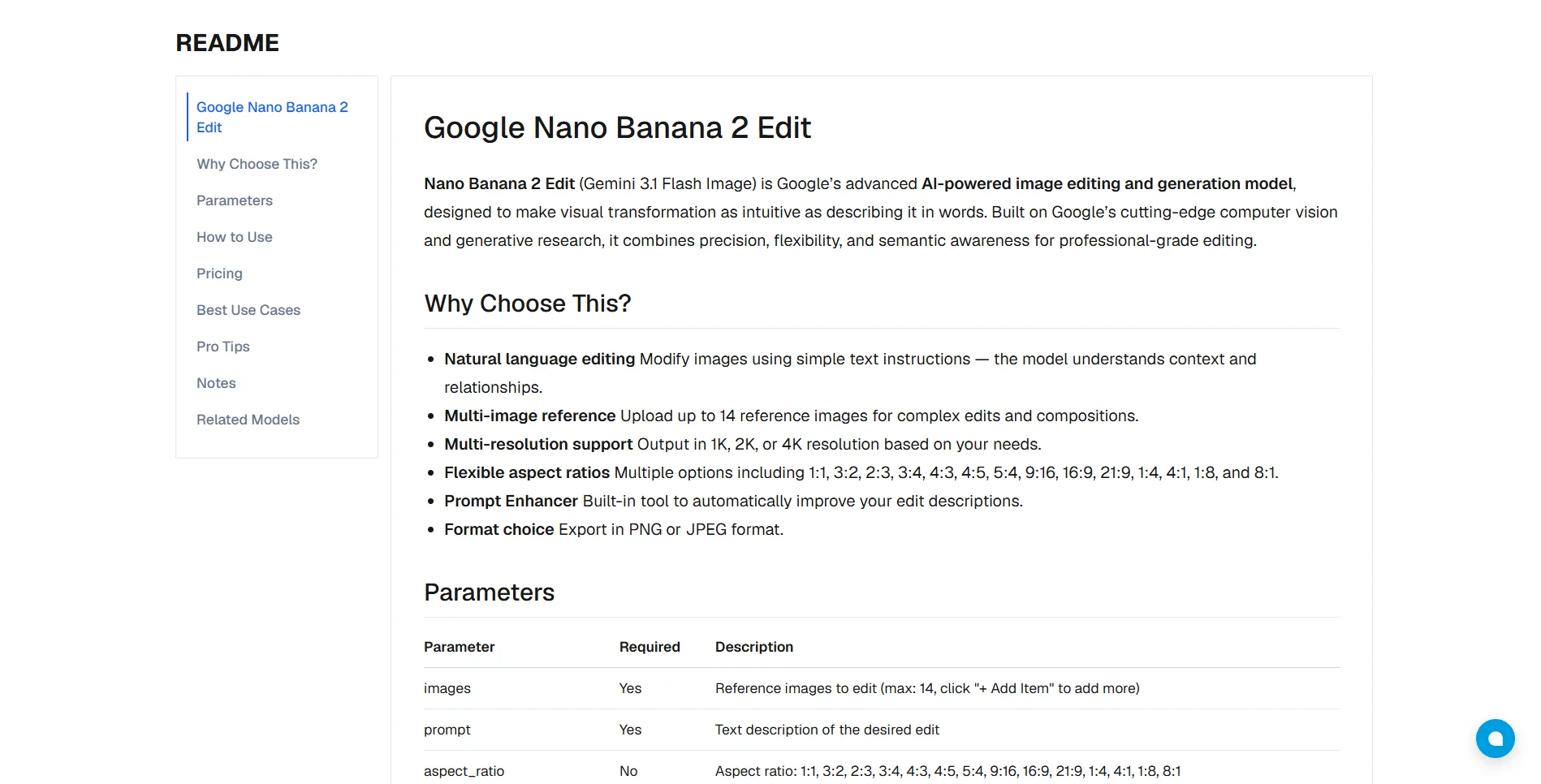
The README contains:
- What the model does
- Required and optional parameters
- Input format requirements (image size, file type, etc.)
- Tips for best results
- Pricing information
- Known limitations
Skipping the README often leads to failed generations or unexpected results.
Schema
Click Schema in the toolbar to see:
- All available input parameters
- Parameter types and constraints
- Default values
- Output format
LLM Selector
Some models support multiple LLM backends. Use the LLMs dropdown to switch between them.
Generation Options
Prompt Enhancer
Automatically improves your prompt for better results. Click the magic wand icon next to the prompt input.
Cost: $0.001 per use
Batch Mode
Generate multiple outputs at once:
- Toggle Batch Mode on
- Set the number of outputs (2-16)
- Each output is an independent generation, so results vary
- Billing is per output generated
Safety Checker
Content moderation filter that screens outputs. Enabled by default on the web interface to ensure compliance with content policies.
Settings
Language
WaveSpeedAI supports multiple languages. Find the language selector in the top navigation bar:
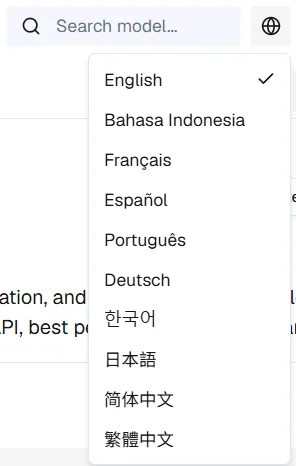
Supported languages: English, 中文, 日本語, 한국어, Español, Français, Deutsch, and more.
Theme
Switch between light, dark, or system theme in Settings.
Tips for Best Results
| Tip | Why |
|---|---|
| Read the model README | Understand requirements and avoid failed generations |
| Start with defaults | Default parameters are optimized for best results |
| Test with batch size 1 | Refine your prompt before generating multiples |
| Use Prompt Enhancer | Especially helpful for image generation |
| Check parameter limits | Some models have specific size or format requirements |
| Save to favorites | Quick access to models you use often |
Keyboard Shortcuts
| Shortcut | Action |
|---|---|
Ctrl/Cmd + Enter | Run generation |
Escape | Cancel current operation |
Next Steps
- How to Write Better Prompts — Improve your results
- How to Choose the Right Model — Find the best model
- Get Started with API — Automate with the API