
Text-to-3D Tutorial: Make One Textured Prop
Text to 3D tutorial for one textured prop: write a constrained brief, generate the asset, and inspect its scale and materials.
A text to 3d tutorial can look finished when a model spins in a browser. I would stop one step later: when the downloaded file opens elsewhere and still matches the brief. The task here is one squat oak barrel for a dockside scene. Its shape, two raised metal hoops, and two materials give us clear things to inspect.
This walkthrough uses Tripo P2 on WaveSpeedAI. I checked its public documentation on October 16, 2026. I have not run the barrel prompt. The file audit below examines a separate public sample, clearly labeled as such.
What Should the First Text-to-3D Asset Be?
A Single Prop with a Clear Silhouette
Your first text to 3d model should be something you can describe without inventing a scene. A barrel has a clear outline, closed top, and bands that should wrap around its body. A character or vehicle adds joints and competing materials before you have learned what one prompt can control.
The goal is a viewable starting asset, not a game-ready promise. Acceptance means the downloaded model opens, reads as a barrel from a distance, retains wood and metal, and has no obvious holes. Collision, UV packing, and engine performance belong to a later handoff.
Write the Asset Brief
Shape, Material, and Intended Use
Write the brief as if another artist had to check the result. “Beautiful fantasy barrel” gives them nothing to verify. Name its proportions, modeled parts, materials, and intended use.
Copy this 3d asset prompt:
A single squat oak barrel for a dockside game prototype. Wider at the middle than at the top and bottom. Flat closed wooden top. Two raised dark iron hoops wrapping around the body, one near the top and one near the bottom. Weathered brown wood with visible grain; dull, lightly worn metal. No label, lettering, ropes, base, ground, or other objects. Keep the silhouette readable from the front, side, and three-quarter view.
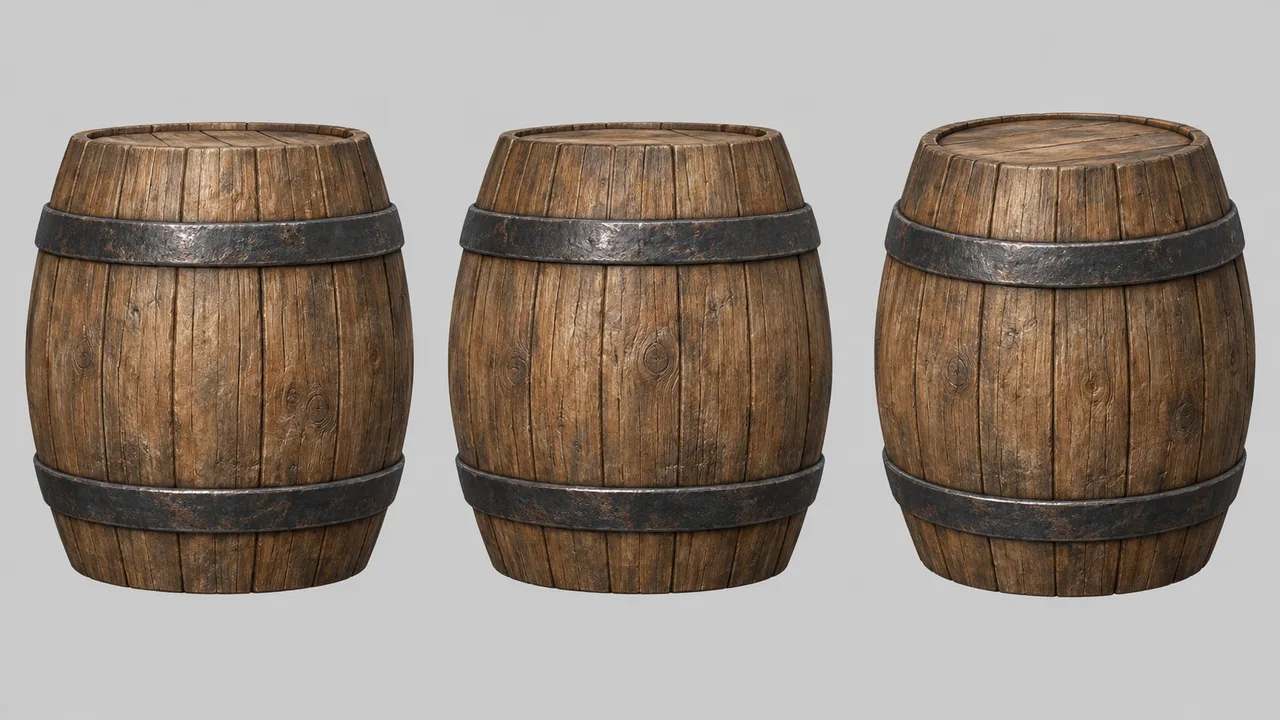
“Raised” matters. Dark stripes painted into the texture fail the shape brief, even if the front view convinces. The dockside context explains the wear without asking for a dock. An intended height of 0.8 metres is a downstream check, not a claim that the prompt sets exact units.
Set three pass conditions: barrel silhouette, raised hoops, and intact wood and metal in the downloaded file. Put geometry before decorative adjectives; the first prompt needs something you can judge.
Generate the Prop on WaveSpeed
Select a Current Text-to-3D Model
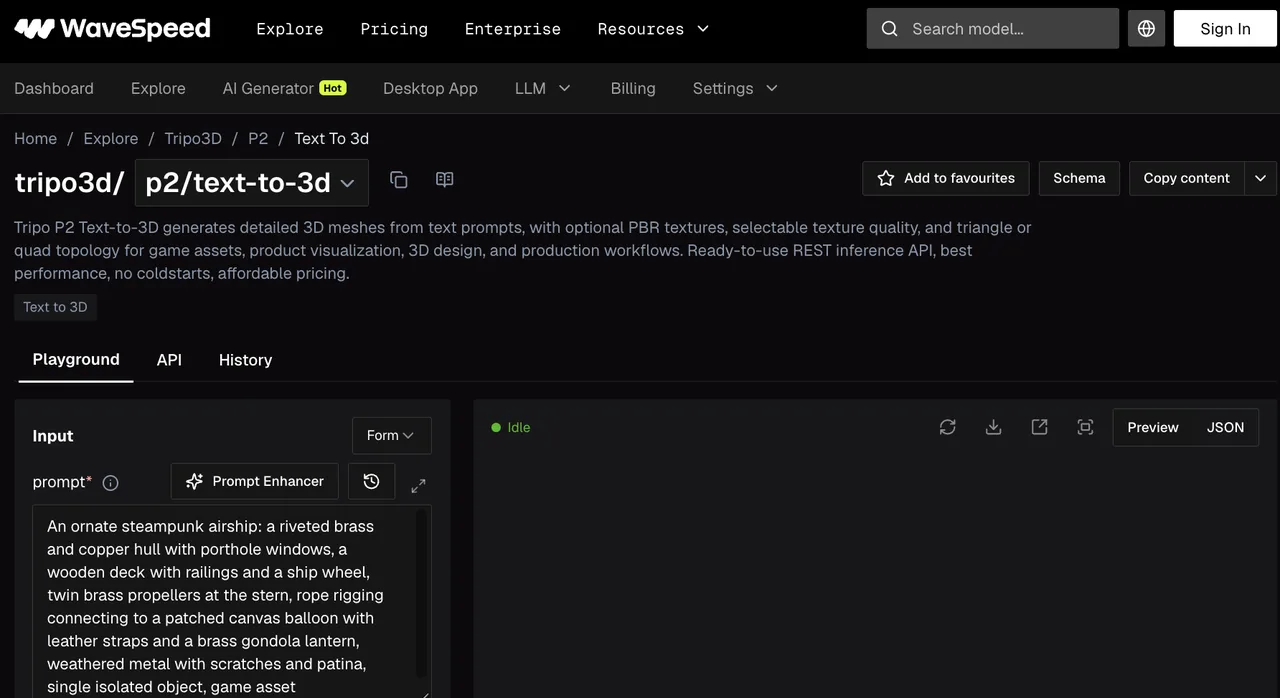
Open the Tripo P2 text-to-3D model page. Tripo3D provides the model; WaveSpeedAI provides the access route. Confirm availability when you run it.
The current page exposes prompt, negative_prompt, texture, PBR, topology, UV, scaling, orientation, and seed controls. It has no output-format selector, so the actual download decides your import step. Check the route documentation for current defaults.
Save the Prompt and Available Settings
Paste the brief into prompt. Leave negative_prompt empty on this pass. Keep texture and pbr on, choose standard texture quality, keep quad off, and leave face limit, orientation, and seeds unset. Confirm these values in the playground. Keep Prompt Enhancer off so the submitted wording stays intact.
| Input to record | Value for this pass |
|---|---|
| Route | tripo3d/p2/text-to-3d |
| Prompt | The barrel brief above |
| negative_prompt | Empty |
| texture, pbr, texture_quality | true, true, standard |
| quad, auto_size, export_uv | false, false, true |
| Face limit, orientation, seeds | Unset |
These are proposed inputs, not the results of a completed prediction. Capture the actual submitted values in your run record, especially if the interface defaults have changed.
Before Generate, save the date, route ID, prompt, visible settings, and cost estimate. Afterward, add the prediction ID, charge, file name, and format. Keep screenshots of the settings and preview. One person can remember parameters. A team cannot.
On the next run, change one variable. If the hoops fail, adjust their shape instruction. If only the wood fails, keep geometry settings stable and revise the material description.
Inspect Geometry, Texture, and Scale
What the Viewer Shows and What It Misses
Rotate the barrel before downloading. Check the side, closed top, and lower edge. Look at the hoops obliquely: do they have shape, or are they dark bands in the texture? If one disappears at the back, record that. “Looks wrong” will not guide a revision.
Wood grain should follow the body; metal should look different. Excess gloss may be a material problem rather than a geometry problem. Zoom out to the barrel’s intended size in the scene. Tiny details may not matter for a background prop.
The viewer can hide gaps, fake depth with texture, and obscure scale. Record observations under silhouette, geometry, texture, and scale. Mark each pass, revise, or clean up externally.
Test the Downloaded File Outside WaveSpeed
Open the File in a Second Viewer
Download the result promptly. Keep the local file alongside the prompt and run record; a history entry is not your asset archive.
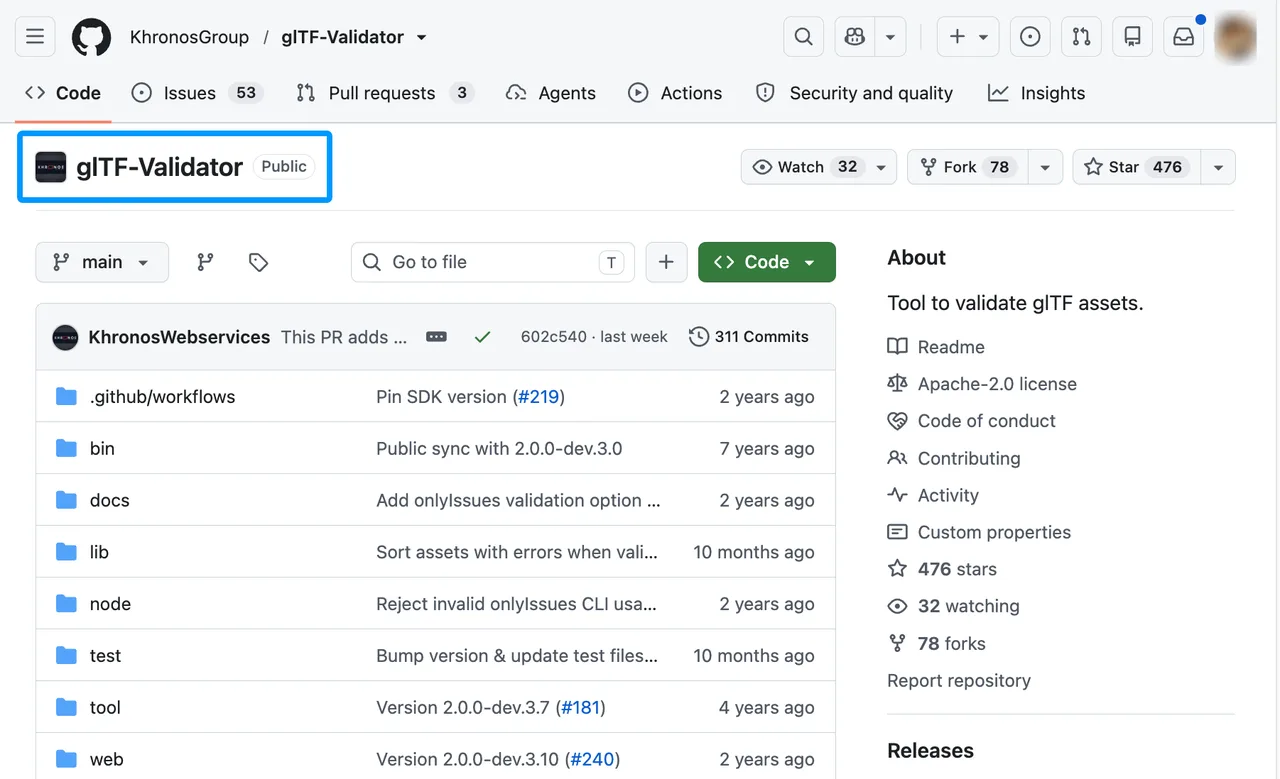
In a text to 3d tutorial, the file handoff deserves as much attention as the prompt. Open the download in Blender or another compatible viewer. For a GLB model workflow, import .glb; for FBX, use an FBX-capable importer. The Khronos glTF Validator checks GLB structure and resources. A valid file can still be the wrong barrel.
Check the same views. Does the texture survive? Are the hoops geometry? Are faces missing or the barrel sideways? Measure imported height against 0.8 metres. If it needs a transform, record it; do not call the scale correct.
Record Differences Between the Preview and the File
Here is a limited acceptance record from October 16, 2026. It concerns the P2 page’s published chess-king GLB sample, not a barrel generation.
| Check | Observation |
|---|---|
| Page preview | A white-and-gold king, crown, scepter, and round base were visible in the side view. |
| Download | A 3,421,712-byte GLB; its header and JSON chunk opened. |
| File structure | One scene, one node, one mesh, one material, UV coordinates, three embedded images, and 5,277 indexed triangles. |
| Editable parts | Crown, scepter, and base are not separate mesh objects in this sample. |
| Second-viewer appearance | Unverified; the structural check does not prove visual parity after import. |
That last row is a useful result too. A parser can confirm what is in the container; someone still has to open it and look. Nor does this public sample predict how a new barrel will behave.
For your barrel, record preview and download separately. A useful failure note is: “Back hoop becomes a dark stripe; file opens but fails the shape brief.” Only write an observed result from your own file. A textured 3d prop completes this tutorial when its delivered file passes the stated checks, even if game-specific work remains.
Revise the Brief or Move to External Cleanup?
If the barrel has three hoops, a floating handle, or the wrong overall shape, revise the brief and regenerate. Change one phrase, keep other settings, and compare files. Do not switch models yet. Look at the workflow first.
If silhouette and materials pass but the asset needs rotation, scaling, or a small repair, use external cleanup. Save the untouched file first. If texture is missing on import, check the format and material setup. A prettier prompt will not repair a broken handoff.
Stop if you need guaranteed separate parts, exact dimensions, or engine-ready topology. A good single output does not mean the production workflow is ready. One viewable barrel with an acceptance record is enough here.
FAQ
Does the chosen model accept a negative prompt?
Yes. The current Tripo P2 route exposes an optional negative_prompt field, limited to 255 characters. It can name unwanted features, but it cannot guarantee their absence. Check the current schema before carrying that field to another model.
Can a generated prop include separately editable parts?
It might, but P2’s public field list does not promise component separation. One combined mesh can be edited manually, yet its lid or hoop will not arrive as a separately selectable object. Inspect the scene graph in your DCC tool before promising independent parts to a client.
Which output file formats are available for this model?
WaveSpeed’s current P2 documentation says the output may be GLB or FBX and exposes no format selector. Check the actual returned file extension. Do not write a GLB-only import procedure into a team handoff until your run produces one.
Can the same prompt produce an identical asset twice?
The route exposes separate geometry, texture, and image seeds, which help control comparisons. The documentation does not promise byte-identical output from the same prompt. Save the model route, all exposed seeds, settings, and original file if repeatability matters. Do not discard a usable asset on the assumption that you can summon it again later.
What rights apply to the generated prop in a client game?
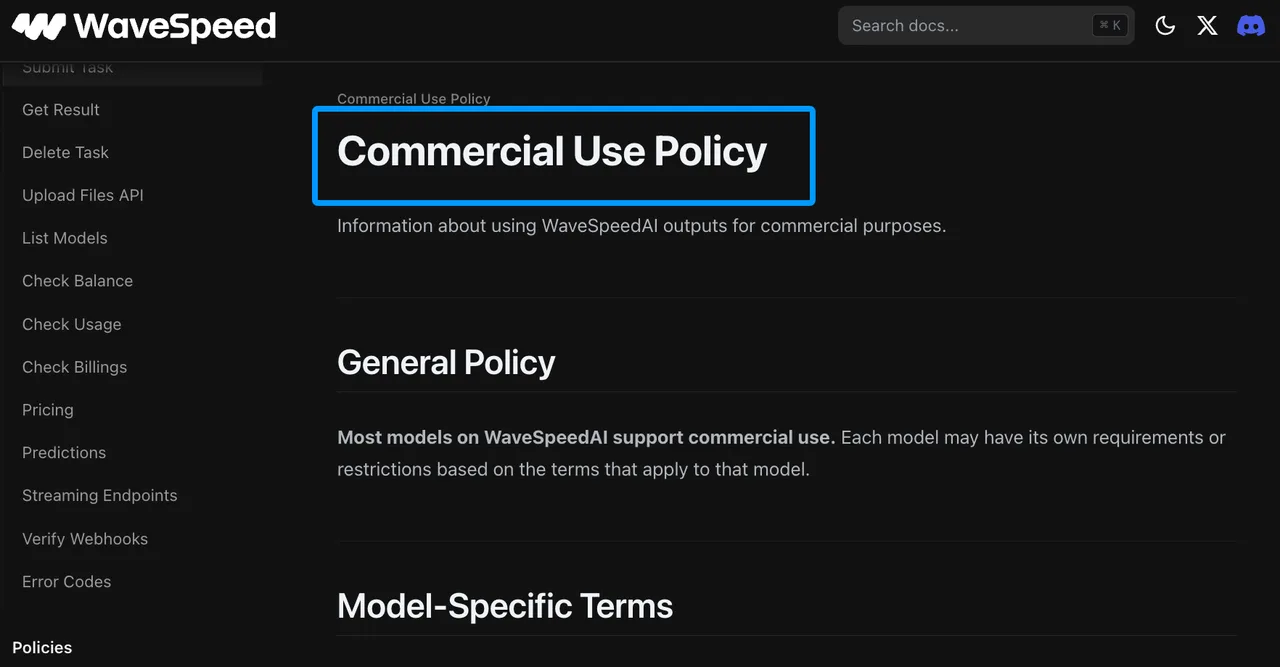
WaveSpeed’s commercial-use policy says the specific model and provider terms govern. Tripo’s terms distinguish free and paid users on Tripo’s own service, but those categories do not by themselves explain every WaveSpeed billing route. Check the terms in force for this exact route, confirm any provider permissions with WaveSpeed or Tripo, and clear any source designs, logos, or characters you supplied. This is general information, not legal advice.
The next step is small: run the printed brief once, download the file, and complete the preview-to-file record before changing the prompt. That is where this text to 3d tutorial becomes evidence instead of a nice-looking spinner.
Previous posts:
/filters:quality(82)/media/images/43fa0e7f-a0db-48d7-9bab-921d1225db30.webp)
/filters:quality(82)/media/images/7a8850fc-caf6-482f-ac4d-5ddbe64ec47c.webp)
/filters:quality(82)/media/images/64b08aeb-92bb-48b8-924c-2e2535731f28.webp)
/filters:quality(82)/media/images/6cd1ca63-9e7e-493b-8a68-97bad82fb7b4.webp)
/filters:quality(82)/media/images/567077af-c3bd-4701-ba96-1b981a515d79.webp)
/filters:quality(82)/media/images/1773962750383987480_n3hqzHRZ.webp)