
Best AI Video Denoising Tools in 2027
Best AI video denoising tools: compare detail retention, temporal artifacts, local or cloud workflow, and cost per usable clip.

A repair queue mixes low-light interviews, compressed uploads, and AI-generated inserts. One preview looks clean. Then the batch reaches the editor: a logo has softened, shadows pulse, and no one knows which preset produced the file. That is the production problem behind the best AI video denoising tools. The choice is not the smoothest frame; it is a repeatable route to usable clips.
This compares three desktop routes and one cloud service, without claiming hands-on results.
How We Evaluated Video Denoising
Low-Light Grain, Compression Noise, and Detail Retention
Before choosing an AI video denoiser, I would assemble licensed low-light footage, a compressed clip, and an AI-generated shot with unstable texture. Keep originals and failed renders for later diagnosis. This cannot be judged by feeling. It needs a sample run.
Mark details that must survive: hair, fabric, lettering, and shadows. Inspect at normal speed and 100% scale. Less noise is not a win if a logo softens or skin looks synthetic. Film grain, sensor noise, and compression blocks need different treatment.
VideoProc used its own footage and hardware for its comparison. Its results cannot predict performance on your library; we have not run these four products against a shared test set.
Temporal Stability, Batch Throughput, and Cost per Usable Clip
Inspect consecutive frames. Temporal denoising software can clean a still yet trail moving hands or hair. Record shadow flicker, disappearing detail, and lagging edges. Define rejection rules beforehand, such as unreadable text or smeared faces.
Log ingest, queue or render, review, corrections, and failures. Cost per usable clip equals software or credit spend plus operator and rerender time, divided by accepted clips. For an editor you already own, count incremental work and capacity. A low unit price means little when rejected clips must be processed again.
Use identical excerpts and record resolution, codec, and mode. A faster export may simply do less work.
1. Topaz Video for Local Denoising

Denoise Controls and Output Quality
Topaz Video’s Denoise documentation separates enhancement-oriented Nyx models from a dedicated Nyx High-Fidelity filter. The latter removes grain without scaling or sharpening, but has no adjustable model properties. That suits clean plates better than shots needing fine strength control.
“Extract noise on export” produces a TIFF noise-map sequence for review or regrain. It does not mean every Topaz model exports a map or preserves metadata.
I would compare dedicated Denoise with Nyx enhancement on one plate before giving either to VFX. If sharpening changes fine edges, label the result enhancement—not pure denoising—so the next artist knows what changed.
Hardware and Workflow Limits
Topaz Video renders locally on Mac or PC, with optional cloud processing. Local work avoids uploading footage but occupies a workstation. If that machine also handles finishing, the question is whether the queue delays delivery. Check GPU, memory, operating-system, and model requirements on the machines that will actually run it.
Topaz has an export queue; concurrency depends on hardware and plan. Check seat terms. Count machine occupancy and any cloud credits.
2. DaVinci Resolve Studio for Timeline Denoising
Noise Reduction in an Editing Pipeline
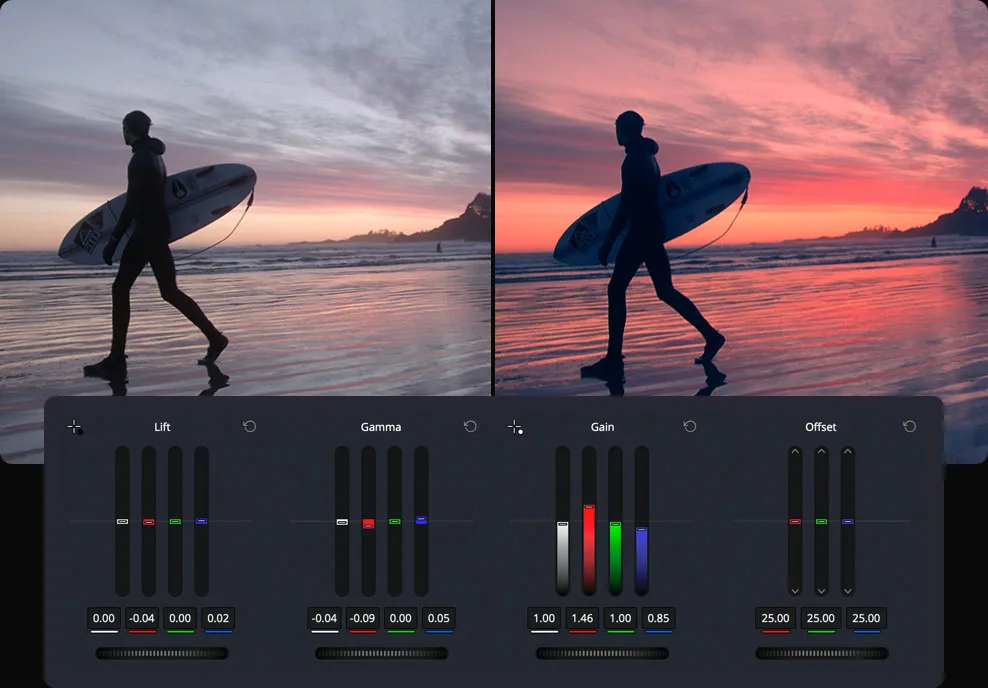
Blackmagic’s Resolve color guidance places temporal and spatial noise reduction on the Color page. Temporal processing compares frames; spatial processing works within a frame. Studio also offers AI-assisted options. For footage already graded in Resolve, denoising stays inside the edit.
For a team already finishing in Resolve, I would keep denoising in the grade until an external pass proves worth the handoff. A dim interview, underexposed cutaway, and clean product shot should not share one strength setting. Keep each treatment identifiable, review before sharpening, and compare source and export under the same color management.
Check texture across cuts; a spotless insert between grainy shots may still fail review.
Learning Curve and Render Cost
The free Resolve edition lacks Studio’s documented advanced noise reduction. Studio is paid and assumes competence with nodes, scopes, and delivery settings. Heavy temporal processing can slow playback and exports or compete with other GPU work.
This fits teams already finishing in Resolve. Test a representative timeline before estimating throughput.
3. AVCLabs Video Enhancer AI for Guided Processing

Presets and Output Assessment
The AVCLabs user guide documents a Denoise model, presets, and desktop batch processing. Teams can import multiple files and share settings without building a full grading pipeline.
For a fast route to remove noise from video, AVCLabs reduces setup, but the preset still needs a rejection test. Preview motion, a face, and fine text. Compare Denoise with broader presets separately: combining upscale, face treatment, and color changes hides which operation damaged a frame. Save the chosen preset; batch only after the worst source type passes.
Control and Batch Limits
“Apply to all” can spread one bad setting through a library. For batch video denoising, group low-light, compressed, and AI-generated clips. Check operating-system model availability, output codecs, and workstation licensing.
Save one preset per source group; approve a short sample before the full queue.
Do not transfer AVCLabs cloud prices or retention terms to this desktop route. Record each file’s model, preset, and export settings.
4. TensorPix for Cloud Denoising
Upload-to-Export Workflow
TensorPix’s Video Enhancer guide describes upload, AI Denoise selection, processing, and download. Cloud work frees local GPUs, provided footage is approved for external processing.
Cloud moves the bottleneck from the local GPU to transfer, queue, and retrieval. Test a long file over the team’s real connection; log each phase separately. Check plan concurrency, credits, codecs, and preview limits before promising a finishing format.
Inspect completed files while other jobs run.
Privacy and Processing Trade-Offs
Cloud denoising crosses your storage boundary. Secure upload rights and keep your original. TensorPix’s plan comparison lists different retention terms: a limited plan has a stated deletion period, while paid tiers may keep files until manual deletion. Neither establishes a configurable team deletion schedule.
For sensitive footage, verify deletion controls before upload. Undocumented retention is not a guarantee.

Build a Reversible Denoise Handoff
Keep the Source, Clean Master, and Grain Evidence Separate
A finished file should not overwrite its source. Give each clip a stable ID and preserve the licensed original, denoised master, settings, and a failed example when it explains a rejection. The denoise pass is only half the job; the handoff decides whether anyone can revise it. If grain is intentional, note its target texture. A smooth plate may serve compositing but fail in the final cut.
Topaz’s documented noise-map TIFF export is one possible handoff asset; no equivalent was confirmed in the official material reviewed for the other three products. Where no map exists, keep the original alongside the clean version so the finishing team can compare or redo the treatment. Do not present a simple difference blend as an extracted, production-ready grain pass without checking it.
Check Timeline and Mastering Data Before Batch Approval
Put sample exports back into the actual project. Compare first and last frames, duration, sync, color, black levels, and moving edges. Inspect embedded timecode and HDR mastering metadata with your normal media-inspection tools; a preview that looks correct does not establish that those fields survived a new encode.
Set a batch release gate: source ID matches, visual checks pass, technical fields meet delivery requirements, and a reviewer signs off. Keep a way to rerun the chosen settings. One person can remember which preset fixed a clip. A team cannot.
Store the decision with the shot, not in chat. If the next editor cannot identify its source and treatment, the batch is unfinished.
Choose a Denoiser by Source Footage
Film Grain, Sensor Noise, and Compressed AI Clips Need Different Tests
Video grain reduction is a creative decision: if grain is intentional, try a restrained clean plate and plan how texture returns. For low-light sensor noise, examine faces and shadows in motion. For compressed or AI-generated clips, watch for blocking, ringing, and texture that changes between frames; these may not respond like camera noise. Use the same authorized sources for each candidate, but allow different settings when their controls differ. Document those differences.
Choose the path that clears the acceptance gate with the least total work. I would use a local Topaz queue when footage must stay on-site and machines have capacity; Resolve when the grade is already the handoff; AVCLabs for well-grouped preset work; TensorPix only when cloud processing is approved. These are workflow fits, not measured winners.
When the Broader Video Enhancement Guide Is a Better Starting Point
If the problem is blur, low resolution, stabilization, or frame-rate repair, start with a broader enhancement workflow. Denoising cannot restore absent detail. More processing may make a compressed clip look cleaner while moving it farther from the source. Diagnose first; add only the operation delivery needs.
FAQ
Can denoised exports preserve embedded timecode?
Possibly, but do not assume every tool or codec retains it. An on-screen timecode display is not proof of embedded metadata. Inspect a sample export and, if required, conform it against the original timeline before batching.
Which tools let you export a noise map for compositing?
Topaz documents a TIFF noise-map sequence through “Extract noise on export” in its dedicated Denoise filter. Comparable exports were not confirmed in the official documentation reviewed for Resolve, AVCLabs, or TensorPix. Verify your exact version before promising a noise pass.
Can a failed cloud denoise job resume without another upload?
No checkpoint-style resume guarantee was confirmed. TensorPix advises canceling and restarting stuck processing jobs; whether a saved uploaded source can be reused should be checked in the account and current support guidance. Keep your own source copy and budget for retry time.
What happens to HDR mastering metadata after denoising?
There is no safe cross-tool answer. A new encode may retain, change, or omit technical metadata depending on export settings and format. Inspect transfer characteristics, color primaries, and mastering tags in the exported file; compare the picture on an appropriate HDR monitor before delivery. Treat the new render as a fresh deliverable, not a metadata-preserving copy of the camera original.
Can teams set automatic deletion of uploaded source footage?
Do not assume a configurable deletion timer exists. TensorPix publishes plan-dependent retention and manual deletion options, but the reviewed material did not establish a team-set automatic schedule. For confidential footage, obtain the exact retention terms and deletion process before upload.
Conclusion
The best AI video denoising tools are not interchangeable cleanup buttons. Before buying or queuing the full library, run three authorized source types through one candidate route and record accepted clips, rework, and handoff failures. Keep originals separate; check the export in the actual timeline. If that route cannot preserve the delivery requirements, do not scale it, even when its preview looks cleaner.
Previous posts:
/filters:quality(82)/media/images/64b08aeb-92bb-48b8-924c-2e2535731f28.webp)
/filters:quality(82)/media/images/6cd1ca63-9e7e-493b-8a68-97bad82fb7b4.webp)
/filters:quality(82)/media/images/567077af-c3bd-4701-ba96-1b981a515d79.webp)
/filters:quality(82)/media/images/1773962750383987480_n3hqzHRZ.webp)
/filters:quality(82)/media/images/1ecd59e5-56e4-434d-ae06-c414860b29b8.webp)
/filters:quality(82)/media/images/b38eb9e7-de41-4a05-8e79-5e280c4a0c36.webp)