
Best AI Video Enhancement Tools 2026
Best AI video enhancement tools 2026: compare upscaling, denoising, interpolation, restoration, hardware, throughput, and usable cost.
An AI video enhancer can sharpen a jacket zipper by inventing teeth that were never there. For a restoration team, that is a provenance problem.
I paused here while reviewing the best AI video enhancement tools 2026 candidates. Sharper is easy to demonstrate; faithful is harder to prove. This is a documentation audit and reproducible evaluation plan, not a claim that I rendered a private library through all six products. Product, pricing, hardware, and policy details were verified on October 1, 2026. Recheck them quarterly and before purchase.
The practical question is not which demo looks most dramatic. It is which tool produces an acceptable master from a known defect, at a cost and review burden the team can sustain.
How We Evaluated AI Video Enhancement Tools
Upscaling, Denoising, Interpolation, Artifact Control, and Export
Use four owned 20-second clips: a noisy low-light face, a heavily compressed product shot containing small text, a 480p archival scene, and a 24 fps fast pan with an abrupt cut. Keep the source hashes, trim points, target resolution, codec, bitrate, and output frame rate fixed.
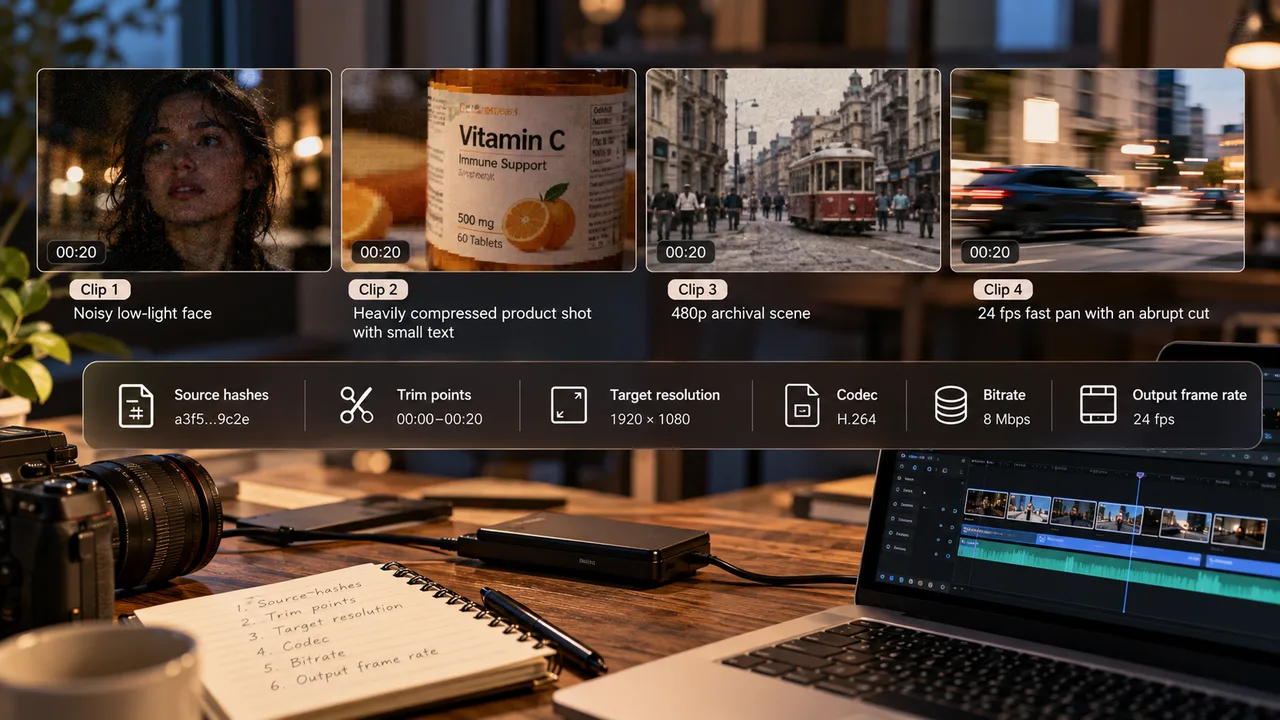
For every run, inspect still frames and motion. Score recovered detail separately from invented detail. Look for waxy skin, false lettering, halos, shimmer, repeated texture, warped hands, and blended frames across cuts. Compare against a conventional baseline. Vendor reels are demonstrations, not controlled evidence.
Record container, codec, bit depth, audio handling, frame count, timestamps, color primaries, transfer characteristics, and mastering metadata with ffprobe or MediaInfo.
| Evidence to record | Acceptance check |
|---|---|
| Visual result | No new identity, text, or scene-cut error at normal playback |
| Temporal result | No flicker, ghosting, cadence break, or audio drift |
| Operation | Render time, crash, retry, queue time, and manual intervention |
| Export | Opens in the target NLE and preserves required technical metadata |
| Cost | License, compute, storage, retry, and reviewer minutes per accepted minute |
Hardware, Throughput, Privacy, and Cost per Processed Minute
Calculate local cost as **(license allocation + hardware depreciation + electricity + operator time) / accepted output minutes**. Cloud cost adds credits, upload time, storage, egress, and rejected jobs. Keep wall-clock and machine time separate; an unattended overnight render may beat a faster job requiring constant tuning.
Local processing limits media exposure, although activation and model downloads may need a network. Cloud processing removes GPU ownership but creates retention and deletion work. “Best” below means documented workflow fit pending the fixed-clip test.
-
Topaz Video AI — Best for Local Professional Enhancement
Best Use Case and Workflow
Topaz now documents the product as Topaz Video. It fits editors wanting previews, model controls, queues, denoising, deblurring, stabilization, interpolation, and SDR-to-HDR in one local workflow. Import the master, preview short ranges conservatively, compare models, then export a mezzanine codec.
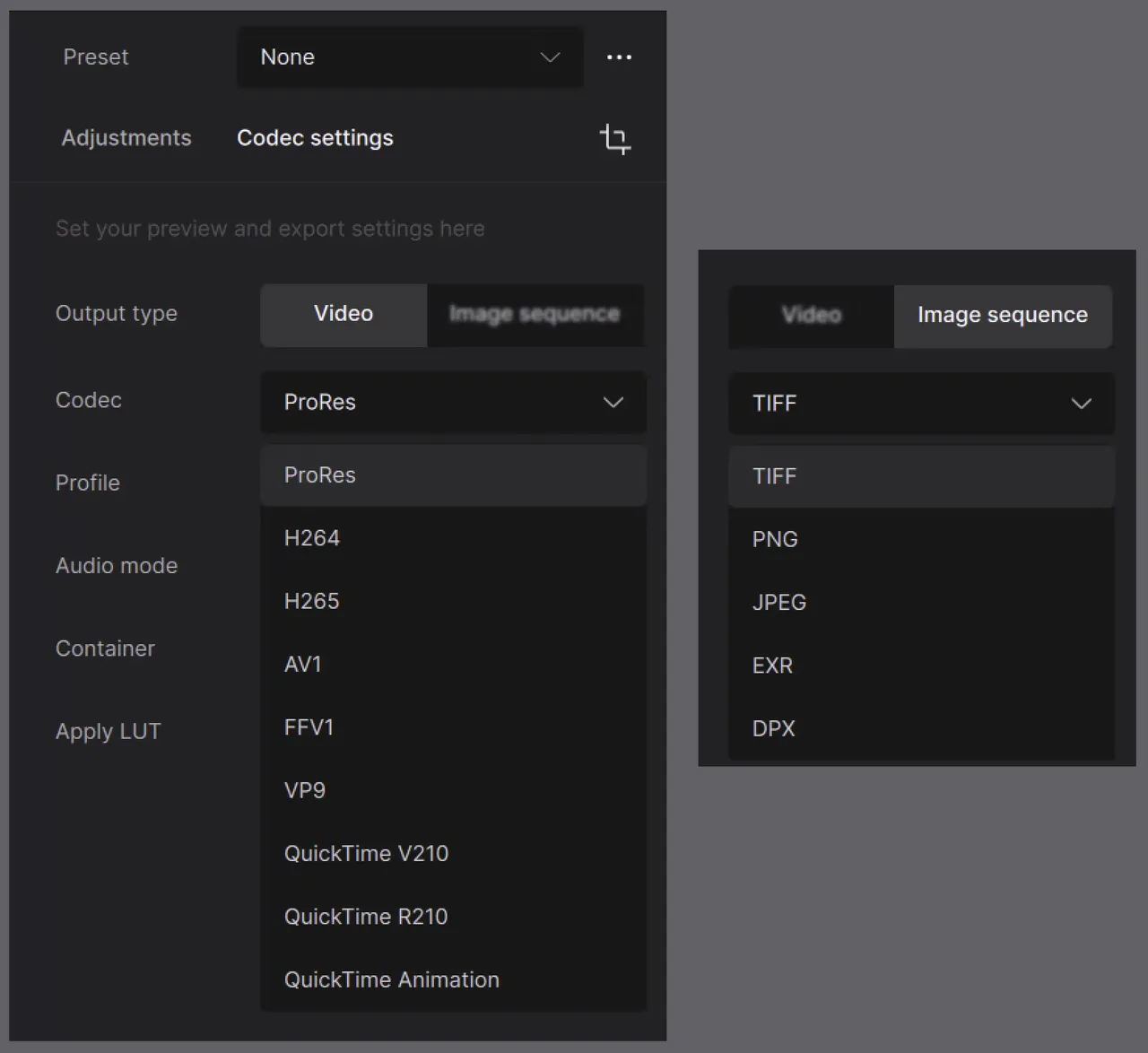
Its supported formats and encoders include ProRes, H.265 Main10, FFV1, image sequences, and high-bit-depth options. That breadth matters when footage must return to an NLE or archive.
Key Limits and Hardware Cost
The current system requirements start at 16 GB RAM and 45 GB storage; several models need 8 GB VRAM, while generative models may need more. Intel Macs, virtual machines, eGPUs, and Linux are unsupported. A $299 annual personal subscription was listed, but capable GPU hardware can dominate sustained-batch cost. Cloud rendering uses separate credits and changes the privacy boundary.
-
VideoProc Converter AI — Best for Accessible Desktop Processing
Best Use Case and Workflow
VideoProc fits teams needing an AI video upscaler beside conversion, stabilization, interpolation, compression, and audio utilities. Repair one clip, inspect the preview, then normalize its codec and delivery dimensions in the same desktop app.
Its official technical specifications document Windows and macOS support, Apple Silicon acceleration, and GPU paths using DirectML, TensorRT, Vulkan, or CoreML depending on the feature. Its interpolation workflow also exposes scene-change detection and sensitivity, a useful control for the motion test.
Key Limits and Hardware Cost
“Accessible” describes setup, not guaranteed speed. AI models need compatible drivers and throughput varies by GPU. Gen Detail may aid perceptual reconstruction, but generated texture fails a documentary test when it alters text, faces, or products. Annual and lifetime licenses were offered, with promotional pricing too volatile for a durable assumption.
-
AVCLabs Video Enhancer AI — Best for Guided Restoration Presets
Best Use Case and Workflow
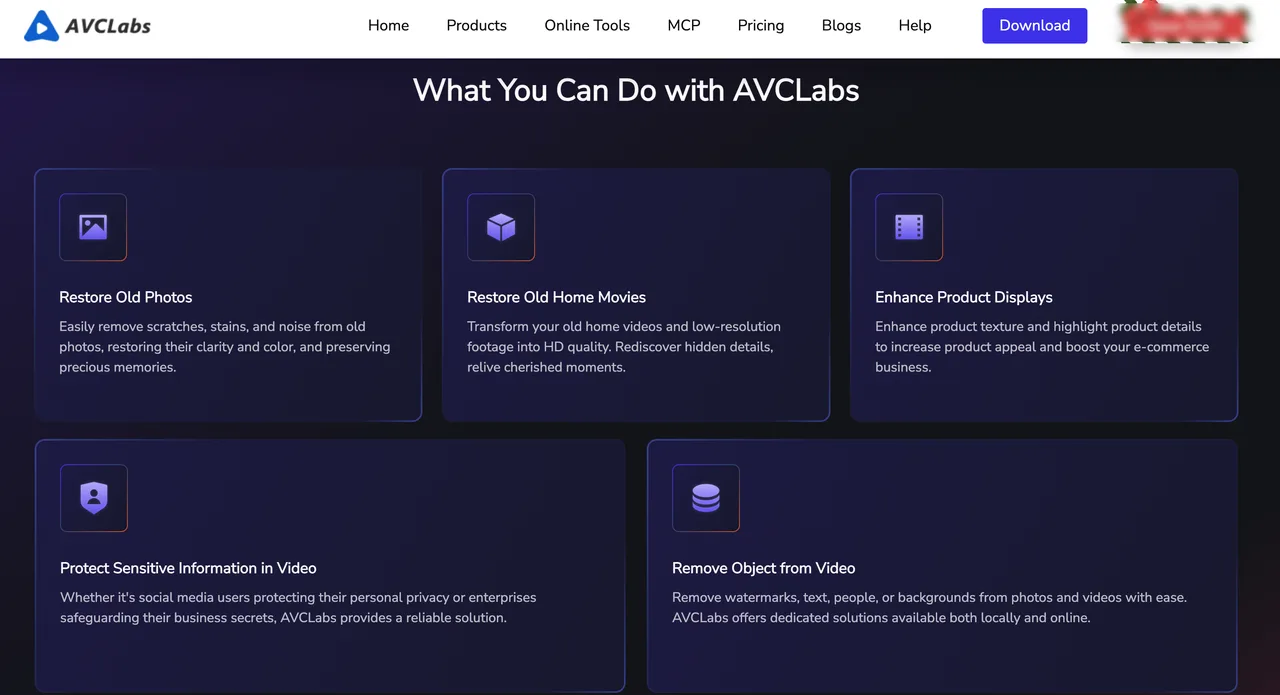
AVCLabs fits operators preferring presets for old footage, faces, animation, denoising, colorization, interpolation, and SDR-to-HDR. Start with one defect and one model. The workflow guide warns that stacking features increases processing time. Isolate each intervention before judging it.
Batch import and presets suit repeated archival work. Some multi-frame models are Windows-only, a material cross-platform limit.
Key Limits and Hardware Cost
Recommended specifications call for 16 GB RAM, 8 GB VRAM on Windows, and 20 GB storage; macOS requires Apple Silicon. Weaker hardware means slower processing. Project auto-save protects settings, not necessarily partial renders. The listed monthly price was $39.95; recalculate yearly and lifetime offers against batch volume.
-
HitPaw VikPea — Best for Fast Consumer Restoration
Best Use Case and Workflow
VikPea suits a small desk wanting guided models for denoising, faces, low light, color, stabilization, and 2x or 4x interpolation. Choose the defect-specific model, preview a difficult section, batch the treatment, then export locally. Its interface guide distinguishes local from cloud export.
This is “fast” in interaction design, not a measured claim that every render beats the other tools.
Key Limits and Hardware Cost
Windows guidance recommends 16 GB RAM and an RTX 3060 or RX 5700-class GPU; macOS recommends M1-class hardware or newer. Output containers include MP4, MOV, MKV, M4V, AVI, and GIF. Guided models can hide over-processing. Regional processing and mid-job recovery are not clearly disclosed, so keep sensitive footage local until contracts answer them.
-
TensorPix — Best for Cloud-Based Enhancement
Best Use Case and Workflow
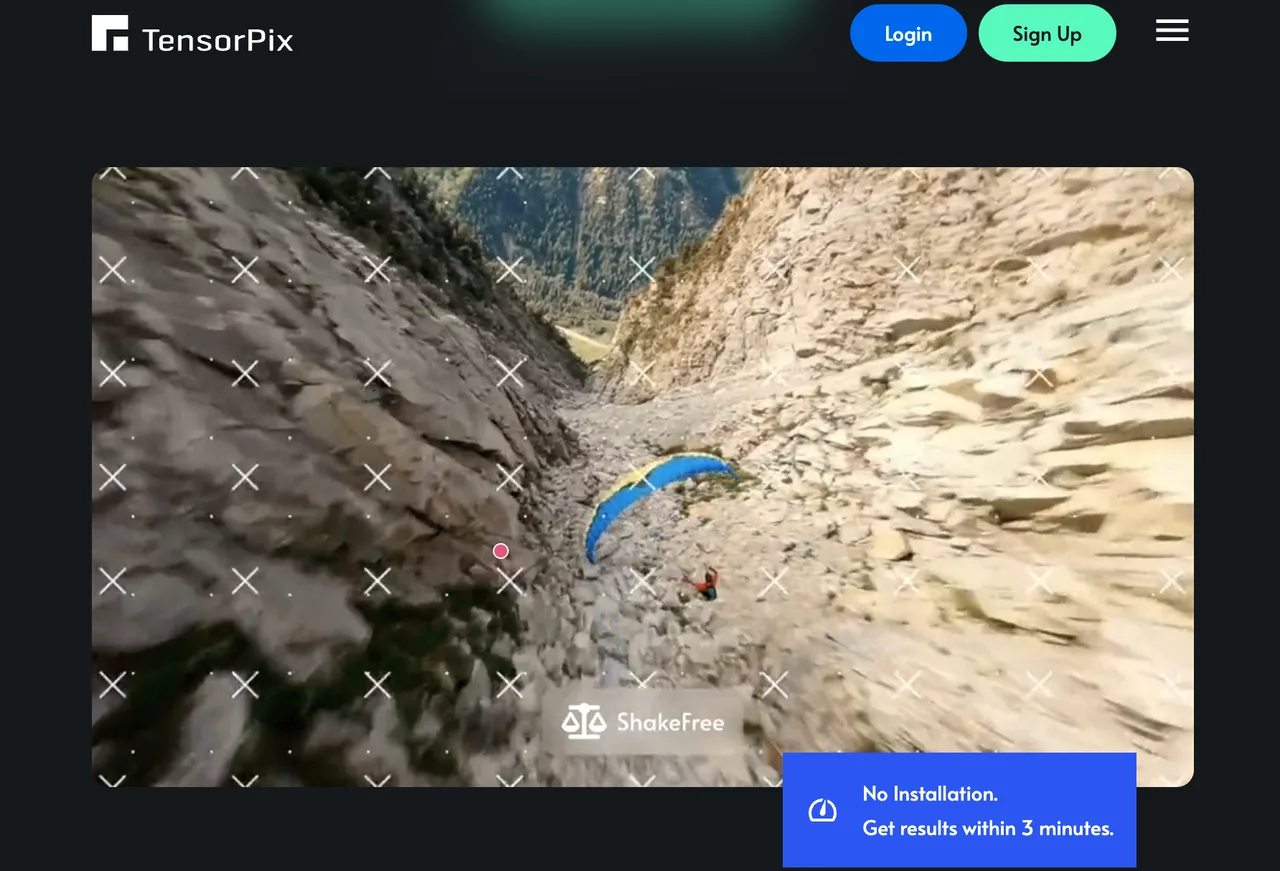
TensorPix fits teams lacking local GPUs or needing parallel browser jobs. Upload a clip, select only required filters, review the credit estimate, submit, close the browser, and await email. Its Video Enhancer guide covers upscaling, compression cleanup, denoising, deblurring, frame-rate increases, and slow motion.
This is the cleanest deployment option for temporary capacity. The API is documented for qualifying plans—verify the current plan requirements, making it more credible for repeatable cloud batches than a browser macro.
Key Limits and Processing Cost
Cost depends on resolution, frame rate, duration, filters, and plan. One credit was described as roughly two enhanced minutes; extra credits ranged from $0.80 to $3.00. That is an estimate, not an invoice formula. Queue tier and retries change usable cost.
Files must leave the workstation. The TensorPix FAQ says users can permanently delete files and stuck jobs must be cancelled and restarted, with credits refunded on cancellation. That is recovery, not checkpointed resume.
-
Video2X — Best for Open-Source Upscaling Pipelines
Best Use Case and Workflow
Video2X fits teams wanting an auditable pipeline around Real-ESRGAN, Real-CUGAN, Anime4K, or RIFE. Pin release 6.4.0, container, and model; run one CLI command against immutable inputs; preserve logs and FFmpeg settings. The project documentation covers Windows, Linux, containers, Vulkan, upscaling, and interpolation.
It is free to run and licensed under AGPL-3.0, but compute and compliance are not free.

Key Limits and Engineering Burden
Video2X is not a guided video restoration AI suite. It lacks integrated face and colorization workflows. Current binaries require AVX2 and Vulkan; native support centers on Windows and Linux, with containers for macOS. Teams own installation, validation, orchestration, patching, inspection, and license review. Documentation promises neither crash-resume nor turnkey HDR metadata preservation.
Choose by Enhancement Task and Deployment
Match the Tool to Upscaling, Denoising, Motion, or Restoration
For professional local finishing and broad export control, shortlist Topaz. For straightforward desktop conversion plus enhancement, compare VideoProc with VikPea. For preset-led archival experiments, AVCLabs is the clearer fit. For elastic cloud queues, test TensorPix. For a controlled open pipeline, choose Video2X only when the team owns the engineering.
Do not apply every filter. Upscaling needs edge and text checks. Denoising needs retained grain and skin texture. Interpolation needs cut, occlusion, and cadence checks. Restoration needs a policy for invented detail. Accepted output is the unit of value.
Compare Local Hardware With Cloud Throughput and Privacy
Local processing favors confidential masters and repeated volume, but the GPU can become the queue. Cloud favors bursts and remote work, but upload and retention become dependencies. Run ten fixed clips, then calculate accepted minutes per operator hour and dollar. Cheap software loses quickly when every result needs rescue.
FAQ
Which tools preserve HDR metadata during export?
No reviewed documentation guarantees HDR10 mastering-metadata passthrough across every AI path. Topaz offers 10-bit encoders and SDR-to-HDR; AVCLabs and VikPea also offer SDR-to-HDR. That is not proof of preservation. Validate primaries, transfer, matrix, mastering display, and MaxCLL/MaxFALL after export.
Can enhancement jobs resume after interruption?
Topaz documents resume across app closure or reboot, except for stabilization, Starlight Mini, and AV1. AVCLabs saves projects, not necessarily partial renders. TensorPix continues after browser closure, but stuck jobs restart. I did not find equivalent frame-level recovery documented for VideoProc, VikPea, or Video2X in the reviewed materials.
Which tools expose scene-change detection controls?
VideoProc explicitly exposes scene-change detection and sensitivity for interpolation. Topaz lists scene detection, with macOS 15 or newer required, but its public documentation is less explicit about operator sensitivity controls. Comparable user-facing controls were not publicly documented for AVCLabs, VikPea, TensorPix, or current Video2X.
Do cloud tools delete source footage automatically?
Policies differ. Topaz says cloud renders are retained for up to seven days after processing. TensorPix’s free tier deletes video and images after 30 days; paid-plan files remain until the user deletes them, and manual deletion is described as permanent. HitPaw’s reviewed cloud-export documentation does not publish a clear deletion window. Contract terms should govern sensitive media.
Which exports preserve variable frame rate correctly?
No reviewed vendor promises end-to-end VFR preservation through enhancement. Interpolation and AI re-encoding commonly establish a new constant rate; VideoProc even presents mixed-rate standardization as a workflow. Conform VFR sources before processing when editorial timing matters, then compare timestamps, frame count, duration, and audio sync after export.
Conclusion
The best AI video enhancement tools 2026 shortlist has no unconditional winner. Topaz offers the deepest local finishing path; VideoProc, AVCLabs, and VikPea reduce operator friction; TensorPix moves compute to the cloud; Video2X trades polish for pipeline ownership.
My decision gate is simpler: preserve truth, survive the target workflow, and lower cost per accepted minute. Everything else is a prettier preview. This conclusion has an expiration date, so repeat the fixed-clip test whenever models, prices, or export behavior change.
Previous posts:
/filters:quality(82)/media/images/1790849370111158730_PwWhA3tW.webp)
/filters:quality(82)/media/images/1790849835318146022_z3cmuCLV.webp)
/filters:quality(82)/media/images/1790849535778418416_2CLU4enx.webp)
/filters:quality(82)/media/images/1790849168142985030_sITbxScI.webp)
/filters:quality(82)/media/images/1790757954084144412_1AJT2bku.webp)
/filters:quality(82)/media/images/1790757509548436753_yzIR19zJ.webp)