
AVCLabs Video Enhancer AI Review 2027: Restore or Skip?
AVCLabs Video Enhancer AI review for media teams: test whether restoration gains justify render time, artifacts, and workflow cost.
Dora here. I was building a restoration acceptance sheet, and one line kept causing trouble: “looks sharper.” It tells me almost nothing. A face can look sharper after an AI model has quietly changed it.
This AVCLabs Video Enhancer AI review is for teams restoring licensed interviews, compressed campaign clips, or low-light archives. It is a documentation assessment, not a hands-on benchmark.
My provisional verdict is restored, with supervision. AVCLabs fits desktop batches where an operator inspects faces, text, motion, and metadata. Skip it for unattended REST pipelines, deterministic reconstruction, or guaranteed tag preservation.
Which Source Footage Is AVCLabs Meant to Improve?
Low-Resolution, Noisy, and Compressed Clips
AVCLabs is aimed at damaged but still legible footage. Its current AI model guide documents Standard, Ultra, Anime, two Windows-only Multi-Frame modes, and Denoise under AI Enhancement. Face Enhancement, colorization, motion compensation, and SDR-to-HDR sit beside them.
That makes AVCLabs video upscaling plausible for a 480p interview with stable facial structure or a 720p export with block noise. AVCLabs denoise fits low-light material where chroma noise obscures existing detail.
Upscaling cannot recover information the source never captured. A 4K file made from 480p has more pixels, not automatically more truth. Face refinement and strong Detail Balance may create a convincing interpretation. That may suit a family clip, but not a named speaker, product label, or historical record.
Without supplied test assets, I would use this fixed set before approving the tool:
| Source clip | Fixed output | Primary inspection |
|---|---|---|
| 30-second 480p interview | 1080p, original frame rate | Identity, teeth, eyes, hair, lip motion |
| 30-second compressed product shot | 1080p | Printed text, logos, edges, repeated textures |
| 30-second low-light handheld clip | Original resolution | Noise removal, retained texture, shadow flicker |
| 30-second interlaced SD clip | Progressive 1080p | Field order, combing, cadence, motion edges |
Run one model at a time. Hold codec, bitrate, trim, machine, driver, and app version constant. Stacking enhancement, colorization, interpolation, and face repair hides causes and, according to AVCLabs, slows processing.
Keep an Untouched Source for Comparison
The original file stays read-only. I would hash it, duplicate it into a working directory, and treat every AVCLabs export as a derivative. This is ordinary preservation discipline, not distrust of one vendor. The Library of Congress treats maintenance of original formats as part of digital-format planning.

Keep a conventional baseline: one high-quality resize without generative enhancement, plus basic denoise. It answers whether AI restored useful information or merely added contrast.
Does the Output Preserve Useful Detail?
Inspect Faces, Text, Motion, and New Artifacts
Check faces at shot starts, expressions, profile turns, blinks, and occlusions. The model guide says face refinement adds at least two seconds per frame depending on hardware. A clean face that changes identity is still a failed frame.
Text is less forgiving. Inspect every subtitle, product label, road sign, date, and uniform number. AI-generated letterforms can look plausible at playback speed while spelling nothing. Compression blocks often become false strokes after sharpening.
Motion reveals defects that stills hide. Watch at normal speed, half speed, and around cuts. Record shimmer, pulsing skin, duplicated limbs, edge trails, texture crawl, and color shifts. Multi-Frame uses adjacent frames to reduce flicker, while Ultra Multi-Frame is substantially slower. Include that trade in queue cost.
I paused here. “Better detail” is the wrong acceptance field. Use “source-supported detail,” with a yes, no, or uncertain result.
Compare Usable Frames Rather Than Upscale Resolution Alone
Resolution is a setting. Usability is an outcome. Sample every frame around cuts and complex motion, then one frame per second elsewhere. Log accepted, repairable, and rejected frames.
My useful-output formula is:
usable-frame rate = accepted frames / total reviewed frames
A second number catches hidden labor:
accepted-minute cost = (license allocation + machine cost + operator review + rerenders) / accepted minutes
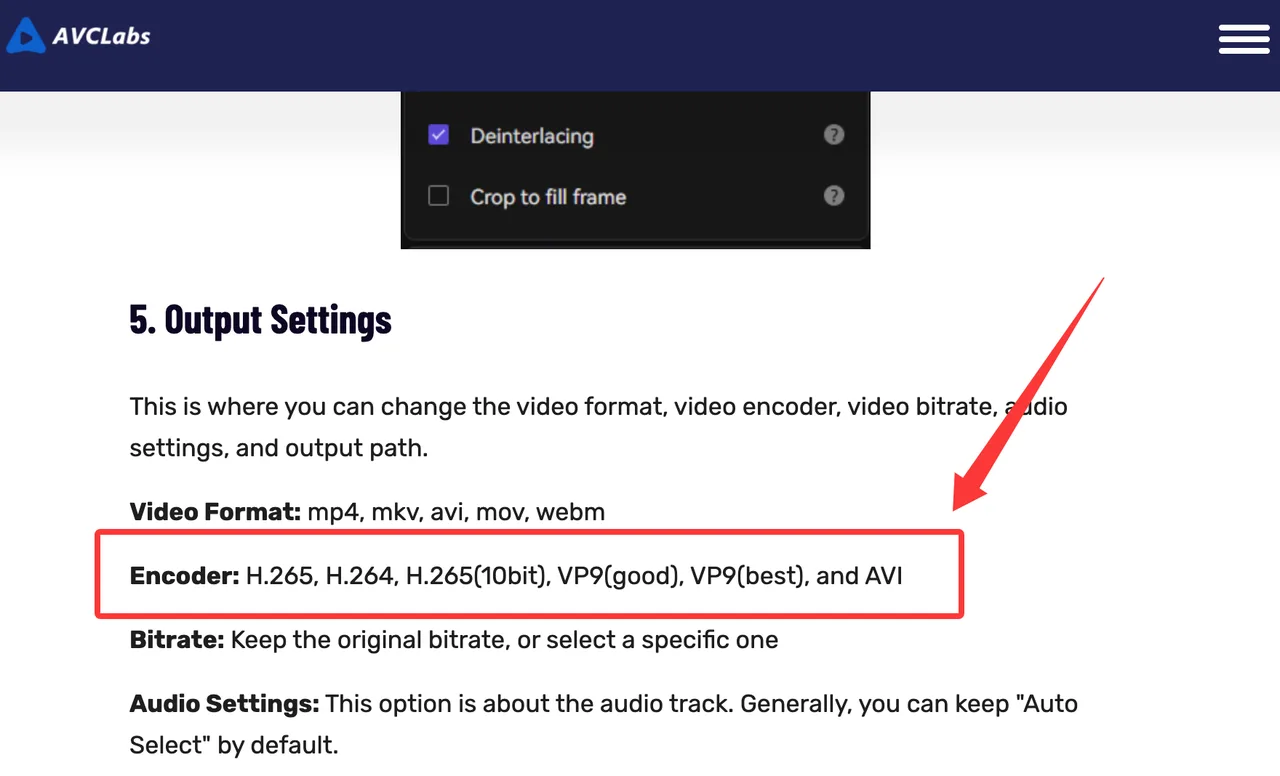
For metadata, compare source and export before looking at the picture. The official AVCLabs settings page lists H.264, H.265, H.265 10-bit, VP9, container, bitrate, and audio controls. The reviewed official materials do not state that all color tags are copied unchanged. The official ffprobe documentation provides stream inspection; capture pixel format, color range, color primaries, transfer function, matrix, frame rate, field order, audio layout, and duration for both files.
How Does Desktop Processing Fit a Production Queue?
Record Render Time and Hardware Load
AVCLabs batch processing imports several files, applies shared settings, and processes one item or the full queue. That works for clips with the same defect. “Same folder” does not mean “same source condition.” A night interview and daylight product shot need different presets.
The current hardware requirements recommend 16 GB RAM, 8 GB VRAM, and 20 GB storage on Windows. Apple Silicon Macs are supported, with 16 GB RAM recommended. Some Multi-Frame modes remain Windows-only.
For each job, record frames, model, output size, GPU, VRAM and RAM peaks, processing time, export time, and failure point. Use accepted output minutes per wall-clock hour, not preview speed.
AVCLabs cost also needs a dated snapshot. On October 1, 2026, the Windows page listed $39.95 monthly, a promotional $95.96 annual plan, and a promotional $149.90 perpetual license. Promotions move. Hardware time and review labor usually matter more once the first batch grows.
Count Review and Re-Export Work
Review is processing. Count artifact checks, model changes, re-exports, audio-sync checks, and derivative handling. If a 20-minute render needs 35 minutes of inspection and another render, its queue cost is not 20 minutes.
AVCLabs documents project auto-save intervals of 15, 30, 60, or 120 minutes. That protects project state. I found no documented guarantee that a failed render resumes at the last completed frame or that a batch restarts from the failed clip. Long overnight queues therefore need smaller jobs and enough disk space for completed intermediates.
When Is AVCLabs a Better Fit Than Re-Generating Footage?
Restoration of Owned Source Material
AVCLabs restoration fits when performance, timing, camera movement, audio, and composition must remain. Re-generating an interview may create a cleaner face, but it no longer preserves the interview. The same applies to documentary, product, event, and campaign footage.
The desktop route also keeps processing local. AVCLabs states that Video Enhancer AI performs local processing, unlike its separate cloud product. Its privacy policy still says the software may collect device information, operating logs, crash reports, and information about the format of opened files. Local rendering reduces exposure; it does not make the application invisible to the network.
This assessment is general operational guidance, not legal advice. Rights to the source, depicted people, music, and final derivative still need project-specific review.
Limits for Repeated API-Driven Work
The desktop app centers on previews, presets, and a local queue. AVCLabs offers a separate MCP service with different limits. Its public page describes cloud-backend processing while also advertising self-hosted custom endpoints, so confirm the deployment model for the intended setup. It is not a headless desktop renderer.
No conventional REST API, idempotency contract, signed webhook specification, job-version pinning, or machine-readable desktop audit log is publicly documented for Video Enhancer AI. Teams needing thousands of unattended jobs would have to wrap a GUI or move to a separate service. Both choices change failure recovery, security, and output parity. This is where my data ends.
FAQ
Does AVCLabs preserve source color metadata in exports?
AVCLabs does not publicly guarantee complete preservation of source color metadata. The app exposes 10-bit and codec options, but that does not prove that primaries, transfer characteristics, matrix coefficients, HDR mastering data, or range survive every model and container combination. Compare source and export with ffprobe before approval.
Can AVCLabs process interlaced footage without a separate conversion?
Yes, the desktop settings include deinterlacing, so a separate preprocessing application is not mandatory. The feature converts interlaced material to progressive output. Field order, cadence, combing, and audio duration still need inspection on a representative clip.
Can an interrupted AVCLabs batch resume from the failed clip?
This is not publicly documented. Auto-save restores project state, but AVCLabs does not state that partial renders or batch position resume after a crash. Treat interrupted jobs as requiring confirmation and possible reprocessing.
Does AVCLabs require an internet connection for license activation?
I found no supported fully offline activation procedure in the official documentation I reviewed. Registration uses an emailed license code, and installation downloads required components. The desktop product is documented as usable offline after setup, but managed or air-gapped machines need written confirmation from support before purchase.
Are source videos uploaded when AVCLabs runs on a desktop?
AVCLabs says the desktop enhancer processes video locally and does not upload source footage for enhancement. That statement does not apply to Video Enhancer Cloud, online tools, or MCP processing. The privacy policy also documents software telemetry and file-format information, so organizations should review network behavior and policy terms separately.
Conclusion
The answer to this AVCLabs Video Enhancer AI review is restore, then inspect. Its denoise, Multi-Frame modes, face tools, deinterlacing, presets, and AVCLabs batch processing fit licensed footage that still contains useful visual structure. The desktop workflow is less convincing for strict metadata preservation, unattended API volume, or jobs where a changed face or word is unacceptable.
I would approve it only after the fixed four-clip test reaches the team’s usable-frame threshold and the accepted-minute cost includes review. A larger output is easy. A trustworthy derivative takes more work. This conclusion has an expiration date — models update fast.
Previous posts:
/filters:quality(82)/media/images/1790848844523023001_D5foyHQZ.webp)
/filters:quality(82)/media/images/1790849835318146022_z3cmuCLV.webp)
/filters:quality(82)/media/images/1790849535778418416_2CLU4enx.webp)
/filters:quality(82)/media/images/1790849168142985030_sITbxScI.webp)
/filters:quality(82)/media/images/1790757954084144412_1AJT2bku.webp)
/filters:quality(82)/media/images/1790757509548436753_yzIR19zJ.webp)