
How to Use Kling 4.0 Keyframes for a Product Reveal
Use Kling 4.0 keyframes to plan one product reveal: prepare frames, set their order, submit a draft, and check whether motion matches the brief.
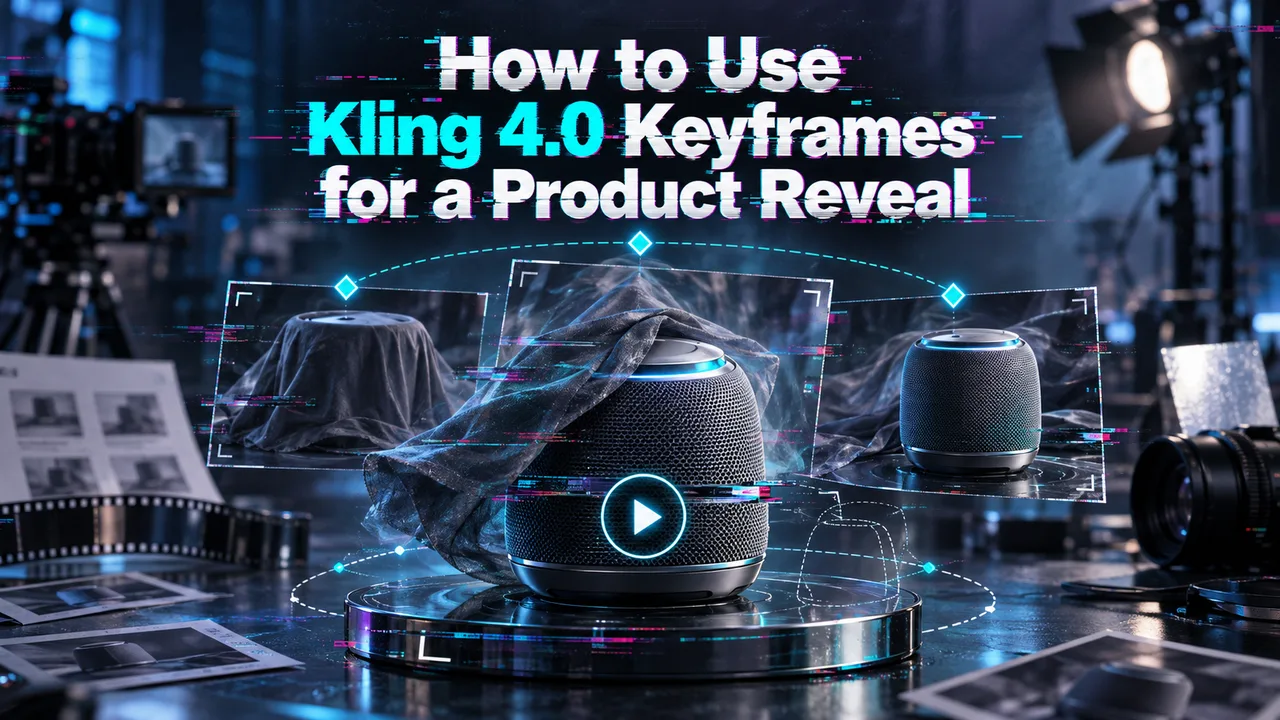
A product reveal has one job: move from “I can see its shape” to “I can recognize the product.” Extra camera moves can make that harder. For this Kling 4.0 keyframe guide, the shot uses three prepared images—start, middle, and end—in one image-to-video task.
It’s Dora. I checked the documentation. The sequence below is a reproducible input plan, not a claim that I generated or approved a finished clip.
What Should the Product Reveal Show?
The reveal should show one clear change: a product moving from shadow into a readable hero shot. Keep the product’s shape, position, and background consistent so the viewer notices the reveal rather than a change of object.
The Kling 4.0 user guide supports first, middle, and last keyframes. It describes placing middle frames at points on a timeline in Kling’s interface. For the API route used here, the published instructions establish the order of middle frames but do not specify a timestamp field. Plan a middle beat, then check where it actually lands in the exported video.
Prepare the Start, Middle, and End Frames
Make three 1080 × 1920 PNGs from the same authorized, front-facing product render. For this example, use a bottle against a dark background. Keep its size and position identical across all three files:
start.png: the bottle’s outline is visible; its front label remains in shadow.middle.png: a narrow light reveals the bottle’s shape and part of the label.end.png: the front is lit and the approved label is readable.
Only the lighting changes. If the bottle rotates between these prepared frames, the model must invent surfaces the source may never have shown. That makes the result harder to approve as product footage.
Save the three files and the exact prompt with the job record. Those are the inputs another team member needs to repeat the attempt. The images must be accessible to the API when the job is submitted.
Set Up a Kling 4.0 Keyframe Draft
Use the image-to-video route for this single shot. Its current model specifications require a first image, accept an optional last image, and take middle images in sequence. First, middle, and last images count toward a combined limit of ten. The route lists 3–30 seconds and 720p or 1080p output.
Put Frames in Narrative Order
Assign start.png to image, place middle.png in keyframes, and assign end.png to last_image. Use a six-second duration, 9:16 aspect ratio, and 720p resolution for this draft.
Keep the prompt about the transition: “One continuous, locked-off shot of the bottle. A narrow light moves from left to right, revealing the front label. The bottle stays upright and centered. End on the fully lit product. No cuts.”
This is a request for motion between three known images. It does not guarantee that the middle image will appear at exactly three seconds; the route documentation does not disclose that timing control.
Submit the Image-to-Video Job
Submit those inputs to kwaivgi/kling-v4.0/image-to-video. The Kling 4 API page links to the available route and its API instructions. Submission returns a prediction ID; check that job until it reaches a final status, then retrieve the output from data.outputs when completed.
Record the prediction ID, three input filenames, prompt, settings, and downloaded video together. There is no value in remembering that “the second version worked” if nobody can tell which images or settings produced it.
Check the Reveal Against the Product Brief
Review the whole clip, then pause near the start, the lighting change, and the end. The bottle should retain its silhouette and proportions. Its label should become clearer, rather than change lettering as the light passes over it. Check for a sudden jump in product position or a background that shifts independently of the camera.
The approved end.png is the comparison target, not proof that the generated final frame matches it. If exact label text matters, inspect the export at its intended display size. A technically completed job is still a rejected shot when the pack is wrong.
When Should You Simplify the Frame Sequence?
Simplify when the middle frame creates more change than the shot needs. If the draft jumps between lighting states, try the same start and end without middle.png. If the bottle’s geometry drifts, return to three source frames with identical product placement and change only one visual property, such as light intensity.
A shorter reveal is often easier to judge: the viewer sees the silhouette, then the product. Save each revised input set as a new version so the next result can be compared with the previous one. Kling 4.0 keyframes are useful here only when the extra frame gives the team more control over that transition.
FAQ
Can a finished Kling 4.0 keyframe clip be extended without rerunning the shot?
Yes, through a separate Kling 4.0 video-extend route. It takes the finished video and generates a continuation from its last frame. That is a new job; it does not change the keyframe sequence inside the original clip.
Does a completed Kling 4.0 job expose the keyframe timing in its metadata?
The published image-to-video route documents ordered middle frames and an output file, but does not promise per-keyframe timestamps in the completed job’s metadata. Record the intended beats with your inputs and inspect their actual timing in the video.
Can Kling 4.0 keyframes be combined with generated audio?
The route describes synchronized stereo audio generated with the video. Its listed inputs do not include a separate audio file or a documented audio on/off setting. Review the sound in the export, and handle any exact ad soundtrack in the edit.
Does Kling 4.0 keep the original product image after a failed job?
A failed generation is not documented as an immediate deletion request. For images uploaded through WaveSpeed’s file service, its upload documentation says files are stored for seven days, then deleted. If the job uses an image URL from your own storage, that storage has its own rules. Keep the original files in your team’s asset library.
Can the same keyframe sequence be replayed with a different Kling 4.0 setting?
Yes. Submit a new job with the same three accessible images and change a documented setting, such as duration or resolution. Keep the earlier prompt and image order fixed if the goal is to compare that setting. The documentation does not guarantee an identical video on replay.
Previous posts:
/filters:quality(82)/media/images/273bf240-30e3-4e6c-8ae4-e3346b487bc7.webp)
/filters:quality(82)/media/images/bb7ec772-f694-45f4-9a9a-c0e5fd2e7d60.webp)
/filters:quality(82)/media/images/444431ee-1387-4a40-81ad-866e095a7c75.webp)
/filters:quality(82)/media/images/81212eb5-4b43-4cc4-92f4-38a0c439d258.webp)
/filters:quality(82)/media/images/5f15570a-6a68-432e-a6f1-1dcbf799ba81.webp)
/filters:quality(82)/media/images/b73c2438-6bdd-4b80-a229-8d71d8f819cf.webp)