
Best AI Frame Interpolation Tools in 2027
Best AI frame interpolation tools: compare motion artifacts, scene cuts, frame-rate conversion, hardware, and usable output cost.

A clip can report 60 fps and still fail delivery. The counter moves, the render finishes, and then a hand passes across a face and briefly grows an extra edge. That is the problem behind most searches for the best AI frame interpolation tools: teams need usable frames, not a larger number in the file inspector.
I’m John. This comparison is for teams turning generated or captured footage into a fixed-frame-rate master. It uses official documentation checked on October 19, 2026, plus a repeatable review method. I did not render a private library through all four applications, so the order describes workflow fit rather than a measured image-quality ranking.
| Tool | Best fit | Main production catch |
|---|---|---|
| Topaz Video | Dedicated desktop interpolation with several model choices | Heavy local processing and an audio handoff to verify |
| Flowframes | Configurable Windows workflow built around RIFE interpolation | Build, dependency, and codec maintenance |
| DaVinci Resolve Studio | Retiming selected shots inside an edit timeline | Slow processing on difficult shots |
| Video2X | Repeatable local jobs and scripted processing | More setup and less editorial review context |
How We Evaluated Frame Interpolation
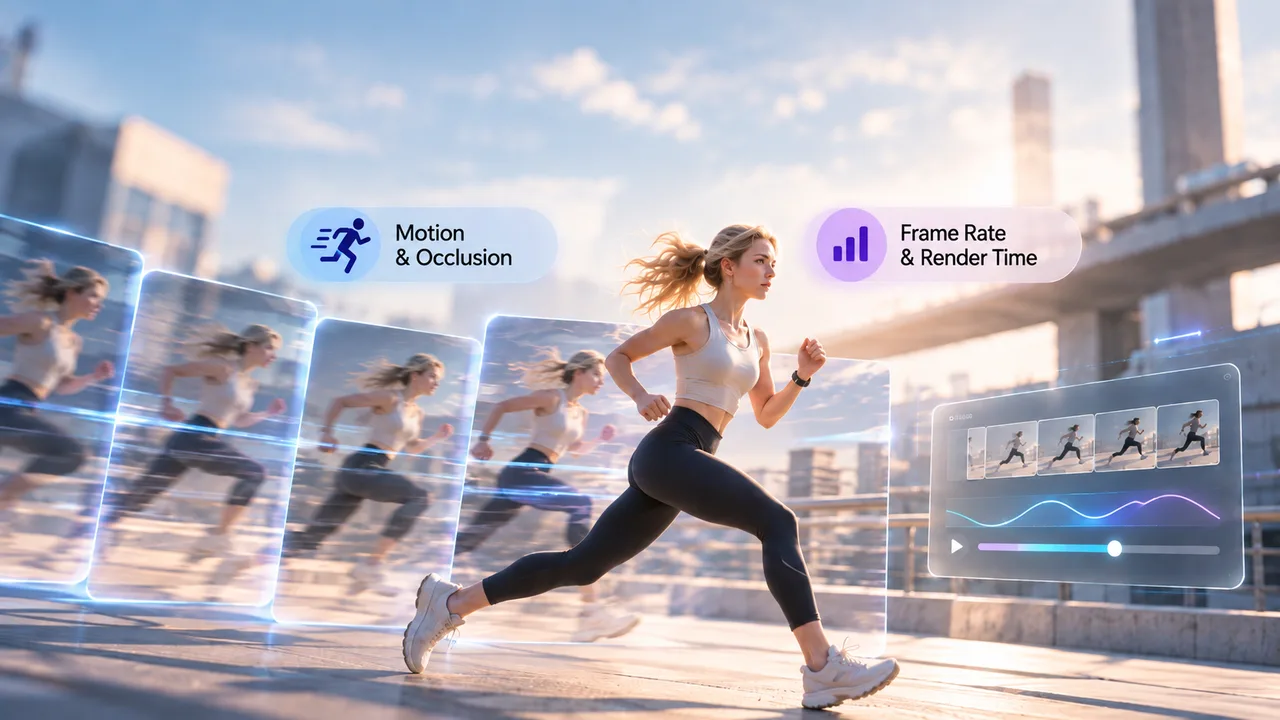
Fast Motion, Occlusion, Scene Cuts, and Frame Pacing
Use one short source for every candidate. Ten to fifteen seconds is enough if it contains four things: a hand crossing a face, a subject passing behind an object, a hard cut, and subtitles or another fine high-contrast edge. Keep the source resolution, codec, and frame cadence unchanged between runs.
Play the output at normal speed on the intended display, then inspect difficult intervals one generated frame at a time. Count a frame as unusable when a defect remains visible during playback or changes the shot. A bent finger seen only at 800% zoom deserves a note; a subtitle that ripples at normal speed deserves a rerun.
At a scene cut, an interpolator may create one hybrid frame from two unrelated shots. Test cut detection where available; otherwise split the source at the edit. Demos show the ceiling. Production shows the floor.
Do not treat optical-flow speed as an image-quality score. Processing speed describes that machine, not whether an occluded hand survives.
Output Frame Rate, Render Time, and Review Burden
Record the source and output frame rates as exact rationals where possible. A 23.976 fps source is usually 24000/1001, and broadcast delivery may require 60000/1001 rather than an approximate 60. A video frame rate converter that rounds these values can create timing drift downstream.
Measure render, operator, and review time separately. A fast render with eight bad intervals can cost more than a slower one with two. Save the version, model, target fps, cut setting, codec, hardware, elapsed time, and intervals sent for repair.
Do not add upscaling or denoising to the first comparison. Lock the frame size and make the motion pass answer one question.
-
Topaz Video for Desktop Interpolation
Model and Slow-Motion Options
Topaz Video fits operators who want a desktop interface and several models. Its current frame interpolation documentation describes Apollo, Chronos, Chronos Fast, and Aion. Chronos is general-purpose, Chronos Fast targets larger inter-frame changes, Apollo supports specific frame-count multiples, and Aion costs more processing.
For a 24 to 60 fps video, start with a short Chronos Fast preview, as recommended by Topaz’s 60 FPS preset. Its frame interpolation guide also recommends Apollo Fast for non-double conversions. For slow motion, compare the requested playback factor. Apollo’s fixed multiples may fit one job while Chronos fits another; test Aion only when the shot justifies the extra processing.
Duplicate-frame replacement can help repeated footage, but its sensitivity may remove frames that merely look similar. On animation, that can erase intentional holds.
Artifacts and Hardware Cost
Topaz warns that drastic changes, reflective water, conflicting patterns, and thin parallax can cause strobing, distortion, or wobble. Put the hardest five seconds through each candidate model before committing a long sequence.
Local processing moves cost into the workstation. Record GPU, VRAM, resolution, and whether another editor can use the machine during the run.
Topaz’s interpolation page says this enhancement removes audio, while its general export settings offer audio copy, convert, or none. Treat retention as version-specific. Keep the source track for remuxing until the delivered file proves otherwise.
-
Flowframes for a RIFE-Based Workflow
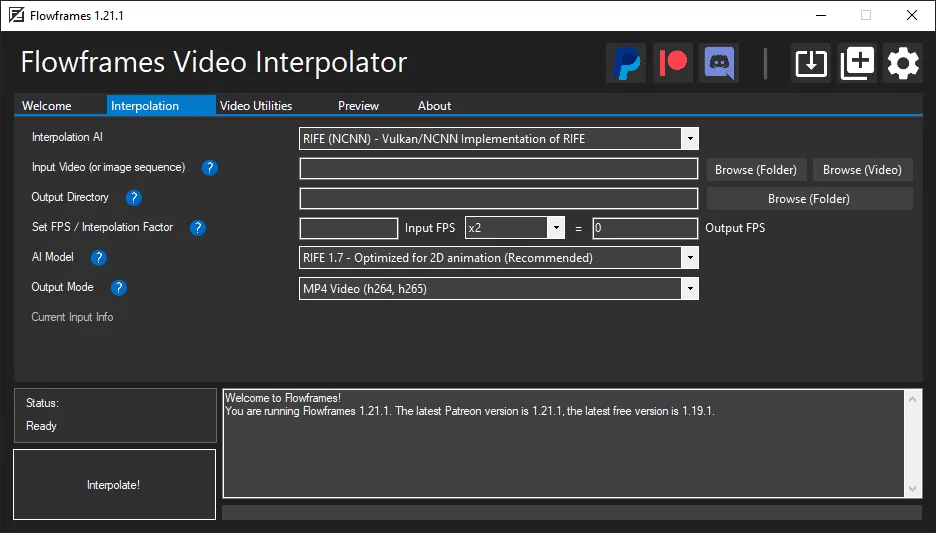
Frame-Rate Controls and Local Setup
Flowframes is a Windows GUI for RIFE, DAIN, and FLAVR. It provides factors or target rates, scene detection, automatic encoding, and a final-fps cap without requiring a custom command-line pipeline. RIFE-NCNN uses Vulkan across modern GPU vendors; the PyTorch route has narrower requirements.
Record the RIFE implementation and model version, not merely “Flowframes.” Project notes cover model updates, fractional factors, variable-frame-rate input, and track compatibility. Different builds can produce different pipelines.
Frame deduplication helps some animation but should usually stay off for constant-frame-rate camera footage. Removing similar yet intentional frames changes pacing before interpolation begins.
Maintenance and Compatibility Limits
Flowframes is GPL-3.0 open-source donationware. Older compiled builds are free, newer builds may reach supporters first, and self-built code has no support guarantee. A production team has to own the version it approves.
Record the operating system, GPU driver, backend, model package, FFmpeg path, source codec, audio behavior, and container. Keep the installer with the job. A project reopened later should not depend on someone remembering which beta worked.
The tool may copy or re-encode tracks. Verify duration, sample rate, channel layout, and end-of-file sync.
-
DaVinci Resolve Studio for Edit-Timeline Delivery
Retiming and Export Workflow
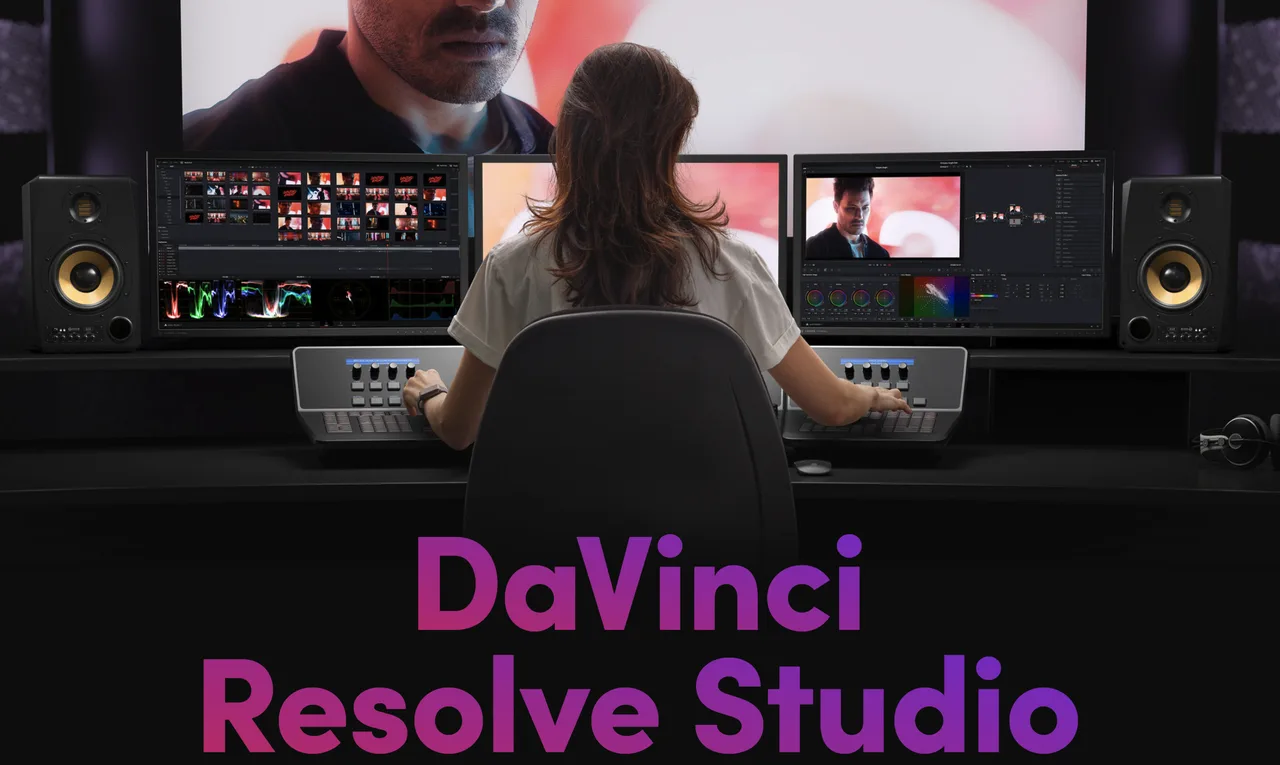
DaVinci Resolve Studio fits when interpolation belongs inside an edit. An editor can isolate a shot, compare frame sampling, blending, optical flow, or Speed Warp, and keep the repair beside the grade and mix. The current DaVinci Resolve Studio page places the Neural Engine in the paid edition; confirm the Studio version before assigning Speed Warp work.
This is the strongest option for selected timeline segments. Put cuts on clip boundaries, process only what needs repair, cache the shot, and inspect the export. Timecode is easier to manage in the project, though file preservation still depends on container, codec, and export settings.
Save the timeline with the render. It records which clip was retimed and where a fallback was used.
Control Versus Processing Time
Speed Warp can be expensive. Cache a representative section and measure wall time on the edit system before enabling it across a long timeline.
Resolve offers surgical control. An editor can shorten the retimed region, cut around a failure, or use frame sampling for a few frames. A small cadence change often beats a conspicuous invented hand.
-
Video2X for Scriptable Local Processing
Pipeline Fit and Automation
Video2X fits local pipelines that value repeatable jobs over an editorial review surface. The current 6.x project is a C/C++ rewrite for Windows and Linux, with a Windows GUI and RIFE through ncnn and Vulkan. Its repository lists version 6.4.0 and requires AVX2 CPU and Vulkan GPU support for published binaries.
A wrapper can name outputs, capture return codes, save logs, and process a watched folder. Lock the executable, model, command, encoder, and GPU ID. Otherwise automation repeats an undocumented choice faster.
Setup and Quality Verification
Video2X uses AGPL-3.0, with separate dependency licenses. Teams distributing modified software or exposing a service should have counsel review the obligations. Output video and modified program code raise different questions.
The CLI does not remove visual review. Inspect hard cuts and flagged motion in the encoded master; interpolation and encoding fail differently. Check frame count, duration, pixel format, color metadata, audio streams, and the file’s last second.
Remove Video2X if nobody can maintain it or every clip needs editorial judgment. Scriptability pays off when the task is stable.
Build a Delivery Log for Frames That Fail Review
Mark Unusable Intervals by Timestamp and Failure Type
Save each failed interval with source timecode or an exact frame range. Classify occlusion, warped anatomy, double edges, subtitle distortion, cut blends, texture flicker, or uneven pacing. Note whether it is visible at normal speed.
Use one line per decision:
| Range | Failure | Visible at normal speed? | Action | Recheck |
|---|---|---|---|---|
| 00:00:06:12–00:00:06:18 | Hand edge splits during occlusion | Yes | Try alternate model on segment | Pending |
This replaces “Tool A looked better” with an auditable record and yields repaired or rejected seconds per approved minute.
Choose a Fallback and Recheck the Final Export
Assign each failure one outcome: another model, a lower factor, local sampling or blending, or the original cadence. Do not switch models yet. Look at the workflow first. A failure confined to a cut usually needs a split, not another full render.
Watch the repair with two seconds of context on each side, then check the exported master. Confirm duration, audio sync, frame-rate mode, and accidental duplicates. The final file is the product.
Choose by Motion and Delivery Format
Use Different Thresholds for Slow Motion and Frame-Rate Conversion
Slow motion AI gives viewers longer to see each estimated movement. A defect hidden at real-time 60 fps may become obvious at 25% speed. Use a stricter threshold around faces, hands, liquid, spokes, and thin lines.
Normal-speed conversion risks changing pacing. A 24 fps narrative shot may become smoother and aesthetically wrong. Test on the intended display and confirm that delivery actually requires 60 fps.
Choose Topaz for model comparison, Flowframes for configurable Windows RIFE, Resolve Studio for timeline control, and Video2X for stable scripted jobs. Remove anything that cannot deliver the required codec, timing, audio, or record.

When the Broader Enhancement Guide Is Enough
Noise, compression damage, low resolution, shake, and duplicate frames can all hinder motion estimation.
Keep this comparison for fixed-rate delivery or deliberate slow motion. Otherwise the test can quietly become a five-filter restoration job.
FAQ
Does frame interpolation preserve the original audio track?
Sometimes. Resolve keeps audio in the edit; Flowframes documents track-copy and fallback behavior. Topaz currently says interpolation removes audio. Video2X depends on the command and container. Compare duration and end sync, and retain source audio for remuxing.
Can a tool retain variable-frame-rate timing information?
Recent Flowframes builds document VFR input and timing support, but every export will not remain VFR. Fixed delivery usually requires an explicit constant cadence. Inspect time base, frame rates, duration, and timestamps.
Which exports keep source timecode for the editor?
Resolve offers the clearest path because clip and timeline timecode remain in the project. File-level timecode still depends on container, codec, and export settings. Reimport one test before a batch.
Can interpolation be limited to selected timeline segments?
Yes in Resolve: isolate the affected section and retime it. Topaz can preview and export marked ranges; batch tools may require trimmed or extracted segments. Check cadence and audio at the join.
Are processing logs available for a batch of clips?
Video2X is easiest to wrap with command logs and exit codes. Flowframes exposes logs; Topaz and Resolve offer queues or job status. Keep your own manifest with input, version, settings, times, outcome, and reviewer decision.
Conclusion
The best AI frame interpolation tools solve different delivery problems. Topaz offers model choice, Flowframes a flexible RIFE route, Resolve timeline control, and Video2X repeatable local jobs.
Run one difficult clip through candidates that fit your system and format. Count visible failures, reviewer minutes, and repaired seconds. Lock the version and keep the log. The winner is the tool your team can approve again next week.
Previous posts:
/filters:quality(82)/media/images/427fd9f2-347d-4f86-a2d5-aee110cda01d.webp)
/filters:quality(82)/media/images/1773962750383987480_n3hqzHRZ.webp)
/filters:quality(82)/media/images/43fa0e7f-a0db-48d7-9bab-921d1225db30.webp)
/filters:quality(82)/media/images/5799ff56-3a73-40ca-a666-e4965d878496.webp)
/filters:quality(82)/media/images/7a8850fc-caf6-482f-ac4d-5ddbe64ec47c.webp)
/filters:quality(82)/media/images/64b08aeb-92bb-48b8-924c-2e2535731f28.webp)