Tripo3D H3.1 Image-to-3D converts a single image into high-quality 3D models with textures and PBR materials. Supports standard and HD texture quality, detailed geometry, quad mesh topology, texture alignment, and orientation control. Ready-to-use REST inference API, best performance, no coldstarts, affordable pricing.
待機中
$0.241回あたり·~41 / $10
サンプルすべて表示
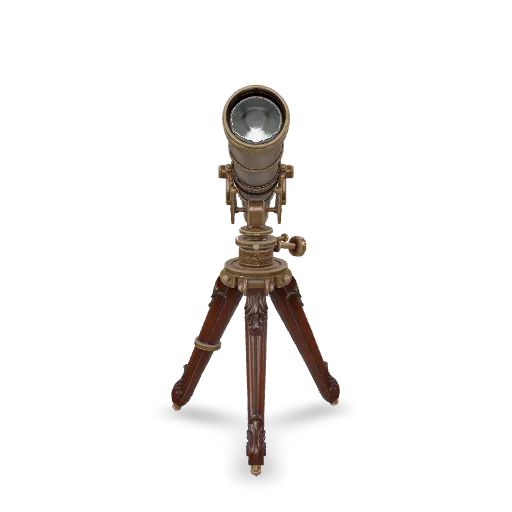
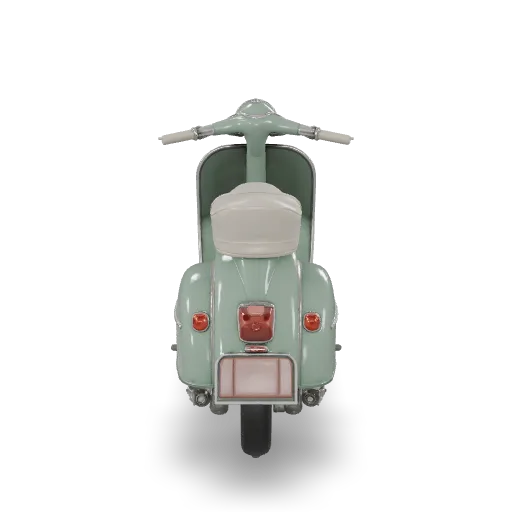
関連モデル
/filters:quality(82)/media/images/1789120746143744570_VtCMW5en.webp)
/filters:quality(82)/media/images/1790055357630118327_7rW5fpyH.webp)
/filters:quality(82)/media/images/1790055359461222633_sVA5nxPe.webp)
/filters:quality(82)/media/images/1789118312974471104_PeBKU3ck.webp)
/filters:quality(82)/media/images/1789119184005756217_r4sCMU3d.webp)
/filters:quality(82)/media/images/1789121897153465635_WuENX6fp.webp)
README
Tripo3D H3.1 Image-to-3D
Tripo3D H3.1 Image-to-3D reconstructs a production-ready 3D model from a single reference image. Upload one photo — the model generates accurate geometry with optional PBR textures, quad mesh topology, and detailed quality tiers for both geometry and texture.
- Need more accuracy? Try Tripo3D H3.1 Multiview-to-3D with 2–4 angle shots.
Why Choose This?
-
Single-image 3D reconstruction Generate a fully textured 3D model from just one reference photo — no multi-view capture or manual modeling required.
-
PBR material generation Generate Physically Based Rendering materials alongside the mesh for realistic real-time rendering in game engines and 3D tools.
-
Geometry and texture quality tiers Choose between standard and detailed quality independently for geometry and texture — optimizing for speed, cost, or maximum fidelity.
-
Quad mesh support Generate quad (4-sided) mesh topology instead of triangles for cleaner topology compatible with animation and sculpting workflows.
-
Texture alignment control Align textures to the original input image or to the generated geometry for different use case requirements.
-
Orientation control Use align_image to auto-rotate the model to match the input image orientation.
Parameters
| Parameter | Required | Description |
|---|---|---|
| image | Yes | URL of the input image for 3D model creation. |
| texture | No | Whether to generate textures for the model. Default: true. |
| pbr | No | Whether to generate PBR materials. Requires texture to be enabled. Default: true. |
| texture_quality | No | Texture quality: standard (default) or detailed (higher resolution). |
| geometry_quality | No | Geometry quality: standard (default) or detailed. |
| texture_alignment | No | How textures are aligned: original_image (default) or geometry. |
| auto_size | No | Auto-scale the model to real-world dimensions. Default: false. |
| orientation | No | Model orientation: default or align_image (auto-rotates to match input image). |
| quad | No | Generate quad mesh topology instead of triangles. Default: false. |
How to Use
- Upload your image — provide a clear, well-lit reference image URL of the object.
- Configure texture settings (optional) — enable or disable texture and PBR generation, and choose standard or detailed texture quality.
- Set geometry quality (optional) — choose standard for faster results or detailed for higher geometric fidelity.
- Configure additional options (optional) — set texture alignment, orientation, quad mesh, and auto-size as needed.
- Submit — generate and download your 3D model.
Pricing
| Texture | Texture Quality | Geometry Quality | Quad | Cost |
|---|---|---|---|---|
| No | — | Standard | No | $0.24 |
| No | — | Detailed | No | $0.48 |
| Yes | Standard | Standard | No | $0.36 |
| Yes | Standard | Detailed | No | $0.60 |
| Yes | Detailed | Standard | No | $0.48 |
| Yes | Detailed | Detailed | No | $0.72 |
Add +$0.06 to any combination above when quad is enabled.
Billing Rules
- Base: $0.24 × texture multiplier (no texture: ×1, standard texture: ×1.5, detailed texture: ×2)
- Detailed geometry surcharge: +$0.24
- Quad surcharge: +$0.06
- Default configuration (texture standard, geometry standard, no quad): $0.36
Best Use Cases
- Game asset production — Reconstruct clean, textured 3D models from product or object photography for use in game engines.
- E-commerce 3D — Generate 3D product models from a single product photo for interactive viewers and AR.
- Animation & VFX — Use quad mesh output for animation-ready topology compatible with rigging and sculpting workflows.
- Digital twins — Accurately reconstruct real-world objects from a single reference photograph.
- AR/VR content — Generate PBR-textured models for immersive application development.
- Rapid prototyping — Quickly convert reference photos into 3D assets for concept visualization.
Pro Tips
- Use a clear, well-lit photo with the subject centered and clearly visible for the most accurate reconstruction.
- Plain or neutral backgrounds help the model focus on the object geometry and texture.
- Use detailed geometry quality for objects with fine surface detail like mechanical parts or organic shapes.
- Use quad mesh when the model will be used for animation or further sculpting.
- Enable auto_size when you need the model to match real-world scale.
- For better accuracy with complex objects, consider using Multiview-to-3D with multiple angle shots.
Notes
- image is the only required field; all other parameters are optional.
- Please ensure your content complies with Tripo3D's usage policies.
Related Models
- Tripo3D H3.1 Multiview-to-3D — Higher accuracy 3D reconstruction from 2–4 reference images.
H3.1 Image To 3d API — Quick start
Grab a WaveSpeedAI API key, then call POST https://api.wavespeed.ai/api/v3/tripo3d/h3.1/image-to-3d with your input as JSON. The endpoint returns a prediction id. Start polling the result endpoint around every 2 seconds, increase the interval for long-running tasks, and stop on any terminal status. On completed, read output values from data.outputs. Examples for H3.1 Image To 3d below.
HTTP example
set -euo pipefail

: "${WAVESPEED_API_KEY:?Set WAVESPEED_API_KEY}"

REQUEST_BODY=$(cat <<'JSON'
{
    "image": "https://interactive-examples.mdn.mozilla.net/media/cc0-images/painted-hand-298-332.jpg",
    "texture_alignment": "original_image",
    "orientation": "default",
    "texture": true,
    "pbr": true,
    "texture_quality": "standard",
    "geometry_quality": "standard",
    "auto_size": false,
    "quad": false
}
JSON
)

# 1. Submit the prediction.
SUBMIT_RESPONSE=$(curl --silent --show-error --fail-with-body \
  -X POST "https://api.wavespeed.ai/api/v3/tripo3d/h3.1/image-to-3d" \
  -H "Content-Type: application/json" \
  -H "Authorization: Bearer $WAVESPEED_API_KEY" \
  -d "$REQUEST_BODY")

TASK=$(printf '%s' "$SUBMIT_RESPONSE" | jq 'if has("data") then .data else . end')
PREDICTION_ID=$(printf '%s' "$TASK" | jq -r '.id')
if [ -z "$PREDICTION_ID" ] || [ "$PREDICTION_ID" = "null" ]; then
  printf 'Submission response did not contain a prediction id
' >&2
  exit 1
fi
RESULT_URL="https://api.wavespeed.ai/api/v3/predictions/$PREDICTION_ID/result"

# 2. Poll until the prediction finishes.
while true; do
  RESPONSE=$(curl --silent --show-error --fail-with-body "$RESULT_URL" \
    -H "Authorization: Bearer $WAVESPEED_API_KEY")
  RESULT=$(printf '%s' "$RESPONSE" | jq 'if has("data") then .data else . end')
  STATUS=$(printf '%s' "$RESULT" | jq -r '.status')
  case "$STATUS" in
    completed) printf '%s\n' "$RESULT" | jq '.outputs'; break ;;
    failed|cancelled|timeout|deleted) printf '%s\n' "$RESULT" | jq . >&2; exit 1 ;;
    *) sleep 2 ;;
  esac
done
Node.js example
const submitUrl = "https://api.wavespeed.ai/api/v3/tripo3d/h3.1/image-to-3d";
const apiKey = process.env.WAVESPEED_API_KEY;
if (!apiKey) throw new Error('Set WAVESPEED_API_KEY');

async function requestJson(url, options = {}) {
  const response = await fetch(url, options);
  if (!response.ok) throw new Error(await response.text());
  return response.json();
}

// 1. Submit the prediction.
const body = await requestJson(submitUrl, {
  method: "POST",
  headers: {
    "Authorization": `Bearer ${apiKey}`,
    "Content-Type": "application/json",
  },
  body: JSON.stringify({
        "image": "https://interactive-examples.mdn.mozilla.net/media/cc0-images/painted-hand-298-332.jpg",
        "texture_alignment": "original_image",
        "orientation": "default",
        "texture": true,
        "pbr": true,
        "texture_quality": "standard",
        "geometry_quality": "standard",
        "auto_size": false,
        "quad": false
}),
});
const task = body.data ?? body;
if (!task.id) throw new Error("Submission response did not contain a prediction id");
const resultUrl = `https://api.wavespeed.ai/api/v3/predictions/${task.id}/result`;

// 2. Poll until the prediction finishes.
while (true) {
  const resultBody = await requestJson(resultUrl, {
    headers: { "Authorization": `Bearer ${apiKey}` },
  });
  const result = resultBody.data ?? resultBody;
  if (result.status === "completed") {
    console.log(result.outputs);
    break;
  }
  if (["failed", "cancelled", "timeout", "deleted"].includes(result.status)) throw new Error(JSON.stringify(result));
  await new Promise(resolve => setTimeout(resolve, 2000));
}
Python example
import json
import os
import time
from urllib.request import Request, urlopen

api_key = os.environ["WAVESPEED_API_KEY"]
headers = {"Authorization": f"Bearer {api_key}", "Content-Type": "application/json"}
payload = {
    "image": "https://interactive-examples.mdn.mozilla.net/media/cc0-images/painted-hand-298-332.jpg",
    "texture_alignment": "original_image",
    "orientation": "default",
    "texture": True,
    "pbr": True,
    "texture_quality": "standard",
    "geometry_quality": "standard",
    "auto_size": False,
    "quad": False
}

def request_json(url, data=None):
    request = Request(url, data=data, headers=headers, method="POST" if data else "GET")
    with urlopen(request) as response:
        return json.load(response)

# 1. Submit the prediction.
body = request_json("https://api.wavespeed.ai/api/v3/tripo3d/h3.1/image-to-3d", json.dumps(payload).encode())
task = body.get("data", body)
if not task.get("id"):
    raise RuntimeError("Submission response did not contain a prediction id")
result_url = f"https://api.wavespeed.ai/api/v3/predictions/{task['id']}/result"

# 2. Poll until the prediction finishes.
while True:
    result_body = request_json(result_url)
    result = result_body.get("data", result_body)
    status = result.get("status")
    if status == "completed":
        print(result.get("outputs", []))
        break
    if status in {"failed", "cancelled", "timeout", "deleted"}:
        raise RuntimeError(result)
    time.sleep(2)
H3.1 Image To 3d API — Frequently asked questions
What is the H3.1 Image To 3d API?
H3.1 Image To 3d is a Tripo3D model for 3D asset generation from images, exposed as a REST API on WaveSpeedAI. Tripo3D H3.1 Image-to-3D converts a single image into high-quality 3D models with textures and PBR materials. Supports standard and HD texture quality, detailed geometry, quad mesh topology, texture alignment, and orientation control. Ready-to-use REST inference API, best performance, no coldstarts, affordable pricing. You can call it programmatically or try it from the playground above.
How do I call the H3.1 Image To 3d API?
POST your input parameters to the model's REST endpoint (shown in the API tab of this playground) with your WaveSpeedAI API key in the Authorization header. Submission returns a prediction ID. Poll the result endpoint starting around every 2 seconds, increase the interval for long-running tasks, and stop on any terminal status. The playground generates Python, JavaScript, and cURL examples for submitting requests and polling results. Full request/response shape is documented at https://wavespeed.ai/docs/docs-api/tripo3d/tripo3d-h3.1-image-to-3d.
How much does H3.1 Image To 3d cost per run?
H3.1 Image To 3d starts at $0.24 per run. That figure is the base price — the final charge scales with the parameters you set in the form (output size, length, count, references, or whatever knobs this model exposes), so a higher-quality or larger output costs more than a minimal one. The exact cost for your current input is shown live next to the Generate button before you submit, and the actual per-call charge is recorded on the prediction afterwards.
What inputs does H3.1 Image To 3d accept?
Key inputs: `image`, `auto_size`, `geometry_quality`, `orientation`, `pbr`, `quad`. The full JSON schema (types, defaults, allowed values) is rendered above the Generate button and mirrored in the API reference at https://wavespeed.ai/docs/docs-api/tripo3d/tripo3d-h3.1-image-to-3d.
How long does H3.1 Image To 3d take to generate?
Reported generation time on WaveSpeedAI is around 197 seconds per request. This is an estimate, not a latency guarantee; queue time and input settings can change the total wait. live status is visible in the prediction record.
Can I use H3.1 Image To 3d outputs commercially?
Commercial usage rights depend on the model's license, set by its provider (Tripo3D). Check the provider's applicable terms and WaveSpeedAI's Terms of Service before commercial use.
Tripo3D のその他のモデル
すべて表示その他の Image to 3D モデル
すべて表示- bytedance/seed3d-2.0/image-to-3dImage to 3D
- wavespeed-ai/hunyuan-3d-v3.1/image-to-3d-rapidImage to 3D
- tripo3d/h3.1/multiview-to-3dImage to 3D
- wavespeed-ai/hunyuan3d-v3/image-to-3dImage to 3D
- hyper3d/rodin-v2.5/image-to-3dImage to 3D
- meshy/v7/multi-image-to-3dImage to 3D
- meshy/v7/image-to-3dImage to 3D
- tripo3d/triposplat/image-to-3dImage to 3D