WAVESPEED AI STEP TO STL Models stay on your device
100% FREE
Free STEP to STL ConverterFrom CAD to your 3D printer.
Convert STEP (.step, .stp) and IGES files from SolidWorks, Fusion, Onshape or FreeCAD to STL in your browser.
Real size in millimetres, every part of the assembly, with the detail you choose.
STEP & IGES in, STL outReal size in mmNo CAD software needed
No sign-up No upload Free downloads
Convert your 3D model to STL
Drop a model here, or choose a file
GLB, OBJ, FBX, PLY, STL, 3MF, STEP or IGES · Up to 300 MBNo model yet? Make one from a photo with AIOr try a model made with AI
Converted in your browser. Your model is not uploaded.
MADE WITH AI 3D MODELS
Print a model made with AI.
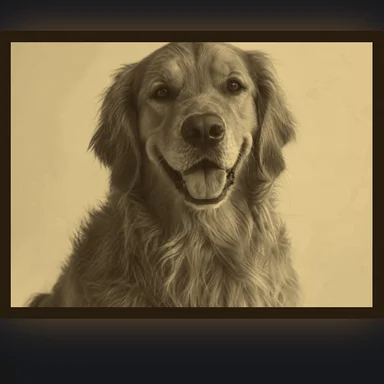
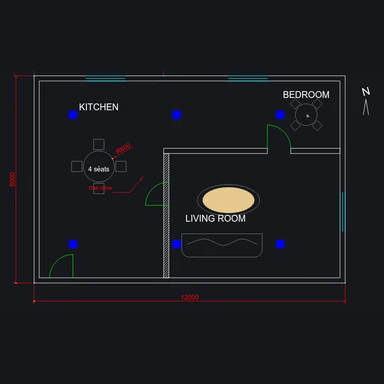
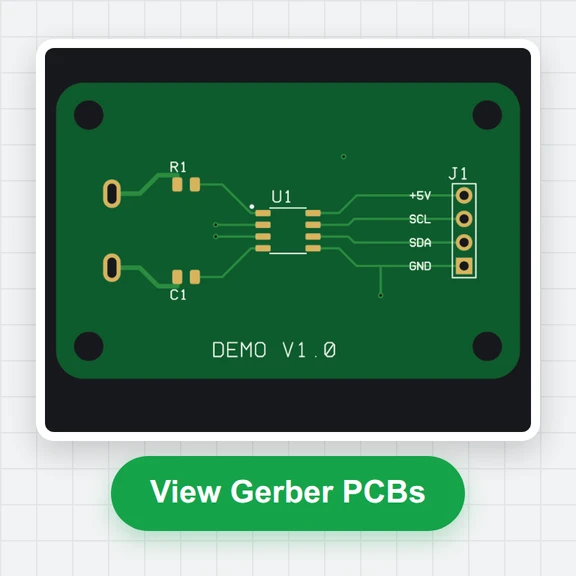
Real outputs from the 3D models on WaveSpeed AI. Choose one to check it and download a print-ready STL.
THREE SIMPLE STEPS
How to use the STEP to STL Converter
Add your STEP file
Drop a .step or .stp file (or IGES). It opens on the build plate at its real size, with a print check.
Choose the detail
Standard suits most prints. Fine or Extra fine make small holes and curves rounder. Turn the part to the side it should print on.
Download STL
Save the STL file. Other formats (STL, 3MF, OBJ, GLB) are one click away.
WaveSpeed AI
Make something to print.
Turn a photo or a sketch into a 3D model with WaveSpeed AI, then convert it here.
3D Generator
Make a printable model from a photo or a prompt, with Tripo, Meshy, Hunyuan3D, Rodin and more.
Image Generator
Design a figure, toy or ornament as a picture first, then turn it into 3D.
Video Generator
Bring your design to life in a short video to show it off.
- 1,000+ AI models
- Image, video and 3D
- Pay as you go
$1 in free credits for eligible new accounts. No card needed. Generators have separate account and credit requirements. The converter is free.
/filters:quality(82)/media/images/1791123751656780930_IfFPY7R0.webp)
/filters:quality(82)/media/images/1791123737177812425_RjKT3cku.webp)
/filters:quality(82)/media/images/1791123748309870128_xlkNgK8N.webp)
/filters:quality(82)/media/images/1791123738630744263_oR09R0aj.webp)
/filters:quality(82)/media/images/1791177033162457776_uQ09OY7g.webp)
/filters:quality(82)/media/images/1791123734319125607_JdnwGPY7.webp)
/filters:quality(82)/media/images/1791123746355630206_udnxGPY7.webp)
/filters:quality(82)/media/images/1791123744771362580_yC0sPezZ.webp)
/filters:quality(82)/media/images/1791123738606970169_5KIR1ais.webp)
/filters:quality(82)/media/images/1791123748197655725_EUmuFNW6.webp)
STEP to STL Converter FAQ
Is this STEP to STL converter free?
Yes. Convert as many STEP files as you like, with no account, subscription, watermark or file count limit.
What is the difference between STEP and STL?
STEP stores the exact shape a CAD program made: true circles, curved surfaces, separate parts, names, colours and units. STL stores only triangles. The converter turns the exact surfaces into triangles that follow them closely enough to print.
Will the size be right?
Yes. STEP files record their units, so the part keeps its real size in millimetres, even if it was saved in inches. A 100 × 50 × 20 mm block reads 100 × 50 × 20 mm. You can still scale it in the size setting.
What does the detail setting do?
It sets how closely the triangles follow curves. Standard is fine for most prints. Fine and Extra fine give rounder holes, fillets and threads, and a bigger STL that takes longer to convert.
Can I convert an assembly?
Yes. Every part in the STEP file is included in one STL, in place. To print parts separately, export them one at a time from your CAD program.
Which CAD files work?
STEP (AP203, AP214 and AP242, .step or .stp), IGES (.iges, .igs) and OpenCascade BREP, up to 300 MB. Native files such as .sldprt, .f3d or .ipt need to be exported as STEP first.
Is my file uploaded?
No. The file is converted in your browser and never leaves your device, so it’s safe for confidential designs.
More free tools like this
All Free Tools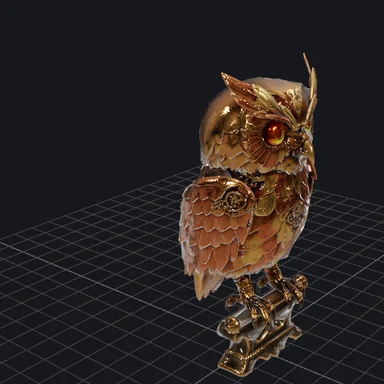

Free STEP to STL Converter
STEP & IGES in, STL out · Real size in mm · No CAD software needed