
Kling AI Prompts for Camera Moves and Reference Shots
Kling AI prompts for video teams: use camera, motion, and reference-shot templates with a repeatable review loop and version-specific setting checks.
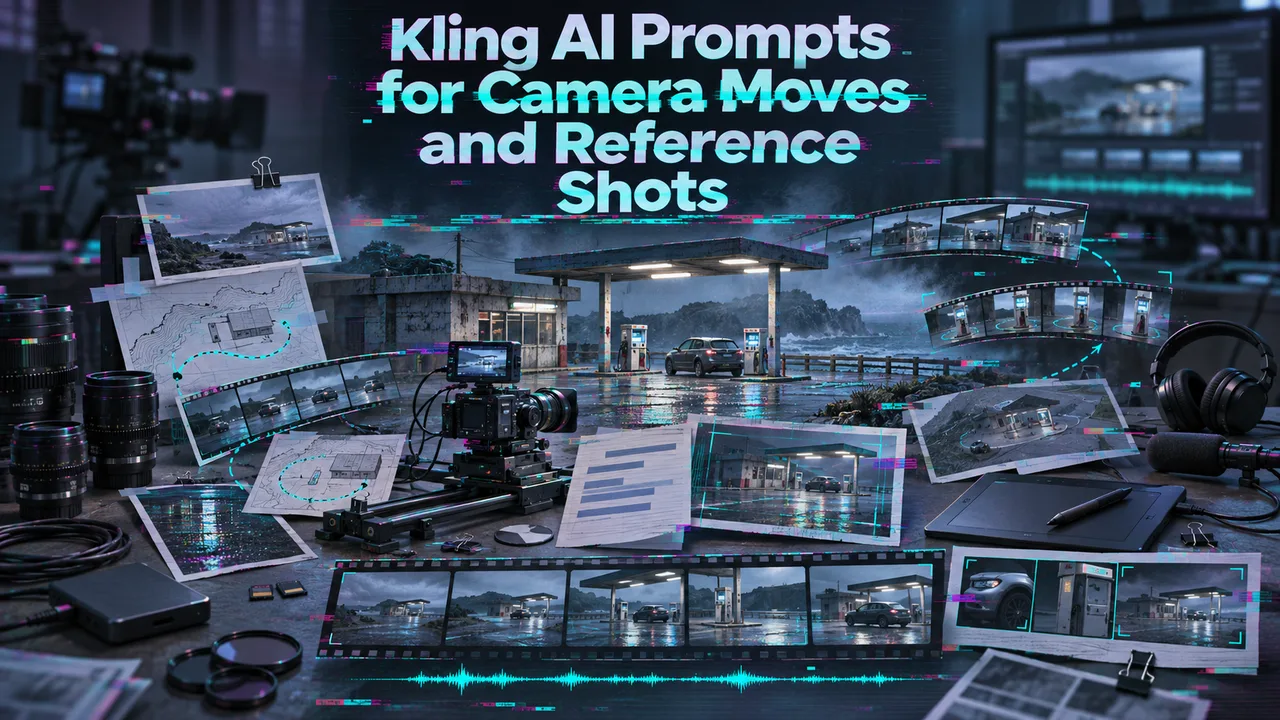
A producer has one approved character image and a six-second shot to deliver. The draft looks close, but the camera circles instead of pushing in. Changing the whole prompt hides what fixed the shot. Good Kling AI prompts record which asset defines appearance, what moves, and what to review.
These are proposed briefs, not tested clips. They assume full Kling 4.0 reference-to-video, with assets numbered by upload order as @Image1 or @Video1. Check the web mode or API schema before pasting; Controls vary by entry point.
What Belongs in a Kling Video Prompt?
Specify the reference’s job, subject action, one camera move, ending, and sound. Kling’s 4.0 user guide recommends concrete descriptions and reference roles. Its web Omni Reference mode guides appearance and movement; Keyframes anchor moments. They cannot be combined in one task.
For handoff, keep the prompt beside an input list and acceptance note. “Cinematic” tells the reviewer little. “The face stays recognizable through the turn” does. Kling video prompts need to work for the next operator. One person can remember the shot. A team cannot.
Camera-Move Prompts for a Single Shot
Kling camera movement prompts work best with one main move per shot. Kling’s camera control guide distinguishes push, pan, track, and orbit. These templates hold the subject still while the camera moves.
Template 1: Slow push-in
Input: Upload one licensed three-quarter image of a matte blue desk lamp as @Image1.
Prompt: “@Image1 defines the lamp’s shape, shade, and blue finish. One continuous six-second shot on a desk. The lamp stays still. Camera slowly pushes from medium view toward the switch, without panning or cutting. Soft light from camera left. End with the switch sharp and shade visible. No subtitles or music.”
Expected: Tighter framing, unchanged lamp. Review: Switch, shade edge, and whether the move becomes a zoom.
Template 2: Short lateral track
Input: Reuse the same @Image1 and all other settings.
Prompt: “@Image1 defines the lamp’s design and blue finish. One continuous six-second shot. The lamp stays still. Camera tracks left to right at constant distance, revealing the shade’s side. Keep the base in frame. End at a three-quarter view. Soft light from the camera left. No cuts, subtitles, or music.”
Expected: Only camera path and ending angle change. Review: Base visibility and invented details on the lamp’s unseen side.
Character-Motion Prompts with a Reference Image
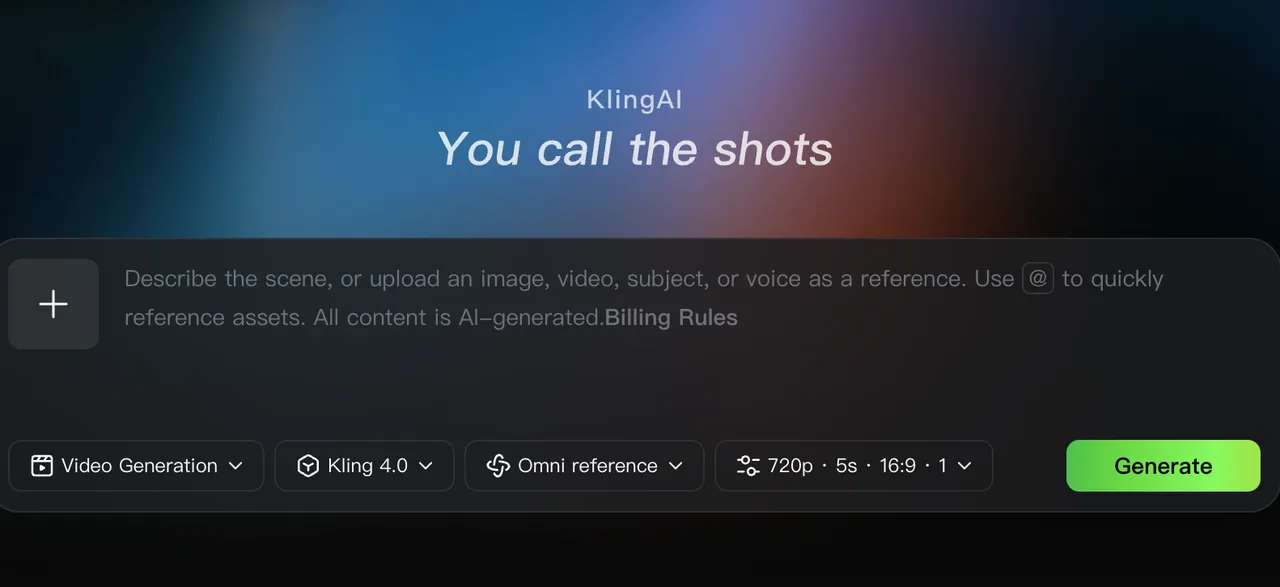
Kling reference image prompts should separate the image’s identity details from the requested action. References are numbered by upload order; a video can guide movement where supported. These Kling character motion prompts start with one image so errors are easier to isolate.
Template 3: Walk, stop, turn
Input: Upload an authorized full-body image of one adult actor as @Image1, with hands and shoes visible.
Prompt: “@Image1 defines the actor’s face and outfit. In one continuous six-second shot, the actor walks two steps toward a window, plants both feet, then turns toward the camera. Camera stays fixed at waist height. Preserve identity and clothing. Quiet room tone; no dialogue or music.”
Expected: Position and head direction change. Review: Foot contact, face turn, doubled limbs, and jacket continuity.
Template 4: Reach for a prop
Input: Use the same actor image as @Image1; add a licensed image of a red notebook as @Image2.
Prompt: “@Image1 defines the actor. @Image2 defines the red notebook’s cover and size. One continuous six-second medium shot. The actor picks up the notebook with the right hand and holds it against the chest. Camera pushes in slowly. End with notebook visible and face unobstructed. No cuts or dialogue.”
Expected: One object interaction. Review: Hand contact, notebook shape, face visibility. If the push-in hides the action, remove it first.
How Do You Compare Two Prompt Revisions?
Change one instruction while keeping files and settings fixed. Before running further, I would narrow the variables. Version B should differ only in camera path, action timing, or reference role. Save prompts and settings with both outputs.
Log reference filenames, route, duration, resolution, prompt version, defects, and pass/rework/reject. Inspect the lamp at start, midpoint, and end; inspect the actor at foot contact and face turn. A stronger still frame does not win if motion fails.
Where Do Prompt-Only Controls Stop Working?
Prompt-only control stops at exact timing, fixed endpoint frames, or action copied from video. The Kling keyframes guide covers frame anchors. For copied action, the separate motion control guide covers an image-plus-motion-video workflow. More adjectives will not create a frame anchor.
The checked reference-to-video API schema lists prompt, images, videos, audios, duration, resolution, aspect ratio, and an original-sound option. It lists no dedicated negative-prompt or seed field. Web controls do not automatically become API fields.
FAQ
Does the current Kling route accept start and end frames?
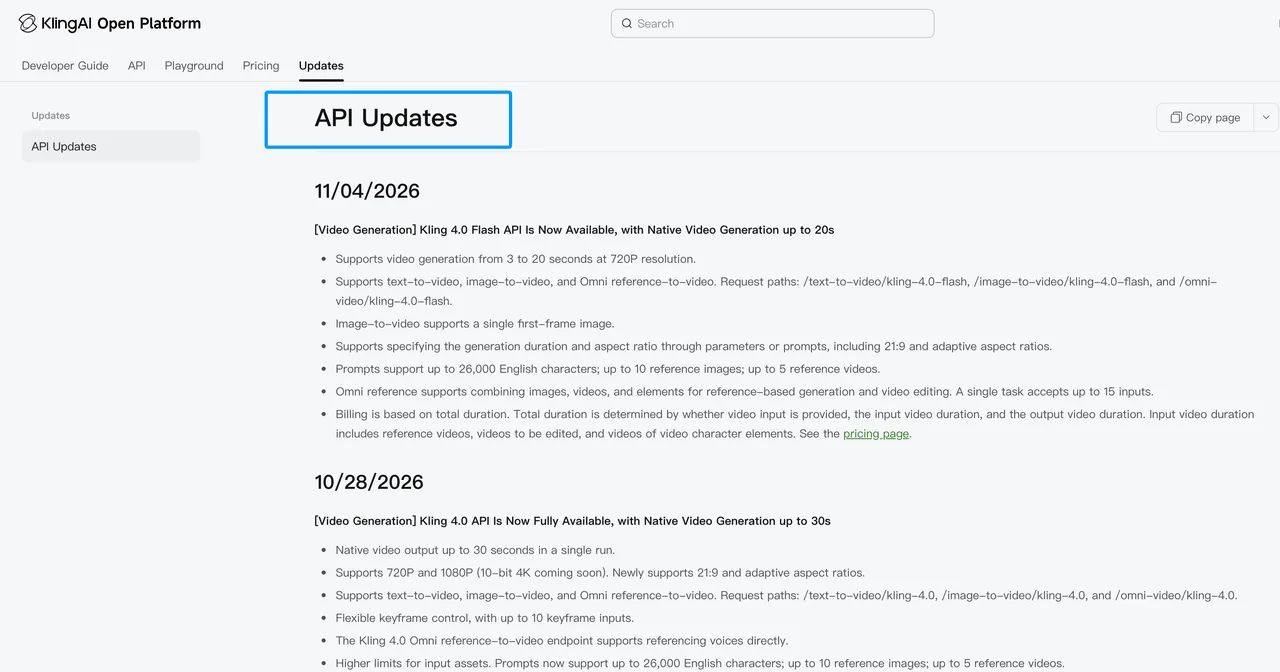
The selected Kling 4.0 reference-to-video route does not document first- or last-frame fields. The separate 4.0 image-to-video route documents a required first image and optional last image; Kling’s web Keyframes mode also supports frame anchors. Kling’s API updates distinguish full 4.0 from Flash, which has different limits. Check the route before moving a prompt between them.
Can the selected Kling version use a negative prompt?
The selected reference-to-video schema does not expose a separate negative_prompt field. Kling’s guide recommends concrete positive descriptions and only limited negative instructions in the main prompt, such as “no subtitles” or “no background music.” Other routes may have different fields.
Which prompt languages does the selected Kling route document?
The selected route does not publish a guaranteed list of accepted prompt languages. Kling’s 4.0 guide lists languages for generated speech and on-screen text; That is not the same as an API prompt-language guarantee. These templates use English, and multilingual prompts need a route-specific check.
Does the route expose a seed for repeatable retries?
No seed field appears in the selected route’s published schema. Keep inputs and settings fixed for a fair comparison, but do not promise identical output from a repeated request.
Can native audio be specified separately from visual motion?
Only to a point. The route accepts voice-reference audio and can retain the original sound of an uploaded reference video. Kling’s guide says to describe desired music or effects in the prompt; it does not document separate background-music or sound-effect file inputs for this workflow.
Conclusion
The useful unit for Kling AI prompts is one shot with a named reference role, one main action, one camera move, and a review rule. Start with the smallest version that tests the brief. If it fails, change one variable and keep the record; if the requirement is a fixed frame or copied performance, move to the matching control mode instead of asking the prompt to do a different job.
Previous posts:
Related Articles
Higgsfield Cinema Studio Review: Controls and Workflow

Seedance 2.5 Flash on WaveSpeedAI: Specs, Access, and When to Use It
Seedream 5.5 Review: Image Quality and Editing Limits
Seedream 5.5 vs Seedream 5.0 Pro: Should Teams Switch?
Seedance 3.0 Rumors: Native Audio-Video Sync, Multi-Shot Storytelling, and What to Expect