
WaveSpeed AI Logo
AI Image Eraser — Remove Unwanted Objects from Photos
Free · No sign-up · 100% private

AI Image Eraser - Remove Unwanted Objects from Photos

That stray label, background distraction, or smudge you noticed too late can be cleaned up without opening Photoshop. Upload a photo, brush over the area, preview the repair, and download a clean image.

Select Image

or drag and drop

01

What can Image Eraser remove from a photo?

Pretty much anything that doesn't belong in the shot. Most common distractions can be removed by brushing over the area. The AI uses surrounding textures, edges, and lighting to repair the selection, with preview available before download.

01
1

Remove people, text, logos, blemishes, and background distractions

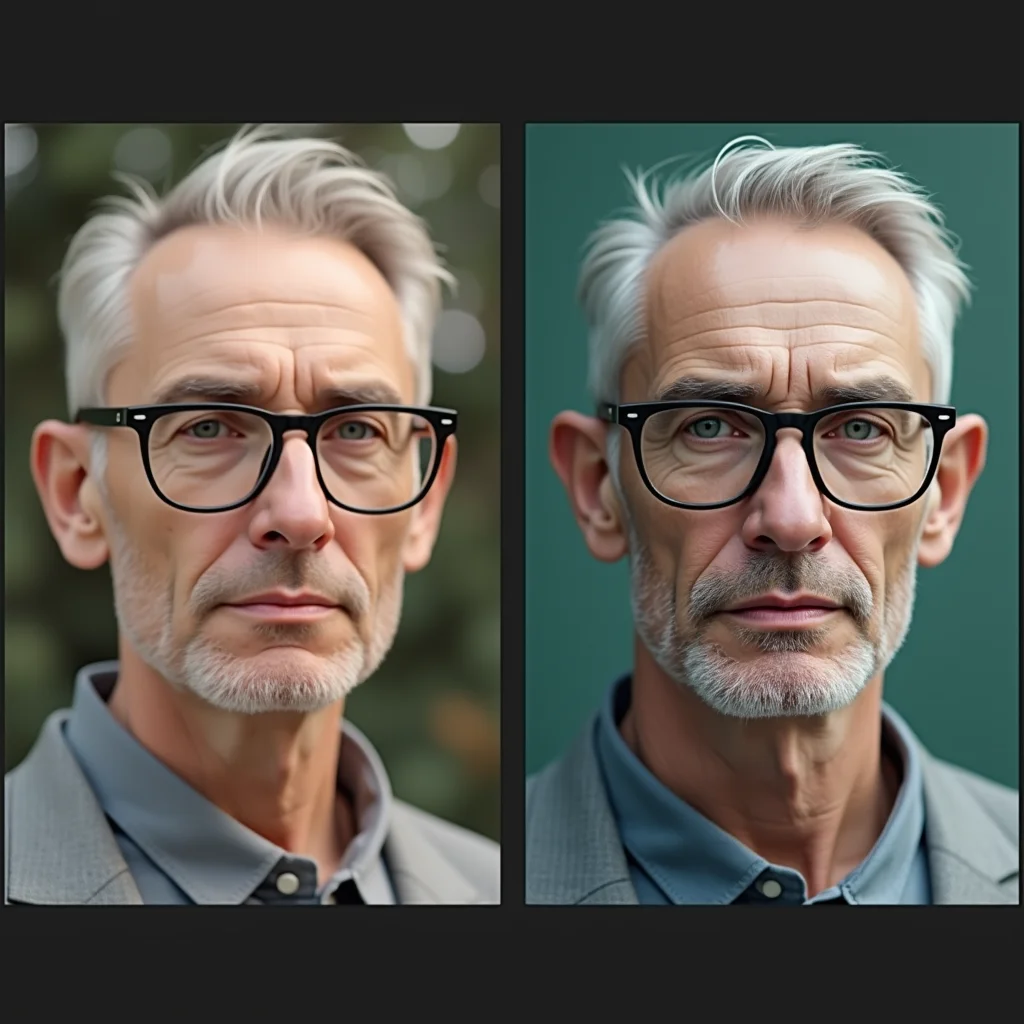
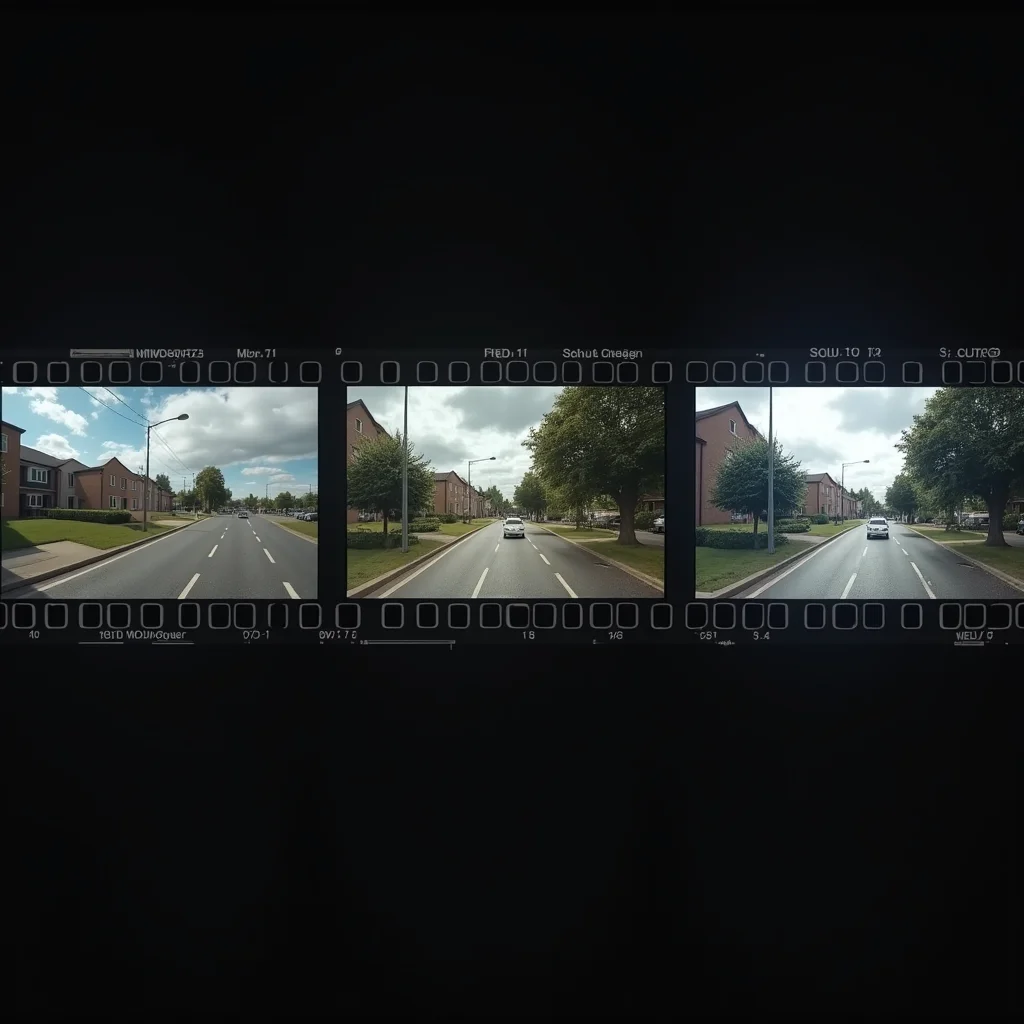
The everyday cleanup jobs, all in one tool: remove people from photo backgrounds, remove text from image files and screenshots, remove labels, date stamps, small marks, and visual distractions from images you own or have permission to edit, and clean up blemishes, spots, or dust with the built-in blemish remover behavior. Tourists behind your travel shot, a price sticker on a product, a date stamp in the corner — paint, repair, done.
2

Keep important details while repairing the selected area

The part that separates a real repair from a smudge: only the area you brush gets touched. The AI reads the surrounding textures, edges, and lighting, then fills the selection so it blends with what's around it — the rest of your photo stays pixel-for-pixel untouched. Brush precisely around an object and the repair follows your selection, not a rough guess.

02

How to erase objects online with WaveSpeed AI

Three steps to erase objects online — the whole thing usually takes under a minute.

02
1

Upload an image

Drop in the photo you want to clean up. Common formats like JPG and PNG work straight from your phone or desktop.

2

Paint over the unwanted object

Use the brush to cover the object, person, or text you want gone. Be a little generous around the edges — covering the full object plus a small margin gives the AI cleaner context to repair from.

3

Preview the repaired area before downloading

Check the result before you commit. If an edge looks slightly off, brush again and re-run — retries are quick. Happy with it? Download the clean image.

03

Which photo cleanup jobs fit Image Eraser best?

Photo cleanup covers a lot of ground. These are the jobs people bring here most.

03
1

Product photos with props, labels, or background clutter

Ecommerce listings live and die on clean product shots. Erase the prop you used to hold the product up, the sticker you forgot to peel, or the clutter at the edge of the frame — and get a listing-ready photo without a reshoot.

2

Portraits with people or distractions behind the subject

A great portrait with a stranger walking through the background is a solved problem now. Paint over the person or distraction behind your subject and the repair rebuilds the background naturally, keeping the focus where it belongs.

3

Screenshots, documents, and marketing graphics with unwanted text

Need to share a screenshot without a username, clean a scanned document, or reuse a marketing image minus the old campaign text? Brush over the text and the eraser repairs the area behind it — much cleaner than a blur box or a crop.

04

When should you use Image Eraser instead of Background Remover?

Both tools clean up photos, but they solve different problems — here's the quick way to pick.

04
1

Use Image Eraser for selected objects inside the photo

If the photo is mostly right and you just want something in it gone — a person, a mark, a label, some text — that's selected object removal, and it's exactly what Image Eraser does. The background stays; only your selection gets repaired.

05

How does WaveSpeed compare with basic magic erasers?

Plenty of one-click magic erasers exist. A few things make this one worth bookmarking:

05
1

Preview before download. You see the repaired area and can retry instantly, instead of downloading first and discovering a smeared patch.

2

Built on a production AI stack. The eraser runs on the same infrastructure that powers WaveSpeed's model platform — not a hobby-grade filter.

3

A path to scale. If cleanup becomes a recurring job, the same capability is available through WaveSpeed's API for repeat workflows — start in the browser, automate later.

Better for repeat cleanup workflows and API-ready production

One photo, use the free tool. A hundred product photos a week, and the browser stops being the bottleneck you want — the same removal quality can slot into an automated workflow via the API when you're ready. No pressure either way; the free tool isn't a demo.

More AI Generators

Create images, videos, avatars, and audio from text prompts.

Continue editing with related free tools

Image Eraser FAQ

Yes — this is a free image eraser: upload, erase, preview, and download without paying. You'd only look at paid options for high-volume or automated use through the API.

Yes, both are core use cases. Paint over a person in the background or text anywhere in the image, and the AI repairs the area behind them. It works on photos, screenshots, and marketing graphics alike.

In most cases, yes — the AI rebuilds the selected area from the surrounding textures and lighting, so simple backgrounds repair almost invisibly. Very complex or highly detailed backgrounds may take a second pass; use the preview to check and re-brush if needed before downloading.

Your image is processed to perform the removal, and retention follows our privacy policy rather than being kept indefinitely. Check the privacy details for the exact handling and retention window.

Ready to Experience Lightning-Fast AI Generation?