Open your CSV
Drop a .csv or .tsv file. The table appears with its column types.
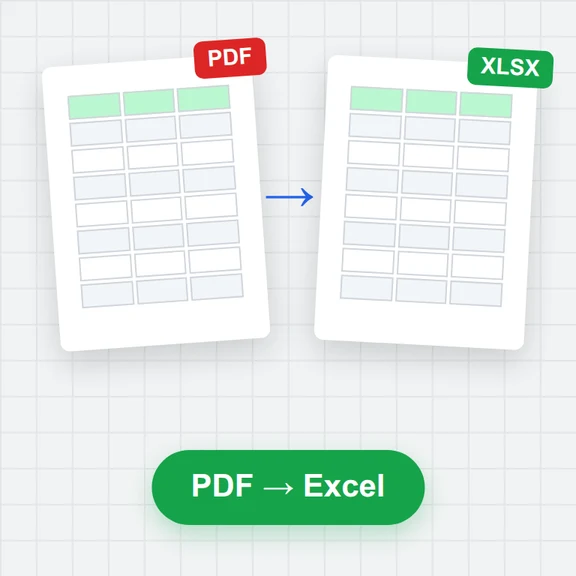
Open a CSV or TSV file; its separator and column types are detected, so numbers and dates arrive in Excel as values, not text.
Filter, sort or summarise first if you like, then download the .xlsx.
Loading the data explorer…
Drop a .csv or .tsv file. The table appears with its column types.
Sort, filter, or summarise it with group by. The download follows what you see.
Save an .xlsx file with one sheet and a header row.
Turn your findings into images and video with WaveSpeed AI.
Make cover images and illustrations for reports and slides.
Turn a still into a short explainer clip.
Turn a picture into a 3D model.
$1 in free credits for eligible new accounts. No card needed. Generators have separate account and credit requirements. The data explorer is free.
No. It is converted in your browser tab and never leaves your device.
An Excel sheet holds 1,048,576 rows including the header. For more, filter or summarise first, or download Parquet or CSV instead.
A column such as 00123 is read as numbers when every value looks like a number. To keep the zeros, change its type in SQL: SELECT CAST(code AS VARCHAR) AS code, … and download that result.
Open them together; each is a table. Download each one, or combine them in SQL with UNION ALL first.
Numbers stay numbers · Filter before saving · No upload
/filters:quality(82)/media/images/1791123751656780930_IfFPY7R0.webp)
/filters:quality(82)/media/images/1791123737177812425_RjKT3cku.webp)
/filters:quality(82)/media/images/1791123748309870128_xlkNgK8N.webp)
/filters:quality(82)/media/images/1791123738630744263_oR09R0aj.webp)
/filters:quality(82)/media/images/1791177033162457776_uQ09OY7g.webp)
/filters:quality(82)/media/images/1791123734319125607_JdnwGPY7.webp)
/filters:quality(82)/media/images/1791123746355630206_udnxGPY7.webp)
/filters:quality(82)/media/images/1791123744771362580_yC0sPezZ.webp)
/filters:quality(82)/media/images/1791123738606970169_5KIR1ais.webp)
/filters:quality(82)/media/images/1791123748197655725_EUmuFNW6.webp)