

WaveSpeed AI Logo
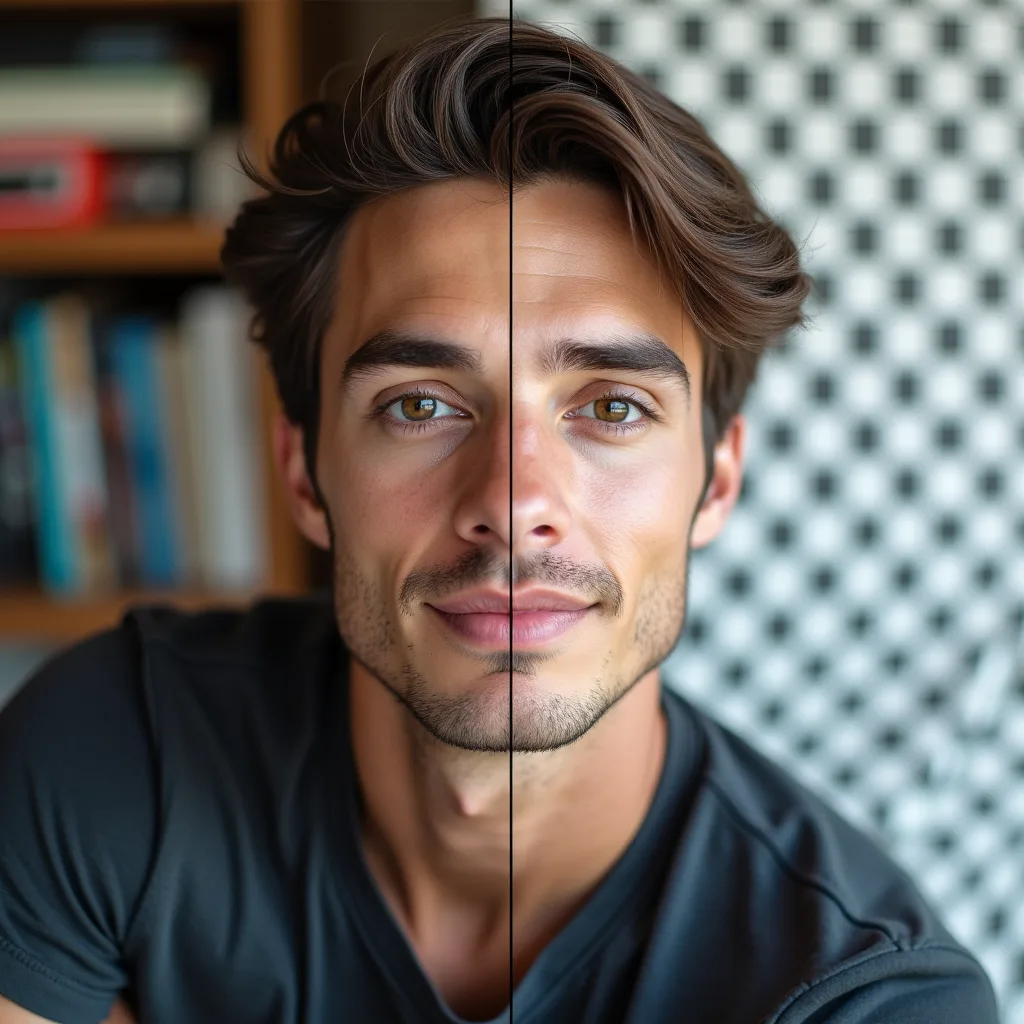
Background removal before and after
Free · No sign-up · 100% private

AI Background Remover

Upload a photo, and seconds later the background is gone — subject kept, everything else cleared to a transparent PNG. This background remover runs fully online: no manual tracing, no green screen, no design software. Preview the cutout, pick your background, download.

Select Image

or drag and drop

PNG · JPEG · WebP

01

Can Background Remover create a clean transparent PNG?

Yes. The tool is designed for the parts that usually decide whether a cutout looks usable: hair, soft shadows, product edges, and transparent output.

01
1

Cut out hair, product edges, and soft shadows

The difference between a clean cutout and an obvious one lives at the edges. The AI handles the hard cases — flyaway hair, fine product edges, semi-transparent details, soft shadows — so the subject lifts out of the photo without the jagged halo that gives cheap cutouts away. It's how you remove a background without losing quality on the part of the image that matters.

2

Export transparent, white, or custom backgrounds

Transparent isn't the only option. Keep the classic transparent PNG for design work, switch to a clean white background for marketplace listings, or drop in a custom background color to match your brand. One cutout, whatever backdrop the job needs.

02

How to remove a background online in 3 steps

Here's how to remove a background online — start to finish in well under a minute.

02
1

Upload your image

Drop in a JPG or PNG from your phone or desktop. Product shots, portraits, logos — anything with a subject to keep.

2

Preview the AI cutout

The AI detects the subject and shows you the cutout before you download. Check the edges — hair, fingers, product corners — and re-run if you want a second pass.

3

Download the final PNG

Grab your transparent PNG, or export with the white or custom background you picked. Ready for a listing, a design file, or a post.

03

Which images need background removal most?

Three kinds of images account for most of the cutouts made here.

03
1

Product photos for ecommerce and marketplaces

Marketplaces want clean, consistent product images — many explicitly require a white background. Shoot the product anywhere, then use the product photo background remover flow to get a listing-ready white or transparent version without a studio. It's the fastest path from phone photo to professional listing.

2

Portraits, profile pictures, and creator thumbnails

A profile picture with a messy room behind it, a thumbnail where the subject needs to pop against a designed backdrop — cut yourself out cleanly and place the portrait wherever it works. Hair edges hold up, which is where portrait cutouts usually fail.

3

Logos, design assets, and marketing graphics

Got a logo trapped on a white rectangle, or an asset you need on transparency for a deck or a banner? Remove the background and get a reusable transparent version that drops into any design without an ugly box around it.

04

What is the difference between Background Remover and Image Eraser?

Two cleanup tools, two different jobs — the split is simple.

04
1

Use Background Remover for full cutouts and transparent PNGs

When the goal is subject kept, background gone — a full cutout ending in a transparent, white, or custom backdrop — this page is the right tool. It removes the entire background in one pass.

2

Use Image Eraser for leftover props, marks, or text inside the image

When the background should stay and only something inside the photo needs to go — a prop, a mark, a stray bit of text — that's selected-object removal. Remove leftover props with Image Eraser instead. The two pair well: cut out the subject here, clean up details there.

05

How is WaveSpeed different from basic remove-bg tools?

One-off background removers are everywhere. A few reasons this one holds up when the work gets serious:

05
1

Preview-first flow. See the cutout and its edges before downloading, not after.

2

Quality on the hard edges. Hair, soft shadows, and fine product edges — the cases that expose weaker tools.

3

A route from tool to workflow. The same removal is available programmatically when one-at-a-time stops scaling.

Batch and API workflows for repeat background removal

If you're cutting out one photo, the free tool is all you need. If you're processing a catalog every week, batch background removal through the background remover API turns a repetitive chore into an automated step — same cutout quality, wired into your pipeline instead of your afternoon.

More AI Generators

Create images, videos, avatars, and audio from text prompts.

Continue editing with related free tools

Background Remover FAQ

Yes — this is a free background remover: upload, preview, and download your cutout at no cost. Paid options only come into play for high-volume or API-based workflows.

Yes — the cutout keeps your subject at its original quality; only the background is removed. Edge quality on hair and fine details is where the AI focuses, and the preview lets you confirm the edges look clean before downloading.

Yes. After the cutout, choose transparent, white, or a custom background color before you download — so a single upload covers a marketplace listing, a design asset, and a branded graphic.

Ready to Experience Lightning-Fast AI Generation?