Sign in
Watch the startup animation (or skip it), then click the lock screen and press Sign in to reach the desktop.
This Windows 11 simulator gives you a complete desktop to play with: drag, snap and resize windows, open the start menu, widgets and quick settings, and use real working apps.
Write notes, draw, manage files, try terminal commands, take screenshots, or start a full-screen fake Windows update as a harmless prank.
Starting the desktop…
Watch the startup animation (or skip it), then click the lock screen and press Sign in to reach the desktop.
Use the Start button or the taskbar. Drag windows by the title bar, snap them to the edges, and hover the maximize button for snap layouts.
Your files stay in the browser. Take a PNG screenshot, go full screen, or switch to Prank mode for a fake update screen.
Every app works and saves to the simulator's own virtual disk in your browser.
Folders for Desktop, Documents, Pictures and Downloads. Create, rename, cut, copy, paste and drag to move. Add files from your computer and download them again.
A plain-text editor that saves as you type, with word wrap, text size and word count.
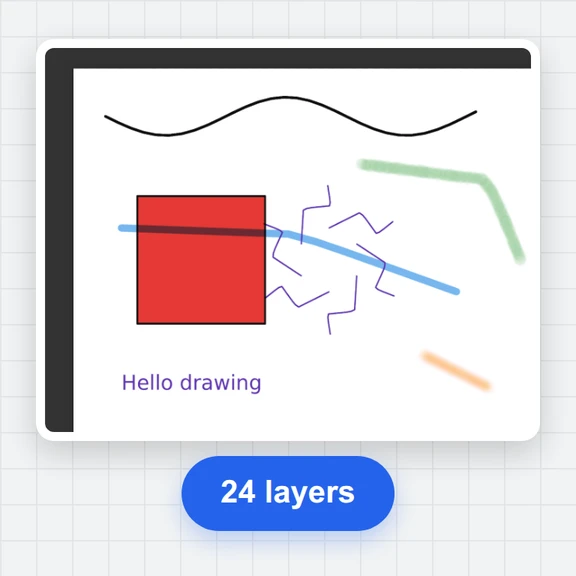
Brush, eraser, colours and sizes with undo. Save drawings to Pictures or export a PNG.
A small shell with ls, cd, cat, mkdir, touch, rm, echo, date, whoami, history and tab completion.
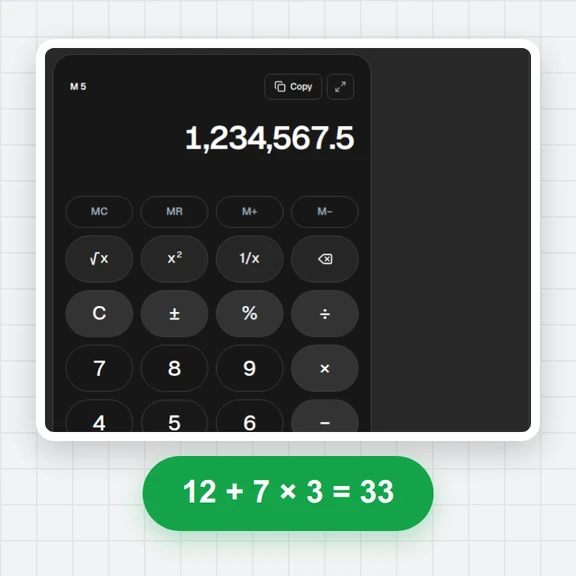
A standard calculator that works with the keyboard, plus a clock, countdown timer and stopwatch.
View and zoom pictures, read the built-in help pages, change theme, accent and wallpaper, and restore deleted items.
Shortcuts and ideas to get more out of the desktop.
Drag a window to the left or right edge for half the screen, to a corner for a quarter, or to the top to maximize. Ctrl + Alt + arrow keys do the same.
Hold Alt and press ` (the key above Tab) to step through open windows, one after another. Release Alt to pick one.
Arrange windows, pick a wallpaper and theme, then press Screenshot for a PNG of the whole desktop.
Full screen hides the browser around the desktop, great for demos and classes. Press Esc to come back.
The virtual disk is saved in this browser. Settings › Storage saves it as one file you can open again anywhere.
Prank mode starts only when you press Start, and Esc always ends it, so the joke is easy to undo.
Create wallpapers, icons and short clips from a prompt with WaveSpeed AI.
Generate a custom wallpaper or app icon art.
Turn a still screenshot into a short animated clip.
Turn a picture into a 3D object for your mockups.
$1 in free credits for eligible new accounts. No card needed. Generators have separate account and credit requirements. The Windows 11 simulator is free.
It is a web page that looks and works like a Windows 11 style desktop: a taskbar, start menu, windows you can move and snap, and apps you can use. Everything runs in your browser tab, so you can try the layout without installing anything.
Yes. It is free to use with no sign-up and no download. Open the page and the desktop starts in a few seconds.
Yes. Open Prank mode, choose Fake update and how long it should run, and press Start. A full-screen update screen with a slowly rising percentage appears. Press Esc to leave at any time.
Yes, in your own browser. Notes, drawings and files you add are kept on a virtual disk that stays on your device, and you can save the whole disk as one file and open it again later.
Yes. On a small screen the desktop shows one app at a time, full size, and you can switch between them from the taskbar. Touch works for dragging windows and drawing in Paint.
Files, Notes, Calculator, Terminal, Paint, Clock with timer and stopwatch, Photos, Settings, a Web window with built-in help pages, and a Trash you can restore from.
This is an independent simulator for entertainment, learning and design mockups. It is not affiliated with, sponsored by or endorsed by Microsoft. Windows is a trademark of the Microsoft group of companies; other product names are trademarks of their owners.
Free, in your browser, with nothing to install.