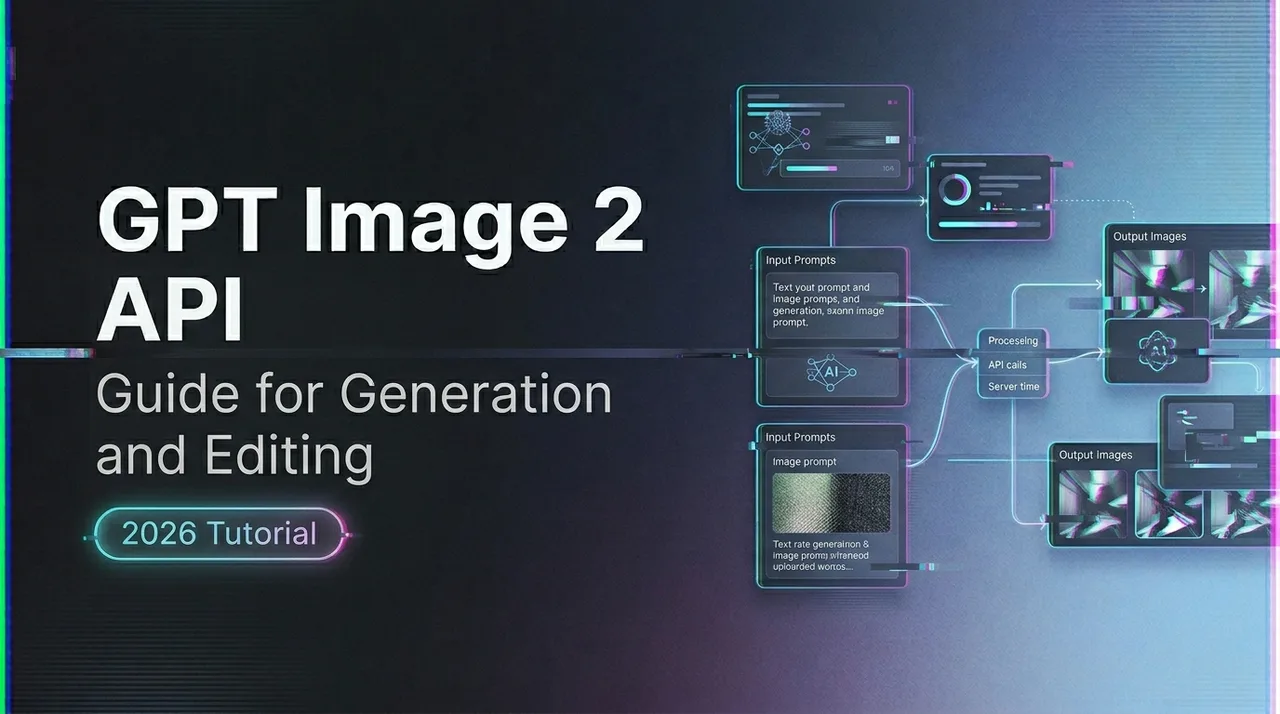
GPT Image 2 API Guide for Generation and Editing
A practical GPT Image 2 API guide for developers covering generation, editing, workflow design, and common implementation considerations.
Update (September 9, 2026): GPT Image 2.5 is now available on WaveSpeedAI. Choose Flare Text-to-Image, Flare Edit, Sunburst Text-to-Image, or Sunburst Edit. Each endpoint supports five quality levels; check the selected endpoint’s current schema before use. GPT Image 2 stays available as described below.
I shipped a small product feature last week that needed image generation behind a button. Two days into the build, I realized the integration choices I made on day one were going to define how much pain I’d carry for the next six months. That’s the part nobody warns you about with the GPT Image 2 API. The hello-world is easy. The production posture is where it gets interesting.
I’m Dora. I write work notes after I ship things, not before. This is what I learned wiring OpenAI’s gpt-image-2 into a real product, and what I’d tell another developer or AI engineering team to think about before the first request goes out.
What You Need Before Using GPT Image 2 API
Model access, endpoints, and key docs
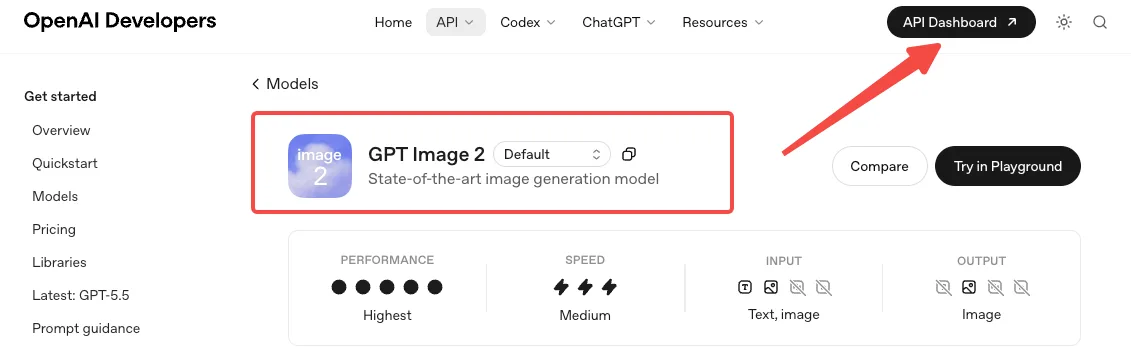
GPT Image 2 launched on April 21, 2026. The model ID is gpt-image-2. Before your first call you may need to complete API Organization Verification in the developer console — OpenAI gates the GPT Image family behind it.
You have three surfaces to choose from. The Image API exposes two endpoints: images.generate for text-to-image and images.edit for modifying existing images with a prompt and optional mask. The third surface is the Responses API, which exposes image generation as a built-in tool for conversational or multi-step flows.
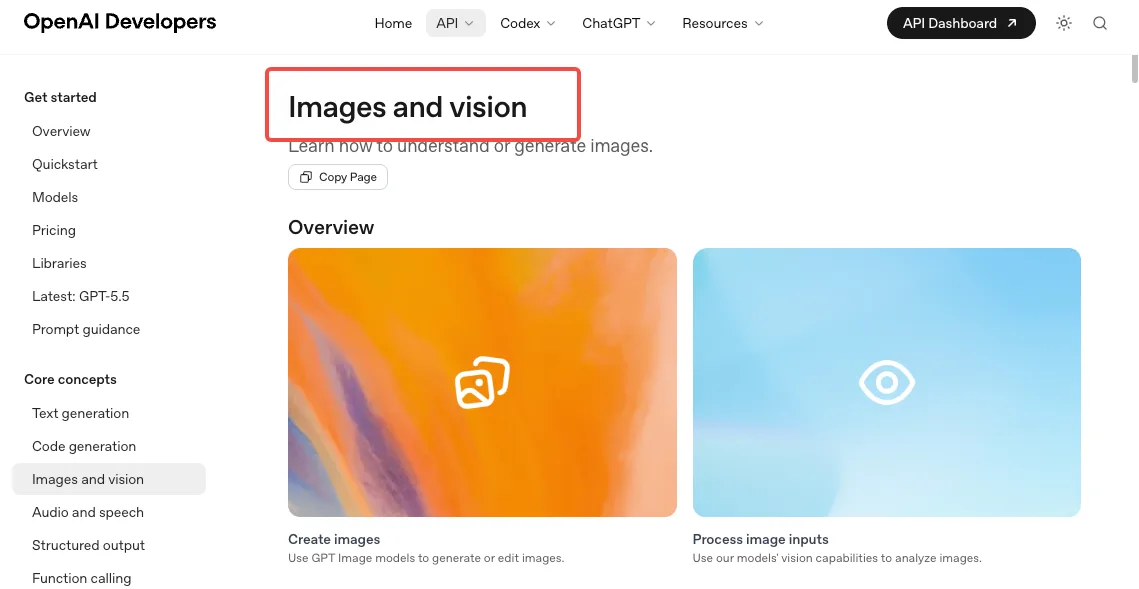
Pick by job, not by novelty. If your product is “user types prompt, gets image,” use the Image API. If your product is “user has a back-and-forth conversation that sometimes produces images,” use the Responses API. Mixing them because one looks fancier than the other is a maintenance trap.
What GPT Image 2 supports today
Two things to internalize early.
It does not support transparent backgrounds. Requests with background: “transparent” will fail. If you need transparent PNGs, route those tasks to gpt-image-1.5 and accept that you’re now maintaining two model paths.
Input fidelity is locked. The input_fidelity parameter exists on older models, but gpt-image-2 always processes inputs at high fidelity. Omit the parameter or your request fails. The cost implication: edit requests with reference images consume more input tokens than you might be expecting from your gpt-image-1 days.
How to Generate Images with GPT Image 2
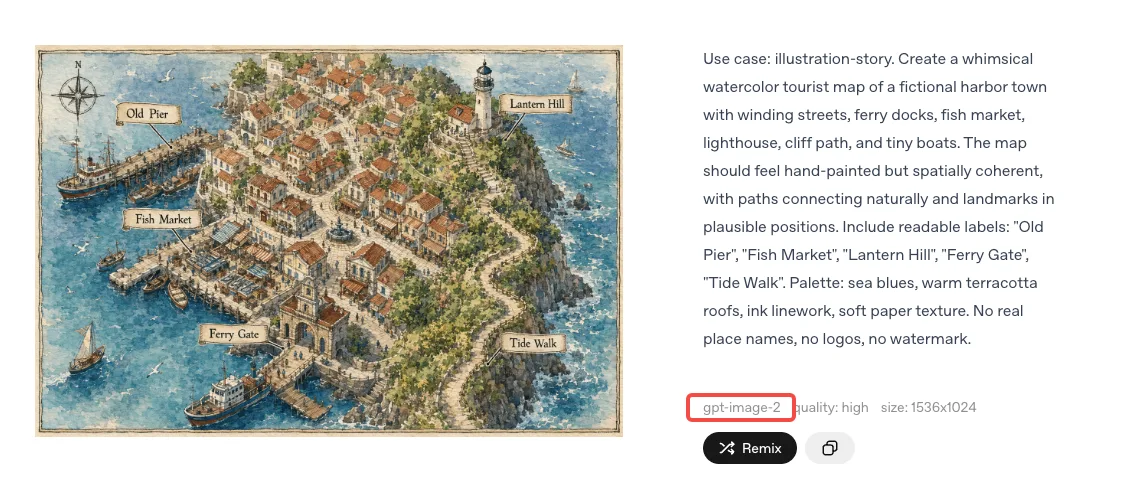
Basic request structure and output choices
A generation request takes a prompt, a size, a quality, and an output format. Format defaults to PNG; you can request JPEG or WebP, and JPEG is faster than PNG when latency matters. Size accepts presets or custom dimensions, with the constraint that both edges must be multiples of 16, max single edge 3840px, aspect ratio under 3:1, and total pixels between 655,360 and 8,294,400.
The n parameter lets you generate multiple images in one request. Useful when you need variations to compare. Less useful when you’re paying per output token — which you are.
Managing size, quality, and workflow trade-offs
This is where most teams burn money without realizing it. GPT Image 2 is billed per token, not per image: image input $8 per 1M tokens, image output $30 per 1M tokens, text input $5 per 1M tokens. Cached inputs are cheaper. Batch processing halves the standard rates.
What that means in practical numbers: at 1024x1024, OpenAI’s calculator estimates roughly **$0.006 for low quality, $0.053 for medium, $0.211 for high**. Rectangular sizes like 1024x1536 sit slightly cheaper at $0.005, $0.041, and $0.165. Those are output-only estimates. Add input tokens and edit reference tokens on top.
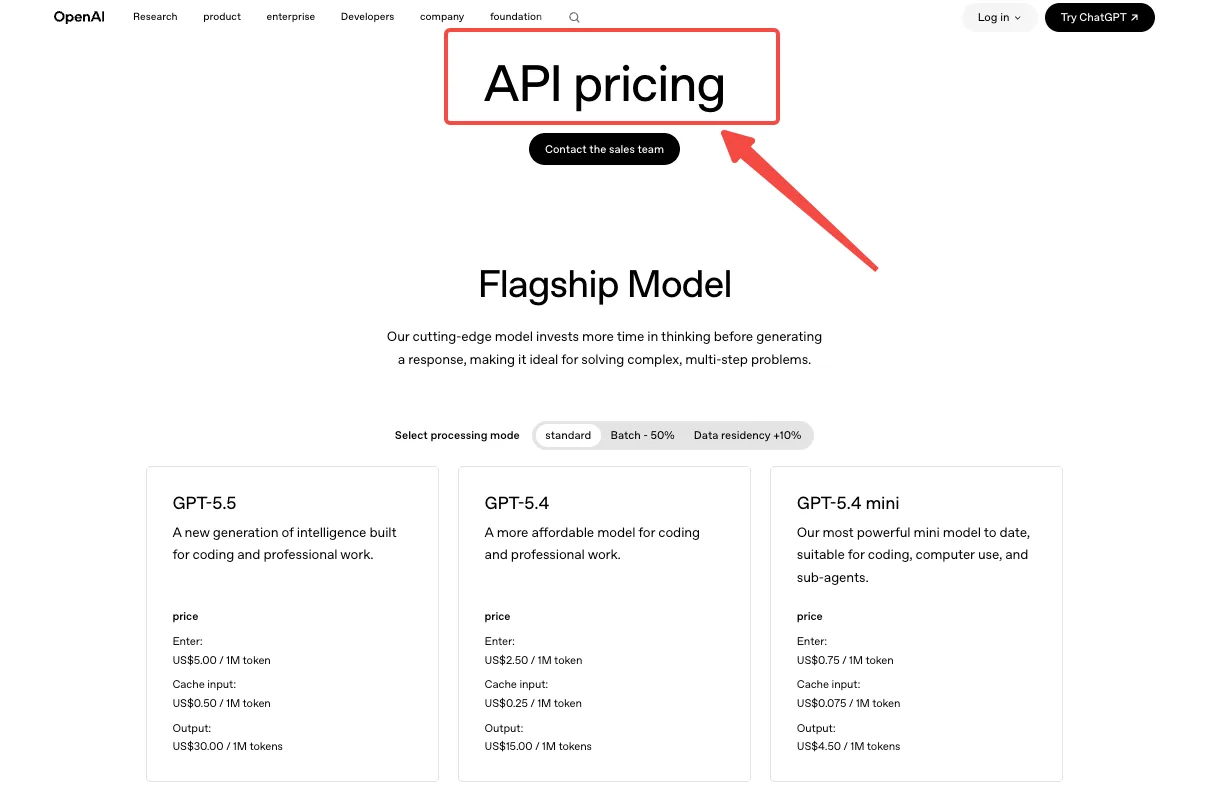
So the trade-off question isn’t which quality looks best. It’s at my volume, what’s the cost difference between medium and high, and does my user actually perceive it. For a thumbnail surface, low quality is often fine. For a hero image users will stare at, high earns its price. I picked medium as the default and exposed high as an opt-in. That single decision changed my projected monthly bill by about 4x.
How Image Editing Works
Input requirements and common edit scenarios
The edits endpoint takes an image, an optional mask, and a prompt describing the change. Pass one image to edit it. Pass multiple images to combine subjects, styles, or references into one output. The model handles inpainting and outpainting, and it preserves the unmasked regions while applying your prompt to the rest.
Common edits I’ve validated: background swap on product photos, object removal, style transfer between two reference images, and text translation inside an image. If the job only requires isolating a subject before placing it on a new background, a free background remover is often simpler than running a full generative edit. For simpler cleanup tasks where you only need to remove an unwanted object or distracting element, a free image cleanup tool can be faster than building the edit through an API workflow. The character-consistency claim — same character across multiple generated scenes — works for me on simple subjects. It gets less reliable as scene complexity grows.
Mistakes that increase cost or reduce consistency
Sending oversized inputs. Because GPT Image 2 processes every image input at high fidelity, a 4K reference photo costs the same input tokens whether your output is a thumbnail or a poster. Downscale references to what the task actually needs.
Vague edit prompts. “Make it better” produces unpredictable changes and often costs you a retry. “Change the red hat to light blue velvet” preserves the rest of the image and usually lands in one shot.
Unbounded n. Asking for n=4 to “see options” sounds harmless until you realize you just paid 4x for a request where you’ll only use one output.
Treating edits like generations for cost estimation. Edits often cost more than generations of the same output size, because reference images add input tokens. Plan that into your pricing model before launch, not after.
Production Considerations for Teams
Retries, moderation, and operational guardrails
Three things that are not optional in production.
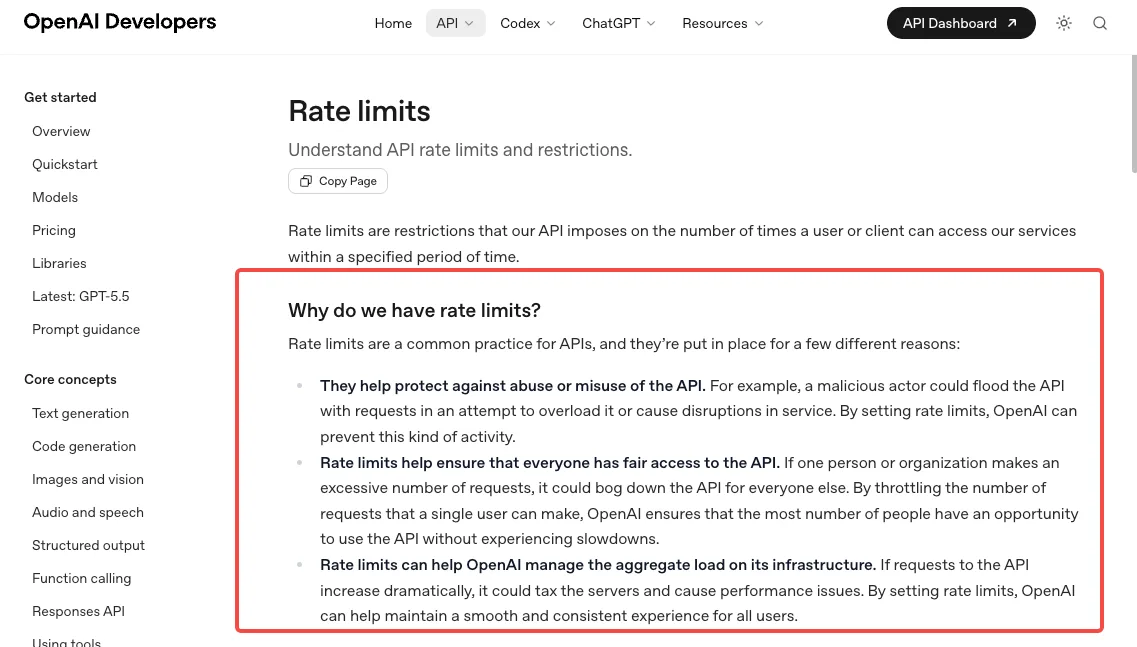
Retries with exponential backoff. Image generation can take up to 2 minutes for complex prompts, and you will hit rate limits. OpenAI’s guidance is to retry with exponential backoff plus jitter — the jitter matters because synchronized retries from a fleet hit the same rate ceiling at the same time.
Moderation, in two layers. The image generation endpoint has a built-in moderation parameter (auto is default; low is permissive but still filtered). For user-submitted prompts, run them through the free omni-moderation-latest endpoint before you send them to gpt-image-2 — it accepts both text and images, and it stops most policy-violating requests before you pay for the generation. The moderations API reference has the exact request shape.
Logging at the right grain. Log model ID, size, quality, prompt token count, output token count, latency, request ID, and final cost estimate per request. When something goes wrong at scale, this is the data that lets you diagnose it. When something goes right, it’s the data that lets you decide whether to scale further. Pin to a specific model snapshot in production rather than the floating alias, so behavior doesn’t drift under you. The production best practices guide covers key rotation, monitoring, and the rest of the operational layer.
When to keep direct integration simple vs add a platform layer
This is the question I sat with longest.
Direct OpenAI integration is the right answer when your product uses one image model, your team has API ops experience, and your traffic is predictable enough that rate-limit ownership and first-party billing matter more than convenience.
A platform layer — and yes, I work on one at WaveSpeedAI — earns its place in different situations. You’re routing across multiple image models (gpt-image-2 for typography, a different model for transparent PNGs, another for video). Teams comparing newer image-generation options alongside GPT Image 2 can also evaluate the Seedream 5 image API as part of a multi-model production stack. You need flat per-call pricing for budget predictability rather than token math. You want one integration surface that survives provider changes without you rewriting your call sites.
Neither answer is universal. The honest test: count how many model providers your product calls today, multiply by how many you’ll call in twelve months, and ask whether you want to maintain that many integrations yourself.
FAQ
Which endpoint should developers use for GPT Image 2?
Use images.generate for text-to-image, images.edit for modifying an existing image with a prompt and optional mask, and the Responses API image tool when generation needs to live inside a multi-turn conversation.
Does GPT Image 2 support image edits?
Yes. The images.edit endpoint accepts one or more reference images plus a prompt, and supports masked inpainting and outpainting. All image inputs are processed at high fidelity automatically.
What should teams log and monitor in production?
At minimum: model snapshot ID, size, quality, input and output token counts, latency, request ID, retry count, moderation outcome, and final estimated cost per request. This is what lets you reconstruct any incident and forecast spend.
When does a simple API integration stop being enough?
When you’re calling more than one image provider, when failure modes need cross-provider fallback, or when finance asks for predictable per-call pricing instead of token-based variability. Below those thresholds, direct integration stays the cleaner choice.
How do I keep prompt-injection and unsafe outputs from leaking into production?
Run user prompts through the moderation endpoint before generation, set the image API’s moderation parameter to auto, log every flagged request, and follow OpenAI’s safety best practices — including human review for high-stakes surfaces and red-teaming before launch.
Conclusion
The GPT Image 2 API isn’t hard to wire up. The first request takes an afternoon. The decisions that matter — quality defaults, edit cost modeling, moderation layering, retry behavior, whether to add a platform layer — are the ones that quietly compound for months after you ship. Pick them deliberately. Run the small pilot first. The rest follows.
Previous posts:
Related Articles
Gemini 3.8 Live vs Extended Thinking: Which Should You Use?
GPT-6 Astra 3D: Blender MCP vs AI 3D Generators
H3 Max API Review 2027: Choose the Right Video Endpoint
K2 Horizon 36B Review 2027 for Local Agent Workloads

H3 Max Pricing: Cost per Usable Video Clip