How Can I Remove an Object from Video without Introducing Frame-to-Frame Flicker?
Reduce flicker after removing an object from video with temporal editing, stable references, controlled prompts, and sequence-level QA.
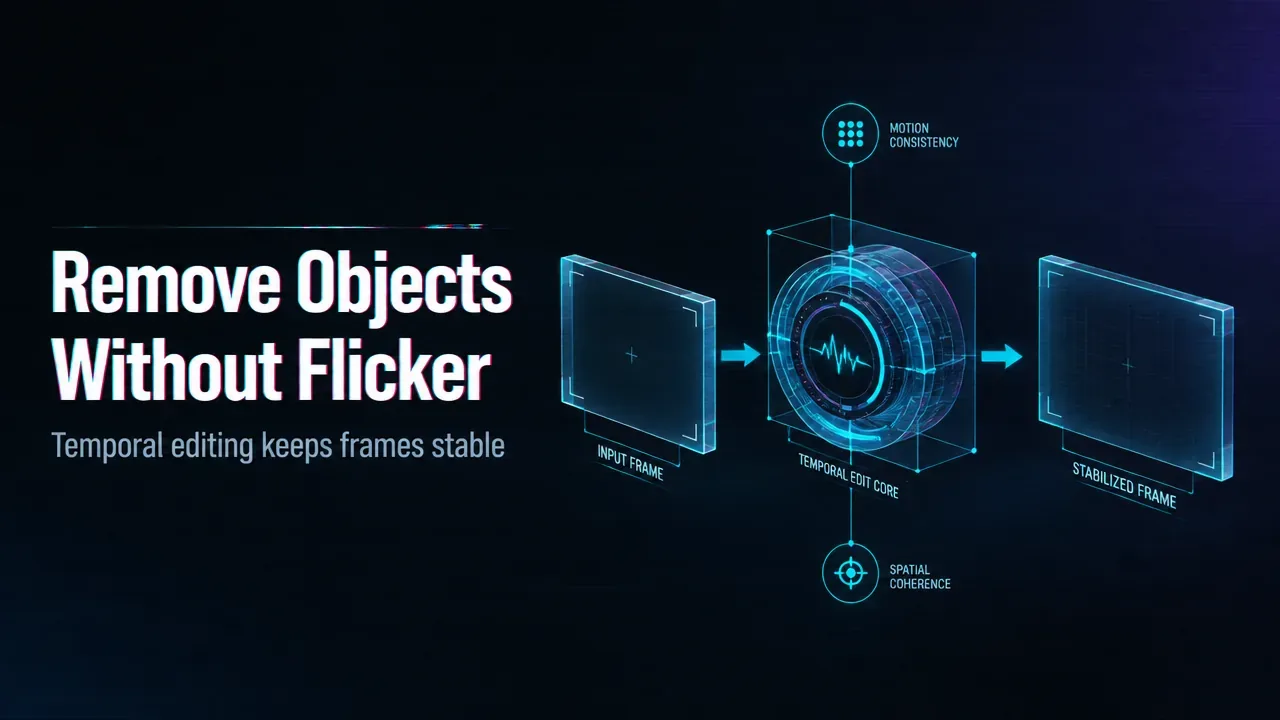
Overview
Use a video-editing model that reasons across time, not an image editor applied independently to every frame. Frame-by-frame repair often invents a slightly different background, edge, or texture on each image, which becomes visible as shimmer, ghosting, or crawling detail during playback.
Stabilize the edit before generation
Choose a source clip with limited compression artifacts and clear separation between the object and background. Describe the removal and the intended replacement background, but avoid changing unrelated style, lighting, or camera motion. If the endpoint supports reference images, provide a clean view of the area or target appearance.
WaveSpeedAI currently exposes prompt-driven video-editing endpoints such as Wan 2.7 Video Edit, which is designed to preserve motion and temporal consistency while changing selected content. That is an upstream model capability accessed through WaveSpeedAI, not a guarantee that every object can be removed perfectly.
Test three difficult cases separately: a static background, a moving camera, and an object that occludes another subject. Inspect the entire sequence for edge halos, repeated textures, background breathing, and reappearing fragments. A good single frame can still hide a poor video result.
Know when to shorten the shot
Use editing when the background can be reconstructed from surrounding frames. If the removed object covers most of the scene or reveals unseen geometry, split the clip, use a stronger reference, or regenerate the shot.
Finish with sequence-level QA
Review at normal speed, slow motion, and on a loop. Flicker is a temporal defect; acceptance must be temporal too.