Add your file
Drop, choose or paste an audio file, or a video whose sound you want.
Turn any audio file into MP3, M4A, OGG, FLAC or WAV, or take the sound from a video.
Cut out just the part you need, choose the quality and download.
MP3, M4A, AAC, WAV, FLAC, OGG and Opus, or a video to take its sound.
Or paste it. Up to 1 GB. Nothing is uploaded.Each example opens a 30-second song with the settings already picked. Change anything before you convert.
Drop, choose or paste an audio file, or a video whose sound you want.
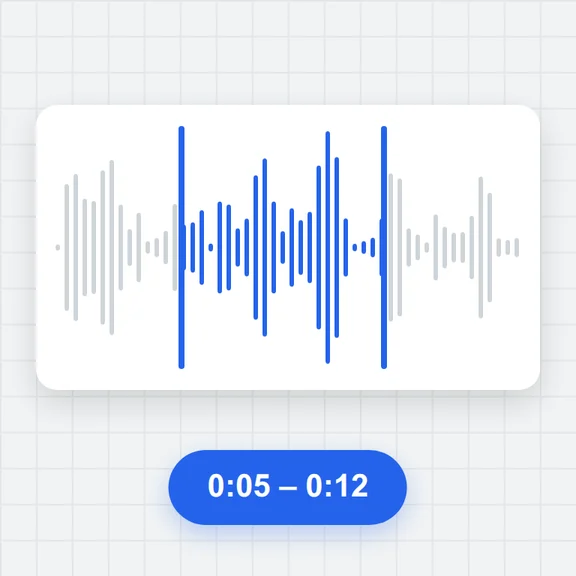
Choose MP3, M4A, OGG, FLAC or WAV and the quality. To keep only a part, drag the handles or type the start and end.
Listen to the result, check its size and download it.
Create cover art, music videos and 3D scenes from a short prompt with WaveSpeed AI.
Make cover art and thumbnails for songs and podcasts.
Make a video clip to go with your music.
Turn a picture into a 3D model.
$1 in free credits for eligible new accounts. No card needed. Generators have separate account and credit requirements. The audio converter is free.
Yes. Convert and cut as many files as you like, with no account and no watermark.
No. Your audio is converted in your browser and never leaves your device, so it's safe for private recordings.
You can open MP3, M4A, AAC, WAV, FLAC, OGG and Opus files, and the sound of MP4, MOV, WebM and MKV videos. You can save as MP3, M4A (AAC), OGG (Opus), FLAC or WAV. FLAC output needs a browser that supports it, such as a recent Chrome or Edge. WMA files can't be opened in the browser.
128 kbps is fine for most listening and 192 kbps is hard to tell from the original. Use 256 or 320 kbps for music you care about, and 64 or 96 kbps for speech. Higher bitrates mean larger files.
Drag the two handles on the timeline, or type the start and end in seconds, and press Play selection to check it. Then pick a format, or choose Keep original format to cut without changing the quality.
Yes. Drop an MP4, MOV, WebM or MKV video and pick an audio format. Only the sound is saved.
No. A lossless file keeps exactly what is in the source, so it can't bring back detail an MP3 already removed. It is useful when software or hardware needs WAV or FLAC.
Files up to 1 GB can be opened. Long files take longer, and WAV output of long recordings can be large, so make sure your device has enough free memory.
Free, private and without sign-up.
/filters:quality(82)/media/images/1791123751656780930_IfFPY7R0.webp)
/filters:quality(82)/media/images/1791123737177812425_RjKT3cku.webp)
/filters:quality(82)/media/images/1791123748309870128_xlkNgK8N.webp)
/filters:quality(82)/media/images/1791123738630744263_oR09R0aj.webp)
/filters:quality(82)/media/images/1791177033162457776_uQ09OY7g.webp)
/filters:quality(82)/media/images/1791123734319125607_JdnwGPY7.webp)
/filters:quality(82)/media/images/1791123746355630206_udnxGPY7.webp)
/filters:quality(82)/media/images/1791123744771362580_yC0sPezZ.webp)
/filters:quality(82)/media/images/1791123738606970169_5KIR1ais.webp)
/filters:quality(82)/media/images/1791123748197655725_EUmuFNW6.webp)