
How to Set Up MaxClaw: Step-by-Step Beginner Guide (2026)
Deploy your own MaxClaw AI agent in under 60 seconds — no servers, no code, no API keys. Follow this step-by-step guide to go from zero to a working agent.
Hello, everyone. I’m Dora. How’s going on? I kept seeing MaxClaw mentioned in a few developer circles, usually in the same breath as “agentic workflows” and “MiniMax.” I wasn’t looking for another AI tool to test — but I was curious about what made this one different enough to keep showing up.
So I set it up. Twice, actually. Once to see if it worked, and once to see if I’d missed something the first time.
Here’s what I found.
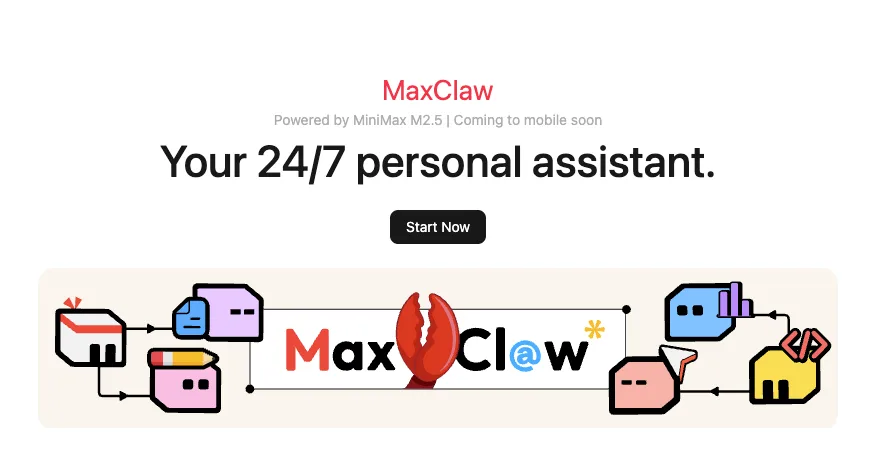
What You Need Before You Start (Hint: Almost Nothing)
The barrier to entry is surprisingly low. I expected more prerequisites.
A MiniMax Agent account
You’ll need access to MiniMax’s agent platform. I signed up at agent.minimax.io — the process took about two minutes. They ask for basic information, nothing unusual.
What caught me off guard: you don’t need to configure API keys or set up payment before testing MaxClaw. That came later, only when I wanted to scale usage beyond the initial free tier.
Which messaging platform you want to connect
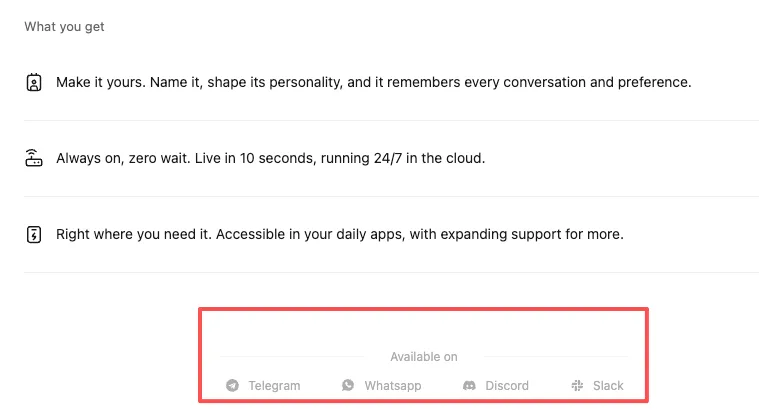
MaxClaw is designed to live inside your existing communication tools. Before you start, decide where you want it to respond:
- Telegram (I tested this one first — it was the fastest)
- Slack (more steps, but cleaner for team use)
- Discord (popular with developer communities)
- WhatsApp (still in beta as of February 2026, according to the GitHub repo)
I chose Telegram initially because I wanted the quickest path to testing. You can always add more platforms later.
Step 1 — Create Your MaxClaw Instance
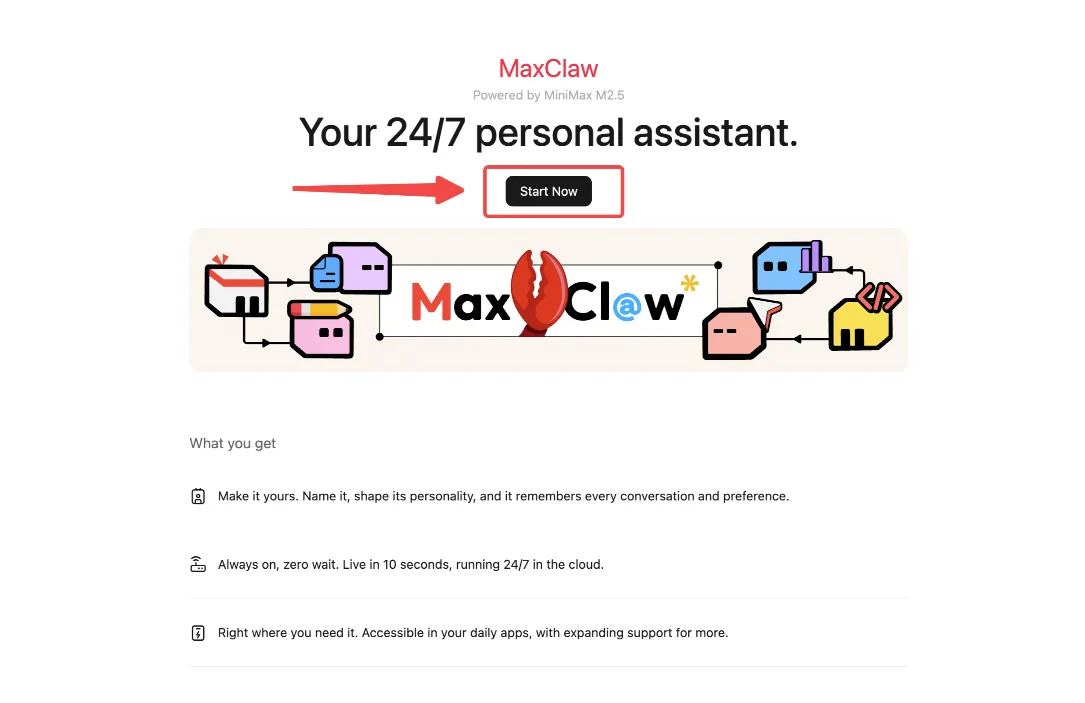
The dashboard didn’t overwhelm me with options. That felt intentional.
Finding ‘Create MaxClaw’ in the dashboard
After logging into agent.minimax.io, I looked for something obvious. There it was: a blue button labeled “Create MaxClaw” in the upper right corner of the Agents page.
One click. That’s it.
What happens in those 20 seconds of setup
I timed it. About 20 seconds passed between clicking “Create” and seeing a confirmation screen.
Behind the scenes, the system was:
- Generating a unique agent instance
- Allocating resources on MiniMax’s infrastructure
- Creating default configuration files
I didn’t see any of this happening. Just a loading animation, then a dashboard with my new MaxClaw instance listed.
The default name was something generic like “MaxClaw-7a4d.” I renamed it immediately — more on that in a moment.
Step 2 — Connect Your Messaging App
This is where most setup tutorials lose me. Too many tabs, too many “copy this token here” instructions.
MaxClaw’s approach was more guided than I expected.
Telegram (fastest, most popular)
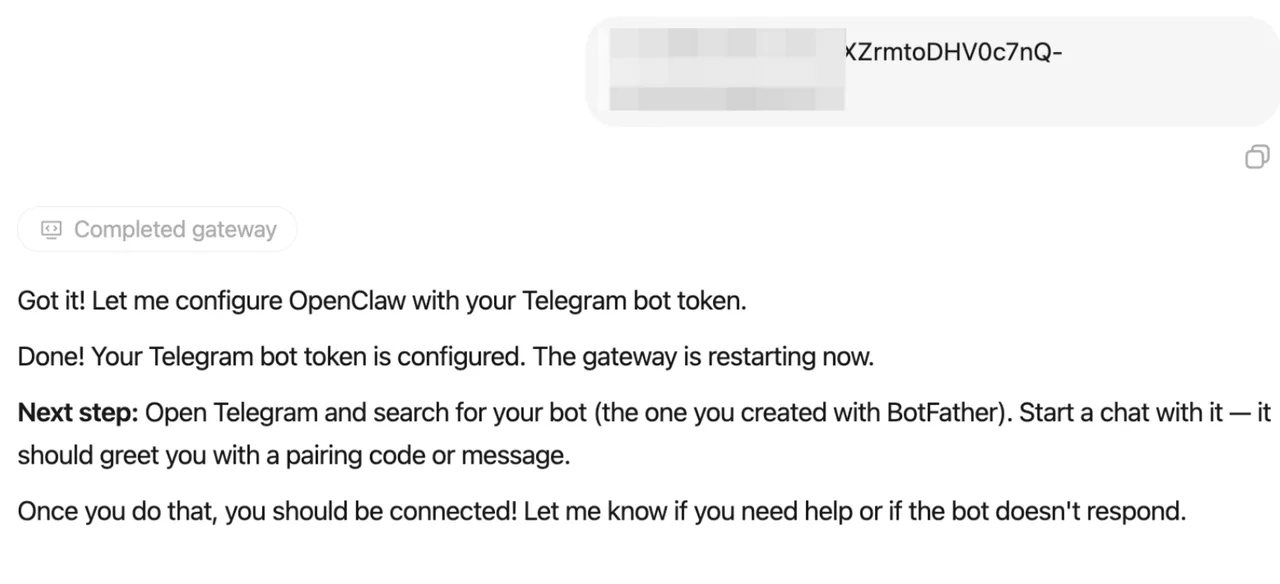
I clicked “Connect Telegram” from my MaxClaw dashboard. A popup appeared with three steps:
- Open Telegram and message @BotFather
- Create a new bot (I named mine “MyMaxClaw”)
- Copy the API token BotFather gives you, paste it back into the MaxClaw dashboard
It worked on the first try. Within 30 seconds, my MaxClaw instance was responding to messages in Telegram.
The friction point: if you’ve never created a Telegram bot before, the @BotFather conversation might feel unfamiliar. MiniMax’s OpenClaw OAuth + Telegram setup guide provides complete documentation for this process. But it’s straightforward once you realize it’s just a chatbot that creates other chatbots.
Slack setup walkthrough
Slack required a few more steps, mostly because of Slack’s permission model.
From the MaxClaw dashboard:
- Click “Connect Slack”
- Choose “Create New Slack App” (this opens Slack’s developer portal)
- Grant the permissions MaxClaw requests (read messages, post messages, upload files)
- Copy the Bot User OAuth Token
- Paste it into MaxClaw’s setup field
I ran into one issue: I forgot to add the bot to a specific channel after installation. MaxClaw was live but couldn’t see my messages. Once I invited it to #general, it started responding.
Time to complete: about 4 minutes.
Discord and WhatsApp options
I didn’t test Discord myself, but the setup flow looked similar to Telegram — create a bot through Discord’s developer portal, copy a token, paste it into MaxClaw.
WhatsApp was grayed out in my dashboard with a note: “Coming soon.” The GitHub repository mentioned WhatsApp integration was still in beta as of early 2026, with limited availability for testing.
Step 3 — Customize Your Agent
This is where MaxClaw stopped feeling like a chatbot and started feeling more like a workflow assistant.
Setting instructions in plain language
Under the “Instructions” tab in my MaxClaw dashboard, I found a text box. No complex syntax, no JSON files to edit.
I wrote: “You help me track interesting articles I come across. When I send you a link, read it, summarize it in 2-3 sentences, and save it to my reading log.”
That was enough. The next time I sent a link via Telegram, MaxClaw did exactly that.
I appreciated the lack of ceremony here. No “prompt engineering” required — just describe what you want in simple terms.
Adding a skill or Expert persona
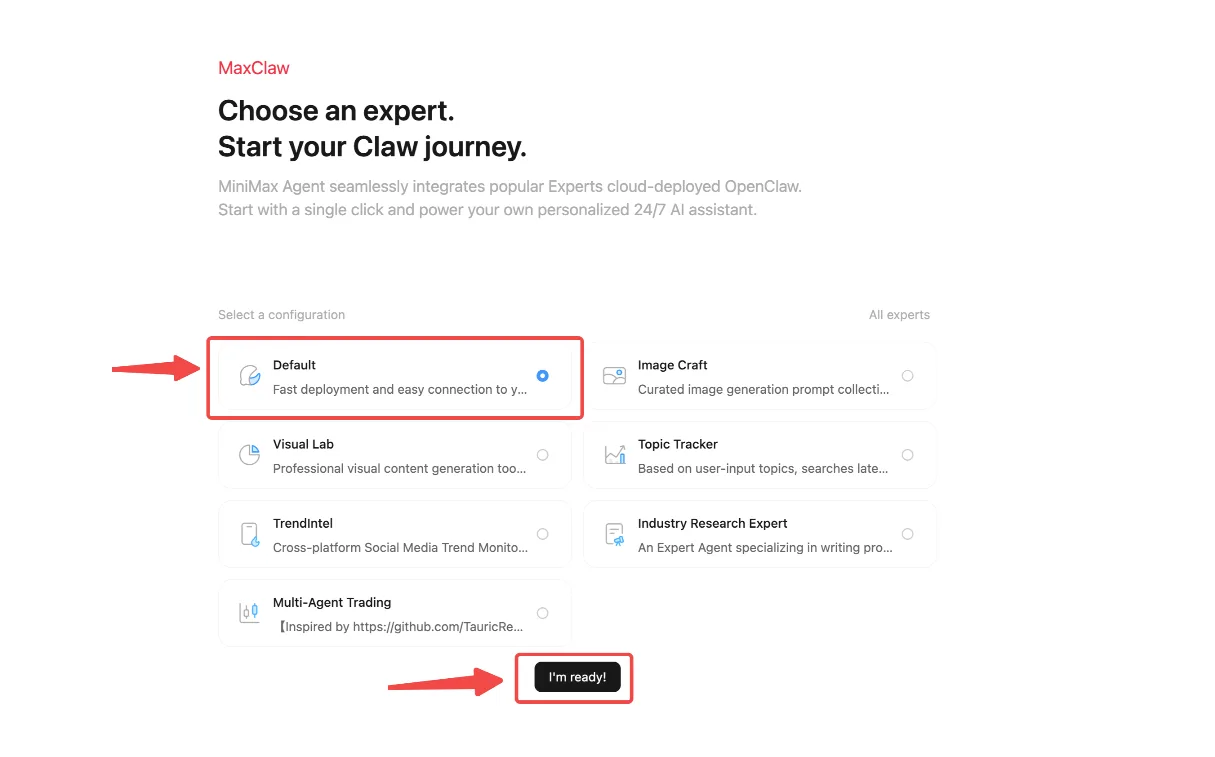
MaxClaw supports pre-built “skills” — essentially templates for common tasks like research, content generation, or data analysis.
I added the “Research Assistant” skill from the marketplace. It took one click. After that, my agent could:
- Search the web for recent information
- Cross-reference multiple sources
- Format findings into a structured report
I didn’t expect this to work as smoothly as it did. The skill integrated without any configuration on my end.
Enabling long-term memory
This feature was buried a bit deeper in the settings, under “Advanced Options.”
When I toggled on “Long-term memory,” MaxClaw started remembering context from previous conversations. I tested this by asking it to “summarize what I’ve been researching this week” three days after our last interaction.
It referenced articles I’d sent earlier. Not perfectly — it occasionally mixed up dates — but well enough to be useful.
One caveat: memory storage is limited on the free tier. After about 50 interactions, older conversations started getting compressed or forgotten.
Running Your First Real Task
I wanted to test something practical, not a toy example.
A multi-step example: research + summarize + save
I sent this message to my MaxClaw agent in Telegram:
“Find 3 recent articles about AI agent frameworks released in 2026. Summarize each one. Save the summaries to a Google Doc titled ‘Agent Framework Research.’”
It took about 90 seconds.
MaxClaw:
- Searched the web (I saw it cite sources from TechCrunch, VentureBeat, and a GitHub discussion)
- Generated three clean summaries, each about 100 words
- Created a new Google Doc and pasted the content
I didn’t have to connect Google Docs beforehand — it prompted me to authenticate mid-task. That felt seamless, though I can imagine some people preferring to set up integrations in advance.
The summaries were adequate. Not brilliant, but accurate enough that I didn’t need to rewrite them.
Common Setup Questions & Fixes
A few things I stumbled over, so you don’t have to:
“My MaxClaw isn’t responding in Telegram”
Check if the bot is online. In the MaxClaw dashboard, there’s a small green dot next to connected platforms. If it’s gray, the connection dropped. Re-paste your token.
“Can I use the same MaxClaw instance across multiple platforms?”
Yes. I connected the same agent to both Telegram and Slack. It responded consistently in both places, with memory shared between them.
“How do I update my instructions after setup?”
Go to your MaxClaw dashboard, click the instance name, and edit the Instructions field. Changes take effect immediately — no restart needed.
“What happens if I hit the free tier limit?”
You’ll see a message in your chat: “Usage limit reached.” You can upgrade to a paid plan or wait until the limit resets.
I’m still using MaxClaw, mostly for small research tasks that don’t justify opening a browser. It’s not flawless — sometimes it misinterprets vague instructions — but it’s light enough that I don’t think twice about sending it a request.
If you’re juggling too many tabs and wondering whether an AI agent could quietly handle a few recurring tasks, this might be worth the 20 minutes it takes to set up.
/filters:quality(82)/media/images/b73c2438-6bdd-4b80-a229-8d71d8f819cf.webp)
/filters:quality(82)/media/images/427fd9f2-347d-4f86-a2d5-aee110cda01d.webp)
/filters:quality(82)/media/images/1773962750383987480_n3hqzHRZ.webp)
/filters:quality(82)/media/images/43fa0e7f-a0db-48d7-9bab-921d1225db30.webp)
/filters:quality(82)/media/images/5799ff56-3a73-40ca-a666-e4965d878496.webp)
/filters:quality(82)/media/images/7a8850fc-caf6-482f-ac4d-5ddbe64ec47c.webp)