How to Use Z-Image-Turbo API on WaveSpeed (Step-by-Step Guide)
Complete tutorial for Z-Image-Turbo API integration. Learn authentication, parameters (prompt, size, seed), code examples in Python/cURL, and async workflow setup.
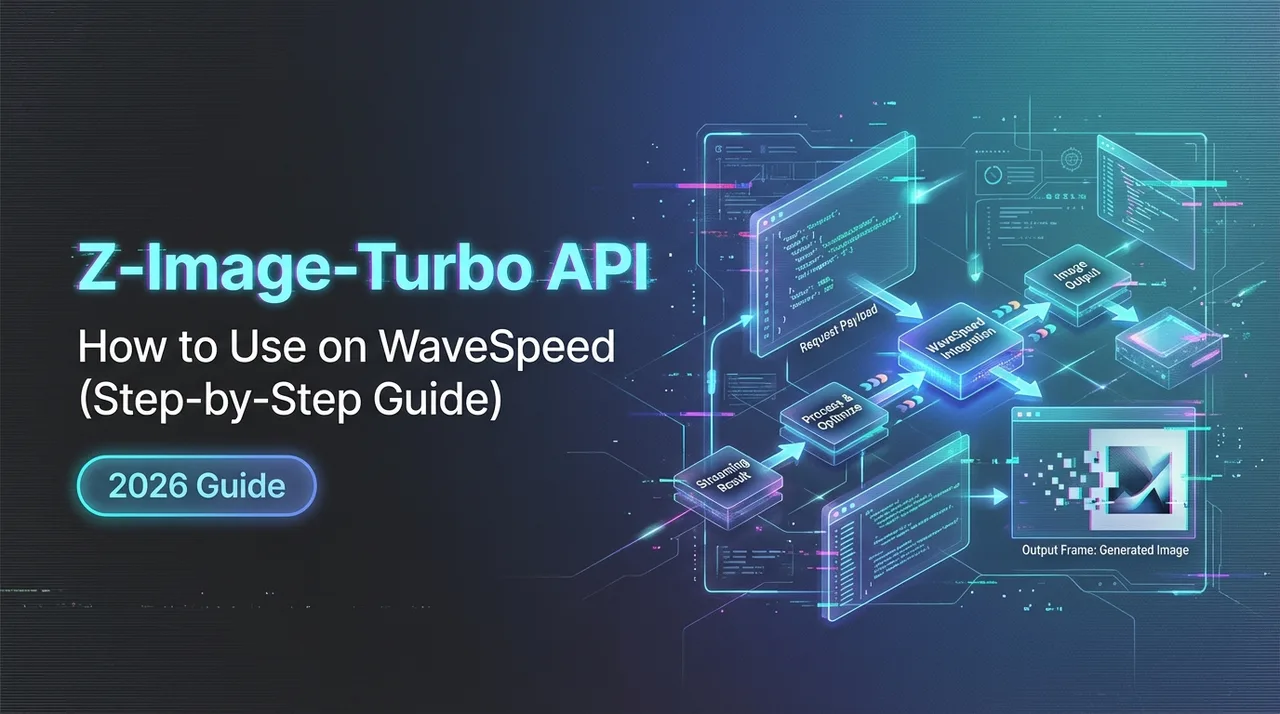
A small thing sent me here. I’m Dora. That day, I needed a clean product shot for a landing page variation, and my usual image tools felt heavier than the task. I kept hearing about the Z-Image-Turbo API. Not the loud kind of mentions, more like it quietly showed up in changelogs and engineering notes. So I tried it.
I used it across a week in late January 2026, mostly to generate simple marketing visuals and a few concept textures for a prototype. Nothing fancy. I wanted to see where it fit without reworking my stack. Here’s what helped, what didn’t, and how I wired it in without making a mess.
Prerequisites
Create WaveSpeed Account
I started by creating a WaveSpeed account. The flow was basic: email, password, verify. No surprises. I like that the dashboard didn’t try to sell me anything before I could test.
Get Your API Key
After signup, I went to the developer section and generated a key. I labeled it for my test project and stored it in my local .env file. One small note: I created a second key for staging later. Keeping keys scoped by environment saved me from guessing which calls were hitting my paid plan.
API Basics
Endpoint URL Structure
I used a single generate endpoint for most cases. The pattern looked like this:
- Base: api.wavespeed.ai
- Versioned path: /v1
- Product path: /z-image-turbo
- Action: /generate
So a typical URL looked like /api/v3/wavespeed-ai/z-image/turbo. I avoid hard-coding versions because they change. I dropped the base and version into config so I can bump it later without rewriting calls.
Authentication Header Setup
Auth was a standard Bearer token. What helped was keeping the header setup centralized:
- Authorization: Bearer YOUR_API_KEY
- Content-Type: application/json
I tested with a tiny timeout (10s) first, then raised it. When the service is under load, image generation can take longer than a typical REST call. Better to plan for it than retry aggressively and hit rate limits.
Core Parameters Explained
prompt, Writing Effective Prompts
I’m not a prompt poet. What worked here was simple, literal language and one clear style cue. For product shots, I found a steady structure:
- Subject: “a matte black wireless earbud on a white seamless background”
- Angle or lens: “45-degree angle, soft studio lighting”
- Context cues: “minimal shadow, no reflections”
I avoided stacking styles (“cinematic, moody, editorial, glossy”) because the images drifted. Short, plain prompts gave more predictable results.
Two passes helped me iterate:
- First pass: broad prompt to see composition.
- Second pass: add constraints only where needed (shadow length, background texture).
size, Supported Resolutions (256-1536)
I used square and portrait sizes most. The API accepted common values from 256 up to 1536. I stuck to 512 for quick previews and 1024 for final assets. 1536 produced nice detail but it cost more time and tokens. If you’re generating many variants, start small and upscale or re-run selected prompts at a higher size.
seed, Reproducibility Control
Seed mattered more than I expected. When I found a look I liked, I saved the seed so I could nudge only one variable (like background density) without drifting too far. If I changed the prompt a lot, I cleared the seed to avoid fighting the model’s earlier bias. In practice: I logged prompt, size, and seed per image ID. It made re-renders boring, in a good way.
output_format, JPEG vs PNG vs WebP
- JPEG: light and fast. Good for previews and web assets without transparency.
- PNG: lossless, larger. I used it for UI overlays or when I needed a clean edge.
- WebP: a solid middle ground. Smaller than PNG, cleaner than aggressive JPEG.
When I was batching, I set previews to JPEG and finals to PNG or WebP depending on the target. Mixing formats in one run is possible, but I kept it consistent per job to reduce bookkeeping.
Code Examples
cURL Quick StartHere’s the shortest path I used to sanity-check the endpoint. I like starting with cURL because it makes error messages obvious.
Bash
curl -X POST https://api.wavespeed.ai/api/v3/wavespeed-ai/z-image/turbo \
  -H "Authorization: Bearer $WAVESPEED_API_KEY" \
  -H "Content-Type: application/json" \
  -d '{
    "prompt": "a matte black wireless earbud on a white seamless background, soft studio lighting",
    "size": 1024,
    "seed": 12345,
    "output_format": "webp",
    "enable_sync_mode": true
  }' \
  --output preview.webp
If sync mode is enabled and supported for your request, the response returns binary image data or a base64 field (depends on headers and server settings). I saved it directly to a file during tests.
Python ImplementationI kept the Python version simple. Requests, a timeout, and basic error checks.
Python
import os
import requests
import base64

API_KEY = os.getenv("WAVESPEED_API_KEY")
URL = "https://api.wavespeed.ai/api/v3/wavespeed-ai/z-image/turbo"

payload = {
    "prompt": "cozy reading nook by a window, soft morning light, minimalist",
    "size": 1024,
    "output_format": "png",
    "enable_sync_mode": True,
}

headers = {
    "Authorization": f"Bearer {API_KEY}",
    "Content-Type": "application/json",
}

resp = requests.post(URL, json=payload, headers=headers, timeout=30)
resp.raise_for_status()

# Some deployments return JSON with base64. Others return binary directly.
content_type = resp.headers.get("Content-Type", "")
if "application/json" in content_type:
    data = resp.json()
    img_b64 = data.get("image_base64")
    if not img_b64:
        raise RuntimeError("No image in response")
    with open("output.png", "wb") as f:
        f.write(base64.b64decode(img_b64))
else:
    with open("output.png", "wb") as f:
        f.write(resp.content)

print("Saved output.png")
JavaScript/Node.js ExampleIn Node, I prefer fetch with AbortController for timeouts.
JavaScript
import fetch from 'node-fetch';
import { writeFileSync } from 'fs';

const API_KEY = process.env.WAVESPEED_API_KEY;
const URL = "https://api.wavespeed.ai/api/v3/wavespeed-ai/z-image/turbo";

const controller = new AbortController();
const timeoutId = setTimeout(() => controller.abort(), 30000);

const payload = {
  prompt: "abstract paper texture, soft fibers, off-white, subtle grain",
  size: 512,
  output_format: "jpeg",
  enable_sync_mode: true,
};

try {
  const resp = await fetch(URL, {
    method: "POST",
    headers: {
      Authorization: `Bearer ${API_KEY}`,
      "Content-Type": "application/json",
    },
    body: JSON.stringify(payload),
    signal: controller.signal,
  });

  if (!resp.ok) {
    throw new Error(`${resp.status} ${resp.statusText}`);
  }

  const buffer = Buffer.from(await resp.arrayBuffer());
  writeFileSync("out.jpg", buffer);
  console.log("Saved out.jpg");
} catch (err) {
  console.error("Request failed:", err.message);
} finally {
  clearTimeout(timeoutId);
}
Async vs Sync Mode
enable_sync_mode Explained
When enable_sync_mode was true, small images (512–1024) often arrived in one shot. That was nice for previews and one-offs. But sync mode times out under heavy load or larger sizes. When I hit that edge, the API returned a job ID instead of an image.
Polling for Results
Async took a second to wire, then it was fine. The flow:
- POST a generate request with enable_sync_mode set to false (or just omit it).
- Receive a job_id in the JSON.
- Poll a status endpoint every 1–2 seconds with exponential backoff.
- When status is done, download the image from the provided URL.
I capped polling at ~30 seconds before failing gracefully. In production, I’d shift to a webhook if the service offers it. Polling works, but it’s not romantic.
Error Handling
Common Error Codes
What I saw during tests:
- 400: a bad field (size out of range, unknown format). Fix your payload.
- 401: missing or invalid Bearer token. Check the header and key scope.
- 404: wrong endpoint path or job not found (usually a typo).
- 429: rate limit. Back off and retry later.
- 500/503: transient service issue. Retry with jitter.
I logged response bodies because they often carried a plain-language hint, helpful when size or seed got rejected.
Rate Limit Best Practices
I used a token bucket on the client, with a short queue. If the API returned 429, I backed off exponentially and added random jitter (50–200ms) to avoid thundering herds. Also, batching requests (see below) reduced peak bursts.
Production Tips
Batch Processing Pattern
Generating one image per request felt simple, but it wasted overhead. I moved to a small batch size (3–5 prompts each) and got more stable throughput. I wrote results to a dated folder with a manifest.json file that saved prompt, size, seed, and output path. That manifest turned out handy when a stakeholder said, “Can we do the same, but with a warmer light?” I just bumped the seed or tweaked the prompt and re-ran.
Cost Optimization
Three things mattered:
- Size discipline: preview at 512, finalize at 1024 only when needed. 1536 only for crop-heavy use.
- Format fit: JPEG for previews: WebP for most web builds: PNG when transparency is non-negotiable.
- Early stopping: if the first frames looked wrong, I canceled the job instead of waiting. It saved pennies, which add up.
One more practical note: I capped total daily spend in my scripts. Not glamorous, but it protected me from a runaway loop.
A few closing observations. The Z-Image-Turbo API didn’t feel magical. That’s probably why I liked it. It was steady once I set the guardrails: fixed seeds for reproducibility, small batches, conservative timeouts. Sync mode was nice for previews: async made sense for everything else. If you’re already swimming in AI tools, this one won’t shout for attention. It’ll sit quietly in the pipeline and do its job.
I’m still curious about how it handles noisy prompts at higher resolutions. That’s a test for another day.
Related Articles

Gemini Omni 1.1 Review for Iterative Video Editing in 2027
GPT-6 Astra Pro Review in 2027: Who Needs the Pro Tier?

GPT Image 2.5 API Guide: Flare & Sunburst on WaveSpeedAI
Grok Imagine Video 1.5 Review for Image-to-Video in 2027
H3 Max Review in 2027: Is 35× Faster Useful in Production?