Qwen Image Edit 2511 LoRA is an enhanced version with custom LoRA support for personalized styles. It delivers stronger edit consistency, robust multi-person identity/pose consistency, custom LoRA styles, enhanced industrial/product design, and improved geometric reasoning for structure-preserving edits. Built for stable production use with a ready-to-use REST API, no cold starts, and predictable pricing.
Idle

$0.025per run·~40 / $1
ExamplesView all
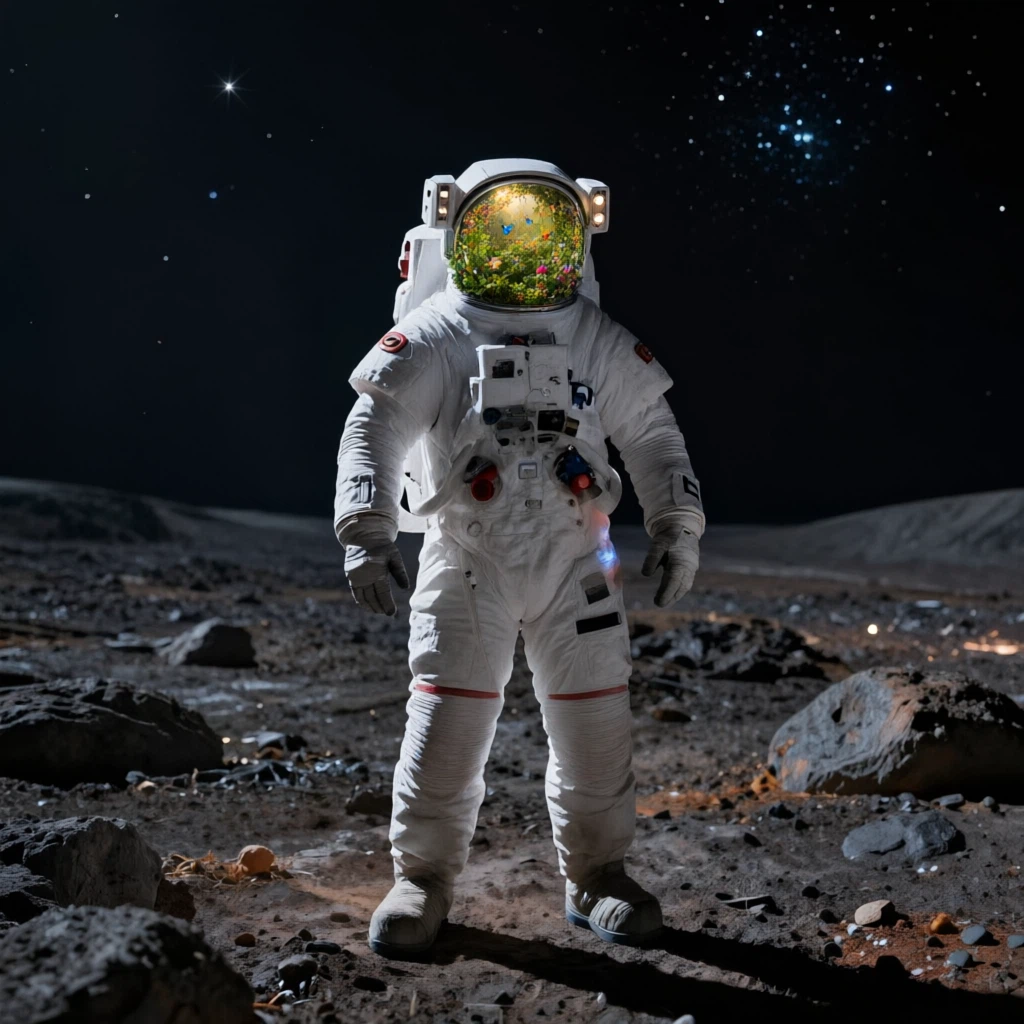
Change the background sky to a golden sunset and add soft clouds. Keep the main subject completely unchanged (face, clothes, pose, outline, details). Maintain the original light direction and shadows to achieve a natural, realistic, and highly detailed image.

Add a new person(image2) to the left side of image1, The new person's clothing matches the scene, resulting in a natural and unobtrusive overall effect.
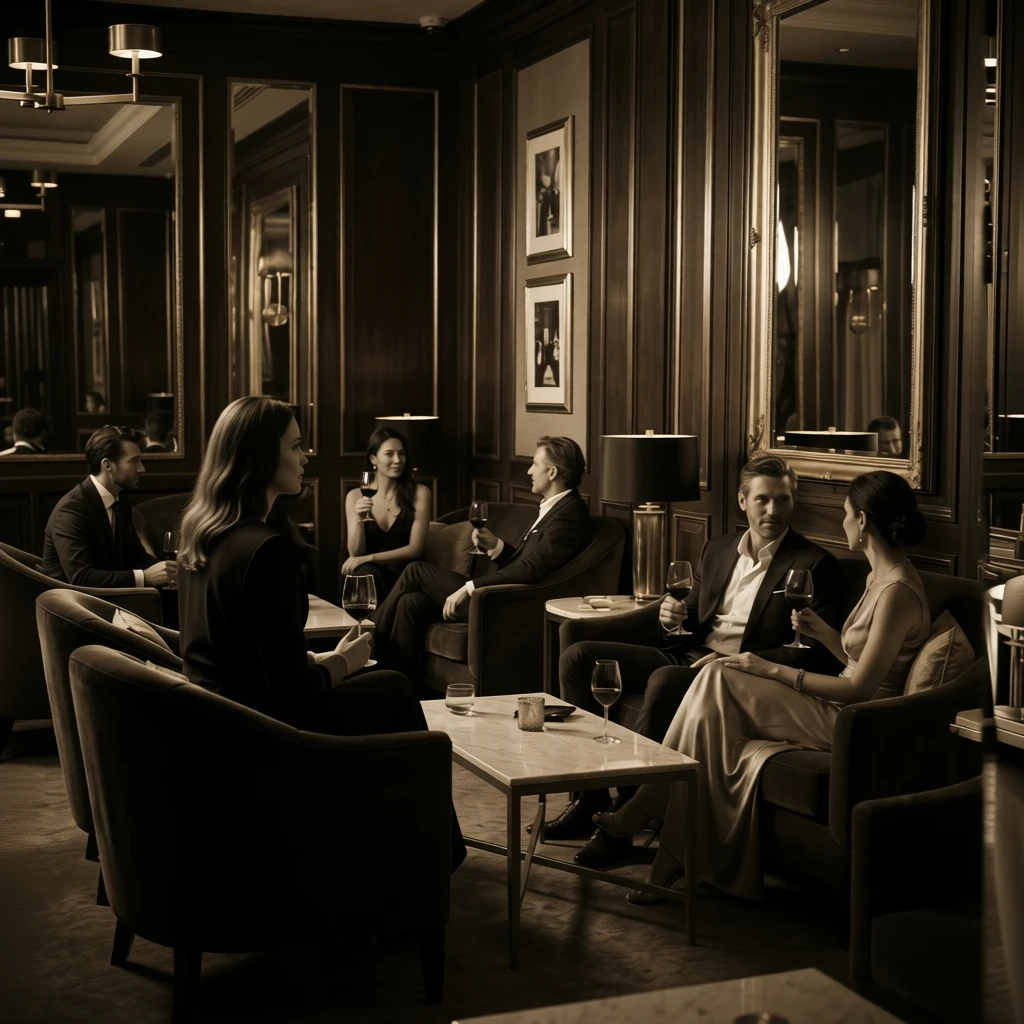
Add a new person to the left side of the image, with a style consistent with the existing photos: the same lens focal length, lighting direction, depth of field, and graininess. The new person's clothing matches the scene, while keeping the faces and postures of all the original people unchanged, resulting in a natural and unobtrusive overall effect.
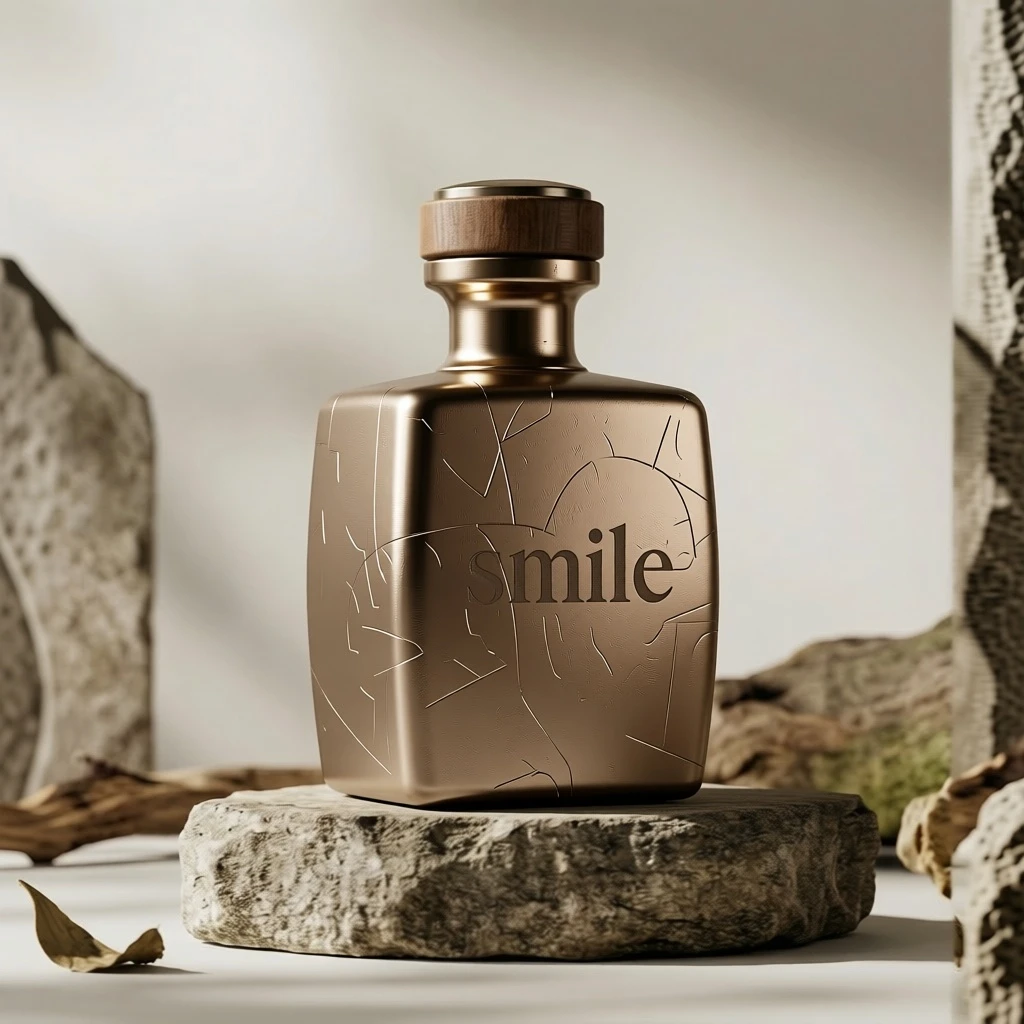
The product casing material was changed to matte metal, while maintaining the shape, structure, and logo position. Highly realistic reflections and micro-scratches are achieved, with consistent lighting.
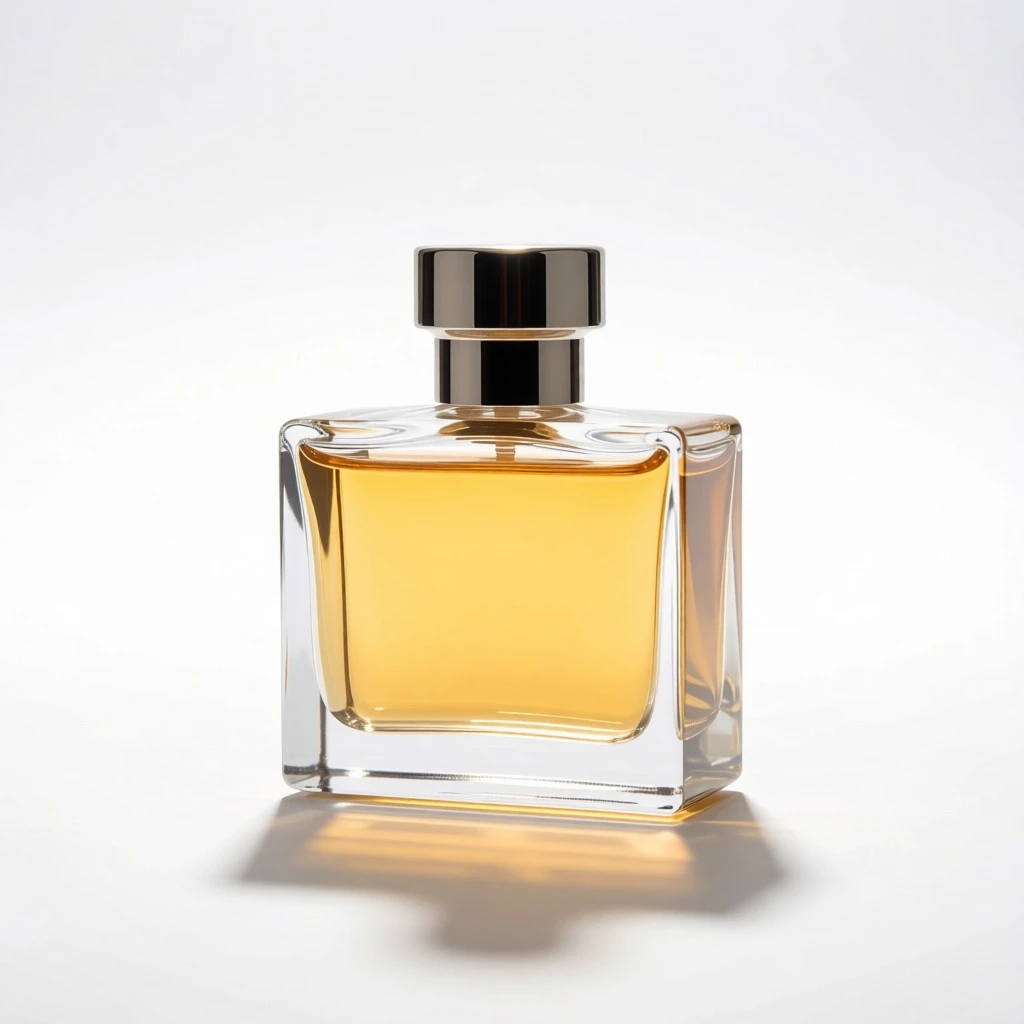
Change the background to a seamless white studio, adding soft, natural shadows and subtle reflections. Maintain complete consistency in product shape, logo, and material texture, with clean edges, a commercial product photography style, and high-resolution details.
Related Models




README
Qwen-Image-Edit-2511-LoRA (20B, MMDiT)
Qwen-Image-Edit-2511-LoRA is an enhanced version of Qwen-Image-Edit-2511 with custom LoRA support, enabling personalized style transfer and character-consistent editing. Built on the Qwen-Image 20B (MMDiT) architecture, it delivers all the benefits of 2511 plus the flexibility to apply custom-trained LoRA models for unique artistic styles, brand consistency, or character preservation.
What's new in 2511-LoRA
-
Custom LoRA support Apply your own trained LoRA models or community LoRAs for personalized styles, characters, or brand aesthetics.
-
Multi-LoRA blending Combine multiple LoRAs with individual weight control for complex style combinations.
-
All 2511 improvements included
- Stronger multi-person consistency
- Better industrial & product editing
- Reduced drift across edits
- Improved geometric reasoning
Core capabilities
-
Custom style transfer Apply trained LoRA models to maintain consistent artistic style, character appearance, or brand identity across edits.
-
Dual-mode editing
- Appearance editing: add/remove/modify elements while keeping other regions visually consistent.
- Semantic editing: global style/pose/scene transformations that preserve intent while allowing broader pixel changes.
-
Precise text editing (when applicable) Add, delete, or replace on-image text while keeping natural typography behavior (spacing, alignment, style).
-
Style preservation Maintains lighting, palette, and overall look while applying targeted changes.
Best for
- Character-consistent projects — maintain character appearance across multiple edits
- Brand & marketing — apply brand-specific styles consistently
- Artistic workflows — use custom artistic styles with LoRA models
- Multi-person projects — group photos, team portraits, event shots
- Industrial & product design — product mockups with custom brand styles
- Identity-preserving edits — portraits, characters, avatar refinement with style control
Example prompts
- Custom style: Add a sunset background while maintaining the anime style from my LoRA.
- Multi-person: Add a third person matching the existing lighting and apply my character LoRA.
- Product design: Convert this product to match my brand style guide (using brand LoRA).
- Character consistency: Keep the character's appearance from my trained LoRA and change the background to a futuristic city.
Parameters
| Parameter | Description |
|---|---|
| prompt* | The edit instruction describing what to change and what to keep. |
| images* | Input images to edit or reference. Up to 3 images maximum (the first image is typically treated as the main base image). |
| loras | Array of LoRA models to apply. Each LoRA object contains path (URL/path to LoRA file) and optional scale (weight 0-2, default 1.0). |
How to use
- Add your base image as the first item in images (you should see a preview in the UI).
- Optionally add 1–2 more reference images (maximum 3 total) to guide style, subject details, or composition.
- (Optional) Add LoRA models by providing the path/URL and weight for each LoRA you want to apply.
- Write a clear prompt describing the edit and constraints (examples: 'keep face unchanged', 'keep pose', 'keep background').
- Run the model and review the result.
- Iterate by adjusting LoRA weights or tightening constraints for best consistency.
Supported output formats typically include JPG / PNG / WEBP (as exposed by the endpoint).
LoRA Usage Tips
- Start with lower weights (0.5-0.8) and increase gradually for subtle style application
- Combine multiple LoRAs for complex effects, but keep total weight under 2.0 for stability
- Use publicly accessible URLs for LoRA files (or platform-supported paths)
- Test LoRAs individually before combining to understand their effects
Pricing
- $0.025 per edited image (with LoRA support)
Note
If you're using image URLs or LoRA URLs (instead of uploading locally), make sure they're publicly accessible. If the URL is valid, the interface will display a preview before you run the job.
Related Models
-
Qwen Image Edit 2511 — Multi-Person Image Editing — Base version without LoRA support, optimized for fast multi-person and industrial editing.
-
Qwen Image Edit — AI Image Editing & Inpainting — Prompt-driven image editing for object removal, background replacement, and inpainting with fast iterations and strong instruction following.
-
Qwen Image Edit Plus — High-Fidelity Image Editing — Higher-quality image edits with cleaner edges, improved detail retention, and more stable results on complex scenes and textures.
Reference
Qwen Image Edit 2511 Lora API — Quick start
Grab a WaveSpeedAI API key, then call POST https://api.wavespeed.ai/api/v3/wavespeed-ai/qwen-image/edit-2511-lora with your input as JSON. The endpoint returns a prediction id. Start polling the result endpoint around every 2 seconds, increase the interval for long-running tasks, and stop on any terminal status. On completed, read output values from data.outputs. Examples for Qwen Image Edit 2511 Lora below.
HTTP example
set -euo pipefail

: "${WAVESPEED_API_KEY:?Set WAVESPEED_API_KEY}"

REQUEST_BODY=$(cat <<'JSON'
{
    "prompt": "A cinematic shot of a city at sunset, soft golden light",
    "images": [
        "https://interactive-examples.mdn.mozilla.net/media/cc0-images/painted-hand-298-332.jpg"
    ],
    "output_format": "jpeg"
}
JSON
)

# 1. Submit the prediction.
SUBMIT_RESPONSE=$(curl --silent --show-error --fail-with-body \
  -X POST "https://api.wavespeed.ai/api/v3/wavespeed-ai/qwen-image/edit-2511-lora" \
  -H "Content-Type: application/json" \
  -H "Authorization: Bearer $WAVESPEED_API_KEY" \
  -d "$REQUEST_BODY")

TASK=$(printf '%s' "$SUBMIT_RESPONSE" | jq 'if has("data") then .data else . end')
PREDICTION_ID=$(printf '%s' "$TASK" | jq -r '.id')
if [ -z "$PREDICTION_ID" ] || [ "$PREDICTION_ID" = "null" ]; then
  printf 'Submission response did not contain a prediction id
' >&2
  exit 1
fi
RESULT_URL="https://api.wavespeed.ai/api/v3/predictions/$PREDICTION_ID/result"

# 2. Poll until the prediction finishes.
while true; do
  RESPONSE=$(curl --silent --show-error --fail-with-body "$RESULT_URL" \
    -H "Authorization: Bearer $WAVESPEED_API_KEY")
  RESULT=$(printf '%s' "$RESPONSE" | jq 'if has("data") then .data else . end')
  STATUS=$(printf '%s' "$RESULT" | jq -r '.status')
  case "$STATUS" in
    completed) printf '%s\n' "$RESULT" | jq '.outputs'; break ;;
    failed|cancelled|timeout|deleted) printf '%s\n' "$RESULT" | jq . >&2; exit 1 ;;
    *) sleep 2 ;;
  esac
done
Node.js example
const submitUrl = "https://api.wavespeed.ai/api/v3/wavespeed-ai/qwen-image/edit-2511-lora";
const apiKey = process.env.WAVESPEED_API_KEY;
if (!apiKey) throw new Error('Set WAVESPEED_API_KEY');

async function requestJson(url, options = {}) {
  const response = await fetch(url, options);
  if (!response.ok) throw new Error(await response.text());
  return response.json();
}

// 1. Submit the prediction.
const body = await requestJson(submitUrl, {
  method: "POST",
  headers: {
    "Authorization": `Bearer ${apiKey}`,
    "Content-Type": "application/json",
  },
  body: JSON.stringify({
        "prompt": "A cinematic shot of a city at sunset, soft golden light",
        "images": [
                "https://interactive-examples.mdn.mozilla.net/media/cc0-images/painted-hand-298-332.jpg"
        ],
        "output_format": "jpeg"
}),
});
const task = body.data ?? body;
if (!task.id) throw new Error("Submission response did not contain a prediction id");
const resultUrl = `https://api.wavespeed.ai/api/v3/predictions/${task.id}/result`;

// 2. Poll until the prediction finishes.
while (true) {
  const resultBody = await requestJson(resultUrl, {
    headers: { "Authorization": `Bearer ${apiKey}` },
  });
  const result = resultBody.data ?? resultBody;
  if (result.status === "completed") {
    console.log(result.outputs);
    break;
  }
  if (["failed", "cancelled", "timeout", "deleted"].includes(result.status)) throw new Error(JSON.stringify(result));
  await new Promise(resolve => setTimeout(resolve, 2000));
}
Python example
import json
import os
import time
from urllib.request import Request, urlopen

api_key = os.environ["WAVESPEED_API_KEY"]
headers = {"Authorization": f"Bearer {api_key}", "Content-Type": "application/json"}
payload = {
    "prompt": "A cinematic shot of a city at sunset, soft golden light",
    "images": [
        "https://interactive-examples.mdn.mozilla.net/media/cc0-images/painted-hand-298-332.jpg"
    ],
    "output_format": "jpeg"
}

def request_json(url, data=None):
    request = Request(url, data=data, headers=headers, method="POST" if data else "GET")
    with urlopen(request) as response:
        return json.load(response)

# 1. Submit the prediction.
body = request_json("https://api.wavespeed.ai/api/v3/wavespeed-ai/qwen-image/edit-2511-lora", json.dumps(payload).encode())
task = body.get("data", body)
if not task.get("id"):
    raise RuntimeError("Submission response did not contain a prediction id")
result_url = f"https://api.wavespeed.ai/api/v3/predictions/{task['id']}/result"

# 2. Poll until the prediction finishes.
while True:
    result_body = request_json(result_url)
    result = result_body.get("data", result_body)
    status = result.get("status")
    if status == "completed":
        print(result.get("outputs", []))
        break
    if status in {"failed", "cancelled", "timeout", "deleted"}:
        raise RuntimeError(result)
    time.sleep(2)
Qwen Image Edit 2511 Lora API — Frequently asked questions
What is the Qwen Image Edit 2511 Lora API?
Qwen Image Edit 2511 Lora is a WaveSpeedAI model for AI inference, exposed as a REST API on WaveSpeedAI. Qwen Image Edit 2511 LoRA is an enhanced version with custom LoRA support for personalized styles. It delivers stronger edit consistency, robust multi-person identity/pose consistency, custom LoRA styles, enhanced industrial/product design, and improved geometric reasoning for structure-preserving edits. Built for stable production use with a ready-to-use REST API, no cold starts, and predictable pricing. You can call it programmatically or try it from the playground above.
How do I call the Qwen Image Edit 2511 Lora API?
POST your input parameters to the model's REST endpoint (shown in the API tab of this playground) with your WaveSpeedAI API key in the Authorization header. Submission returns a prediction ID. Poll the result endpoint starting around every 2 seconds, increase the interval for long-running tasks, and stop on any terminal status. The playground generates Python, JavaScript, and cURL examples for submitting requests and polling results. Full request/response shape is documented at https://wavespeed.ai/docs/docs-api/wavespeed-ai/qwen-image-edit-2511-lora.
How much does Qwen Image Edit 2511 Lora cost per run?
Qwen Image Edit 2511 Lora starts at $0.025 per run. That figure is the base price — the final charge scales with the parameters you set in the form (output size, length, count, references, or whatever knobs this model exposes), so a higher-quality or larger output costs more than a minimal one. The exact cost for your current input is shown live next to the Generate button before you submit, and the actual per-call charge is recorded on the prediction afterwards.
What inputs does Qwen Image Edit 2511 Lora accept?
Key inputs: `prompt`, `images`, `seed`, `enable_base64_output`, `enable_sync_mode`, `loras`. The full JSON schema (types, defaults, allowed values) is rendered above the Generate button and mirrored in the API reference at https://wavespeed.ai/docs/docs-api/wavespeed-ai/qwen-image-edit-2511-lora.
How long does Qwen Image Edit 2511 Lora take to generate?
Reported generation time on WaveSpeedAI is around 9 seconds per request. This is an estimate, not a latency guarantee; queue time and input settings can change the total wait. live status is visible in the prediction record.
Can I use Qwen Image Edit 2511 Lora outputs commercially?
Commercial usage rights depend on the model's license, set by its provider (WaveSpeedAI). Check the provider's applicable terms and WaveSpeedAI's Terms of Service before commercial use.