
How to Upscale and Enhance Video Quality with FFmpeg (2026 Guide)
Learn how to upscale resolution, reduce noise, sharpen, and enhance video quality using FFmpeg filters. Plus, discover why AI upscaling with WaveSpeed Desktop delivers far better results.
Got a blurry 480p video you want to make HD? Old footage that looks noisy and soft? FFmpeg provides filters for upscaling, denoising, sharpening, and color correction—but there’s a hard ceiling on what traditional algorithms can achieve.
This guide shows you what’s possible with FFmpeg, explains the limitations, and introduces an AI-powered alternative that delivers dramatically better results.
Prerequisites: Install FFmpeg
macOS:
brew install ffmpegUbuntu/Debian:
sudo apt update && sudo apt install ffmpegWindows:
Download from ffmpeg.org, extract, and add bin to PATH.
Upscale Video Resolution
Basic Upscale to 1080p
ffmpeg -i input_480p.mp4 -vf "scale=1920:1080" -c:v libx264 -crf 18 -c:a copy output_1080p.mp4Upscale to 4K
ffmpeg -i input_1080p.mp4 -vf "scale=3840:2160" -c:v libx264 -crf 18 -c:a copy output_4k.mp4Keep Aspect Ratio
Scale to 1080p height, auto-calculate width:
ffmpeg -i input.mp4 -vf "scale=-1:1080" -c:v libx264 -crf 18 -c:a copy output.mp4Scaling Algorithms
FFmpeg offers several scaling algorithms. The choice significantly affects quality:
# Lanczos (best quality, slowest)
ffmpeg -i input.mp4 -vf "scale=1920:1080:flags=lanczos" -c:v libx264 -crf 18 output.mp4

# Bicubic (good balance)
ffmpeg -i input.mp4 -vf "scale=1920:1080:flags=bicubic" -c:v libx264 -crf 18 output.mp4

# Spline (sharp, good for upscaling)
ffmpeg -i input.mp4 -vf "scale=1920:1080:flags=spline" -c:v libx264 -crf 18 output.mp4

# Bilinear (fastest, lowest quality)
ffmpeg -i input.mp4 -vf "scale=1920:1080:flags=bilinear" -c:v libx264 -crf 18 output.mp4| Algorithm | Quality | Speed | Best For |
|---|---|---|---|
| lanczos | Best | Slowest | Final output |
| spline | Very good | Slow | Upscaling |
| bicubic | Good | Medium | General use |
| bilinear | Fair | Fastest | Previews |
Reduce Video Noise
hqdn3d (Fast Denoiser)
ffmpeg -i input.mp4 -vf "hqdn3d=4:4:3:3" -c:v libx264 -crf 18 output.mp4Parameters: luma_spatial:chroma_spatial:luma_temporal:chroma_temporal
- Higher values = more denoising (but more blur)
- Start with
4:4:3:3and adjust
nlmeans (Better Quality, Slower)
ffmpeg -i input.mp4 -vf "nlmeans=s=3:p=7:r=15" -c:v libx264 -crf 18 output.mp4s=3— denoising strength (1–30)p=7— patch sizer=15— research window size
Sharpen Video
unsharp Filter
ffmpeg -i input.mp4 -vf "unsharp=5:5:1.0:5:5:0.5" -c:v libx264 -crf 18 output.mp4Parameters: luma_x:luma_y:luma_amount:chroma_x:chroma_y:chroma_amount
luma_amount— sharpening strength (negative values blur)- Start with
1.0for mild sharpening,1.5for strong
cas Filter (Contrast Adaptive Sharpening)
ffmpeg -i input.mp4 -vf "cas=0.5" -c:v libx264 -crf 18 output.mp4- Range: 0 (no sharpening) to 1 (maximum)
0.4–0.6is usually a good range
Color and Brightness Correction
Adjust Brightness, Contrast, Saturation
ffmpeg -i input.mp4 -vf "eq=brightness=0.06:contrast=1.2:saturation=1.3" -c:v libx264 -crf 18 output.mp4brightness— -1.0 to 1.0 (default 0)contrast— -1000 to 1000 (default 1.0)saturation— 0 to 3.0 (default 1.0)
Auto-Level Colors
ffmpeg -i input.mp4 -vf "normalize" -c:v libx264 -crf 18 output.mp4Stabilize Shaky Video
FFmpeg’s vidstab filter requires two passes:
Pass 1: Analyze motion
ffmpeg -i input.mp4 -vf vidstabdetect -f null -This creates a transforms.trf file.
Pass 2: Apply stabilization
ffmpeg -i input.mp4 -vf vidstabtransform=smoothing=10:input=transforms.trf -c:v libx264 -crf 18 output.mp4smoothing=10— higher values = smoother (but more cropping)
Combine Multiple Filters
Chain filters together for a full enhancement pipeline:
ffmpeg -i input.mp4 -vf "scale=1920:1080:flags=lanczos,hqdn3d=4:4:3:3,unsharp=5:5:0.8:5:5:0.4,eq=contrast=1.1:saturation=1.2" -c:v libx264 -crf 18 -c:a copy output.mp4This pipeline:
- Upscales to 1080p with Lanczos
- Applies denoising
- Sharpens
- Boosts contrast and saturation
The Hard Truth About FFmpeg Upscaling
Here’s what FFmpeg cannot do:
- Recover lost detail — Upscaling 480p to 4K just stretches existing pixels. No new detail is created.
- Reconstruct faces — Blurry faces stay blurry, just bigger.
- Remove compression artifacts — JPEG/H.264 blocking artifacts get amplified.
- Generate textures — Hair, fabric, skin texture cannot be hallucinated from a low-res source.
Traditional scaling algorithms (even Lanczos) are interpolation — they calculate pixel values between existing ones. The result is a larger image that’s smoother but not actually sharper or more detailed.
The AI Alternative: WaveSpeed Desktop Video Enhancer
This is where AI upscaling fundamentally changes the game.
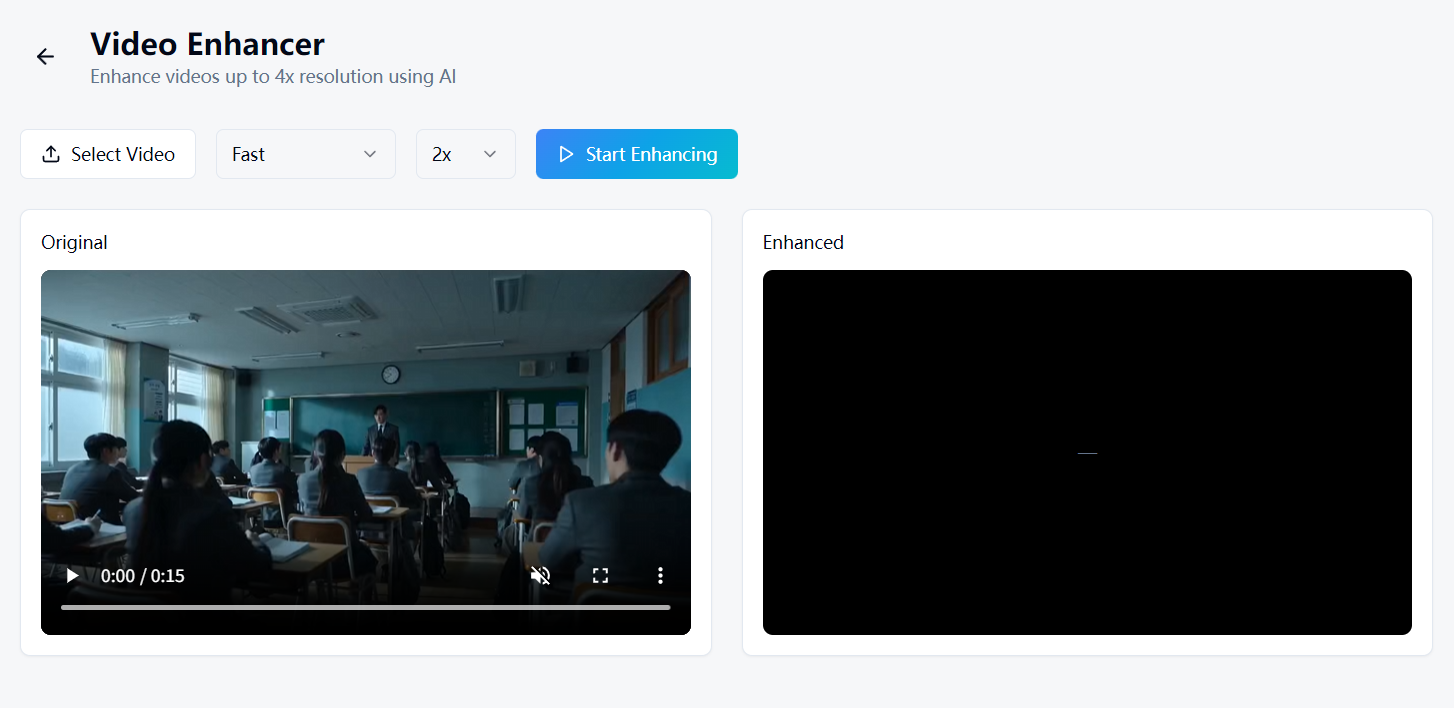
WaveSpeed Desktop includes an AI Video Enhancer powered by deep learning models that:
- Generate real detail — reconstruct textures, edges, and fine features that don’t exist in the original
- Upscale up to 4x — turn 480p into true 1080p, or 1080p into 4K with actual new information
- Enhance faces — restore facial details, sharpness, and clarity
- Remove noise intelligently — distinguish noise from detail (unlike FFmpeg’s blur-everything approach)
The difference isn’t incremental—it’s a generational leap. What FFmpeg gives you in 10 lines of filter chains, AI enhancement does in one click with dramatically better results.
Download WaveSpeed Desktop for free: https://github.com/WaveSpeedAI/wavespeed-desktop/releases
FAQ
Can FFmpeg truly upscale video to 4K? It can increase the resolution to 4K, but it won’t add real detail. The video will be 4K in pixel count but not in actual visual quality. AI upscaling (like WaveSpeed’s Video Enhancer) generates new detail that makes the result genuinely sharper.
What’s the best FFmpeg scaling algorithm? Lanczos for quality, bicubic for speed. But even the best traditional algorithm can’t match AI-based upscaling.
Does denoising always help? Not always. Denoising removes noise but also removes fine detail. If your video is clean, denoising will make it softer. Only use it on visibly noisy footage.
How long does FFmpeg enhancement take? A full pipeline (upscale + denoise + sharpen) on a 10-minute 480p video can take 30–60 minutes on modern hardware. AI upscaling with GPU acceleration is typically faster and produces better results.
Can I enhance old VHS or DVD footage? FFmpeg can clean it up somewhat, but the results are limited. AI enhancement tools are specifically trained on degraded footage and produce dramatically better restorations.
Related Articles

Best Free AI Image Generator Online in 2026: 10+ Models, One Click, Zero Hassle

Best Free AI Video Generator Online in 2026: Sora, Kling, Veo, Seedance — All in One Place

Best Free Audio Converter in 2026: Convert MP3, WAV, FLAC, AAC Instantly
Best Free Image Converter in 2026: Convert PNG, JPG, WebP, HEIC Locally
Best Free Video Converter in 2026: Convert MP4, MOV, AVI, WebM Without Watermarks