How to Convert Audio to MP3, AAC, FLAC, WAV with FFmpeg (2026 Guide)
Step-by-step guide to converting audio files between MP3, AAC, FLAC, WAV, and OGG using FFmpeg commands. Plus a free one-click alternative with WaveSpeed Desktop.
Whether you need to convert a WAV recording to MP3 for sharing, extract FLAC from a CD rip, or transcode audio for a mobile app—FFmpeg can handle it all from the command line. This guide covers every common audio conversion with copy-paste commands.
If command-line tools aren’t your thing, we’ll show you a free one-click solution at the end.
Prerequisites: Install FFmpeg
macOS (Homebrew):
brew install ffmpegUbuntu/Debian:
sudo apt update && sudo apt install ffmpegWindows:
Download from ffmpeg.org, extract, and add the bin folder to your system PATH.
Verify:
ffmpeg -versionBasic Audio Conversions
WAV to MP3
ffmpeg -i input.wav -c:a libmp3lame -b:a 320k output.mp3-c:a libmp3lame— MP3 encoder-b:a 320k— 320 kbps bitrate (highest quality MP3)
MP3 to WAV
ffmpeg -i input.mp3 -c:a pcm_s16le output.wav-c:a pcm_s16le— uncompressed 16-bit PCM (standard WAV format)
FLAC to MP3
ffmpeg -i input.flac -c:a libmp3lame -b:a 320k output.mp3MP3 to FLAC
ffmpeg -i input.mp3 -c:a flac output.flacNote: Converting a lossy format (MP3) to lossless (FLAC) won’t restore lost quality—it just wraps the audio in a lossless container.
WAV to AAC
ffmpeg -i input.wav -c:a aac -b:a 256k output.m4aMP3 to AAC
ffmpeg -i input.mp3 -c:a aac -b:a 256k output.m4aWAV to OGG (Vorbis)
ffmpeg -i input.wav -c:a libvorbis -q:a 6 output.ogg-q:a 6— quality scale from 0 (lowest) to 10 (highest)
OGG to MP3
ffmpeg -i input.ogg -c:a libmp3lame -b:a 256k output.mp3Advanced Options
Control MP3 Quality with VBR
Variable Bitrate often gives better quality per file size:
ffmpeg -i input.wav -c:a libmp3lame -q:a 0 output.mp3-q:a Value | Average Bitrate | Quality |
|---|---|---|
| 0 | ~245 kbps | Best |
| 2 | ~190 kbps | Very good |
| 4 | ~165 kbps | Good |
| 6 | ~130 kbps | Acceptable |
| 9 | ~65 kbps | Low |
Change Sample Rate
Convert to 44.1 kHz (CD quality):
ffmpeg -i input.wav -ar 44100 -c:a libmp3lame -b:a 320k output.mp3Convert to 48 kHz (video standard):
ffmpeg -i input.wav -ar 48000 -c:a aac -b:a 256k output.m4aChange Channels (Stereo to Mono)
ffmpeg -i input.mp3 -ac 1 output_mono.mp3-ac 1— mono-ac 2— stereo
Extract Audio from Video
ffmpeg -i video.mp4 -vn -c:a libmp3lame -b:a 320k audio.mp3-vn— discard video stream
Extract without re-encoding (if audio is already AAC):
ffmpeg -i video.mp4 -vn -c:a copy audio.m4aTrim Audio
Extract a 30-second clip starting at 1:00:
ffmpeg -i input.mp3 -ss 00:01:00 -t 00:00:30 -c copy clip.mp3Adjust Volume
Increase volume by 50%:
ffmpeg -i input.mp3 -af "volume=1.5" output.mp3Normalize audio loudness:
ffmpeg -i input.mp3 -af loudnorm output.mp3Batch Conversion
Convert All WAV Files to MP3
Linux/macOS:
for f in *.wav; do
  ffmpeg -i "$f" -c:a libmp3lame -b:a 320k "${f%.wav}.mp3"
done
Windows (PowerShell):
Get-ChildItem *.wav | ForEach-Object {
  ffmpeg -i $_.Name -c:a libmp3lame -b:a 320k ($_.BaseName + ".mp3")
}
Convert All FLAC Files to AAC
for f in *.flac; do
  ffmpeg -i "$f" -c:a aac -b:a 256k "${f%.flac}.m4a"
done
Common Errors and Fixes
“Encoder libmp3lame not found” Your FFmpeg build doesn’t include the MP3 encoder. Reinstall with codec support:
# Ubuntu
sudo apt install ffmpeg libavcodec-extra
# macOS
brew reinstall ffmpeg
“Invalid sample rate” The target format may not support the source sample rate. Explicitly set it:
ffmpeg -i input.wav -ar 44100 -c:a libmp3lame output.mp3Output file is silent or distorted
Check the audio codec compatibility. Use -c:a copy only when the source codec matches the target container.
Skip the Terminal: Use WaveSpeed Desktop Instead
Tired of memorizing codec names, bitrate flags, and sample rate options? You’re not alone.
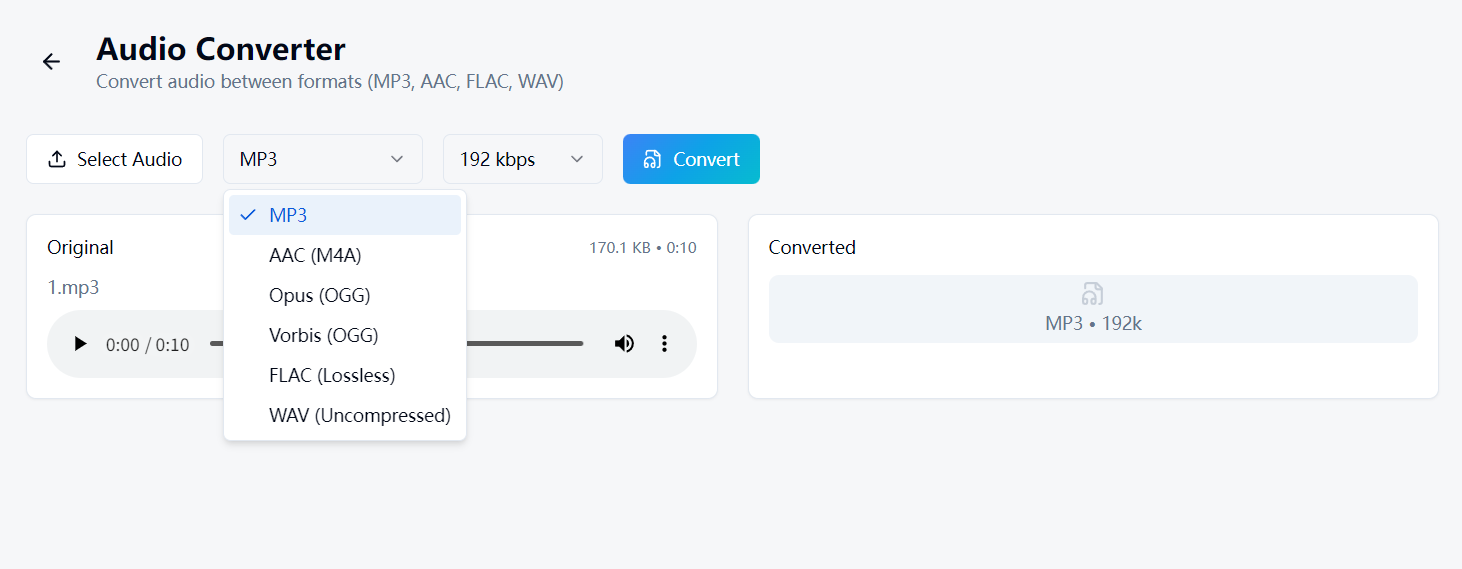
WaveSpeed Desktop includes a built-in Audio Converter that does all of this with zero command-line knowledge:
- Drag and drop your audio file
- Choose the output format (MP3, AAC, FLAC, WAV, OGG)
- Click convert — that’s it
No FFmpeg installation. No terminal commands. No debugging codec errors.
Download WaveSpeed Desktop for free: https://github.com/WaveSpeedAI/wavespeed-desktop/releases
FAQ
What’s the best audio format for general use? MP3 at 320 kbps for compatibility, or AAC at 256 kbps for slightly better quality at the same size. Use FLAC if you need lossless.
Does converting MP3 to FLAC improve quality? No. You can’t recover information lost during MP3 compression. The file will be larger but won’t sound better.
What bitrate should I use for MP3? 320 kbps for archiving, 192–256 kbps for general listening, 128 kbps for voice recordings or podcasts.
Can FFmpeg convert multiple files at once? Not natively in a single command—you need a shell loop (see Batch Conversion above). WaveSpeed Desktop handles batch conversion with drag-and-drop.
Related Articles

Best Free AI Image Generator Online in 2026: 10+ Models, One Click, Zero Hassle

Best Free AI Video Generator Online in 2026: Sora, Kling, Veo, Seedance — All in One Place

Best Free Audio Converter in 2026: Convert MP3, WAV, FLAC, AAC Instantly
Best Free Image Converter in 2026: Convert PNG, JPG, WebP, HEIC Locally
Best Free Video Converter in 2026: Convert MP4, MOV, AVI, WebM Without Watermarks