
How to Convert Images to JPG, PNG, WebP, GIF with FFmpeg (2026 Guide)
Complete guide to converting images between JPG, PNG, WebP, and GIF formats using FFmpeg. Includes batch conversion, quality control, and a free one-click alternative.
FFmpeg isn’t just for video—it’s also a powerful tool for image format conversion. Whether you need to convert PNG screenshots to JPG, optimize images as WebP for the web, or create GIFs from image sequences, FFmpeg handles it all from the command line.
Of course, if typing commands isn’t your thing, we’ve got a free one-click solution at the end.
Prerequisites: Install FFmpeg
macOS:
brew install ffmpegUbuntu/Debian:
sudo apt update && sudo apt install ffmpegWindows:
Download from ffmpeg.org, extract, and add bin to your PATH.
Basic Image Conversions
PNG to JPG
ffmpeg -i input.png -q:v 2 output.jpg-q:v 2— JPEG quality (1 = best, 31 = worst). 2–5 is recommended.
JPG to PNG
ffmpeg -i input.jpg output.pngPNG is lossless, so no quality parameter needed.
PNG/JPG to WebP
ffmpeg -i input.png -quality 80 output.webp-quality 80— WebP quality (0–100). 75–85 is a good balance.
WebP to PNG
ffmpeg -i input.webp output.pngWebP to JPG
ffmpeg -i input.webp -q:v 2 output.jpgBMP to PNG
ffmpeg -i input.bmp output.pngTIFF to JPG
ffmpeg -i input.tiff -q:v 2 output.jpgWorking with GIFs
Image Sequence to GIF
Convert a series of images (frame001.png, frame002.png, …) into an animated GIF:
ffmpeg -framerate 10 -i frame%03d.png -vf "scale=480:-1:flags=lanczos" output.gif-framerate 10— 10 frames per secondframe%03d.png— pattern matching frame001.png, frame002.png, etc.scale=480:-1— scale width to 480px, auto heightflags=lanczos— high-quality scaling algorithm
Video to GIF
ffmpeg -i input.mp4 -vf "fps=10,scale=480:-1:flags=lanczos" -loop 0 output.gifGIF to Image Sequence
Extract every frame from a GIF:
ffmpeg -i input.gif frame%03d.pngGIF to MP4
GIFs are huge—convert to MP4 for 90%+ size reduction:
ffmpeg -i input.gif -movflags +faststart -pix_fmt yuv420p output.mp4Advanced Options
Control JPEG Quality
ffmpeg -i input.png -q:v 5 output.jpg-q:v | Quality | File Size |
|---|---|---|
| 1 | Best | Largest |
| 2–3 | Very good | Large |
| 5 | Good | Medium |
| 10 | Acceptable | Small |
| 31 | Worst | Smallest |
Control WebP Quality
# Lossy WebP
ffmpeg -i input.png -quality 85 output.webp

# Lossless WebP
ffmpeg -i input.png -lossless 1 output.webp
Resize Images
Scale to specific width (maintain aspect ratio):
ffmpeg -i input.png -vf "scale=800:-1" output.pngScale to specific dimensions:
ffmpeg -i input.png -vf "scale=800:600" output.jpgChange Color Space
Convert to grayscale:
ffmpeg -i input.png -vf "format=gray" output.pngBatch Conversion
Convert All PNG to JPG
Linux/macOS:
for f in *.png; do
  ffmpeg -i "$f" -q:v 2 "${f%.png}.jpg"
done
Convert All JPG to WebP
for f in *.jpg; do
  ffmpeg -i "$f" -quality 80 "${f%.jpg}.webp"
done
Windows (PowerShell):
Get-ChildItem *.png | ForEach-Object {
  ffmpeg -i $_.Name -q:v 2 ($_.BaseName + ".jpg")
}
Common Errors and Fixes
“Output file is blank or all black” Some formats need explicit pixel format:
ffmpeg -i input.png -pix_fmt rgb24 output.jpg“GIF output has terrible colors” GIFs are limited to 256 colors. Use a palette for better quality:
ffmpeg -i input.mp4 -vf "fps=10,scale=480:-1:flags=lanczos,palettegen" palette.png
ffmpeg -i input.mp4 -i palette.png -lavfi "fps=10,scale=480:-1:flags=lanczos[x];[x][1:v]paletteuse" output.gif
“Cannot determine format” Specify the format explicitly:
ffmpeg -f image2 -i input.bmp output.pngSkip the Terminal: Use WaveSpeed Desktop Instead
Converting one image is manageable with FFmpeg. Converting a batch of images while controlling quality, format, and size? That’s where it gets tedious fast.
WaveSpeed Desktop includes a built-in Image Converter that makes this effortless:
- Drag and drop one or multiple images
- Pick the output format (JPG, PNG, WebP, GIF)
- Click convert — all done
No FFmpeg. No terminal. No remembering quality flags.
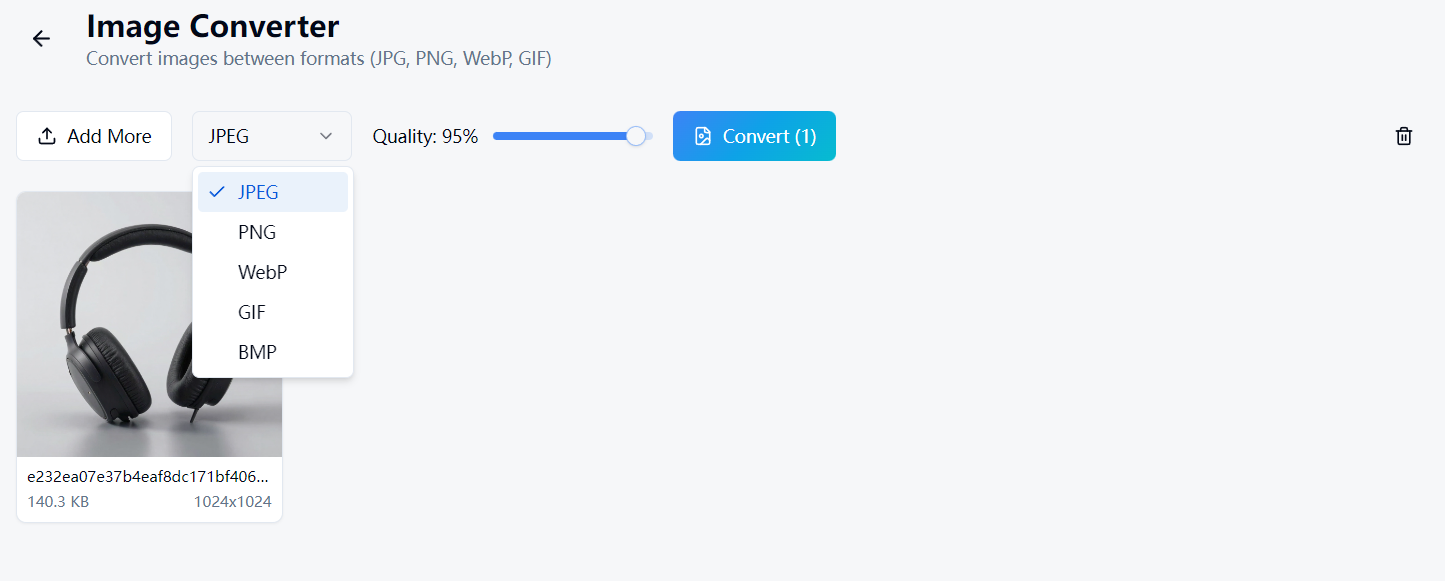
Download WaveSpeed Desktop for free: https://github.com/WaveSpeedAI/wavespeed-desktop/releases
FAQ
What’s the best image format for the web? WebP offers the best compression-to-quality ratio. Use it when browser support isn’t a concern. Otherwise, JPEG for photos and PNG for graphics with transparency.
Does converting JPG to PNG improve quality? No. Like audio, you can’t recover information lost during JPEG compression. The PNG file will just be larger.
How much smaller is WebP compared to JPEG? Typically 25–35% smaller at equivalent visual quality.
Can FFmpeg handle RAW camera files? FFmpeg has limited RAW support. For RAW conversion, dedicated tools like ImageMagick or darktable are better choices.
Related Articles
Best Free AI Image Generator Online in 2026: 10+ Models, One Click, Zero Hassle

Best Free AI Video Generator Online in 2026: Sora, Kling, Veo, Seedance — All in One Place
Best Free Audio Converter in 2026: Convert MP3, WAV, FLAC, AAC Instantly
Best Free Image Converter in 2026: Convert PNG, JPG, WebP, HEIC Locally
Best Free Video Converter in 2026: Convert MP4, MOV, AVI, WebM Without Watermarks