
How to Convert Video to MP4, WebM, MOV with FFmpeg (2026 Guide)

Need to convert a video from MOV to MP4? Or compress a WebM file for web delivery? FFmpeg is the most powerful command-line tool for video conversion—but it comes with a steep learning curve. This guide walks you through every common video conversion scenario with exact commands you can copy and paste.
And if you’d rather skip the terminal entirely, we’ll show you a free one-click alternative at the end.
Prerequisites: Install FFmpeg
Before you start, you need FFmpeg installed on your system.
macOS (Homebrew):
brew install ffmpegUbuntu/Debian:
sudo apt update && sudo apt install ffmpegWindows:
- Download from ffmpeg.org
- Extract the archive
- Add the
binfolder to your system PATH
Verify the installation:
ffmpeg -versionIf this already feels like a lot—don’t worry, it gets more complicated from here.
Basic Video Conversion
MOV to MP4
The most common conversion. Apple devices record in MOV, but MP4 is universally supported:
ffmpeg -i input.mov -c:v libx264 -c:a aac -movflags +faststart output.mp4What each flag does:
-i input.mov— input file-c:v libx264— encode video with H.264 codec-c:a aac— encode audio with AAC codec-movflags +faststart— optimize for web streaming (moves metadata to the beginning)
MP4 to WebM
WebM is preferred for web browsers and offers better compression:
ffmpeg -i input.mp4 -c:v libvpx-vp9 -crf 30 -b:v 0 -c:a libopus output.webmParameters explained:
-c:v libvpx-vp9— VP9 video codec (used by YouTube)-crf 30— quality level (lower = better quality, 15–35 is typical)-b:v 0— let CRF control the bitrate-c:a libopus— Opus audio codec (best for WebM)
MP4 to MOV
ffmpeg -i input.mp4 -c:v prores_ks -profile:v 3 -c:a pcm_s16le output.movThis creates a ProRes MOV file suitable for professional editing in Final Cut Pro or DaVinci Resolve.
AVI to MP4
ffmpeg -i input.avi -c:v libx264 -crf 23 -c:a aac output.mp4MKV to MP4
MKV to MP4 often works without re-encoding (just remuxing), which is much faster:
ffmpeg -i input.mkv -c copy output.mp4The -c copy flag copies streams without re-encoding. This only works if the codecs inside MKV are MP4-compatible (usually H.264 + AAC).
Advanced Options
Control Video Quality with CRF
CRF (Constant Rate Factor) controls the quality-to-size tradeoff:
ffmpeg -i input.mov -c:v libx264 -crf 18 -c:a aac output.mp4| CRF Value | Quality | Use Case |
|---|---|---|
| 0 | Lossless | Archiving |
| 18 | Visually lossless | High quality |
| 23 | Default | Good balance |
| 28 | Lower quality | Small file size |
| 51 | Worst | Not recommended |
Set Specific Bitrate
ffmpeg -i input.mov -c:v libx264 -b:v 5M -c:a aac -b:a 192k output.mp4-b:v 5M— 5 Mbps video bitrate-b:a 192k— 192 kbps audio bitrate
Change Resolution
Scale to 1080p:
ffmpeg -i input.mov -vf "scale=1920:1080" -c:v libx264 -c:a aac output.mp4Scale to 720p while keeping aspect ratio:
ffmpeg -i input.mov -vf "scale=-1:720" -c:v libx264 -c:a aac output.mp4Change Frame Rate
Convert to 30fps:
ffmpeg -i input.mov -r 30 -c:v libx264 -c:a aac output.mp4Two-Pass Encoding (Best Quality)
For the best possible quality at a target bitrate:
ffmpeg -i input.mov -c:v libx264 -b:v 5M -pass 1 -an -f null /dev/null
ffmpeg -i input.mov -c:v libx264 -b:v 5M -pass 2 -c:a aac output.mp4
On Windows, replace /dev/null with NUL.
Batch Conversion
Convert All MOV Files to MP4
Linux/macOS:
for f in *.mov; do
  ffmpeg -i "$f" -c:v libx264 -crf 23 -c:a aac "${f%.mov}.mp4"
done
Windows (PowerShell):
Get-ChildItem *.mov | ForEach-Object {
  ffmpeg -i $_.Name -c:v libx264 -crf 23 -c:a aac ($_.BaseName + ".mp4")
}
Common Errors and Fixes
“Codec not found” or “Unknown encoder” You may need to install FFmpeg with additional codec support:
# macOS
brew reinstall ffmpeg

# Ubuntu
sudo apt install ffmpeg libavcodec-extra
“Invalid data found when processing input” The input file may be corrupted. Try:
ffmpeg -err_detect ignore_err -i input.mov -c copy output.mp4Output file is huge You forgot to set a CRF or bitrate. Without quality settings, FFmpeg may use very high bitrates:
# Add -crf 23 for reasonable quality/size
ffmpeg -i input.mov -c:v libx264 -crf 23 -c:a aac output.mp4
“height/width not divisible by 2” Some codecs require even dimensions:
ffmpeg -i input.mov -vf "scale=trunc(iw/2)*2:trunc(ih/2)*2" -c:v libx264 output.mp4Skip the Terminal: Use WaveSpeed Desktop Instead
Let’s be honest—remembering codec names, CRF values, two-pass encoding flags, and batch conversion scripts is not everyone’s idea of a good time.
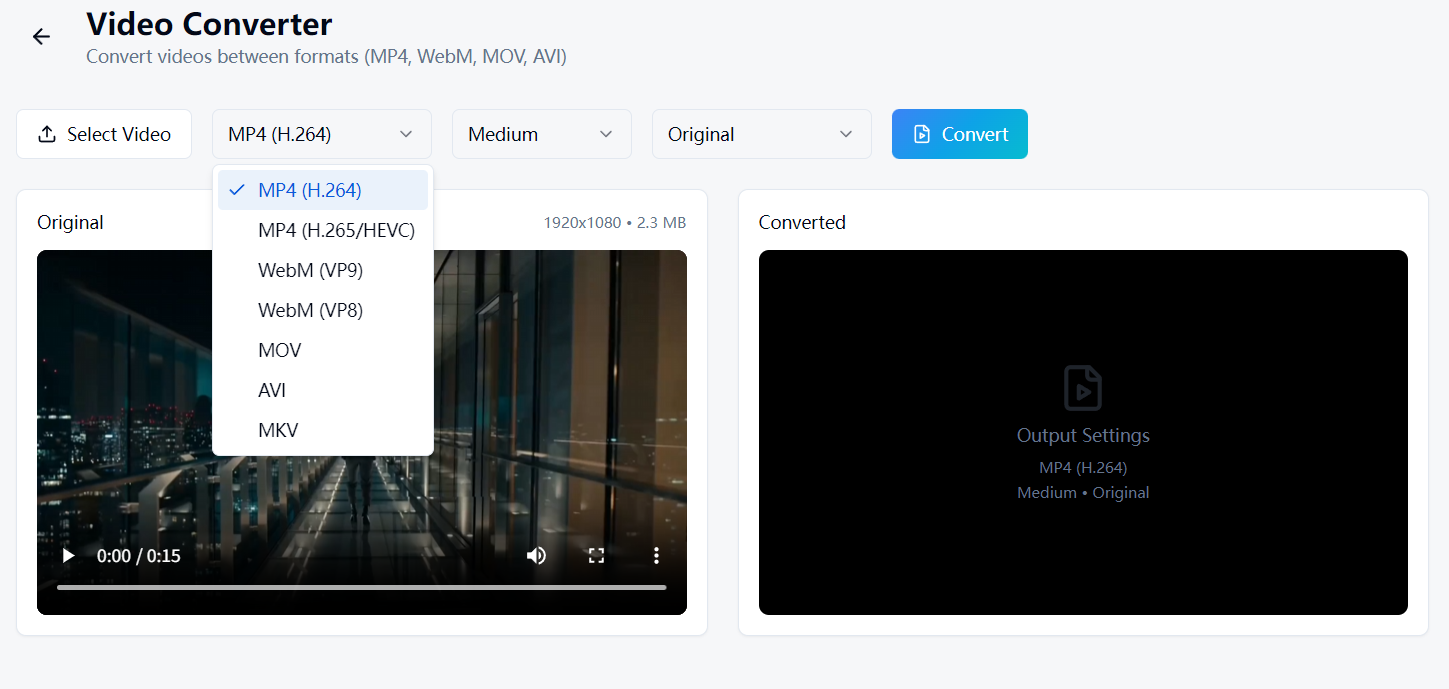
WaveSpeed Desktop includes a built-in Video Converter that handles all of the above with a single click:
- Drag and drop your video file
- Pick the output format (MP4, WebM, MOV, AVI)
- Click convert — done
No installation of FFmpeg. No terminal. No memorizing flags.
Download WaveSpeed Desktop for free: https://github.com/WaveSpeedAI/wavespeed-desktop/releases
FAQ
What’s the best format for sharing videos online? MP4 with H.264 video and AAC audio. It’s supported by virtually every platform, browser, and device.
Does converting video reduce quality?
Re-encoding always introduces some quality loss. Use -c copy when possible to avoid re-encoding. If you must re-encode, use a low CRF value (18–20) for near-lossless quality.
How long does FFmpeg take to convert a video?
It depends on the file size, codec, and your hardware. A 1GB MOV to MP4 conversion typically takes 2–10 minutes on modern hardware. Using -c copy (remuxing) takes seconds.
Can FFmpeg handle 4K and 8K video?
Yes, but encoding high-resolution video is CPU-intensive and slow. Consider using hardware acceleration (-c:v h264_nvenc for NVIDIA GPUs) for faster processing.
Related Articles

How to Use Qwen Image 2.0: Text-to-Image, Editing & Text Rendering Guide (2026)

How to Convert Audio to MP3, AAC, FLAC, WAV with FFmpeg (2026 Guide)

How to Convert Images to JPG, PNG, WebP, GIF with FFmpeg (2026 Guide)

How to Merge and Concatenate Videos with FFmpeg (2026 Guide)

How to Trim and Cut Video with FFmpeg: Timestamps, Duration, Split (2026 Guide)
