
How to Merge and Concatenate Videos with FFmpeg (2026 Guide)

Have multiple video clips you need to join into one file? FFmpeg offers several ways to concatenate videos—but the right method depends on whether your clips share the same format, codec, and resolution.
This guide covers all three approaches with exact commands. And for those who’d rather not debug codec mismatches in a terminal, there’s a free drag-and-drop alternative at the end.
Prerequisites: Install FFmpeg
macOS:
brew install ffmpegUbuntu/Debian:
sudo apt update && sudo apt install ffmpegWindows:
Download from ffmpeg.org, extract, and add bin to PATH.
Method 1: Concat Demuxer (Same Format — Fastest)
This is the fastest and simplest method. It works when all videos have the same codec, resolution, and frame rate.
Step 1: Create a file list
Create a text file called files.txt:
file 'clip1.mp4'
file 'clip2.mp4'
file 'clip3.mp4'
Step 2: Run the concat command
ffmpeg -f concat -safe 0 -i files.txt -c copy output.mp4-f concat— use the concat demuxer-safe 0— allow absolute/relative paths-c copy— no re-encoding (instant)
Generate the file list automatically
Linux/macOS:
for f in *.mp4; do echo "file '$f'" >> files.txt; done
ffmpeg -f concat -safe 0 -i files.txt -c copy output.mp4
Windows (PowerShell):
Get-ChildItem *.mp4 | ForEach-Object { "file '$($_.Name)'" } | Out-File -Encoding ascii files.txt
ffmpeg -f concat -safe 0 -i files.txt -c copy output.mp4
Method 2: Concat Filter (Different Formats — Most Flexible)
When clips have different codecs, resolutions, or frame rates, you need the concat filter. This re-encodes everything to match.
Two videos:
ffmpeg -i clip1.mp4 -i clip2.mov \
  -filter_complex "[0:v][0:a][1:v][1:a]concat=n=2:v=1:a=1[outv][outa]" \
  -map "[outv]" -map "[outa]" output.mp4
Three videos:
ffmpeg -i clip1.mp4 -i clip2.mov -i clip3.avi \
  -filter_complex "[0:v][0:a][1:v][1:a][2:v][2:a]concat=n=3:v=1:a=1[outv][outa]" \
-map "[outv]" -map "[outa]" output.mp4n=3— number of input segmentsv=1— one video stream outputa=1— one audio stream output
Normalize resolution before concatenating
If clips have different resolutions, scale them first:
ffmpeg -i clip1.mp4 -i clip2.mp4 \
  -filter_complex \
    "[0:v]scale=1920:1080:force_original_aspect_ratio=decrease,pad=1920:1080:(ow-iw)/2:(oh-ih)/2[v0]; \
     [1:v]scale=1920:1080:force_original_aspect_ratio=decrease,pad=1920:1080:(ow-iw)/2:(oh-ih)/2[v1]; \
     [v0][0:a][v1][1:a]concat=n=2:v=1:a=1[outv][outa]" \
  -map "[outv]" -map "[outa]" output.mp4
Method 3: Concat Protocol (MPEG-TS Only)
For MPEG transport streams, you can use the concat protocol directly:
# First convert to MPEG-TS
ffmpeg -i clip1.mp4 -c copy -bsf:v h264_mp4toannexb clip1.ts
ffmpeg -i clip2.mp4 -c copy -bsf:v h264_mp4toannexb clip2.ts

# Then concatenate
ffmpeg -i "concat:clip1.ts|clip2.ts" -c copy -bsf:a aac_adtstoasc output.mp4
This method is generally not recommended anymore—the concat demuxer (Method 1) is simpler and more reliable.
Special Scenarios
Merge Video and Audio Tracks
Combine a video file with a separate audio file:
ffmpeg -i video.mp4 -i audio.mp3 -c:v copy -c:a aac -shortest output.mp4-shortest— stop when the shorter stream ends
Replace Audio in a Video
ffmpeg -i video.mp4 -i new_audio.mp3 -c:v copy -c:a aac -map 0:v -map 1:a output.mp4Concatenate Videos with Different Frame Rates
Force all inputs to 30fps before concatenating:
ffmpeg -i clip1.mp4 -i clip2.mp4 \
  -filter_complex \
    "[0:v]fps=30[v0];[1:v]fps=30[v1]; \
     [v0][0:a][v1][1:a]concat=n=2:v=1:a=1[outv][outa]" \
  -map "[outv]" -map "[outa]" output.mp4
Videos Without Audio
If some clips lack audio tracks, add silent audio:
ffmpeg -i clip_no_audio.mp4 -f lavfi -i anullsrc=r=44100:cl=stereo \
  -c:v copy -c:a aac -shortest clip_with_silence.mp4
Then concatenate normally.
Common Errors and Fixes
“Discarding non-monotonous DTS”
Timestamps are misaligned between clips. Re-encode:
ffmpeg -f concat -safe 0 -i files.txt -c:v libx264 -c:a aac output.mp4“Stream 0 codec does not match”
Your clips have different codecs. Use the concat filter (Method 2) instead of the concat demuxer.
“Discarding 1 additional packets” / sync issues
Add -fflags +genpts to regenerate timestamps:
ffmpeg -fflags +genpts -f concat -safe 0 -i files.txt -c copy output.mp4Output has black frames between clips
This happens when clips have different pixel formats. Force a common format:
ffmpeg -i clip1.mp4 -i clip2.mp4 \
  -filter_complex "[0:v]format=yuv420p[v0];[1:v]format=yuv420p[v1];[v0][0:a][v1][1:a]concat=n=2:v=1:a=1[outv][outa]" \
  -map "[outv]" -map "[outa]" output.mp4
Skip the Terminal: Use WaveSpeed Desktop Instead
Merging videos with FFmpeg means choosing between three different methods, creating file lists, handling codec mismatches, debugging timestamp issues, and writing filter_complex strings that look like regex nightmares.
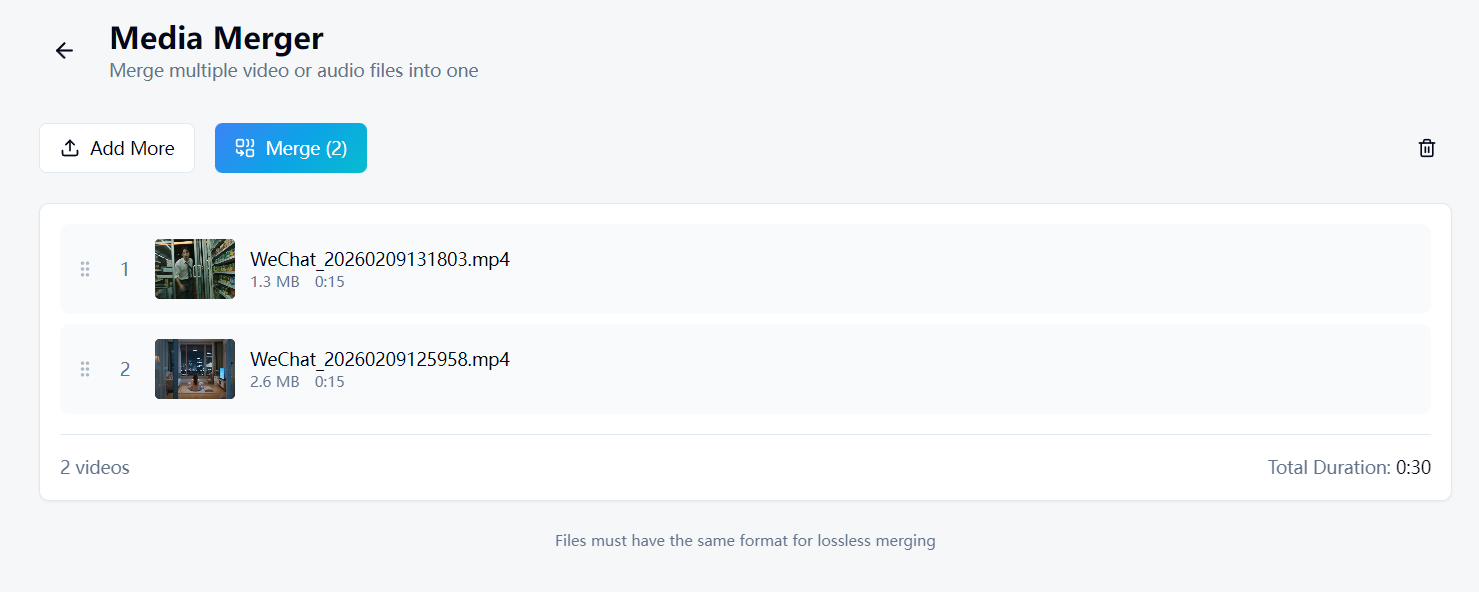
WaveSpeed Desktop includes a built-in Media Merger that simplifies everything:
- Drag and drop your video clips
- Reorder them as needed
- Click merge — one file, done
Different formats? Different resolutions? The app handles it automatically.
Download WaveSpeed Desktop for free: https://github.com/WaveSpeedAI/wavespeed-desktop/releases
FAQ
Which concat method should I use? If all clips have the same codec and resolution, use Method 1 (demuxer) — it’s instant. If clips differ in any way, use Method 2 (filter).
Can I add transitions between clips?
FFmpeg supports basic crossfade transitions with the xfade filter, but it’s complex. For transitions, a visual editor is usually easier.
Does merging videos reduce quality?
Not with -c copy (Method 1). With the concat filter (Method 2), re-encoding occurs and a small quality loss is possible. Use a low CRF (18–20) to minimize it.
Is there a limit to how many videos I can merge? No hard limit in FFmpeg. Practically, memory and processing time scale with the number of inputs.
Related Articles

How to Use Qwen Image 2.0: Text-to-Image, Editing & Text Rendering Guide (2026)

How to Convert Audio to MP3, AAC, FLAC, WAV with FFmpeg (2026 Guide)

How to Convert Images to JPG, PNG, WebP, GIF with FFmpeg (2026 Guide)

How to Convert Video to MP4, WebM, MOV with FFmpeg (2026 Guide)

How to Trim and Cut Video with FFmpeg: Timestamps, Duration, Split (2026 Guide)
