Wan 2.1 Text-to-Image LoRA repurposes Wan 2.1 to create ultra-realistic images with exceptional detail and LoRA fine-tuning support. Ready-to-use REST inference API, best performance, no coldstarts, affordable pricing.
Ocioso

$0.025por execução·~40 / $1
ExemplosVer todos
A young woman hanging laundry on a sunny balcony, soft shadows, fluttering clothes, warm afternoon light, urban neighborhood, photorealistic, 35mm lens
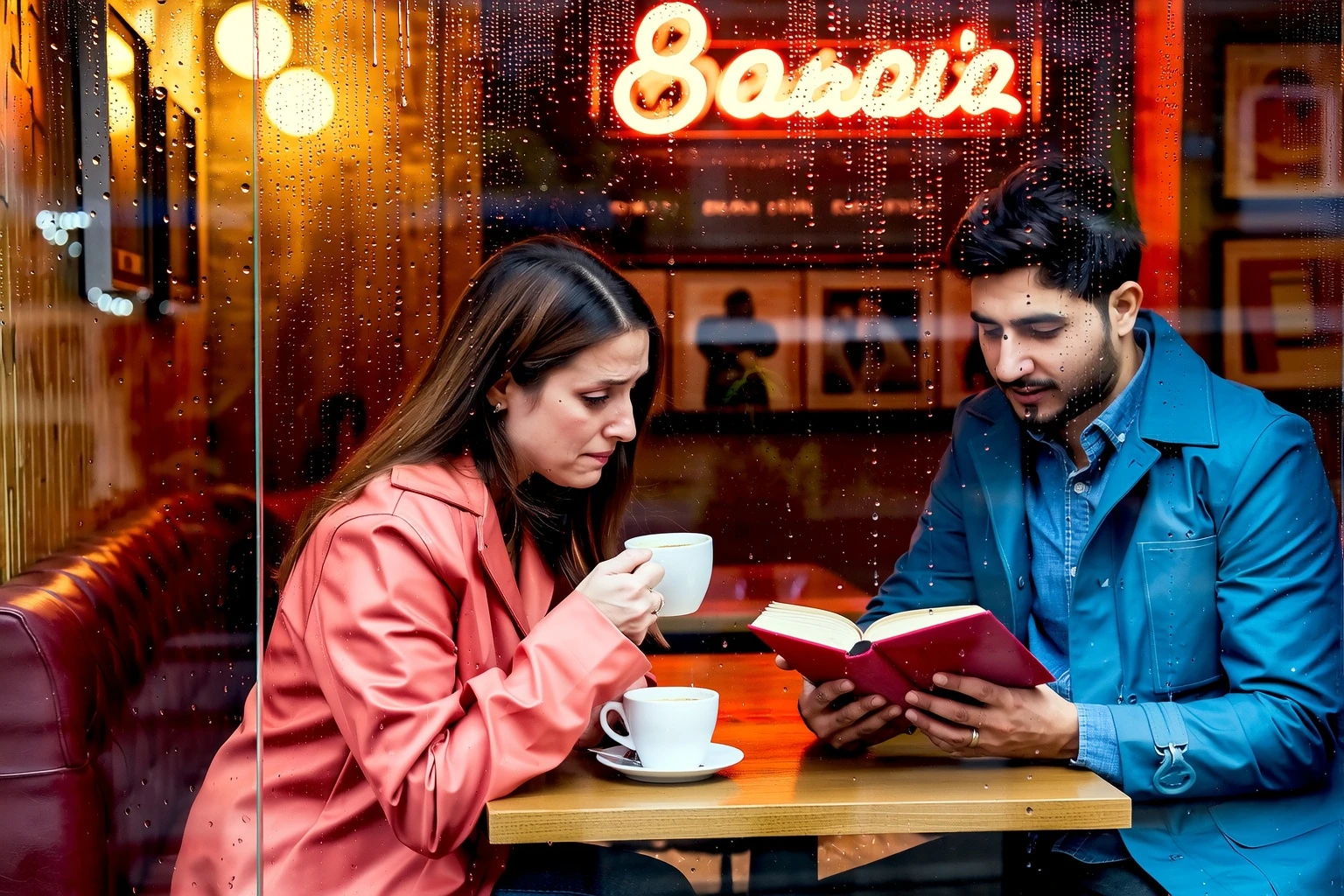
A couple reading books in a tiny café during rainy afternoon, raindrops on window, warm tones, vintage decor, cozy mood, photorealistic

A kid playing with a dog in a sunlit park, fallen leaves, trees swaying in wind, golden hour lighting, spontaneous joyful expression
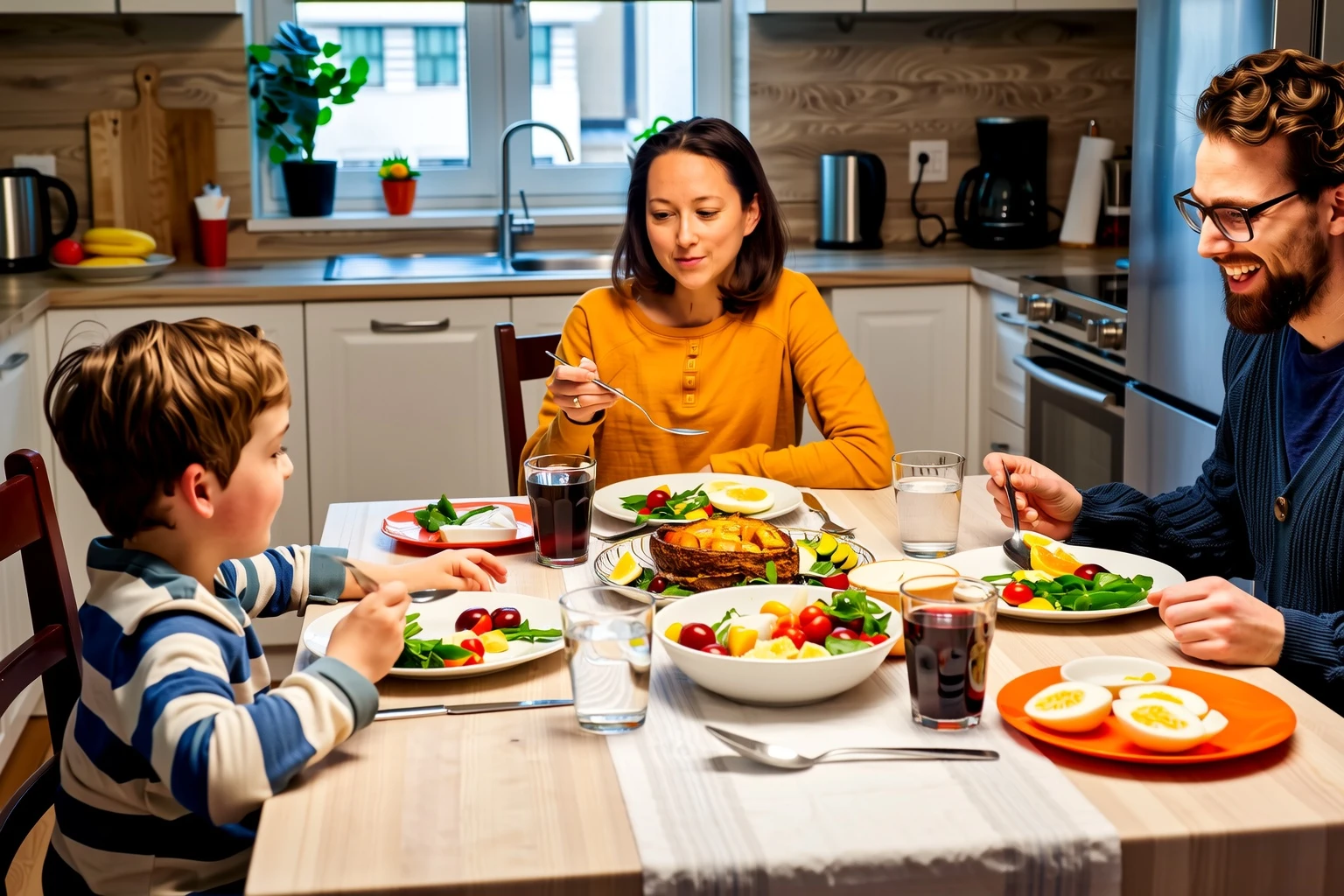
A family eating dinner at a small round table, homemade dishes, ambient kitchen light, lively conversation, slightly cluttered background
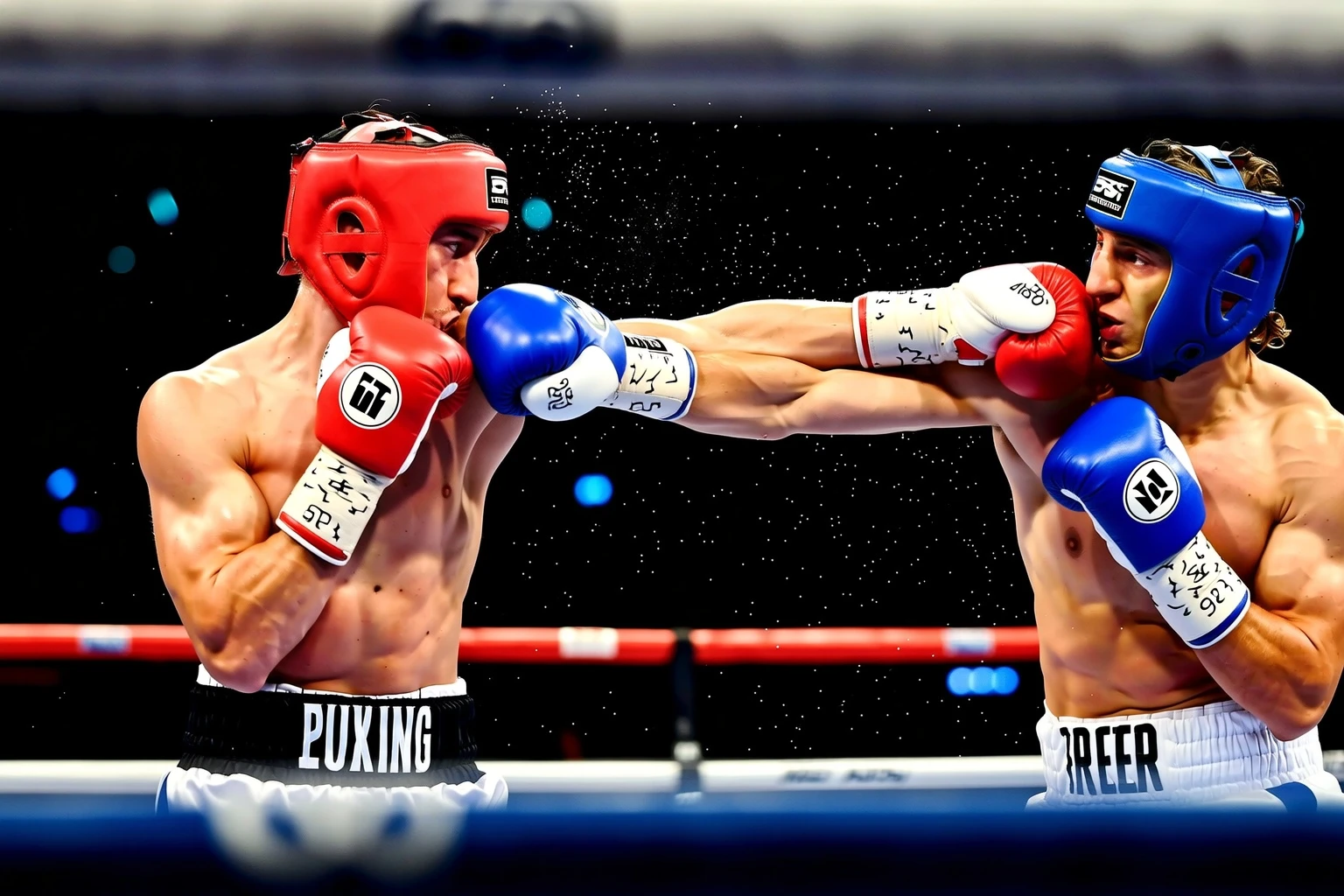
B0x13ng Boxing Video The boxer throws a quick series of jabs and then a right cross.
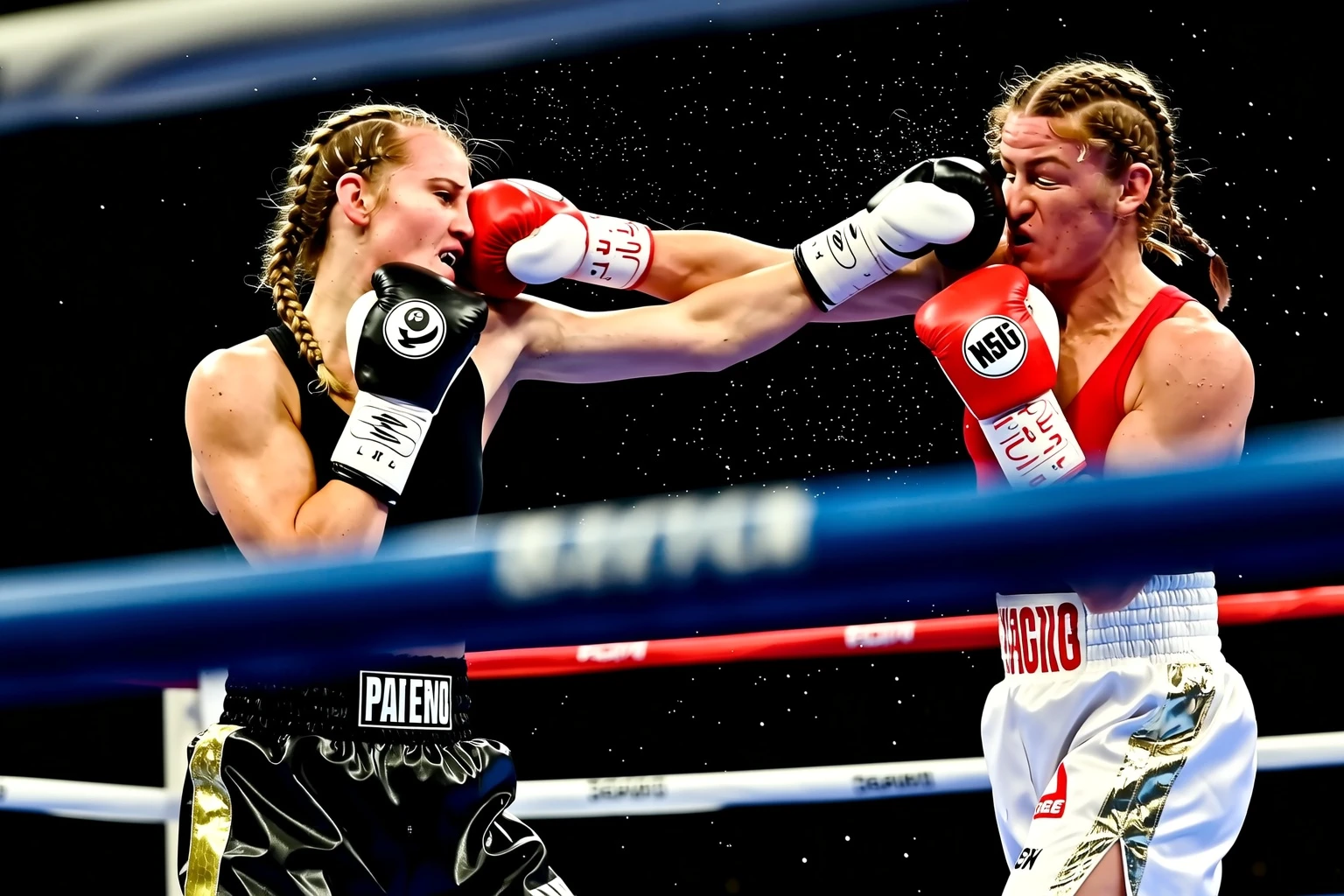
B0x13ng Boxing video two boxers are in the ring, but one of them is significantly shorter than the other. The shorter female fighter in black shorts is aggressively throwing punches, trying to reach his taller opponent. The taller fighter, wearing black shorts, simply holds out his glove on the shorter fighter’s forehead, keeping her at a frustrating distance.
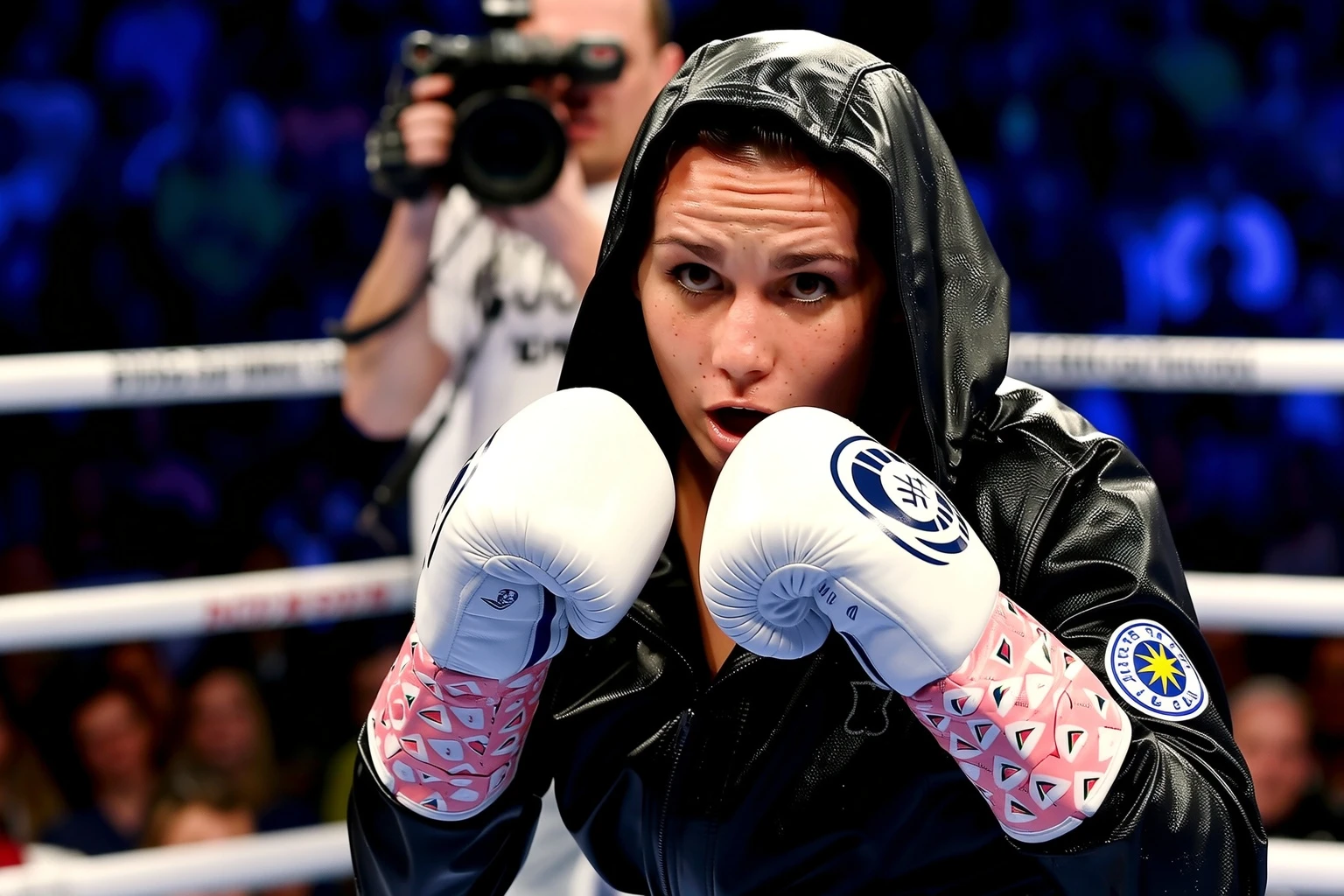
A fierce female fighter walking into the ring, hooded robe, determined expression, spotlight on her, crowd in shadows, LoRA: B0x13ng Boxing Video, dramatic sports energy

Boxer resting in the corner of the ring between rounds, exhausted posture, trainer speaking to him, water splashing, towel in hand, grungy gym mood, cinematic realism

cinematic wide shot of a massive bio-mechanical city on a desert planet at dusk. Towers are fused with organic, plant-like structures. A lone wanderer in a weathered cloak walks towards the city gates. The twin suns are setting, casting long shadows and a deep orange glow across the landscape. Matte painting, epic scale, concept art in the style of Syd Mead and John Harris.
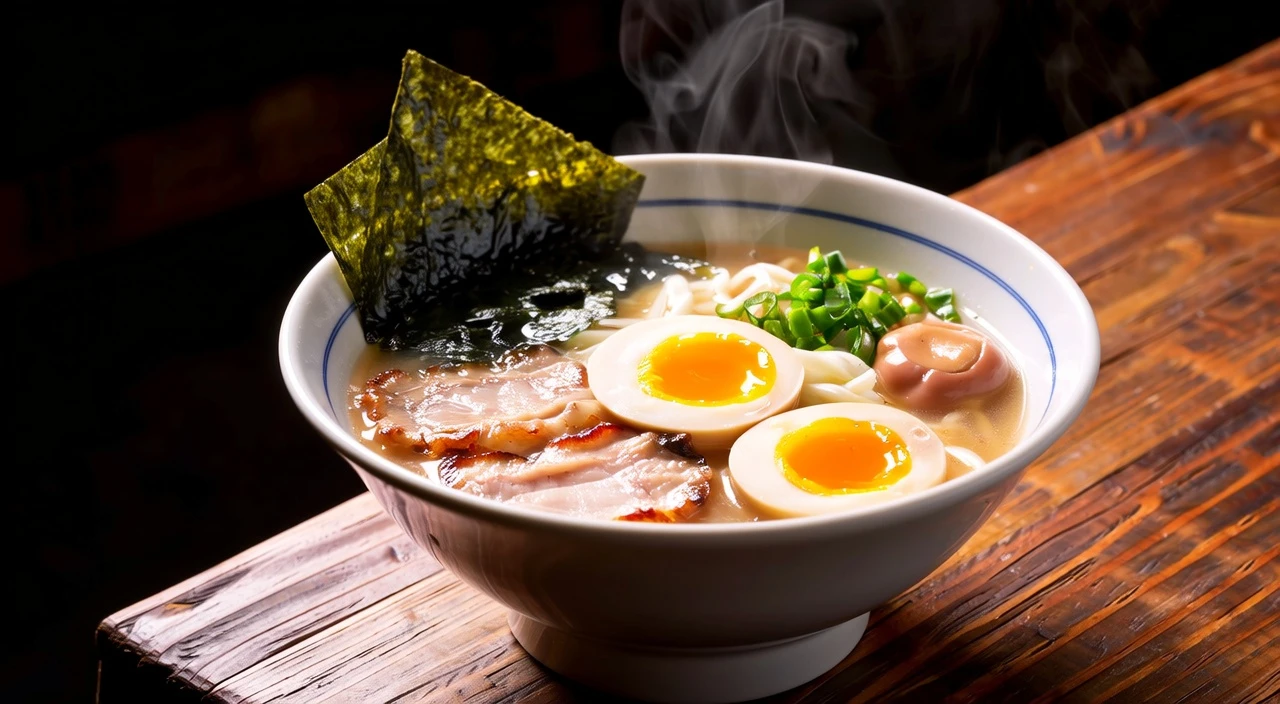
a steaming bowl of authentic Japanese tonkotsu ramen, rich and creamy broth, perfectly cooked chashu pork with a seared surface, a soft-boiled egg with a gooey yolk, glistening noodles, garnished with fresh green onions and nori seaweed. Professional studio lighting, dramatic side light creating deep shadows, shallow depth of field, background is a dark, rustic ramen shop.
Modelos relacionados

README
Wan 2.1 Text-to-Image LoRA
Generate photorealistic images with custom style control using Wan 2.1 Text-to-Image LoRA. This versatile model supports both pure text-to-image generation and image-to-image transformation with adjustable strength — plus full LoRA support for unique visual styles.
Why It Looks Great
- Photorealistic output: Optimized for lifelike, natural imagery.
- LoRA support: Apply custom LoRA adapters for unique styles and characters.
- Image-to-image mode: Transform existing images with adjustable strength control.
- Custom dimensions: Precise control over width and height for any aspect ratio.
- Prompt Enhancer: Built-in tool to refine your descriptions automatically.
- Reproducible results: Use the seed parameter to recreate exact outputs.
Parameters
| Parameter | Required | Description |
|---|---|---|
| prompt | Yes | Text description of the image you want to generate. |
| image | No | Optional source image for image-to-image transformation. |
| strength | No | How much to transform the source image (0.0-1.0). Default: 0.8. |
| loras | No | Custom LoRA adapters to apply for style control. |
| width | No | Output width in pixels (e.g., 1024). |
| height | No | Output height in pixels (e.g., 1024). |
| seed | No | Random seed for reproducibility. Use -1 for random. |
| output_format | No | File format: jpeg or png. Default: jpeg. |
How to Use
Text-to-Image
- Write your prompt — describe the image in detail.
- Use Prompt Enhancer (optional) — click to enrich your description.
- Add LoRAs (optional) — click "+ Add Item" for custom styles.
- Set dimensions — adjust width and height as needed.
- Run — click the button to generate.
- Download — preview and save your image.
Image-to-Image
- Upload source image — the image to transform.
- Write your prompt — describe the desired transformation.
- Adjust strength — lower values preserve more of the original (0.3-0.5), higher values allow more change (0.7-1.0).
- Run — click the button to generate.
Pricing
Flat rate per image.
| Output | Cost |
|---|---|
| Per image | $0.025 |
Strength Guide (Image-to-Image)
| Strength | Effect | Best For |
|---|---|---|
| 0.3-0.4 | Subtle changes, preserves original | Minor style adjustments |
| 0.5-0.6 | Moderate transformation | Balanced edits |
| 0.7-0.8 | Significant changes | Style transfer, major edits |
| 0.9-1.0 | Near-complete transformation | Heavy stylization |
Best Use Cases
- Photorealistic Portraits — Generate lifelike portraits with natural lighting.
- Style Transfer — Transform images with custom LoRA styles.
- Lifestyle Photography — Create authentic everyday scenes.
- Character Consistency — Use character LoRAs for consistent identity.
- Custom Aesthetics — Apply trained LoRAs for unique visual styles.
Example Prompts
- "A young woman hanging laundry on a sunny balcony, soft shadows, fluttering clothes, warm afternoon light, urban neighborhood, photorealistic, 35mm lens"
- "Professional headshot, soft studio lighting, neutral background, sharp focus"
- "Cozy kitchen scene, morning light through window, steam rising from coffee"
- "Street photography, candid moment, natural expressions, urban environment"
- "Product shot on marble surface, dramatic lighting, clean composition"
How to Use LoRAs
For detailed guides on using and training custom LoRAs:
Pro Tips for Best Results
- Include camera/lens details for realistic style: "35mm lens", "f/1.8", "bokeh".
- Describe lighting: "soft shadows", "warm afternoon light", "studio lighting".
- Use image-to-image with lower strength (0.3-0.5) to preserve composition.
- LoRAs can dramatically change output style — experiment with different adapters.
- Square dimensions (1024×1024) work well for portraits; adjust for other compositions.
Notes
- Supports both text-to-image and image-to-image workflows.
- If using a URL for the source image, ensure it is publicly accessible.
- The strength parameter only applies when a source image is provided.
- LoRA effects are cumulative — start with one and add more as needed.
Wan 2.1 Text To Image Lora API — Quick start
Grab a WaveSpeedAI API key, then call POST https://api.wavespeed.ai/api/v3/wavespeed-ai/wan-2.1/text-to-image-lora with your input as JSON. The endpoint returns a prediction id. Start polling the result endpoint around every 2 seconds, increase the interval for long-running tasks, and stop on any terminal status. On completed, read output values from data.outputs. Examples for Wan 2.1 Text To Image Lora below.
HTTP example
set -euo pipefail

: "${WAVESPEED_API_KEY:?Set WAVESPEED_API_KEY}"

REQUEST_BODY=$(cat <<'JSON'
{
    "prompt": "A cinematic shot of a city at sunset, soft golden light",
    "strength": 0.6,
    "size": "1024*1024",
    "seed": -1,
    "output_format": "jpeg"
}
JSON
)

# 1. Submit the prediction.
SUBMIT_RESPONSE=$(curl --silent --show-error --fail-with-body \
  -X POST "https://api.wavespeed.ai/api/v3/wavespeed-ai/wan-2.1/text-to-image-lora" \
  -H "Content-Type: application/json" \
  -H "Authorization: Bearer $WAVESPEED_API_KEY" \
  -d "$REQUEST_BODY")

TASK=$(printf '%s' "$SUBMIT_RESPONSE" | jq 'if has("data") then .data else . end')
PREDICTION_ID=$(printf '%s' "$TASK" | jq -r '.id')
if [ -z "$PREDICTION_ID" ] || [ "$PREDICTION_ID" = "null" ]; then
  printf 'Submission response did not contain a prediction id
' >&2
  exit 1
fi
RESULT_URL=$(printf '%s' "$TASK" | jq -r '.urls.get // empty')
if [ -z "$RESULT_URL" ]; then
  RESULT_URL="https://api.wavespeed.ai/api/v3/predictions/$PREDICTION_ID/result"
fi

# 2. Poll until the prediction finishes.
while true; do
  RESPONSE=$(curl --silent --show-error --fail-with-body "$RESULT_URL" \
    -H "Authorization: Bearer $WAVESPEED_API_KEY")
  RESULT=$(printf '%s' "$RESPONSE" | jq 'if has("data") then .data else . end')
  STATUS=$(printf '%s' "$RESULT" | jq -r '.status')
  case "$STATUS" in
    completed) printf '%s\n' "$RESULT" | jq '.outputs'; break ;;
    failed|cancelled|timeout) printf '%s\n' "$RESULT" | jq . >&2; exit 1 ;;
    created|processing) sleep 2 ;;
    *) printf 'Unexpected status: %s
' "$STATUS" >&2; exit 1 ;;
  esac
done
Node.js example
const submitUrl = "https://api.wavespeed.ai/api/v3/wavespeed-ai/wan-2.1/text-to-image-lora";
const apiKey = process.env.WAVESPEED_API_KEY;
if (!apiKey) throw new Error('Set WAVESPEED_API_KEY');

async function requestJson(url, options = {}) {
  const response = await fetch(url, options);
  if (!response.ok) throw new Error(await response.text());
  return response.json();
}

// 1. Submit the prediction.
const body = await requestJson(submitUrl, {
  method: "POST",
  headers: {
    "Authorization": `Bearer ${apiKey}`,
    "Content-Type": "application/json",
  },
  body: JSON.stringify({
        "prompt": "A cinematic shot of a city at sunset, soft golden light",
        "strength": 0.6,
        "size": "1024*1024",
        "seed": -1,
        "output_format": "jpeg"
}),
});
const task = body.data ?? body;
if (!task.id) throw new Error("Submission response did not contain a prediction id");
const resultUrl = task.urls?.get ||
  `https://api.wavespeed.ai/api/v3/predictions/${task.id}/result`;

// 2. Poll until the prediction finishes.
while (true) {
  const resultBody = await requestJson(resultUrl, {
    headers: { "Authorization": `Bearer ${apiKey}` },
  });
  const result = resultBody.data ?? resultBody;
  if (result.status === "completed") {
    console.log(result.outputs);
    break;
  }
  if (["failed", "cancelled", "timeout"].includes(result.status)) throw new Error(JSON.stringify(result));
  if (!["created", "processing"].includes(result.status)) throw new Error("Unexpected status: " + result.status);
  await new Promise(resolve => setTimeout(resolve, 2000));
}
Python example
import json
import os
import time
from urllib.request import Request, urlopen

api_key = os.environ["WAVESPEED_API_KEY"]
headers = {"Authorization": f"Bearer {api_key}", "Content-Type": "application/json"}
payload = {
    "prompt": "A cinematic shot of a city at sunset, soft golden light",
    "strength": 0.6,
    "size": "1024*1024",
    "seed": -1,
    "output_format": "jpeg"
}

def request_json(url, data=None):
    request = Request(url, data=data, headers=headers, method="POST" if data else "GET")
    with urlopen(request) as response:
        return json.load(response)

# 1. Submit the prediction.
body = request_json("https://api.wavespeed.ai/api/v3/wavespeed-ai/wan-2.1/text-to-image-lora", json.dumps(payload).encode())
task = body.get("data", body)
if not task.get("id"):
    raise RuntimeError("Submission response did not contain a prediction id")
result_url = task.get("urls", {}).get("get") or f"https://api.wavespeed.ai/api/v3/predictions/{task['id']}/result"

# 2. Poll until the prediction finishes.
while True:
    result_body = request_json(result_url)
    result = result_body.get("data", result_body)
    status = result.get("status")
    if status == "completed":
        print(result.get("outputs", []))
        break
    if status in {"failed", "cancelled", "timeout"}:
        raise RuntimeError(result)
    if status not in {"created", "processing"}:
        raise RuntimeError(f"Unexpected status: {status}")
    time.sleep(2)
Wan 2.1 Text To Image Lora API — Frequently asked questions
What is the Wan 2.1 Text To Image Lora API?
Wan 2.1 Text To Image Lora is a WaveSpeedAI model for AI inference, exposed as a REST API on WaveSpeedAI. Wan 2.1 Text-to-Image LoRA repurposes Wan 2.1 to create ultra-realistic images with exceptional detail and LoRA fine-tuning support. Ready-to-use REST inference API, best performance, no coldstarts, affordable pricing. You can call it programmatically or try it from the playground above.
How do I call the Wan 2.1 Text To Image Lora API?
POST your input parameters to the model's REST endpoint (shown in the API tab of this playground) with your WaveSpeedAI API key in the Authorization header. Submission returns a prediction ID. Poll the result endpoint starting around every 2 seconds, increase the interval for long-running tasks, and stop on any terminal status. The playground generates production-oriented Python, JavaScript, and cURL examples with timeouts, transient-error handling, and safe GET retries. Full request/response shape is documented at https://wavespeed.ai/docs/docs-api/wavespeed-ai/wan-2.1-text-to-image-lora.
How much does Wan 2.1 Text To Image Lora cost per run?
Wan 2.1 Text To Image Lora starts at $0.025 per run. That figure is the base price — the final charge scales with the parameters you set in the form (output size, length, count, references, or whatever knobs this model exposes), so a higher-quality or larger output costs more than a minimal one. The exact cost for your current input is shown live next to the Generate button before you submit, and the actual per-call charge is recorded on the prediction afterwards.
What inputs does Wan 2.1 Text To Image Lora accept?
Key inputs: `prompt`, `image`, `size`, `seed`, `enable_base64_output`, `enable_sync_mode`. The full JSON schema (types, defaults, allowed values) is rendered above the Generate button and mirrored in the API reference at https://wavespeed.ai/docs/docs-api/wavespeed-ai/wan-2.1-text-to-image-lora.
How long does Wan 2.1 Text To Image Lora take to generate?
Median end-to-end generation time on WaveSpeedAI is around 12 seconds per request, based on recent successful runs. Queue time varies with global demand; live status is visible in the prediction record.
Can I use Wan 2.1 Text To Image Lora outputs commercially?
Commercial usage rights depend on the model's license, set by its provider (WaveSpeedAI). The license summary appears on the model card above; see WaveSpeedAI's Terms of Service for platform-level conditions.