
TikTok Watermark Remover for Your Media
TikTok Watermark Remover Alternative compares WaveSpeed AI with cleanup tools on repair quality, preview control, export limits, and owned-media workflows.
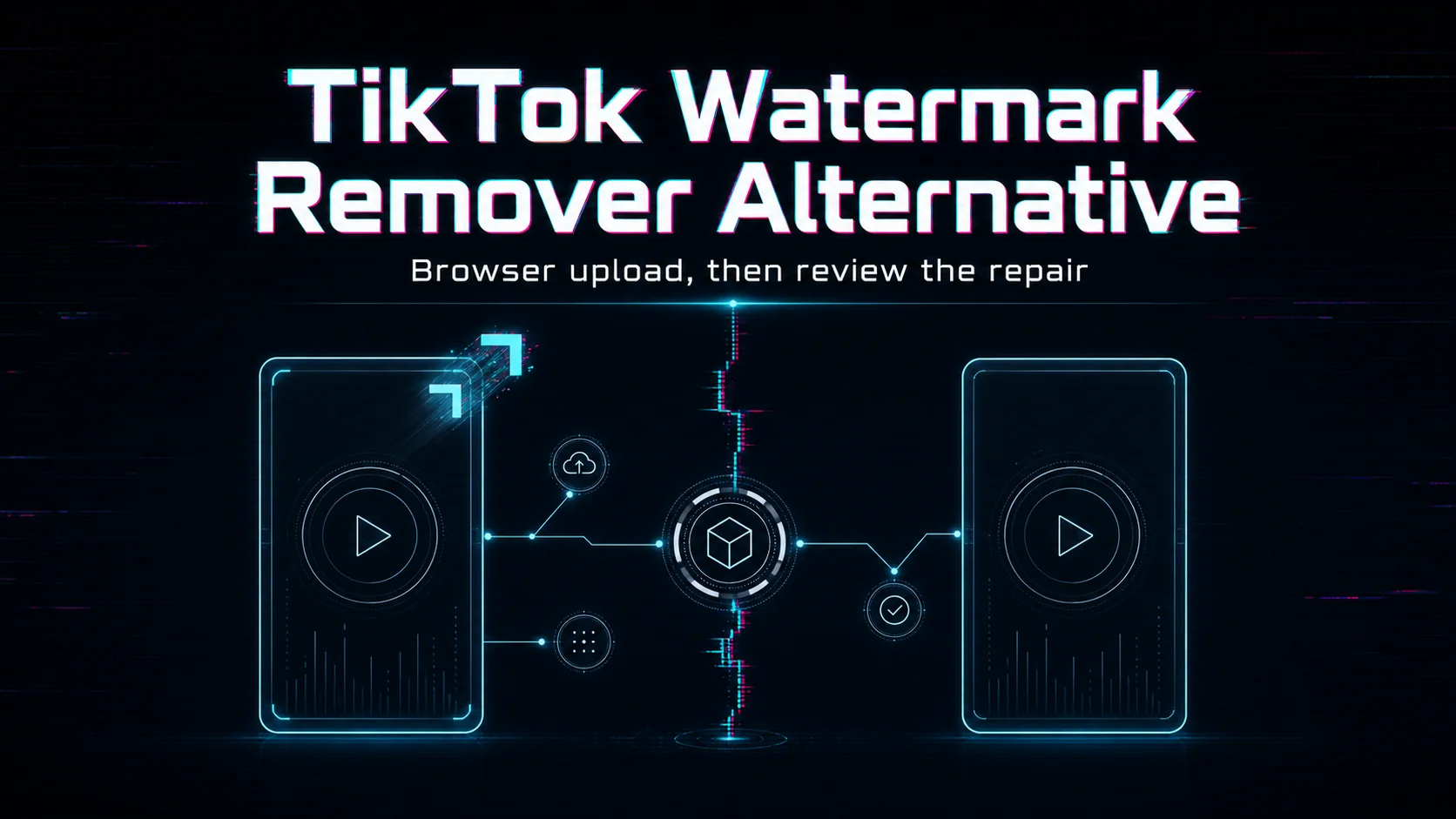
How to clean up media in 3 steps
A controlled cleanup workflow helps you judge the repaired area before it reaches a final crop or export.
Upload your media
Choose an image or video you own or are authorized to modify.
Inspect the repaired area
Review texture, edges, lettering, motion, and any details behind the mark.
Export the clean result
Use the repaired file only after checking it at the size and quality you will deliver.
Overview
TikTok Watermark Remover Alternative
If you need to clean up a TikTok video that you own or have permission to modify, WaveSpeed AI provides an AI video watermark remover that works through a browser upload. Start with a short clip, review the generated result, and decide whether the repaired area holds up before using the file in a larger edit or publishing workflow.
This is an alternative workflow, not an official TikTok service or a promise that every covered area can be reconstructed cleanly. The most reliable approach is to test the actual footage you plan to use, especially when the watermark overlaps faces, text, fast motion, or detailed backgrounds.
Is this safe to use on content you didn't create yourself?
Use watermark removal only when you own the underlying video, hold the necessary license, or have clear permission to modify it. WaveSpeed's current tool guidance specifically asks users to make sure they have the legal right to use the underlying video before removing a watermark.
That boundary matters even when a file is easy to download or share. Removing a visible mark does not resolve questions about ownership, licensing, attribution, platform rules, or a creator's consent. If those rights are unclear, keep the original intact and get permission before processing it.
For commercial work, check the license that applies to the source material and to any model or service involved in the workflow. WaveSpeed's policy places responsibility on users to review applicable licenses, comply with the law, and obtain necessary permissions.
How does repair quality compare to other TikTok cleanup tools?
There is no responsible universal winner without testing the same clip in each workflow. This page is published by WaveSpeed AI, so treat the comparison as a repeatable evaluation method rather than an independent ranking.
Use a short section that includes the real watermark placement and the type of motion found in the full video. Run that identical source through each tool, then review the outputs at the same playback size. Do not judge from a still thumbnail alone; a repair can look acceptable in one frame and become distracting when the background moves.
| Check | What to inspect | Why it matters |
|---|---|---|
| Frame-to-frame stability | Flicker, pulsing color, or a repaired patch that shifts | Video cleanup must remain visually consistent during motion |
| Edge behavior | Halos, doubled outlines, or softened borders near the mark | Hard edges make reconstruction errors easier to notice |
| Texture continuity | Grain, patterns, shadows, and gradients around the covered area | Repeated texture can expose smears or mismatched detail |
| Occluded content | Faces, hands, captions, or objects that pass behind the watermark | The tool has to estimate information that is not visible in the source |
| Final-use size | The result in the actual crop, aspect ratio, and playback context | A flaw that is minor in a small post may be obvious in a larger export |
Keep the decision tied to your footage. A tool that works well on a static corner mark may not be the right choice for a mark placed over moving subjects or detailed scenery.
Reducing blur, smears, and texture mismatch
WaveSpeed describes its AI video watermark remover as processing frames individually and reconstructing the area covered by the unwanted element. Reconstruction is still an estimate, so the source clip determines how much visual information is available around the watermark.
Use this review sequence after the result is generated:
- Play the repaired section at normal speed to catch flicker or sudden texture changes.
- Pause just before, during, and after the watermark crosses a moving edge.
- Check flat areas for color shifts and patterned areas for repeated or stretched texture.
- Look closely at faces, hands, text, and thin objects that pass behind the repaired area.
- Compare parts of the frame outside the watermark region to confirm the rest of the shot still looks consistent.
If the result shows smearing, try a shorter representative clip before committing more footage to the same workflow. When the hidden background changes rapidly or the mark covers important detail, cropping, replacing the shot, or returning to an unwatermarked source may produce a more dependable edit than repeated removal attempts.
Downloading cleaner results with clear limits
The current WaveSpeed browser tool lists MP4, MOV, and WebM uploads and accepts videos up to 10 minutes. Treat those as current input boundaries, not as a quality guarantee. A supported file can still be difficult to repair when the covered region contains complex motion or information that never appears elsewhere in the clip.
Before using the result:
- Review the full repaired interval, not only the first clean frame.
- Check the file in the editor or publishing layout where it will actually appear.
- Keep the original source and the processed version as separate files.
- Confirm that your intended use remains within the permissions attached to the source content.
For a long video, test a short section with the same watermark position and motion first. That gives you a practical quality check before you process more footage, while keeping the final decision based on the result you can see rather than a generic cleanup claim.
FAQ
Does removing a TikTok watermark give me permission to repost the clip?+
No. Permission depends on ownership, licensing, attribution obligations, platform rules, and the creator's consent. Process only footage you are authorized to modify and verify the intended use separately.
Which part of a TikTok video should I test first?+
Choose a short interval where the watermark overlaps the most complex motion, texture, face, hand, or caption. An easy opening frame may not represent the rest of the clip.
Why can a repaired corner still flicker during playback?+
The background behind the mark changes from frame to frame. A patch that appears clean in one still can shift in color, texture, or edge shape when the subject or camera moves.
Can WaveSpeed guarantee a flawless result for every TikTok export?+
No. The tool reconstructs covered areas from available visual context, so large opaque marks and important hidden detail can remain difficult.
What should I save after the cleanup test?+
Keep the untouched source and the generated result as separate files. Record which interval was reviewed and confirm permissions before the cleaned version enters another edit or publishing workflow.