Gemini Omni 1.1 Flash Image-to-Video animates a start image into short AI videos, optionally targeting an end frame and generating synchronized audio at resolutions from 360P to 4K for social content, creative storytelling, marketing videos, and production workflows. Ready-to-use REST inference API, best performance, no coldstarts, affordable pricing.
En attente
$0.1par exécution·~10 / $1
ExemplesTout voir
A stylish young woman works inside an old video rental store late at night, closing shelves and turning off lights. She discovers an unmarked VHS tape sitting alone on the counter and puts it into an old television. The screen shows live footage of her standing inside the same store, but from behind. She slowly turns around while the camera pushes closer from the television toward her nervous expression. Retro psychological mystery, 1990s aesthetic, fluorescent and neon lighting, slow cinematic tension.
Modèles associés



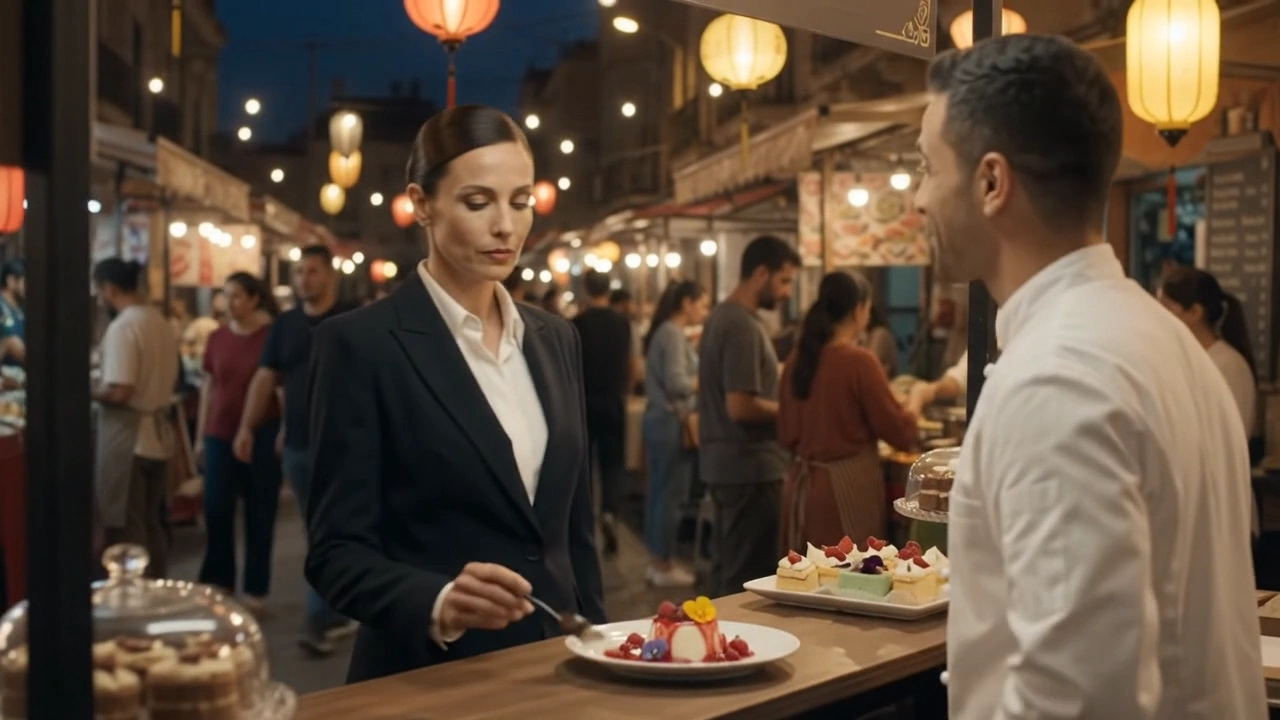
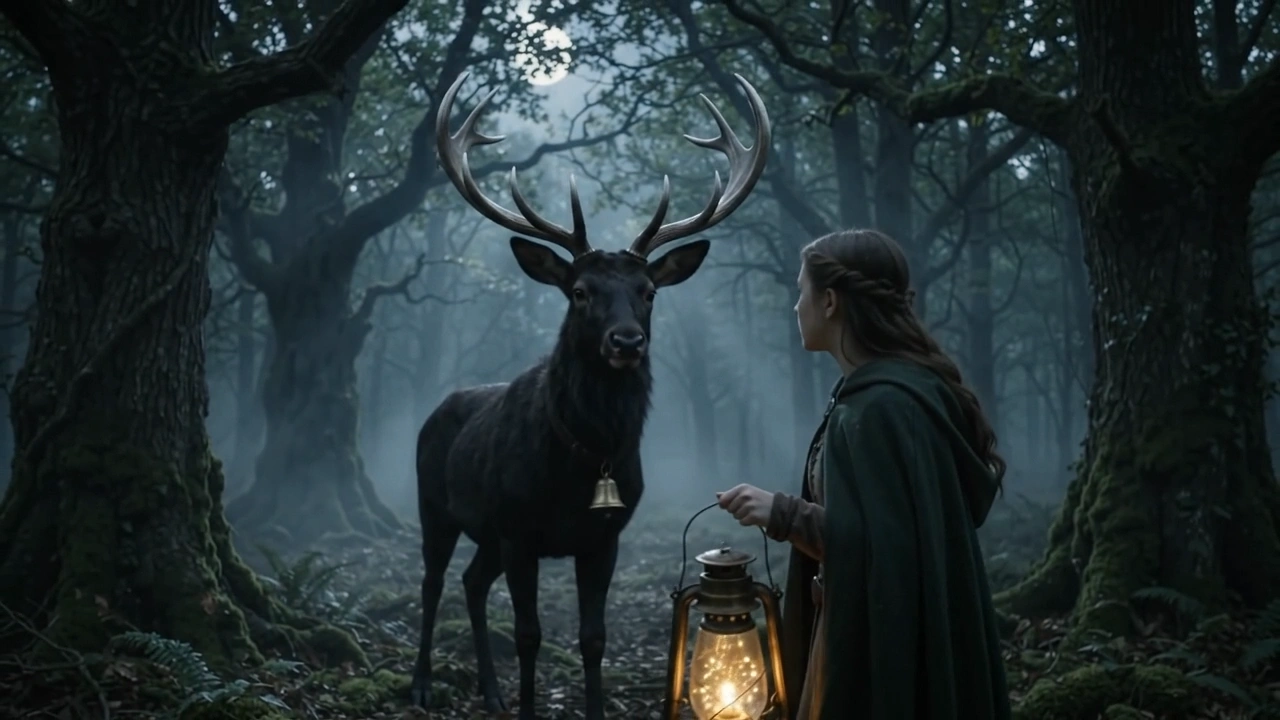

README
Gemini Omni 1.1 Flash Image-to-Video
Gemini Omni 1.1 Flash Image-to-Video animates a start image into a video with synchronized audio. You can optionally add a final frame to guide the ending of the shot, making it useful for controlled transitions, reveal sequences, camera movement, and other prompt-guided image-to-video workflows.
Why Choose This?
-
Start-frame image animation
Turn a single image into a video with motion, scene progression, and synchronized audio. -
Optional end-frame guidance
Addlast_imagewhen you want more control over how the shot ends. -
Smooth transition generation
Useful for camera moves, reveal shots, visual transformations, and controlled motion between two keyframes. -
Draft-to-production workflow
Use360pfor quick testing, then move to1080por4kfor higher-quality output. -
Synchronized audio
Generate motion and matching audio together in one workflow. -
Flexible output formats
Supports both16:9and9:16for landscape and vertical video creation.
Parameters
| Parameter | Required | Description |
|---|---|---|
| image | Yes | Start-frame image URL. |
| last_image | No | Optional end-frame image URL used to guide the ending of the video. |
| prompt | Yes | Motion, camera movement, transition, scene, style, and audio instructions. |
| aspect_ratio | No | Output aspect ratio: 16:9 or 9:16. Default: 16:9. |
| resolution | No | Output resolution: 360p, 720p, 1080p, or 4k. Default: 720p. |
| duration | No | Video duration in seconds. Range: 3–10. Default: 8. |
How to Use
- Upload the start image — Provide the image that should define the first frame.
- Add an end image optional — Use
last_imagewhen you want to guide the final frame or overall transition direction. - Write your prompt — Describe the motion, camera movement, transition behavior, scene changes, style, and audio.
- Choose aspect ratio — Use
16:9for landscape video or9:16for vertical content. - Select resolution — Use
360pfor drafts,720pfor standard output, or1080p/4kfor higher-quality results. - Set duration — Choose a duration from
3to10seconds. - Submit — Generate the final video with synchronized audio.
Pricing
Pricing is based on generated video duration and selected resolution.
| Resolution | Price per second |
|---|---|
| 360p | $0.03 |
| 720p | $0.10 |
| 1080p | $0.15 |
| 4k | $0.30 |
Example Costs
| Resolution | 5s | 8s | 10s |
|---|---|---|---|
| 360p | $0.15 | $0.24 | $0.30 |
| 720p | $0.50 | $0.80 | $1.00 |
| 1080p | $0.75 | $1.20 | $1.50 |
| 4k | $1.50 | $2.40 | $3.00 |
Best Use Cases
- Image animation — Turn still images into short motion clips with audio.
- Controlled transitions — Use
imageandlast_imageto guide the beginning and end of a shot. - Reveal and transformation scenes — Create visual change between two defined states.
- Social media content — Generate vertical or landscape motion content from static artwork or product images.
- Creative prototyping — Quickly test motion, pacing, and shot progression from a single keyframe.
- Marketing and campaign assets — Animate posters, product visuals, and branded images into short videos.
Pro Tips
- Use a clear, high-quality start image for better subject consistency.
- Add
last_imagewhen the final pose, composition, or scene state matters. - Describe both what moves and how it moves in the prompt.
- Include camera instructions such as push-in, orbit, pan, or pull-back for more controlled results.
- Mention ambience, music, dialogue, or sound effects directly when audio guidance matters.
- Start with
360pfor fast iteration, then move to1080por4kfor final output. - Use shorter durations for quick tests and longer durations when the transition needs more time to develop.
Related Models
- Gemini Omni 1.1 Flash Text-to-Video — Generate videos directly from text prompts with synchronized audio.
- Gemini Omni 1.1 Flash Reference-to-Video — Generate videos using reference media for stronger visual guidance.
- Gemini Omni 1.1 Flash Video Edit — Edit existing videos with prompt instructions.
Gemini Omni 1.1 Flash Image To Video API — Quick start
Grab a WaveSpeedAI API key, then call POST https://api.wavespeed.ai/api/v3/google/gemini-omni-1.1-flash/image-to-video with your input as JSON. The endpoint returns a prediction id. Start polling the result endpoint around every 2 seconds, increase the interval for long-running tasks, and stop on any terminal status. On completed, read output values from data.outputs. Examples for Gemini Omni 1.1 Flash Image To Video below.
HTTP example
set -euo pipefail

: "${WAVESPEED_API_KEY:?Set WAVESPEED_API_KEY}"

REQUEST_BODY=$(cat <<'JSON'
{
    "image": "https://interactive-examples.mdn.mozilla.net/media/cc0-images/painted-hand-298-332.jpg",
    "prompt": "A cinematic shot of a city at sunset, soft golden light",
    "aspect_ratio": "16:9",
    "resolution": "720p",
    "duration": 8
}
JSON
)

# 1. Submit the prediction.
SUBMIT_RESPONSE=$(curl --silent --show-error --fail-with-body \
  -X POST "https://api.wavespeed.ai/api/v3/google/gemini-omni-1.1-flash/image-to-video" \
  -H "Content-Type: application/json" \
  -H "Authorization: Bearer $WAVESPEED_API_KEY" \
  -d "$REQUEST_BODY")

TASK=$(printf '%s' "$SUBMIT_RESPONSE" | jq 'if has("data") then .data else . end')
PREDICTION_ID=$(printf '%s' "$TASK" | jq -r '.id')
if [ -z "$PREDICTION_ID" ] || [ "$PREDICTION_ID" = "null" ]; then
  printf 'Submission response did not contain a prediction id
' >&2
  exit 1
fi
RESULT_URL="https://api.wavespeed.ai/api/v3/predictions/$PREDICTION_ID/result"

# 2. Poll until the prediction finishes.
while true; do
  RESPONSE=$(curl --silent --show-error --fail-with-body "$RESULT_URL" \
    -H "Authorization: Bearer $WAVESPEED_API_KEY")
  RESULT=$(printf '%s' "$RESPONSE" | jq 'if has("data") then .data else . end')
  STATUS=$(printf '%s' "$RESULT" | jq -r '.status')
  case "$STATUS" in
    completed) printf '%s\n' "$RESULT" | jq '.outputs'; break ;;
    failed|cancelled|timeout|deleted) printf '%s\n' "$RESULT" | jq . >&2; exit 1 ;;
    *) sleep 2 ;;
  esac
done
Node.js example
const submitUrl = "https://api.wavespeed.ai/api/v3/google/gemini-omni-1.1-flash/image-to-video";
const apiKey = process.env.WAVESPEED_API_KEY;
if (!apiKey) throw new Error('Set WAVESPEED_API_KEY');

async function requestJson(url, options = {}) {
  const response = await fetch(url, options);
  if (!response.ok) throw new Error(await response.text());
  return response.json();
}

// 1. Submit the prediction.
const body = await requestJson(submitUrl, {
  method: "POST",
  headers: {
    "Authorization": `Bearer ${apiKey}`,
    "Content-Type": "application/json",
  },
  body: JSON.stringify({
        "image": "https://interactive-examples.mdn.mozilla.net/media/cc0-images/painted-hand-298-332.jpg",
        "prompt": "A cinematic shot of a city at sunset, soft golden light",
        "aspect_ratio": "16:9",
        "resolution": "720p",
        "duration": 8
}),
});
const task = body.data ?? body;
if (!task.id) throw new Error("Submission response did not contain a prediction id");
const resultUrl = `https://api.wavespeed.ai/api/v3/predictions/${task.id}/result`;

// 2. Poll until the prediction finishes.
while (true) {
  const resultBody = await requestJson(resultUrl, {
    headers: { "Authorization": `Bearer ${apiKey}` },
  });
  const result = resultBody.data ?? resultBody;
  if (result.status === "completed") {
    console.log(result.outputs);
    break;
  }
  if (["failed", "cancelled", "timeout", "deleted"].includes(result.status)) throw new Error(JSON.stringify(result));
  await new Promise(resolve => setTimeout(resolve, 2000));
}
Python example
import json
import os
import time
from urllib.request import Request, urlopen

api_key = os.environ["WAVESPEED_API_KEY"]
headers = {"Authorization": f"Bearer {api_key}", "Content-Type": "application/json"}
payload = {
    "image": "https://interactive-examples.mdn.mozilla.net/media/cc0-images/painted-hand-298-332.jpg",
    "prompt": "A cinematic shot of a city at sunset, soft golden light",
    "aspect_ratio": "16:9",
    "resolution": "720p",
    "duration": 8
}

def request_json(url, data=None):
    request = Request(url, data=data, headers=headers, method="POST" if data else "GET")
    with urlopen(request) as response:
        return json.load(response)

# 1. Submit the prediction.
body = request_json("https://api.wavespeed.ai/api/v3/google/gemini-omni-1.1-flash/image-to-video", json.dumps(payload).encode())
task = body.get("data", body)
if not task.get("id"):
    raise RuntimeError("Submission response did not contain a prediction id")
result_url = f"https://api.wavespeed.ai/api/v3/predictions/{task['id']}/result"

# 2. Poll until the prediction finishes.
while True:
    result_body = request_json(result_url)
    result = result_body.get("data", result_body)
    status = result.get("status")
    if status == "completed":
        print(result.get("outputs", []))
        break
    if status in {"failed", "cancelled", "timeout", "deleted"}:
        raise RuntimeError(result)
    time.sleep(2)
Gemini Omni 1.1 Flash Image To Video API — Frequently asked questions
What is the Gemini Omni 1.1 Flash Image To Video API?
Gemini Omni 1.1 Flash Image To Video is a Google model for video generation from images, exposed as a REST API on WaveSpeedAI. Gemini Omni 1.1 Flash Image-to-Video animates a start image into short AI videos, optionally targeting an end frame and generating synchronized audio at resolutions from 360P to 4K for social content, creative storytelling, marketing videos, and production workflows. Ready-to-use REST inference API, best performance, no coldstarts, affordable pricing. You can call it programmatically or try it from the playground above.
How do I call the Gemini Omni 1.1 Flash Image To Video API?
POST your input parameters to the model's REST endpoint (shown in the API tab of this playground) with your WaveSpeedAI API key in the Authorization header. Submission returns a prediction ID. Poll the result endpoint starting around every 2 seconds, increase the interval for long-running tasks, and stop on any terminal status. The playground generates Python, JavaScript, and cURL examples for submitting requests and polling results. Full request/response shape is documented at https://wavespeed.ai/docs/docs-api/google/google-gemini-omni-1.1-flash-image-to-video.
How much does Gemini Omni 1.1 Flash Image To Video cost per run?
Gemini Omni 1.1 Flash Image To Video starts at $0.1 per run. That figure is the base price — the final charge scales with the parameters you set in the form (output size, length, count, references, or whatever knobs this model exposes), so a higher-quality or larger output costs more than a minimal one. The exact cost for your current input is shown live next to the Generate button before you submit, and the actual per-call charge is recorded on the prediction afterwards.
What inputs does Gemini Omni 1.1 Flash Image To Video accept?
Key inputs: `prompt`, `image`, `aspect_ratio`, `resolution`, `duration`, `last_image`. The full JSON schema (types, defaults, allowed values) is rendered above the Generate button and mirrored in the API reference at https://wavespeed.ai/docs/docs-api/google/google-gemini-omni-1.1-flash-image-to-video.
How do I get started with the Gemini Omni 1.1 Flash Image To Video API?
Sign up for a free WaveSpeedAI account to claim starter credits, copy your API key from /accesskey, then call the endpoint shown in the API tab of the playground. The playground also auto-generates a code sample in Python, JavaScript, or cURL for the parameters you've set.
Can I use Gemini Omni 1.1 Flash Image To Video outputs commercially?
Commercial usage rights depend on the model's license, set by its provider (Google). Check the provider's applicable terms and WaveSpeedAI's Terms of Service before commercial use.