WAN 2.5 ‘Fast’ Mode: What It Changes and When It’s Worth It
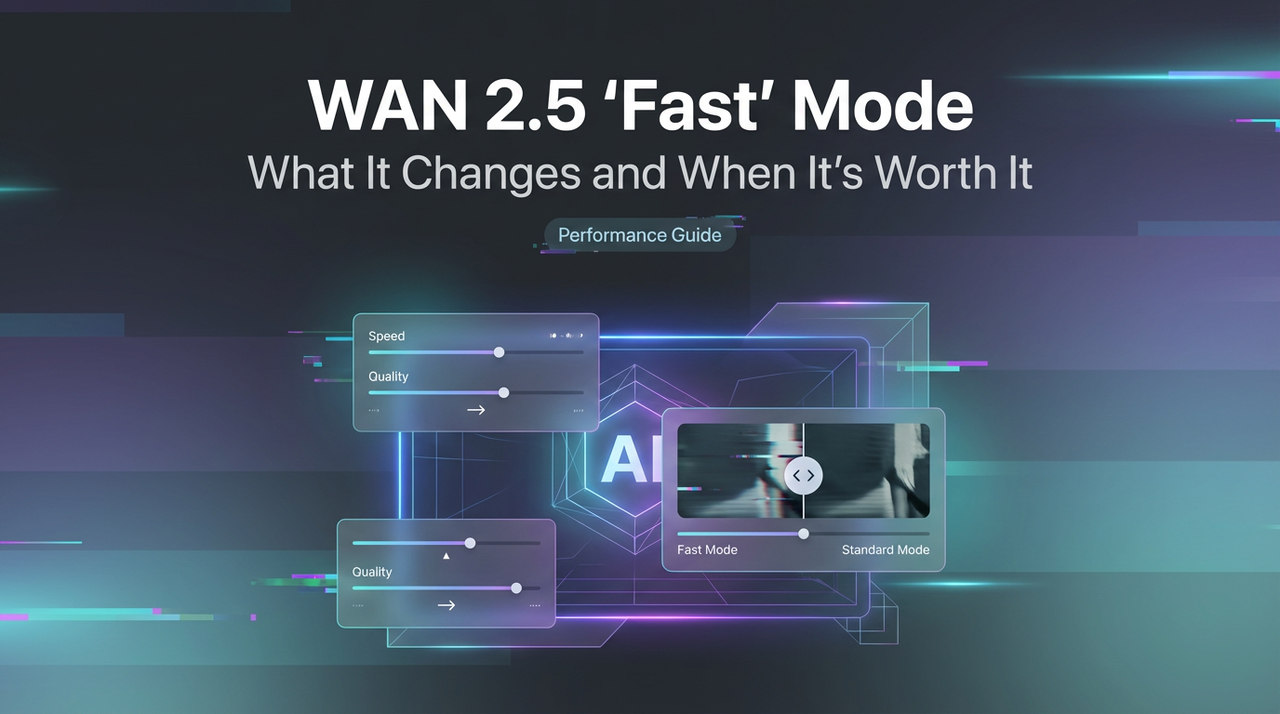
Hi, I’m Dora. I didn’t go looking for a speed boost. I tripped over it. A small toggle labeled “Fast” in WAN 2.5 sat next to the usual settings, and I kept skipping it because things were “fine.” Then one morning (January 2026), a long content pass bogged down my day. I flipped the switch out of mild frustration, not curiosity. The difference wasn’t dramatic at first. It was quieter than that, like a draft that didn’t overthink itself. And then I started noticing patterns.
This isn’t a review. It’s field notes from a week of using WAN 2.5’s Fast mode in my normal work: outlines, email replies, content refactors, small code tweaks, and the occasional research summary. Here’s what actually changed for me.
What fast mode changes
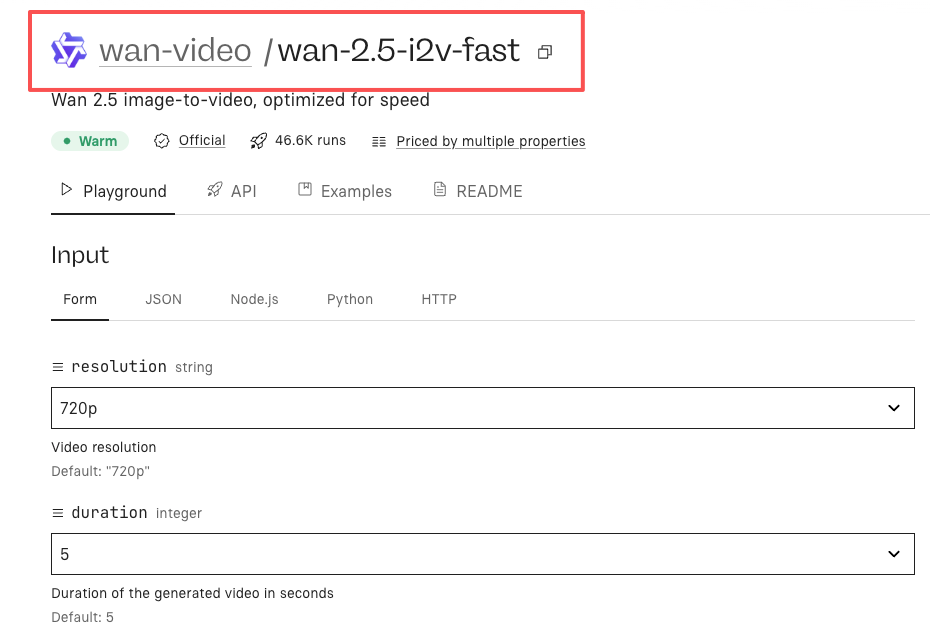
The short version: Fast mode pulls down latency and trims mental overhead, but it also trims depth. I felt it most in how “decisive” the model became.
What I observed:
- Faster first token and faster complete replies. On short tasks, it made the model feel almost instant. On longer jobs, the speed gain was noticeable but not wild.
- Tighter, shorter answers by default. It stopped explaining quite so much unless I asked.
- Less hedging. Fast mode picked a direction quicker and stuck with it. When it guessed wrong, it didn’t always walk back.
- Fewer detours. It skipped “Let’s carefully reason…” preambles (good), but also skipped some edge checks (less good in tricky work).
- More reuse of patterns. If my prompt was fuzzy, it leaned on a familiar structure instead of exploring.
According to the in-app help and release notes, Fast mode prioritizes lower latency over exhaustive analysis. That lined up with my runs: same general “brain,” just pushing for speed. Not a different model, but a different appetite.
A small thing I liked: it reduced back-and-forth. I’d give a clear structure, and it would fill it without over-talking. A small thing I didn’t: when I needed careful comparisons, it sometimes answered confidently before checking the second option.
Net effect: the work felt lighter for routine tasks. For anything subtle, I had to add guardrails, or turn Fast off.
Quality tradeoffs
I kept a simple log for a week: task, mode, time, edits needed. Not scientific, but helpful.
Where quality held up:
- Summaries of content I provided. It stayed faithful to the source when the source was clean.
- Straightforward rewrites with a style target. Clear constraints helped.
- Small code fixes where the error was obvious (typo, missing import, quick regex).
Where quality slipped:
- Nuanced comparisons (e.g., tradeoffs between two APIs with edge cases). It answered “well enough,” then moved on.
- Multi-step reasoning with hidden dependencies. It sometimes skipped a step that wasn’t explicitly named.
- Fact recall beyond the prompt. If I didn’t supply context, it reached for likely answers with more confidence than I liked.
I’d describe the failure mode as: swift, plausible, incomplete. Not messy, just prematurely tidy. This didn’t save me time at first. But after a few runs, I noticed it reduced mental effort on simple tasks because I stopped over-specifying. When depth mattered, I paid that time back in verification.
If you already keep tight prompts and short loops, you’ll probably like the balance. If you rely on the model to do “slow thinking” for you, Fast mode will feel a bit blunt.
Best use cases
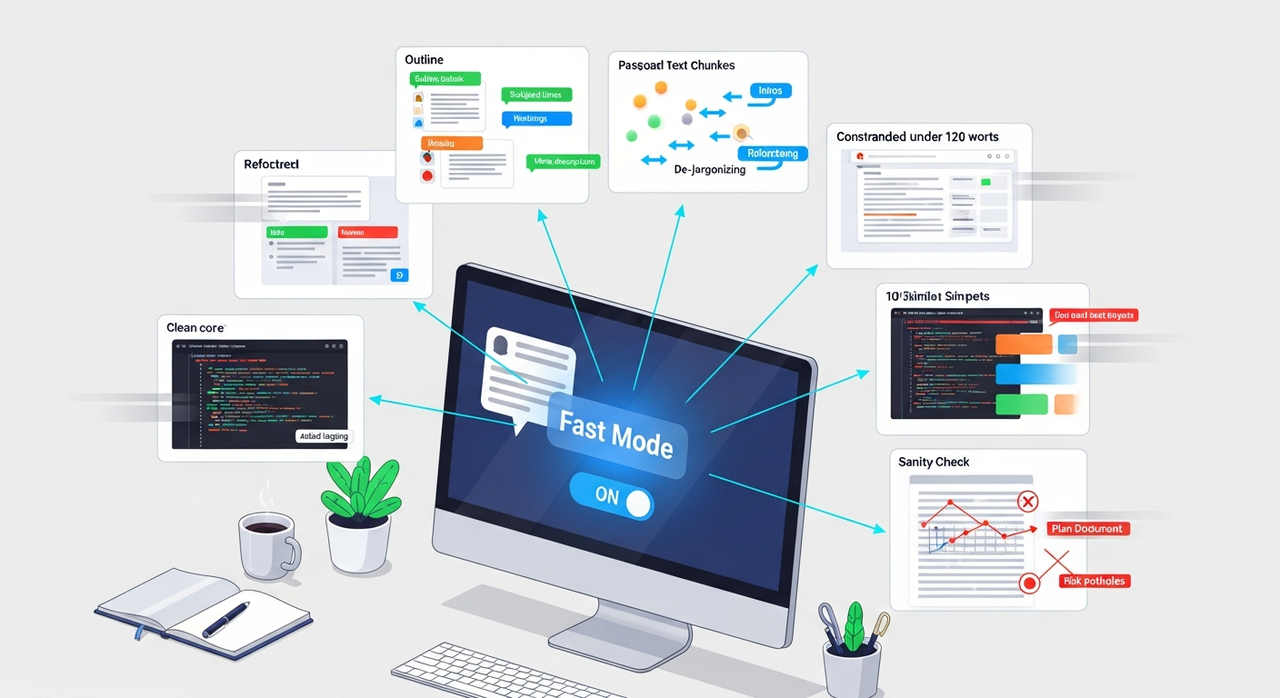 A few places Fast mode fit right in:
- Drafting scaffolds: outlines, section headings, bullet summaries. It’s good at laying tracks you can fill.
- Polishing small chunks: subject lines, intros, meta descriptions, microcopy variations. Decisive is useful here.
- Routine refactors: shortening, clarifying, de-jargonizing a paragraph. Clear before/after instructions help.
- Quick code nudges: renaming variables, inserting logging, turning a snippet into a function with the same behavior.
- Bulk operations with guardrails: “Apply this style to these 10 snippets.” It stays consistent if you provide a template.
- Email replies with constraints: “Keep under 120 words, acknowledge delay, propose two time slots.” It hits the shape fast.
I also liked it for “sanity passes”, asking for two risks I might be missing in a plan I wrote. It won’t dig deep, but it will point to the obvious potholes you’ve stopped seeing.
When not to use
A few places I turned Fast mode off:
- Anything compliance-sensitive: legal notes, policy changes, security guidance. I want slow, careful language.
- Data-dependent outputs: analytics narratives, financial summaries, anything with calculations beyond simple math.
- Subtle editorial work: tone matching for sensitive emails, brand voice for a thorny announcement.
- Complex integration planning: multi-service diagrams, migration steps, rollback paths. It misses quiet dependencies.
- Research beyond the provided context. If I can’t supply the source, I prefer the model take its time and ask questions.
If the cost of a miss is higher than the cost of waiting, I leave Fast off. That sounds obvious, but I had to remind myself twice.
Prompt adjustments
Fast mode didn’t reward clever prompts. It rewarded blunt ones. A few patterns that worked for me, informed by prompt engineering best practices:
- Set a small target: “2–3 bullets,” “Under 90 words,” “One paragraph, no preface.” It keeps the answer tight and reduces drift.
- Give a shape: “Use this template,” “Fill these fields,” “Return JSON with keys: headline, angle, risks.”
- Pin the source: “Only use the text below. If missing, say ‘not in source.’” This cut down on confident guesses.
- Add a quiet check: “List assumptions first. If any seem wrong, stop and ask.” It won’t always stop, but it helps.
- Split the job: outline first, then expand sections you approve. Fast mode does great on the first pass.
- Name the constraint, not the vibe: “Plain language, grade-7 reading level, no metaphors.” It respects constraints better than moods.
Two small tweaks that mattered more than I expected:
- Include a short example of the output you want. One is enough. Fast mode copies shape well.
- Reduce optionality. Instead of “You can do A or B,” pick one. It moves faster when the fork is gone.
When I forgot to do this, it filled gaps with common patterns. Not wrong, just not mine.
Cost impact
This will vary by plan, so consider this a snapshot, not advice. In my workspace, tokens were billed the same in and out of Fast mode. The main difference came from shorter outputs and fewer follow-ups. For routine edits and scaffolds, I saw a small spend drop, roughly one less turn per task and tighter responses.
If your work is batch-heavy (many small tasks), Fast mode may save enough time that you actually run more tasks. That can nudge spend up even if each task is cheaper. If you’re budget-tight, watch the weekly total, not just per-call cost.
If your pricing tier discounts Fast mode or uses a separate rate (some do), check the docs in your account. Mine didn’t, at least as of January 2026.
Settings baseline
For context, here’s what I used while testing in January 2026:
- Model: WAN 2.5
- Mode: Fast on/off toggle, switched per task
- Temperature: 0.4 for structure work, 0.7 for ideation
- Top-p: default
- System note: short style guide (plain language, concise, no preface)
- Context: I pasted sources whenever accuracy mattered: avoided “general knowledge” prompts
- Workflow: outline → confirm → expand: or template → fill → verify
If you want a starting point, try this: keep your instructions short, show one example of the exact output shape, and cap the length. Then run Fast. If the first answer feels a little too tidy, add one line: “List assumptions first.”
I won’t pretend this changes everything. It just shaved a bit of friction off the parts of my day that don’t need drama. The odd thing is how easy it is to forget to turn it off again. I’ve started pausing before each run: do I want quick or careful? A small question, but it keeps me honest.
 Honestly, this little toggle is exactly why we built WaveSpeed. We wanted WAN 2.5 to feel reliable, scriptable, and versioned, so you can focus on work instead of fiddling with settings or prompts. If you want to try it out and see how Fast mode can lighten your routine.
Related Articles
ComfyUI Nano Banana Pro Workflow: Install, Nodes, and Best Defaults

WaveSpeed AI Partners with Azuro AI to Power France's Largest AI Hackathon

Nano Banana Pro API on WaveSpeed: How to Call It + Pricing Notes

Z-Image Edit Workflow on WaveSpeed: Inpainting, Outpainting, and Object Removal
WAN 2.5 Animate: How to Get Smooth Motion Without Flicker