
Introducing AI Cinema Studio on WaveSpeedAI: Direct Cinematic AI Video Shots
AI Cinema Studio lets you direct AI video like a filmmaker: pick genre, era, camera, lens, color and lighting, choose from 18 camera moves, add references, and let the AI Director set up the shot. Runs on Seedance 2.5, Seedance 2.0, Wan 3.0 and MiniMax H3.
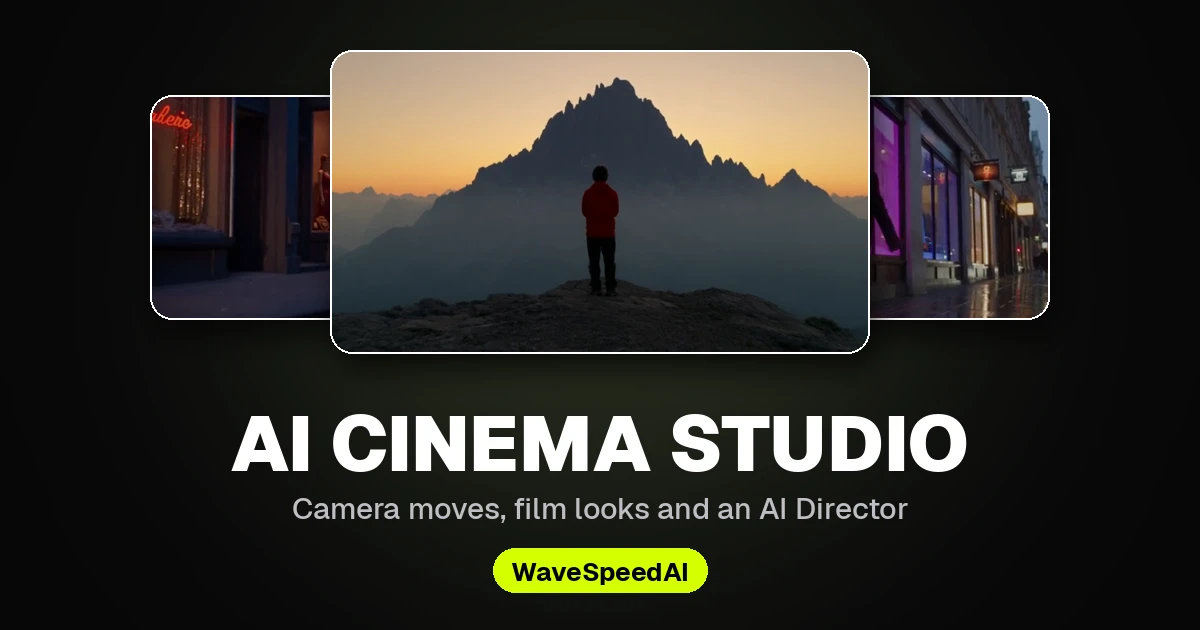
Introducing AI Cinema Studio on WaveSpeedAI
Most AI video tools give you a text box and hope for the best. AI Cinema Studio gives you a director’s chair instead. You choose the film look, the camera and the light the way a filmmaker would, and the studio turns those choices into a precise shot description for the video model.
It is available now in the WaveSpeedAI generator sidebar, right after AI Chat.
“A lighthouse keeper climbs the spiral stairs with a lantern during a storm” – Noir, Practicals lighting, Crane up, made in AI Cinema Studio.
The Director’s Panel
Five cards sit above the prompt box: References, Film setup, Camera, Color palette and Lighting. Each opens a panel of visual presets, and every preset has a preview you can hover to watch.
- Film setup – genre (Epic, Drama, Noir, Comedy, Horror, Action), era (1960s to the present day) and tempo, from a single continuous shot to fast, chaotic cuts.
- Camera – the camera body (modern digital, 35mm film, 8mm film, DV camcorder), lens (clean, anamorphic, vintage anamorphic, warm vintage, halation) and aperture (f/1.4, f/4, f/11).
- Color palette – vivid, complementary, cool, warm or black and white.
- Lighting – silhouette, practicals, window light, overhead, contre-jour or soft cross light.
Anything you leave on Auto is up to the model. You can open Prompt sent to the model at any time to see exactly what your choices add.
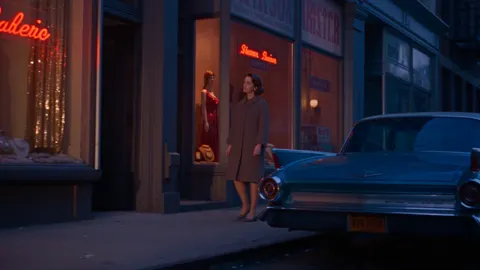
Same scene, Era: 1960s.
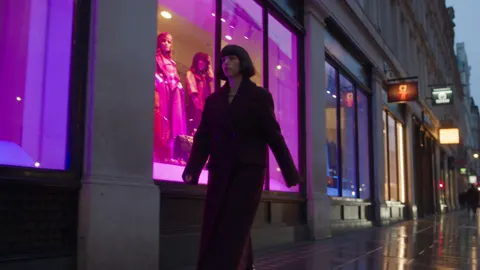
Same scene, Color: Vivid.
18 Camera Moves
Open the Camera card and switch to Movement to direct the camera itself: static, push in, pull out, pan, tilt, truck, crane up and down, orbits, a full 360° orbit, crash zoom, handheld, an aerial pull-back and the Hitchcock dolly zoom. Pick a move and the model follows it through the shot, so you don’t need camera jargon in your prompt.
Dolly zoom: the subject keeps its size while the background stretches away.
Enhance: A Director of Photography for Every Shot
With Enhance on (the default), the studio rewrites your scene before generating it, the way a director of photography would plan it. Your choices stay in charge, and the shot gains:
- a deliberate lighting design, such as warm practical lamps against cool ambient light
- atmosphere: rain, haze and dust
- set and wardrobe details, lens and depth of field
- the camera move with its start and end framing
- a soundscape
The rewrite keeps your subject and action as written, follows every panel choice, and is written in the language you use. Turn Enhance off whenever you want the model to read only your own words.
The AI Director
Not sure which look fits? Open the AI Director and describe the shot in plain words, in any language you like, for example: “a tense rainy-night chase through neon streets, 1980s Hong Kong film style”. The director picks the genre, era, camera, lens, color, lighting and camera move, writes the scene, and explains its choices. Everything lands in the panel for you to review and adjust before you press Generate. The AI Director never generates on its own.
References and Elements
Add images, videos and audio clips as references and mention them in your prompt with @, like @image1. Mark an image as the first frame to start the shot from it. Save an uploaded image, such as a character or a location, as a named element to reuse it in later shots, and pull any earlier result back in with Use as reference.
Pick Your Model
| Model | Shot length | Resolution | Notes |
|---|---|---|---|
| Seedance 2.5 (and Turbo) | 4–30 s | up to 4K (Turbo: 720p–1080p) | Native audio; generate, edit and extend |
| Seedance 2.0 (Fast, Mini, Turbo) | 4–15 s | up to 4K | Native audio; generate, edit and extend |
| Wan 3.0 / Wan 3.0 Prime | 2–30 s | up to 1080p | Native audio, rich reference inputs |
| MiniMax H3 | 3–15 s | up to 1080p | Ultra-wide 21:9 and tall 9:21 frames |
Switch between Generate, Edit and Extend in the same menu: edit restyles or changes an existing clip, and extend continues it. Generate up to four takes at once, and use Recreate on any result to bring its settings back into the panel.
How to Direct Your First Shot
- Open AI Cinema Studio and describe the scene, or ask the AI Director to set it up.
- Choose the film setup, camera, color palette, lighting and camera move.
- Pick the model, resolution, aspect ratio and length, then press Generate. The price is shown on the button before you start.
You pay the selected model’s price for each video, with no subscription. Prefer to work by conversation? AI Chat creates and edits images and videos from plain-language requests too.
Related Articles
/filters:quality(82)/media/images/1790903936921698253_6vhqAJT2.webp)
Generate Fast, Deliver in 4K: Upscale AI Video with Ultimate Video Upscaler
/filters:quality(82)/media/images/1790881558547248482_yDNV6fox.webp)
WaveSpeedAI AI Chat: Create and Edit Images and Videos by Chatting
/filters:quality(82)/media/images/1773962750383987480_n3hqzHRZ.webp)
Kling 4.0 vs Kling 3.0: What Is Expected to Change and How to Upgrade
Kling 4.0 vs Seedance 2.5: How to Choose for Commercial Video
Kling 4.0 vs Veo 3.1 vs Seedance 2.5: Choosing a Flagship Video Model