Kling 2.6 Pro delivers top-tier image-to-video generation with smooth motion, cinematic visuals, accurate prompt adherence, and native audio for ready-to-share clips. Ready-to-use REST inference API, best performance, no cold starts, affordable pricing.
就绪
$0.35每次运行·~28 / $10
示例查看全部
Use the uploaded sci-fi alley image as the first frame. Keep the same alley, neon signs, reflections and the hooded woman walking away. Slowly move the camera forward down the alley behind her, like a tracking shot, with smooth, cinematic motion and slight handheld feeling. Let the rain keep falling, with droplets visible in the light beams and more ripples appearing in the puddles as the camera advances. Occasionally, one neon sign flickers and a distant train light passes across the sky between the buildings. Style: realistic cyberpunk night scene, rich colors, deep contrast, subtle lens bloom on the neon. Audio: ambient city noise with distant traffic and voices, soft electronic music pulse, loudest near the middle of the clip, no dialogue.
Scene: A dimly lit casino VIP room, with a green felt poker table at the center and a haze of drifting cigarette smoke surrounding the space. Subject: A suited man leans forward with his elbow on the table and says: "Three rounds to decide. Win, and all the chips are yours. Lose, and tell me the real reason you're getting close to him." Across from him, a curly-haired woman gently slides her fingertips along the edge of the table, her red lips curling slightly as she replies: "I don't care about the chips." Atmosphere is tense, cinematic, with dramatic low-key lighting and noir-style mood.
Scene: No visible people. Only a white robotic vacuum cleaner is shown along with its cleaning path on the floor. Audio: A soft female narrator speaks, accompanied by gentle vacuum-cleaning sound effects: "Still struggling with dust in the corners? This robotic vacuum cleans right up against the edges with no gaps, making your life easier and worry-free!" Camera: Follows the robot's cleaning path smoothly as it moves across the floor.
Scene: A tabletop setup featuring ASMR trigger props such as a crystal glass, wooden block, and makeup brushes. Audio: Soft "shhh—shhh" brushing sounds as a makeup brush gently sweeps across the crystal glass and wooden block. Camera: Focuses closely on the props and the precise hand movements, highlighting textures and subtle details. Atmosphere: Calm, soothing, and sensory-focused.
Scene: On a beach with sunlight spilling across golden sand, waves crashing onto the shore and forming white foam. Subject: A young American male wearing a backwards baseball cap, holding a camera for a selfie, smiling naturally. Audio: The young American male with a bright, sunny voice speaks to the camera: "The weather is amazing today! All my worries feel totally gone. I've been needing a day like this—sun, breeze, just the sound of the waves." Background includes layered ocean wave sounds, filmed in a close-up vlog-style shot.
On a rainy night street with neon lights flashing, the streetlights illuminate the wet ground as raindrops fall. A cellist stands under the streetlight, with raindrops dripping from their hair, playing the cello.The slow and affectionate solo melody of the cello , with a cold color tone.
Add a robot to the uploaded image. Then the robot walks up to the two birthday celebrants and says "Happy Birthday to You!" with its mouth movements perfectly synchronized to the words.
相关模型

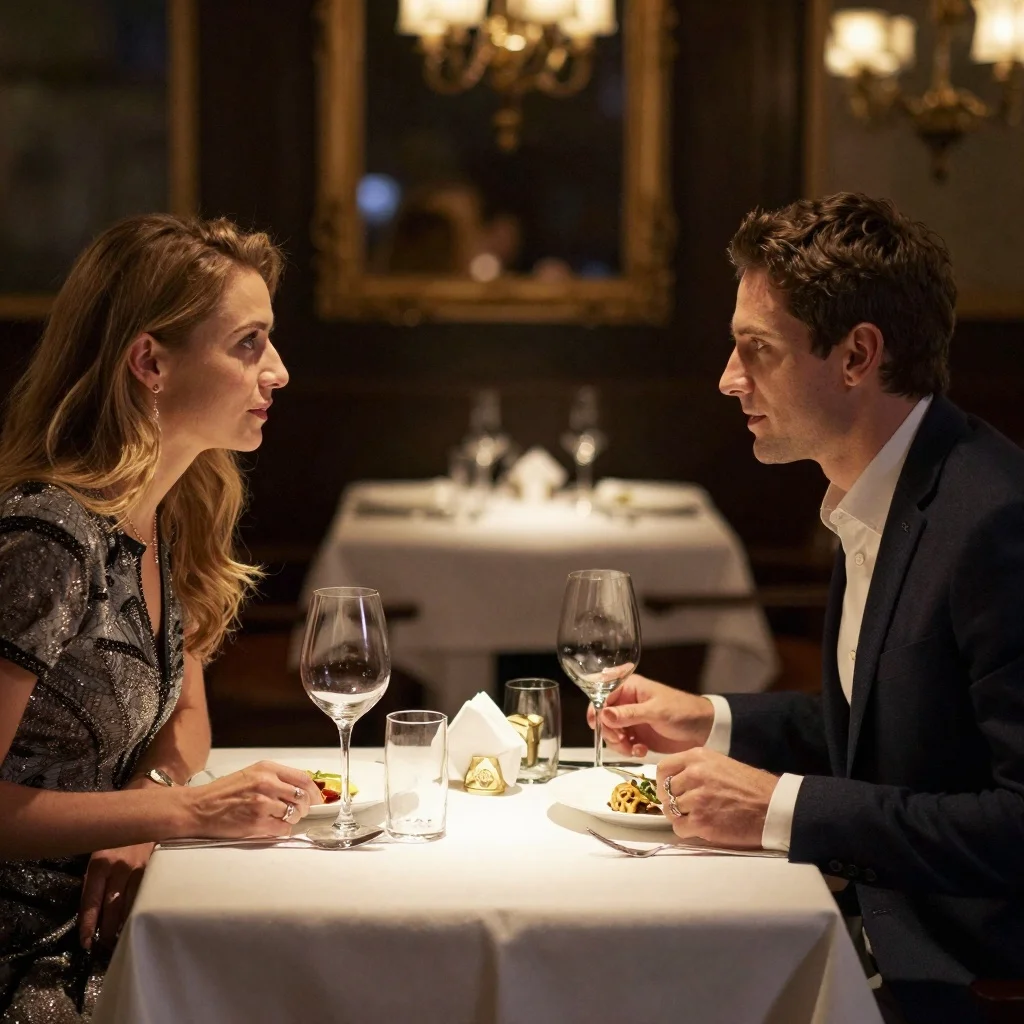
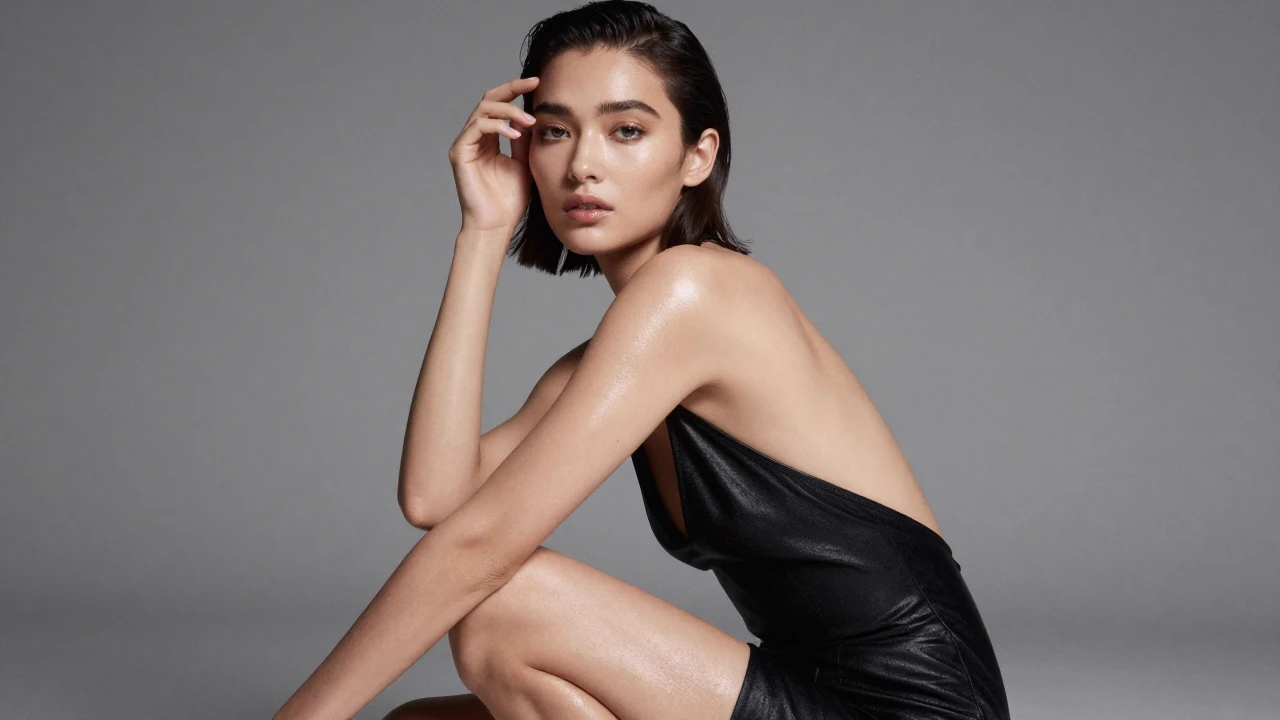

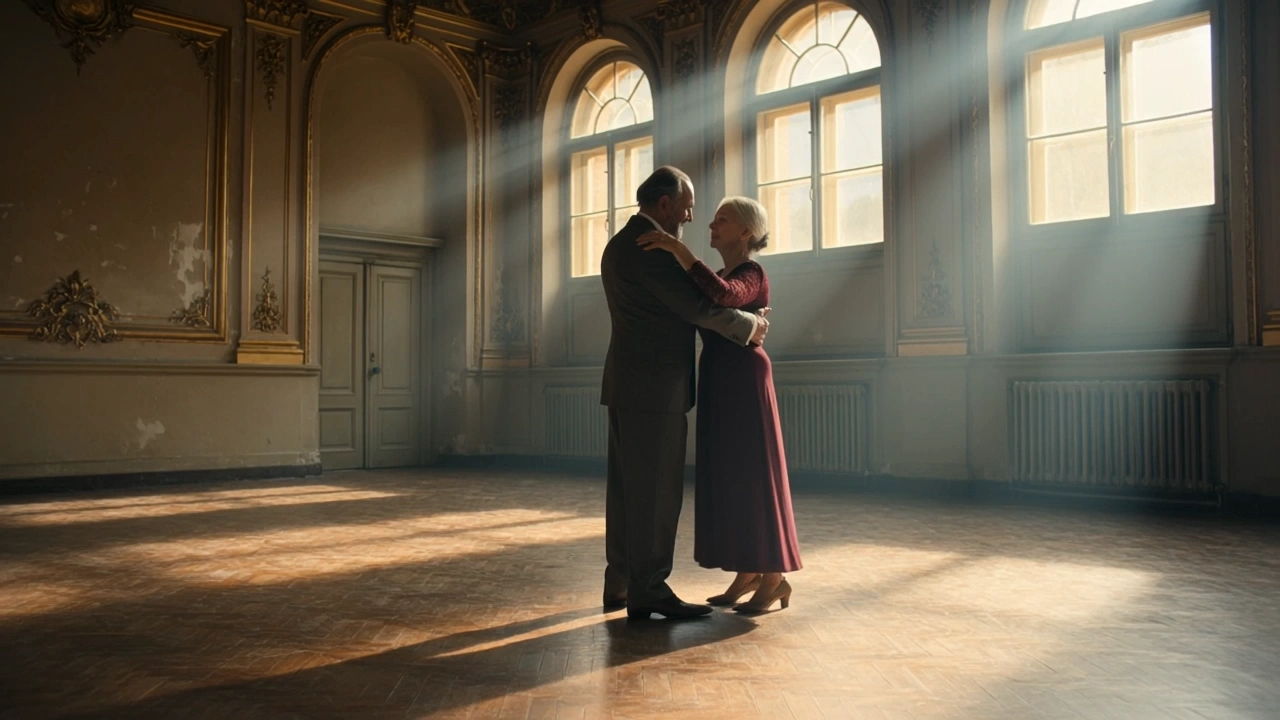

README
Kling 2.6 Pro Image-to-Video
Kling 2.6 Pro Image-to-Video adds audio-video co-generation to Kling's powerful visual pipeline. Start from a still image, write a prompt, and the model produces a short clip where motion, camera, sound effects, and voice all feel like one coherent scene.
Why Choose This?
-
Audio and video in one pass Jointly generates visuals and soundtrack — no post-production audio sync needed.
-
Character-synced voices Speech and reactions that match the on-screen subject and timing.
-
Scene-aware sound design Ambient noise and SFX that follow what happens in the frame.
-
Start and end frame support Use both a starting image and optional ending image to guide the animation.
-
Voice customization Add custom voices via voice_list for character-specific audio.
-
Prompt Enhancer Built-in tool to automatically improve your prompts for better results.
Parameters
| Parameter | Required | Description |
|---|---|---|
| prompt | Yes | Describe scene motion, camera moves, and audio |
| image | Yes | Starting frame to animate (upload or URL) |
| negative_prompt | No | Elements to avoid in visuals and audio |
| end_image | No | Ending frame to guide the animation target |
| cfg_scale | No | Guidance strength (default: 0.5) |
| sound | No | Enable audio-video co-generation (default: true) |
| voice_list | No | Custom voices for character audio |
| duration | No | Video length: 5 or 10 seconds |
CFG Scale Guide
- Lower values (0.3-0.5): Looser, more natural motion; image has more influence
- Higher values (0.6-0.8): Closer adherence to prompt; can look more "controlled"
How to Use
- Upload your image — the starting frame to animate.
- Write your prompt — describe camera movement, actions, and audio.
- Add negative prompt (optional) — specify what to avoid.
- Upload end image (optional) — guide where the animation should end.
- Adjust cfg_scale — start with default 0.5, increase if needed.
- Enable sound — check for audio generation, uncheck for silent video.
- Add voices (optional) — click "+ Add Item" for custom character voices.
- Select duration — choose 5 or 10 seconds.
- Run — submit and download your video.
Pricing
| Duration | Sound Off | Sound On |
|---|---|---|
| 5s | $0.35 | $0.70 |
| 10s | $0.70 | $1.40 |
Billing Rules
- Base rate: $0.35 per 5 seconds (without audio)
- Audio multiplier: 2× when sound is enabled
- Total cost = $0.35 × (duration / 5) × (sound ? 2 : 1)
Best Use Cases
- Promo Videos — Launch videos with native-sounding, character-synced voiceover.
- Storytelling — Shorts where camera, action, and sound feel perfectly integrated.
- Product Explainers — Clear visuals with natural narration built in.
- Social Content — Cinematic posts with immersive ambience and SFX.
- Animated Scenes — Bring still images to life with coherent motion and audio.
Pro Tips
- Keep the image and prompt aligned — don't describe a totally different scene.
- For strong lip-sync, explicitly mention who is speaking and what voice style you want.
- Start with default cfg_scale (0.5); increase slowly if motion doesn't match your description.
- Use negative_prompt to reduce logos, watermarks, or unwanted artifacts.
- Use end_image to guide the animation toward a specific final composition.
- Include audio cues in your prompt (e.g., "soft city ambience, subtle whooshes on cuts").
Notes
- Supported durations are 5 and 10 seconds.
- Audio generation doubles the cost but creates synchronized sound design.
- For best results, use sharp, well-lit source images.
- End image helps create more controlled transitions.
- End image and sound cannot be used together. When using end_image, the sound parameter must be disabled.
Related Models
- Kling 2.6 Pro Text-to-Video — Generate videos from text prompts only.
- Vidu Q2 Pro Image-to-Video — Alternative I2V with BGM support.
Kling v2.6 Pro Image To Video API — Quick start
Grab a WaveSpeedAI API key, then call POST https://api.wavespeed.ai/api/v3/kwaivgi/kling-v2.6-pro/image-to-video with your input as JSON. The endpoint returns a prediction id. Start polling the result endpoint around every 2 seconds, increase the interval for long-running tasks, and stop on any terminal status. On completed, read output values from data.outputs. Examples for Kling v2.6 Pro Image To Video below.
HTTP example
set -euo pipefail

: "${WAVESPEED_API_KEY:?Set WAVESPEED_API_KEY}"

REQUEST_BODY=$(cat <<'JSON'
{
    "prompt": "A cinematic shot of a city at sunset, soft golden light",
    "image": "https://interactive-examples.mdn.mozilla.net/media/cc0-images/painted-hand-298-332.jpg",
    "cfg_scale": 0.5,
    "duration": 5
}
JSON
)

# 1. Submit the prediction.
SUBMIT_RESPONSE=$(curl --silent --show-error --fail-with-body \
  -X POST "https://api.wavespeed.ai/api/v3/kwaivgi/kling-v2.6-pro/image-to-video" \
  -H "Content-Type: application/json" \
  -H "Authorization: Bearer $WAVESPEED_API_KEY" \
  -d "$REQUEST_BODY")

TASK=$(printf '%s' "$SUBMIT_RESPONSE" | jq 'if has("data") then .data else . end')
PREDICTION_ID=$(printf '%s' "$TASK" | jq -r '.id')
if [ -z "$PREDICTION_ID" ] || [ "$PREDICTION_ID" = "null" ]; then
  printf 'Submission response did not contain a prediction id
' >&2
  exit 1
fi
RESULT_URL=$(printf '%s' "$TASK" | jq -r '.urls.get // empty')
if [ -z "$RESULT_URL" ]; then
  RESULT_URL="https://api.wavespeed.ai/api/v3/predictions/$PREDICTION_ID/result"
fi

# 2. Poll until the prediction finishes.
while true; do
  RESPONSE=$(curl --silent --show-error --fail-with-body "$RESULT_URL" \
    -H "Authorization: Bearer $WAVESPEED_API_KEY")
  RESULT=$(printf '%s' "$RESPONSE" | jq 'if has("data") then .data else . end')
  STATUS=$(printf '%s' "$RESULT" | jq -r '.status')
  case "$STATUS" in
    completed) printf '%s\n' "$RESULT" | jq '.outputs'; break ;;
    failed|cancelled|timeout) printf '%s\n' "$RESULT" | jq . >&2; exit 1 ;;
    created|processing) sleep 2 ;;
    *) printf 'Unexpected status: %s
' "$STATUS" >&2; exit 1 ;;
  esac
done
Node.js example
const submitUrl = "https://api.wavespeed.ai/api/v3/kwaivgi/kling-v2.6-pro/image-to-video";
const apiKey = process.env.WAVESPEED_API_KEY;
if (!apiKey) throw new Error('Set WAVESPEED_API_KEY');

async function requestJson(url, options = {}) {
  const response = await fetch(url, options);
  if (!response.ok) throw new Error(await response.text());
  return response.json();
}

// 1. Submit the prediction.
const body = await requestJson(submitUrl, {
  method: "POST",
  headers: {
    "Authorization": `Bearer ${apiKey}`,
    "Content-Type": "application/json",
  },
  body: JSON.stringify({
        "prompt": "A cinematic shot of a city at sunset, soft golden light",
        "image": "https://interactive-examples.mdn.mozilla.net/media/cc0-images/painted-hand-298-332.jpg",
        "cfg_scale": 0.5,
        "duration": 5
}),
});
const task = body.data ?? body;
if (!task.id) throw new Error("Submission response did not contain a prediction id");
const resultUrl = task.urls?.get ||
  `https://api.wavespeed.ai/api/v3/predictions/${task.id}/result`;

// 2. Poll until the prediction finishes.
while (true) {
  const resultBody = await requestJson(resultUrl, {
    headers: { "Authorization": `Bearer ${apiKey}` },
  });
  const result = resultBody.data ?? resultBody;
  if (result.status === "completed") {
    console.log(result.outputs);
    break;
  }
  if (["failed", "cancelled", "timeout"].includes(result.status)) throw new Error(JSON.stringify(result));
  if (!["created", "processing"].includes(result.status)) throw new Error("Unexpected status: " + result.status);
  await new Promise(resolve => setTimeout(resolve, 2000));
}
Python example
import json
import os
import time
from urllib.request import Request, urlopen

api_key = os.environ["WAVESPEED_API_KEY"]
headers = {"Authorization": f"Bearer {api_key}", "Content-Type": "application/json"}
payload = {
    "prompt": "A cinematic shot of a city at sunset, soft golden light",
    "image": "https://interactive-examples.mdn.mozilla.net/media/cc0-images/painted-hand-298-332.jpg",
    "cfg_scale": 0.5,
    "duration": 5
}

def request_json(url, data=None):
    request = Request(url, data=data, headers=headers, method="POST" if data else "GET")
    with urlopen(request) as response:
        return json.load(response)

# 1. Submit the prediction.
body = request_json("https://api.wavespeed.ai/api/v3/kwaivgi/kling-v2.6-pro/image-to-video", json.dumps(payload).encode())
task = body.get("data", body)
if not task.get("id"):
    raise RuntimeError("Submission response did not contain a prediction id")
result_url = task.get("urls", {}).get("get") or f"https://api.wavespeed.ai/api/v3/predictions/{task['id']}/result"

# 2. Poll until the prediction finishes.
while True:
    result_body = request_json(result_url)
    result = result_body.get("data", result_body)
    status = result.get("status")
    if status == "completed":
        print(result.get("outputs", []))
        break
    if status in {"failed", "cancelled", "timeout"}:
        raise RuntimeError(result)
    if status not in {"created", "processing"}:
        raise RuntimeError(f"Unexpected status: {status}")
    time.sleep(2)
Kling v2.6 Pro Image To Video API — Frequently asked questions
What is the Kling v2.6 Pro Image To Video API?
Kling v2.6 Pro Image To Video is a Kuaishou model for video generation from images, exposed as a REST API on WaveSpeedAI. Kling 2.6 Pro delivers top-tier image-to-video generation with smooth motion, cinematic visuals, accurate prompt adherence, and native audio for ready-to-share clips. Ready-to-use REST inference API, best performance, no cold starts, affordable pricing. You can call it programmatically or try it from the playground above.
How do I call the Kling v2.6 Pro Image To Video API?
POST your input parameters to the model's REST endpoint (shown in the API tab of this playground) with your WaveSpeedAI API key in the Authorization header. Submission returns a prediction ID. Poll the result endpoint starting around every 2 seconds, increase the interval for long-running tasks, and stop on any terminal status. The playground generates production-oriented Python, JavaScript, and cURL examples with timeouts, transient-error handling, and safe GET retries. Full request/response shape is documented at https://wavespeed.ai/docs/docs-api/kwaivgi/kwaivgi-kling-v2.6-pro-image-to-video.
How much does Kling v2.6 Pro Image To Video cost per run?
Kling v2.6 Pro Image To Video starts at $0.35 per run. That figure is the base price — the final charge scales with the parameters you set in the form (output size, length, count, references, or whatever knobs this model exposes), so a higher-quality or larger output costs more than a minimal one. The exact cost for your current input is shown live next to the Generate button before you submit, and the actual per-call charge is recorded on the prediction afterwards.
What inputs does Kling v2.6 Pro Image To Video accept?
Key inputs: `prompt`, `image`, `duration`, `negative_prompt`, `cfg_scale`, `end_image`. The full JSON schema (types, defaults, allowed values) is rendered above the Generate button and mirrored in the API reference at https://wavespeed.ai/docs/docs-api/kwaivgi/kwaivgi-kling-v2.6-pro-image-to-video.
How long does Kling v2.6 Pro Image To Video take to generate?
Median end-to-end generation time on WaveSpeedAI is around 67 seconds per request, based on recent successful runs. Queue time varies with global demand; live status is visible in the prediction record.
Can I use Kling v2.6 Pro Image To Video outputs commercially?
Commercial usage rights depend on the model's license, set by its provider (Kuaishou). The license summary appears on the model card above; see WaveSpeedAI's Terms of Service for platform-level conditions.