HiDream-O1-Image (Edit) is a unified, native image-editing model that takes a source image plus a text instruction and produces high-resolution edits up to 2K — no external components required. Ready-to-use REST inference API, best performance, no coldstarts, affordable pricing.
Chờ

$0.04cho mỗi lần chạy·~25 / $1
Ví dụXem tất cả
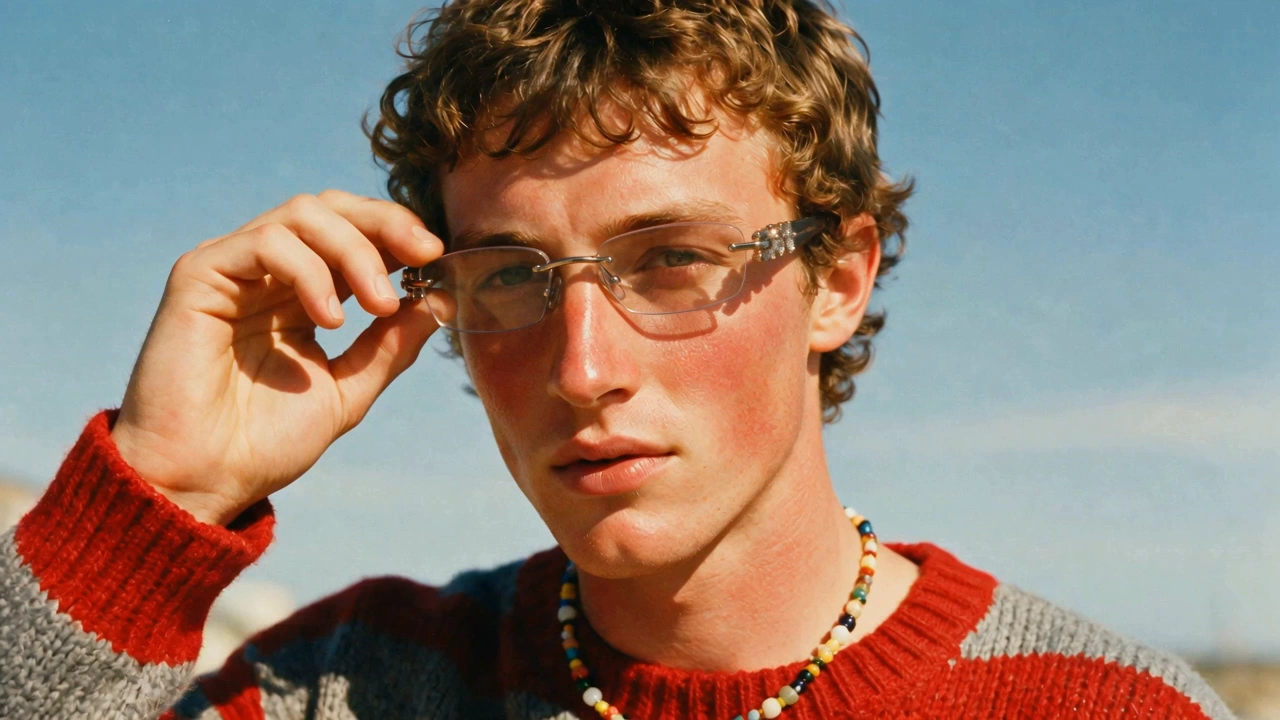
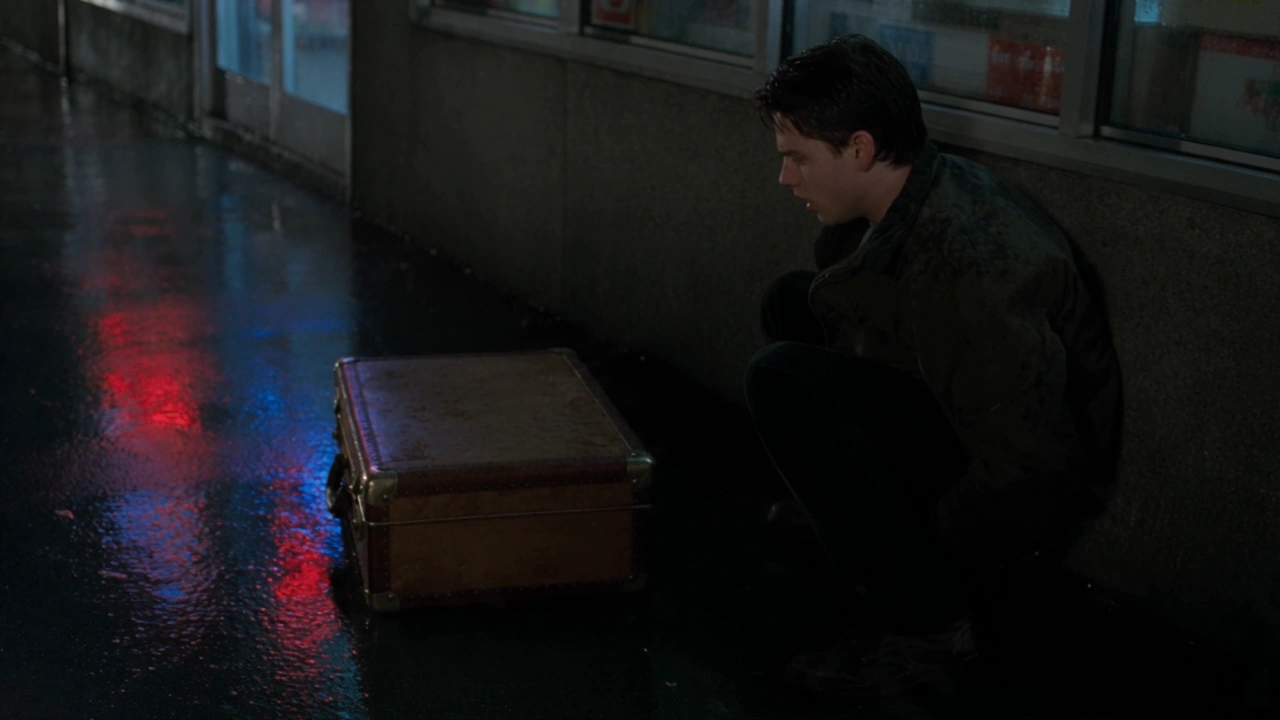
Transform the background into a rainy neon city street at night, with wet asphalt reflections, blurred neon signs, umbrellas in the distance, and cinematic blue-magenta lighting. Preserve the same man, face, pose, outfit, expression, and framing. Add realistic rain atmosphere and reflections without changing the subject identity. serious face.
Mô hình liên quan


README
HiDream-O1-Image (Edit)
HiDream-O1-Image is a unified, next-generation image model. The same native model that handles text-to-image also handles prompt-driven image editing and subject-driven personalization — no external adapters, controllers, or pipelines required. Provide an input image and an instruction, and the model edits it while preserving identity, composition, and lighting at resolutions up to roughly 2K (2048×2048).
Why Choose This?
- Unified native model — One model, multiple modes (text-to-image / edit / personalization). Consistent quality across every mode.
- Identity-preserving edits — Keeps the subject, pose, and overall composition stable while applying the requested change.
- High-resolution output — Edits delivered at up to ~2048×2048 with sharp detail and natural lighting.
- Strong instruction following — Faithfully interprets edit instructions (wardrobe, scene tweaks, object swaps, style changes, on-image text).
- Flexible aspect ratios — Custom output dimensions; the model snaps to the closest supported resolution.
- Multiple output formats — JPEG, PNG, or WEBP.
- Reproducibility — Use a fixed
seedto recreate exact results.
Parameters
| Parameter | Required | Description |
|---|---|---|
| prompt | Yes | Text instruction describing the edit you want to make. |
| images | Yes | Source images to edit (public URL or base64 data URI). PNG, JPEG, JPG, or WebP, up to 50MB, aspect ratio between 1:4 and 4:1. |
| size | No | Output image size as WIDTH*HEIGHT (default: 2048*2048). The model snaps to the closest supported resolution. |
| output_format | No | Output format: jpeg, png, or webp (default: jpeg). |
| seed | No | Random seed for reproducible generation. |
| enable_sync_mode | No | API only — wait for the result and return it inline. |
| enable_base64_output | No | API only — return the image as a base64 string instead of a URL. |
How to Use
- Upload your image — drag and drop or paste a publicly accessible URL.
- Write your edit instruction — describe both the change and what to keep (e.g., "Change the jacket to black leather. Keep the person, pose, and background unchanged.").
- Choose
size(optional) — keep the source aspect ratio or pick a new one. - Set
output_format— JPEG for compact files, PNG for lossless, WEBP for balance. - Set
seed(optional) — pin a number to reproduce the same edit. - Run — submit the request and download the edited image.
Pricing
Flat rate per edit.
| Output | Cost |
|---|---|
| Per image edit | $0.04 |
Best Use Cases
- Wardrobe & accessory edits — Swap clothing color/style, add/remove glasses, hats, jewelry.
- E-commerce variations — Generate multiple colorways or styling options from a hero shot.
- Background & scene tweaks — Replace backgrounds or swap props while keeping the subject pixel-stable.
- Object add / remove / replace — Cleanly modify specific elements without disturbing the rest of the scene.
- Style transfer — Apply a new look while preserving the subject's identity.
- Marketing iteration — Quickly produce multiple creative variants from one source image.
Prompting Guide
For clean results, specify both the change and what to preserve:
Template:
Keep the same person, pose, and background. Change [target edit]. Keep lighting natural and consistent.
Examples:
- "Keep the same person and pose. Change the outfit to a light gray sweater and add gold thin-rimmed glasses. Keep the background and lighting unchanged."
- "Keep identity and composition. Replace the jacket with a black leather jacket; keep realistic fabric texture and natural shadows."
- "Keep the subject unchanged. Remove the object on the table and keep the scene lighting consistent."
- "Keep the person and pose. Change the background to a sunlit beach at golden hour."
Pro Tips
- Always state what should stay the same — it dramatically improves identity preservation.
- Reference elements explicitly: "the text on the shirt", "the background", "the person on the left".
- Pin a
seedwhile iterating so you can compare prompt variants against a fixed baseline. - For multi-step edits, prefer sequential single-purpose prompts over one long compound instruction.
- Use
pngfor lossless edits when output will be re-edited downstream.
Notes
- If using a URL for the source image, ensure it is publicly accessible.
- The
enable_base64_outputandenable_sync_modeoptions are only available through the API. - Higher resolutions may slightly increase processing time.
- Ensure prompts comply with content guidelines.
Related Models
- HiDream-O1-Image · Text-to-Image — Same unified model, in text-to-image mode.
- HiDream-E1 Full — Previous-generation prompt-driven image editor.
- HiDream-I1 Full — Previous-generation 17B text-to-image foundation model.
Hidream O1 Image Edit API — Quick start
Grab a WaveSpeedAI API key, then call POST https://api.wavespeed.ai/api/v3/wavespeed-ai/hidream-o1-image/edit with your input as JSON. The endpoint returns a prediction id. Start polling the result endpoint around every 2 seconds, increase the interval for long-running tasks, and stop on any terminal status. On completed, read output values from data.outputs. Examples for Hidream O1 Image Edit below.
HTTP example
set -euo pipefail

: "${WAVESPEED_API_KEY:?Set WAVESPEED_API_KEY}"

REQUEST_BODY=$(cat <<'JSON'
{
    "prompt": "A cinematic shot of a city at sunset, soft golden light",
    "images": [
        "https://interactive-examples.mdn.mozilla.net/media/cc0-images/painted-hand-298-332.jpg"
    ],
    "size": "2048*2048",
    "output_format": "jpeg"
}
JSON
)

# 1. Submit the prediction.
SUBMIT_RESPONSE=$(curl --silent --show-error --fail-with-body \
  -X POST "https://api.wavespeed.ai/api/v3/wavespeed-ai/hidream-o1-image/edit" \
  -H "Content-Type: application/json" \
  -H "Authorization: Bearer $WAVESPEED_API_KEY" \
  -d "$REQUEST_BODY")

TASK=$(printf '%s' "$SUBMIT_RESPONSE" | jq 'if has("data") then .data else . end')
PREDICTION_ID=$(printf '%s' "$TASK" | jq -r '.id')
if [ -z "$PREDICTION_ID" ] || [ "$PREDICTION_ID" = "null" ]; then
  printf 'Submission response did not contain a prediction id
' >&2
  exit 1
fi
RESULT_URL=$(printf '%s' "$TASK" | jq -r '.urls.get // empty')
if [ -z "$RESULT_URL" ]; then
  RESULT_URL="https://api.wavespeed.ai/api/v3/predictions/$PREDICTION_ID/result"
fi

# 2. Poll until the prediction finishes.
while true; do
  RESPONSE=$(curl --silent --show-error --fail-with-body "$RESULT_URL" \
    -H "Authorization: Bearer $WAVESPEED_API_KEY")
  RESULT=$(printf '%s' "$RESPONSE" | jq 'if has("data") then .data else . end')
  STATUS=$(printf '%s' "$RESULT" | jq -r '.status')
  case "$STATUS" in
    completed) printf '%s\n' "$RESULT" | jq '.outputs'; break ;;
    failed|cancelled|timeout) printf '%s\n' "$RESULT" | jq . >&2; exit 1 ;;
    created|processing) sleep 2 ;;
    *) printf 'Unexpected status: %s
' "$STATUS" >&2; exit 1 ;;
  esac
done
Node.js example
const submitUrl = "https://api.wavespeed.ai/api/v3/wavespeed-ai/hidream-o1-image/edit";
const apiKey = process.env.WAVESPEED_API_KEY;
if (!apiKey) throw new Error('Set WAVESPEED_API_KEY');

async function requestJson(url, options = {}) {
  const response = await fetch(url, options);
  if (!response.ok) throw new Error(await response.text());
  return response.json();
}

// 1. Submit the prediction.
const body = await requestJson(submitUrl, {
  method: "POST",
  headers: {
    "Authorization": `Bearer ${apiKey}`,
    "Content-Type": "application/json",
  },
  body: JSON.stringify({
        "prompt": "A cinematic shot of a city at sunset, soft golden light",
        "images": [
                "https://interactive-examples.mdn.mozilla.net/media/cc0-images/painted-hand-298-332.jpg"
        ],
        "size": "2048*2048",
        "output_format": "jpeg"
}),
});
const task = body.data ?? body;
if (!task.id) throw new Error("Submission response did not contain a prediction id");
const resultUrl = task.urls?.get ||
  `https://api.wavespeed.ai/api/v3/predictions/${task.id}/result`;

// 2. Poll until the prediction finishes.
while (true) {
  const resultBody = await requestJson(resultUrl, {
    headers: { "Authorization": `Bearer ${apiKey}` },
  });
  const result = resultBody.data ?? resultBody;
  if (result.status === "completed") {
    console.log(result.outputs);
    break;
  }
  if (["failed", "cancelled", "timeout"].includes(result.status)) throw new Error(JSON.stringify(result));
  if (!["created", "processing"].includes(result.status)) throw new Error("Unexpected status: " + result.status);
  await new Promise(resolve => setTimeout(resolve, 2000));
}
Python example
import json
import os
import time
from urllib.request import Request, urlopen

api_key = os.environ["WAVESPEED_API_KEY"]
headers = {"Authorization": f"Bearer {api_key}", "Content-Type": "application/json"}
payload = {
    "prompt": "A cinematic shot of a city at sunset, soft golden light",
    "images": [
        "https://interactive-examples.mdn.mozilla.net/media/cc0-images/painted-hand-298-332.jpg"
    ],
    "size": "2048*2048",
    "output_format": "jpeg"
}

def request_json(url, data=None):
    request = Request(url, data=data, headers=headers, method="POST" if data else "GET")
    with urlopen(request) as response:
        return json.load(response)

# 1. Submit the prediction.
body = request_json("https://api.wavespeed.ai/api/v3/wavespeed-ai/hidream-o1-image/edit", json.dumps(payload).encode())
task = body.get("data", body)
if not task.get("id"):
    raise RuntimeError("Submission response did not contain a prediction id")
result_url = task.get("urls", {}).get("get") or f"https://api.wavespeed.ai/api/v3/predictions/{task['id']}/result"

# 2. Poll until the prediction finishes.
while True:
    result_body = request_json(result_url)
    result = result_body.get("data", result_body)
    status = result.get("status")
    if status == "completed":
        print(result.get("outputs", []))
        break
    if status in {"failed", "cancelled", "timeout"}:
        raise RuntimeError(result)
    if status not in {"created", "processing"}:
        raise RuntimeError(f"Unexpected status: {status}")
    time.sleep(2)
Hidream O1 Image Edit API — Frequently asked questions
What is the Hidream O1 Image Edit API?
Hidream O1 Image Edit is a WaveSpeedAI model for image editing, exposed as a REST API on WaveSpeedAI. HiDream-O1-Image (Edit) is a unified, native image-editing model that takes a source image plus a text instruction and produces high-resolution edits up to 2K — no external components required. Ready-to-use REST inference API, best performance, no coldstarts, affordable pricing. You can call it programmatically or try it from the playground above.
How do I call the Hidream O1 Image Edit API?
POST your input parameters to the model's REST endpoint (shown in the API tab of this playground) with your WaveSpeedAI API key in the Authorization header. Submission returns a prediction ID. Poll the result endpoint starting around every 2 seconds, increase the interval for long-running tasks, and stop on any terminal status. The playground generates production-oriented Python, JavaScript, and cURL examples with timeouts, transient-error handling, and safe GET retries. Full request/response shape is documented at https://wavespeed.ai/docs/docs-api/wavespeed-ai/hidream-o1-image-edit.
How much does Hidream O1 Image Edit cost per run?
Hidream O1 Image Edit starts at $0.040 per run. That figure is the base price — the final charge scales with the parameters you set in the form (output size, length, count, references, or whatever knobs this model exposes), so a higher-quality or larger output costs more than a minimal one. The exact cost for your current input is shown live next to the Generate button before you submit, and the actual per-call charge is recorded on the prediction afterwards.
What inputs does Hidream O1 Image Edit accept?
Key inputs: `prompt`, `images`, `size`, `enable_base64_output`, `enable_sync_mode`, `output_format`. The full JSON schema (types, defaults, allowed values) is rendered above the Generate button and mirrored in the API reference at https://wavespeed.ai/docs/docs-api/wavespeed-ai/hidream-o1-image-edit.
How long does Hidream O1 Image Edit take to generate?
Median end-to-end generation time on WaveSpeedAI is around 57 seconds per request, based on recent successful runs. Queue time varies with global demand; live status is visible in the prediction record.
Can I use Hidream O1 Image Edit outputs commercially?
Commercial usage rights depend on the model's license, set by its provider (WaveSpeedAI). The license summary appears on the model card above; see WaveSpeedAI's Terms of Service for platform-level conditions.