Kling Omni Video O3 Image-to-Video transforms static images into dynamic cinematic videos using MVL (Multi-modal Visual Language) technology. Maintains subject consistency while adding natural motion, physics simulation, and seamless scene dynamics. Supports audio generation. Ready-to-use REST API, best performance, no coldstarts, affordable pricing.
대기 중
$0.56실행당·~17 / $10
예시전체 보기
Cinematic slow-motion shot of a man sitting in a camping chair by a crackling campfire at night, flames licking upward with glowing embers floating into the twilight sky, wisps of smoke curling and dissipating, firelight casting warm flickering reflections on his brown jacket, the illuminated tent gently swaying in the background breeze, shallow depth of field, atmospheric outdoor scene, film grain, natural ambient sounds
관련 모델
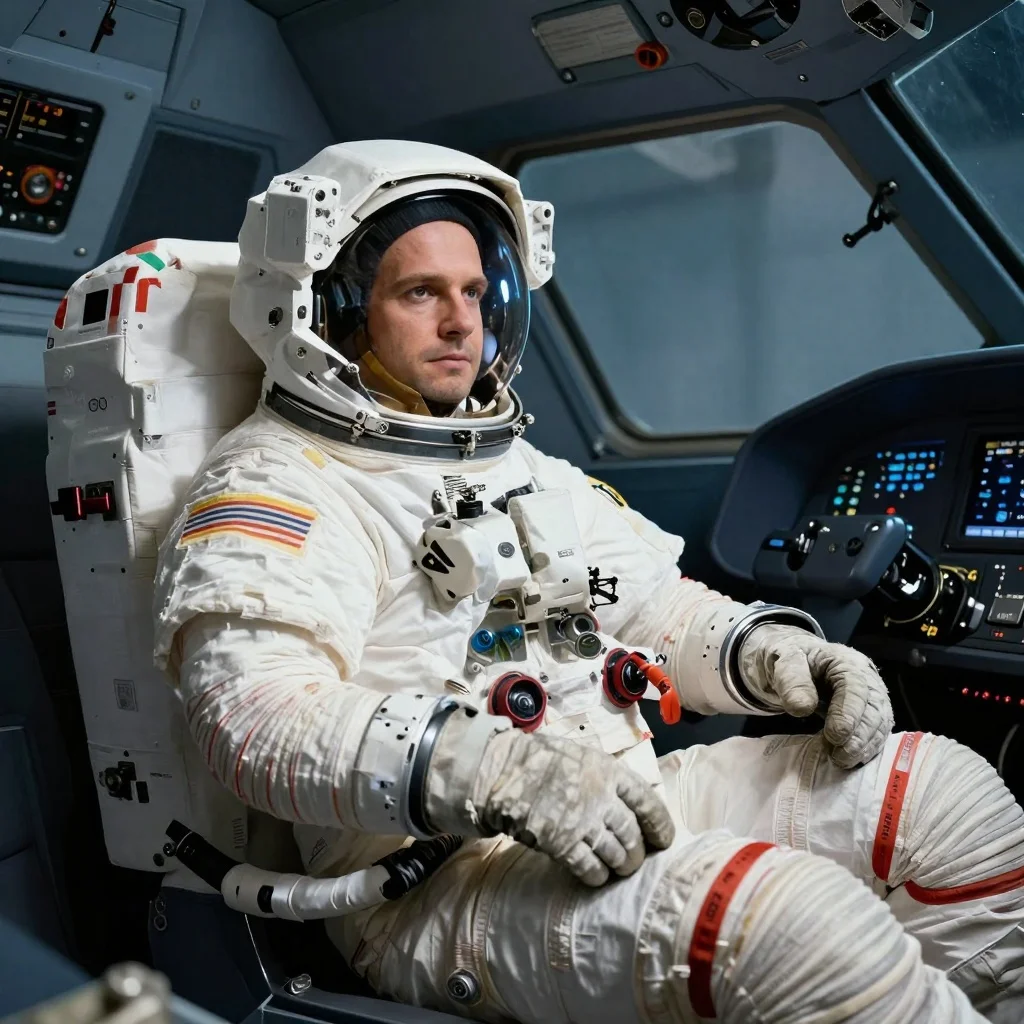
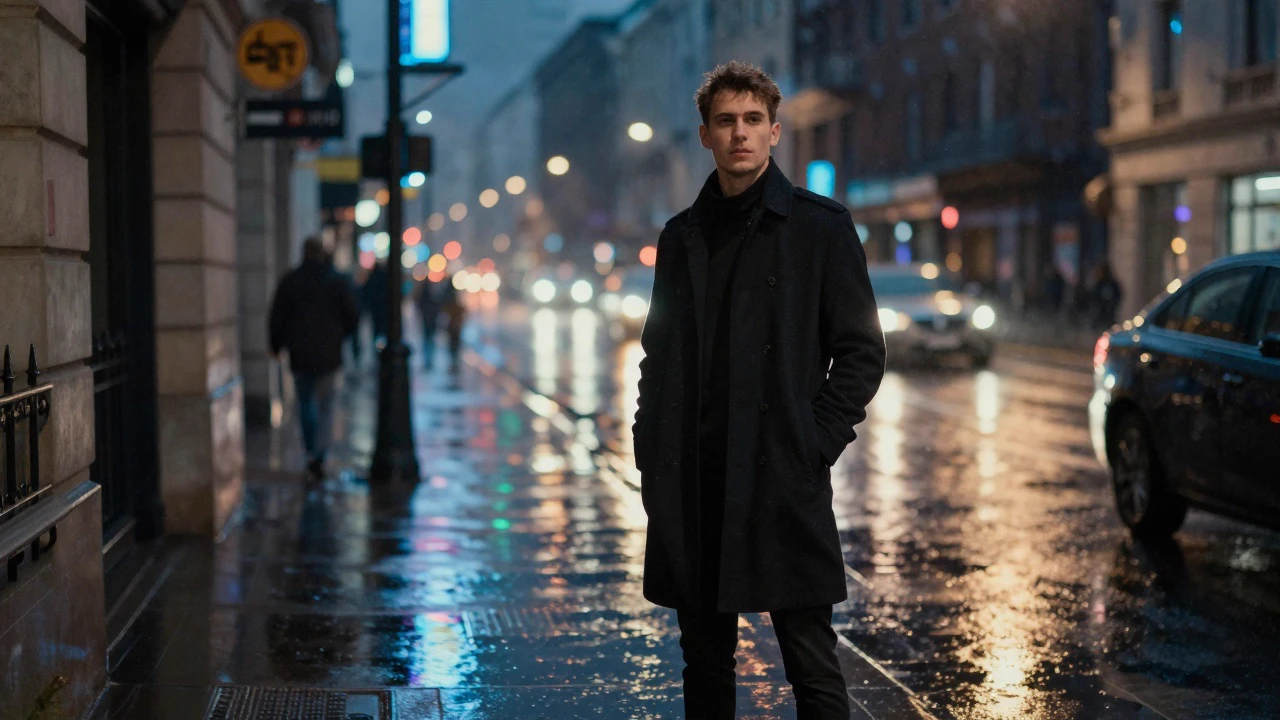
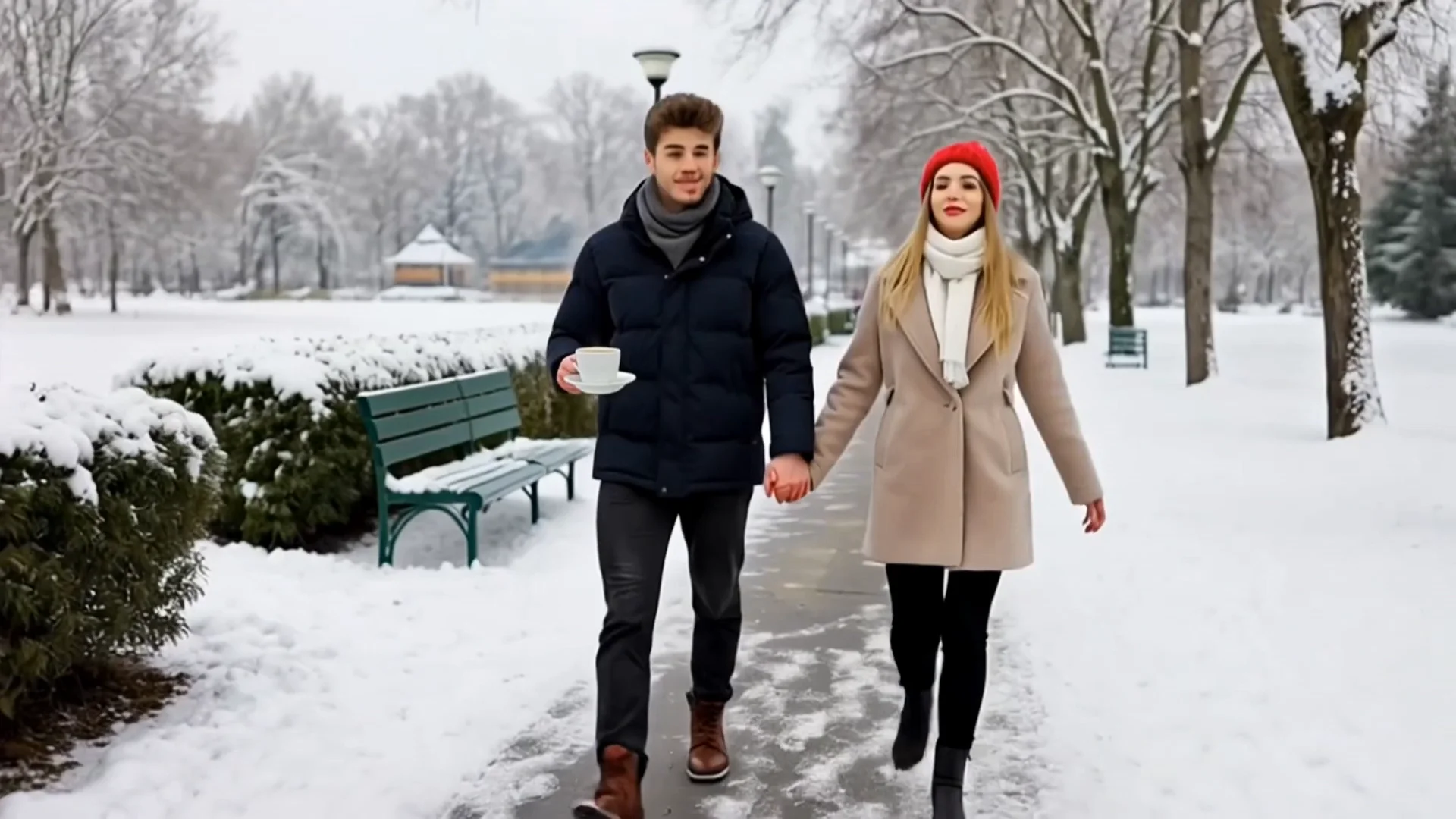
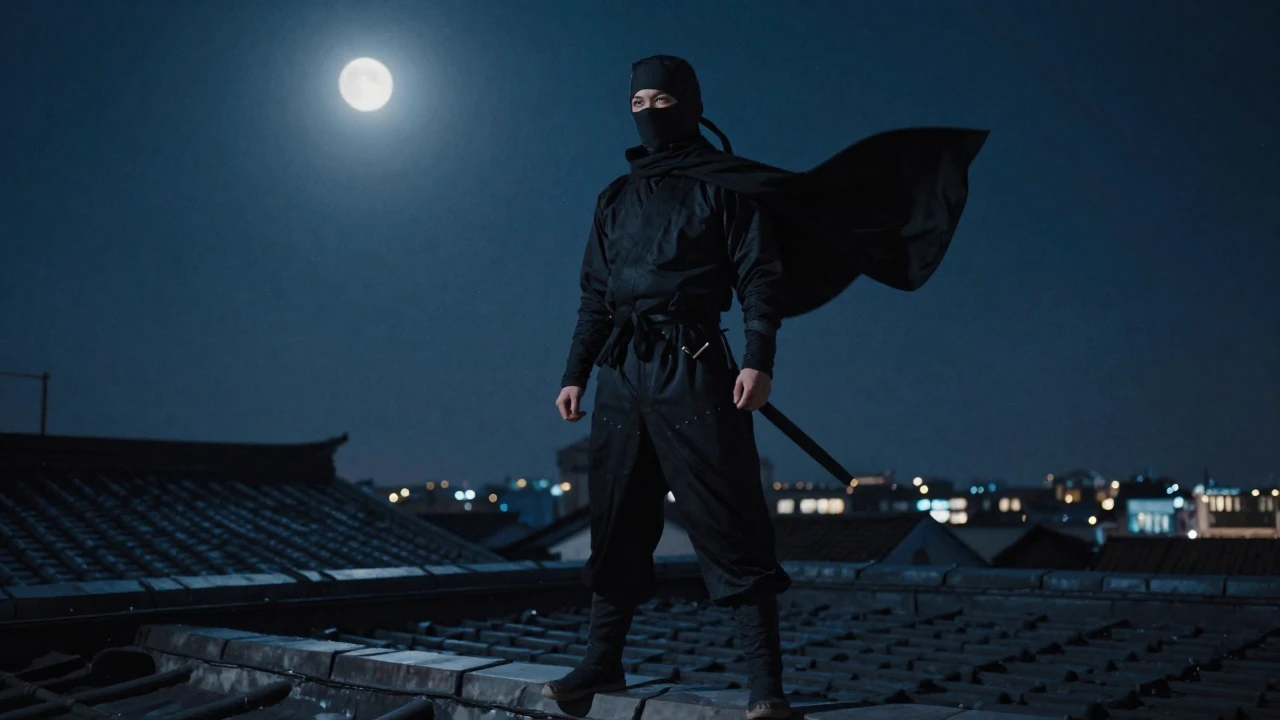
README
Kling Video O3 Pro Image-to-Video
Kling Video O3 Pro Image-to-Video is Kuaishou's flagship image animation model. Upload a reference image, describe the motion, and the model renders a cinematic video with physics-aware movement, temporal consistency, and optional synchronized audio — all at professional production quality.
- Need to generate from text only? Try Kling Video O3 Pro Text-to-Video
- Looking for a lower-cost option? Try Kling Video 2.1 Image-to-Video
Why Choose This?
-
Image-grounded generation Start from a reference image for precise visual control over characters, environments, and composition.
-
Start and end frame control Provide both a starting image and an end image to guide the motion arc and define exactly where the clip begins and finishes.
-
Physics-aware motion Understands real-world dynamics — fluid movement, fabric, hair, fire, and object interactions behave naturally throughout every frame.
-
Synchronized audio generation Enable the sound option to generate matching ambient audio and atmosphere alongside your video.
-
Multi-prompt support Chain multiple prompt segments to guide scene transitions and narrative flow within a single generation.
-
Element list control Lock in specific visual elements — characters, objects, or styles — to maintain consistency across the entire clip.
Parameters
| Parameter | Required | Description |
|---|---|---|
| image | Yes | Starting reference image to animate (URL or file upload). |
| prompt | No | Text description of the motion, camera style, lighting, and atmosphere. |
| end_image | No | Optional ending frame image to define where the clip finishes. |
| duration | No | Clip length in seconds. Options: 5, 10. |
| sound | No | Whether to generate synchronized audio for the video. Default: off. |
| shot_type | No | Editing mode: intelligent (default, auto-determines scope) or customize. |
| multi_prompt | No | Additional prompt segments to guide scene transitions and progressions. |
| element_list | No | List of visual elements to maintain consistency throughout the clip. |
How to Use
- Upload your image — provide the starting reference image via URL or drag-and-drop.
- Write your prompt — describe the motion, camera movement, lighting, and mood. Use the Prompt Enhancer for better results.
- Add an end image (optional) — upload a second image to define the final frame of the clip.
- Set duration — choose 5 or 10 seconds.
- Enable sound (optional) — check to generate matching audio alongside the video.
- Select shot_type (optional) — use intelligent for automatic scope, or customize for manual control.
- Add multi-prompt segments (optional) — click Add Item to guide scene transitions.
- Add element list items (optional) — see Notes below for how to use elements effectively.
- Submit — generate, preview, and download your video.
Pricing
| Duration | Without Sound | With Sound |
|---|---|---|
| 5s | $0.56 | $0.70 |
| 10s | $1.12 | $1.40 |
Billing Rules
- Base rate: $0.112 per second
- Sound surcharge: +25% when sound is enabled
- Duration options: 5 or 10 seconds
- Billing is based on the selected duration and sound setting
Best Use Cases
- Cinematic Photo Animation — Bring still photography to life with natural, physics-accurate motion.
- Commercial & Brand Video — Animate product images and campaign visuals with professional-grade output.
- Social Media Content — Generate portrait or square clips from reference images for maximum engagement.
- Controlled Scene Generation — Use start and end frames to define precise visual transitions for storytelling.
- Immersive Audio-Visual Content — Combine image animation with sound generation for fully atmospheric clips.
Pro Tips
- Use a high-quality, well-composed source image — the model preserves and extends what it starts with.
- Providing an end image significantly improves motion direction and narrative coherence.
- Be specific in your prompt about camera movement (pan, zoom, dolly) and subject behavior.
- Enable sound for scenes with fire, water, crowds, or ambient environments for a much more immersive result.
- Start with a 5-second generation without sound to validate motion before committing to a longer, audio-enabled run.
Notes
- Image is the only required field; all other parameters are optional.
- Sound generation adds 25% to the base cost.
- Ensure image URLs are publicly accessible; a preview thumbnail in the interface confirms the URL is reachable.
- Using element_list: First use Kling Elements to generate your element and note its name and ID. Then simply write the element name naturally in your prompt, and enter the corresponding element ID in the element_list field. No special characters or syntax required.
- Please follow Kuaishou's content usage policies when crafting prompts.
Related Models
- Kling Video O3 Pro Text-to-Video — Generate cinematic video from text prompts without a reference image.
- Kling Video 2.1 Image-to-Video — Lower-cost alternative for faster iteration.
- Kling Elements — Create reusable visual elements for consistent character and object rendering.
Kling Video O3 Pro Image To Video API — Quick start
Grab a WaveSpeedAI API key, then call POST https://api.wavespeed.ai/api/v3/kwaivgi/kling-video-o3-pro/image-to-video with your input as JSON. The endpoint returns a prediction id. Start polling the result endpoint around every 2 seconds, increase the interval for long-running tasks, and stop on any terminal status. On completed, read output values from data.outputs. Examples for Kling Video O3 Pro Image To Video below.
HTTP example
set -euo pipefail

: "${WAVESPEED_API_KEY:?Set WAVESPEED_API_KEY}"

REQUEST_BODY=$(cat <<'JSON'
{
    "image": "https://interactive-examples.mdn.mozilla.net/media/cc0-images/painted-hand-298-332.jpg",
    "duration": 5,
    "sound": false,
    "shot_type": "customize"
}
JSON
)

# 1. Submit the prediction.
SUBMIT_RESPONSE=$(curl --silent --show-error --fail-with-body \
  -X POST "https://api.wavespeed.ai/api/v3/kwaivgi/kling-video-o3-pro/image-to-video" \
  -H "Content-Type: application/json" \
  -H "Authorization: Bearer $WAVESPEED_API_KEY" \
  -d "$REQUEST_BODY")

TASK=$(printf '%s' "$SUBMIT_RESPONSE" | jq 'if has("data") then .data else . end')
PREDICTION_ID=$(printf '%s' "$TASK" | jq -r '.id')
if [ -z "$PREDICTION_ID" ] || [ "$PREDICTION_ID" = "null" ]; then
  printf 'Submission response did not contain a prediction id
' >&2
  exit 1
fi
RESULT_URL=$(printf '%s' "$TASK" | jq -r '.urls.get // empty')
if [ -z "$RESULT_URL" ]; then
  RESULT_URL="https://api.wavespeed.ai/api/v3/predictions/$PREDICTION_ID/result"
fi

# 2. Poll until the prediction finishes.
while true; do
  RESPONSE=$(curl --silent --show-error --fail-with-body "$RESULT_URL" \
    -H "Authorization: Bearer $WAVESPEED_API_KEY")
  RESULT=$(printf '%s' "$RESPONSE" | jq 'if has("data") then .data else . end')
  STATUS=$(printf '%s' "$RESULT" | jq -r '.status')
  case "$STATUS" in
    completed) printf '%s\n' "$RESULT" | jq '.outputs'; break ;;
    failed|cancelled|timeout) printf '%s\n' "$RESULT" | jq . >&2; exit 1 ;;
    created|processing) sleep 2 ;;
    *) printf 'Unexpected status: %s
' "$STATUS" >&2; exit 1 ;;
  esac
done
Node.js example
const submitUrl = "https://api.wavespeed.ai/api/v3/kwaivgi/kling-video-o3-pro/image-to-video";
const apiKey = process.env.WAVESPEED_API_KEY;
if (!apiKey) throw new Error('Set WAVESPEED_API_KEY');

async function requestJson(url, options = {}) {
  const response = await fetch(url, options);
  if (!response.ok) throw new Error(await response.text());
  return response.json();
}

// 1. Submit the prediction.
const body = await requestJson(submitUrl, {
  method: "POST",
  headers: {
    "Authorization": `Bearer ${apiKey}`,
    "Content-Type": "application/json",
  },
  body: JSON.stringify({
        "image": "https://interactive-examples.mdn.mozilla.net/media/cc0-images/painted-hand-298-332.jpg",
        "duration": 5,
        "sound": false,
        "shot_type": "customize"
}),
});
const task = body.data ?? body;
if (!task.id) throw new Error("Submission response did not contain a prediction id");
const resultUrl = task.urls?.get ||
  `https://api.wavespeed.ai/api/v3/predictions/${task.id}/result`;

// 2. Poll until the prediction finishes.
while (true) {
  const resultBody = await requestJson(resultUrl, {
    headers: { "Authorization": `Bearer ${apiKey}` },
  });
  const result = resultBody.data ?? resultBody;
  if (result.status === "completed") {
    console.log(result.outputs);
    break;
  }
  if (["failed", "cancelled", "timeout"].includes(result.status)) throw new Error(JSON.stringify(result));
  if (!["created", "processing"].includes(result.status)) throw new Error("Unexpected status: " + result.status);
  await new Promise(resolve => setTimeout(resolve, 2000));
}
Python example
import json
import os
import time
from urllib.request import Request, urlopen

api_key = os.environ["WAVESPEED_API_KEY"]
headers = {"Authorization": f"Bearer {api_key}", "Content-Type": "application/json"}
payload = {
    "image": "https://interactive-examples.mdn.mozilla.net/media/cc0-images/painted-hand-298-332.jpg",
    "duration": 5,
    "sound": False,
    "shot_type": "customize"
}

def request_json(url, data=None):
    request = Request(url, data=data, headers=headers, method="POST" if data else "GET")
    with urlopen(request) as response:
        return json.load(response)

# 1. Submit the prediction.
body = request_json("https://api.wavespeed.ai/api/v3/kwaivgi/kling-video-o3-pro/image-to-video", json.dumps(payload).encode())
task = body.get("data", body)
if not task.get("id"):
    raise RuntimeError("Submission response did not contain a prediction id")
result_url = task.get("urls", {}).get("get") or f"https://api.wavespeed.ai/api/v3/predictions/{task['id']}/result"

# 2. Poll until the prediction finishes.
while True:
    result_body = request_json(result_url)
    result = result_body.get("data", result_body)
    status = result.get("status")
    if status == "completed":
        print(result.get("outputs", []))
        break
    if status in {"failed", "cancelled", "timeout"}:
        raise RuntimeError(result)
    if status not in {"created", "processing"}:
        raise RuntimeError(f"Unexpected status: {status}")
    time.sleep(2)
Kling Video O3 Pro Image To Video API — Frequently asked questions
What is the Kling Video O3 Pro Image To Video API?
Kling Video O3 Pro Image To Video is a Kuaishou model for video generation from images, exposed as a REST API on WaveSpeedAI. Kling Omni Video O3 Image-to-Video transforms static images into dynamic cinematic videos using MVL (Multi-modal Visual Language) technology. Maintains subject consistency while adding natural motion, physics simulation, and seamless scene dynamics. Supports audio generation. Ready-to-use REST API, best performance, no coldstarts, affordable pricing. You can call it programmatically or try it from the playground above.
How do I call the Kling Video O3 Pro Image To Video API?
POST your input parameters to the model's REST endpoint (shown in the API tab of this playground) with your WaveSpeedAI API key in the Authorization header. Submission returns a prediction ID. Poll the result endpoint starting around every 2 seconds, increase the interval for long-running tasks, and stop on any terminal status. The playground generates production-oriented Python, JavaScript, and cURL examples with timeouts, transient-error handling, and safe GET retries. Full request/response shape is documented at https://wavespeed.ai/docs/docs-api/kwaivgi/kwaivgi-kling-video-o3-pro-image-to-video.
How much does Kling Video O3 Pro Image To Video cost per run?
Kling Video O3 Pro Image To Video starts at $0.56 per run. That figure is the base price — the final charge scales with the parameters you set in the form (output size, length, count, references, or whatever knobs this model exposes), so a higher-quality or larger output costs more than a minimal one. The exact cost for your current input is shown live next to the Generate button before you submit, and the actual per-call charge is recorded on the prediction afterwards.
What inputs does Kling Video O3 Pro Image To Video accept?
Key inputs: `prompt`, `image`, `duration`, `element_list`, `end_image`, `multi_prompt`. The full JSON schema (types, defaults, allowed values) is rendered above the Generate button and mirrored in the API reference at https://wavespeed.ai/docs/docs-api/kwaivgi/kwaivgi-kling-video-o3-pro-image-to-video.
How long does Kling Video O3 Pro Image To Video take to generate?
Median end-to-end generation time on WaveSpeedAI is around 200 seconds per request, based on recent successful runs. Queue time varies with global demand; live status is visible in the prediction record.
Can I use Kling Video O3 Pro Image To Video outputs commercially?
Commercial usage rights depend on the model's license, set by its provider (Kuaishou). The license summary appears on the model card above; see WaveSpeedAI's Terms of Service for platform-level conditions.