Wan 2.1 V2V 720P LoRA converts source videos into 720P AI-enhanced video-to-video edits with support for custom LoRA personalization. Ready-to-use REST inference API, best performance, no coldstarts, affordable pricing.
待機中
$0.31回あたり·~33 / $10
サンプルすべて表示
[origami] a crafted grasshopper moving on the jungle floor, dead leaves all around, huge trees in the background.
[origami] a crafted grasshopper moving on the jungle floor, dead leaves all around, huge trees in the background.
[origami] a monkey swinging on a branch of a tree, huge monkeys around them.
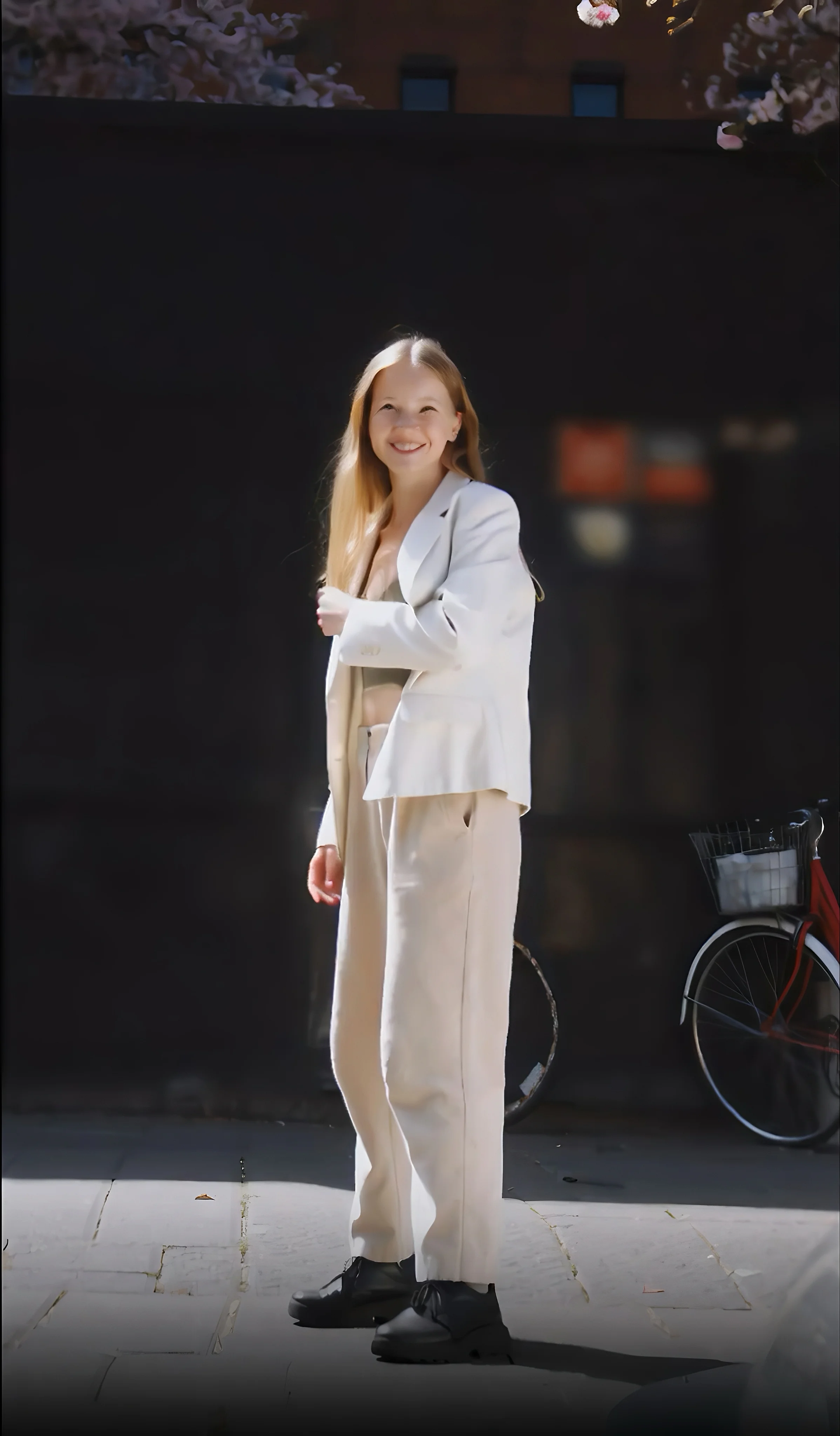
A young woman walking through a bustling city street at sunset, soft golden light reflecting on the buildings, her hair gently blowing in the breeze, ambient city sounds mixing with distant conversations
A young woman walks confidently through a bustling Tokyo street at sunset, wearing a sleek, minimalist beige trench coat and dark sunglasses. Neon signs reflect off the wet pavement as crowds flow around her in slow motion. Her hair moves subtly in the breeze, and the skyline glows with golden hues. The camera pans smoothly with cinematic lighting and soft shadows, emphasizing realism and contemporary elegance.
A playful golden retriever, with a wagging tail and a slobbery toy in its mouth, eagerly tries to get its owner's attention. The owner, a young man sitting on a comfortable living room sofa, smiles and playfully tussles with the dog. The camera, in a casual, close-up shot, captures the genuine joy and affection between them, focusing on the dog's joyful eyes and the man's warm laughter. Sunlight streams in through a nearby window, creating a cozy and warm atmosphere. The only sounds are the dog's happy whines, the man's laughter, and the soft thump of the dog's tail against the couch.
A young family — a mother, father, and their small child — are happily picnicking on a red-and-white checkered blanket in a sun-dappled forest clearing. Sunlight filters through the canopy of leaves, creating beautiful, dancing patterns of light and shadow on the ground. The mother is laughing as she hands a sandwich to the child, who is wearing a little straw hat. The father is playfully pointing out something to the child in the distance. The camera slowly pans across the scene, capturing the idyllic, relaxed atmosphere and the warm, golden-hour light. There are a woven picnic basket and a thermos bottle on the blanket. The motion is gentle and peaceful, reflecting a slice-of-life moment.
A middle-aged florist, with calloused hands and a gentle smile, meticulously arranges a bouquet of freshly cut flowers inside a charming, sun-drenched flower shop. The camera, in a steady, mid-shot, captures the vibrant colors of the roses, lilies, and daisies, and the delicate movements of her fingers as she trims stems and ties ribbon. The scent of fresh-cut greenery and blooming flowers seems to fill the air. The sounds of a small bell ringing as a customer enters, and the quiet snip of her shears, are the only prominent audio.
A young boy wearing a spacesuit stands on a small moon, staring in wonder at the massive planet hanging in the sky above. His helmet reflects the twinkling stars around him. Nearby, his tiny rover beeps softly as it scans a glowing rock.
A woman quietly exhales and closes her eyes while listening to calming music through headphones
A man walks through a wheat field, brushing his hand along the tall golden stalks
関連モデル
README
Wan 2.1 Video-to-Video 720p LoRA
Wan 2.1 Video-to-Video 720p LoRA is a powerful video transformation model that converts existing videos into new styles, aesthetics, or visual treatments. With full LoRA support, apply custom styles, artistic effects, or consistent character appearances to transform your footage.
Why It Stands Out
- Video-to-video transformation: Convert existing videos into different styles while preserving motion.
- LoRA support: Apply up to 3 custom LoRA models for specific styles, characters, or aesthetics.
- Prompt-guided transformation: Describe the visual style you want to achieve.
- Prompt Enhancer: Built-in AI-powered prompt optimization for better results.
- Negative prompt support: Exclude unwanted elements for cleaner outputs.
- Fine-tuned control: Adjust strength, guidance scale, and flow shift for precise results.
- Reproducibility: Use the seed parameter to recreate exact results.
Parameters
| Parameter | Required | Description |
|---|---|---|
| video | Yes | Source video to transform (upload or public URL). |
| prompt | Yes | Text description of the desired visual style. |
| loras | No | LoRA models to apply (path and scale). Up to 3 LoRAs. |
| negative_prompt | No | Elements to avoid in the output. |
| num_inference_steps | No | Quality/speed trade-off (default: 30). |
| duration | No | Output video length: 5 or 10 seconds (default: 5). |
| strength | No | Transformation intensity (0.0–1.0, default: 0.9). |
| guidance_scale | No | Prompt adherence strength (default: 5). |
| flow_shift | No | Motion flow control (default: 3). |
| seed | No | Set for reproducibility; -1 for random. |
How to Use
- Upload your source video — drag and drop a file or paste a public URL.
- Write a prompt describing the visual style you want. Use the Prompt Enhancer for AI-assisted optimization.
- Add LoRAs (optional) — select up to 3 LoRA models and adjust their scale.
- Add a negative prompt (optional) — specify elements to exclude.
- Adjust parameters — set strength, guidance scale, and other settings as needed.
- Click Run and wait for your video to generate.
- Preview and download the result.
How to Use LoRA
LoRA (Low-Rank Adaptation) lets you apply custom styles without retraining the full model.
- Add LoRA: Enter the LoRA path and adjust the scale (0.0–1.0).
- Multiple LoRAs: Combine up to 3 LoRAs for layered effects.
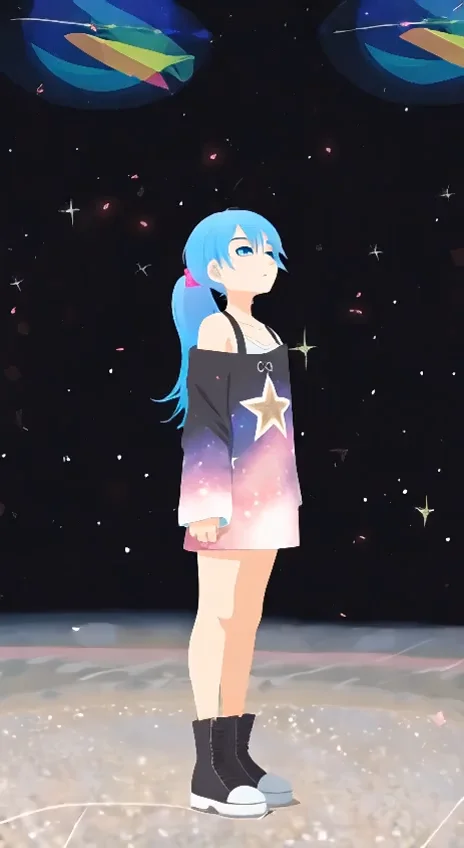
- Recommended LoRAs: Check the interface for suggested LoRAs with preview images.
Best Use Cases
- Style Transfer — Convert videos to anime, cartoon, cinematic, or artistic styles.
- Visual Effects — Apply consistent effects like flat color, watercolor, or sketch styles.
- Content Repurposing — Transform footage into different visual aesthetics.
- Brand Consistency — Apply branded visual styles across multiple videos.
- Creative Projects — Experiment with unique visual treatments.
Pricing
| Duration | Price |
|---|---|
| 5 seconds | $0.30 |
| 10 seconds | $0.45 |
Pro Tips for Best Quality
- Use lower strength (0.5–0.7) to preserve more of the original video.
- Use higher strength (0.8–0.95) for more dramatic style transformations.
- Start with one LoRA and add more gradually to understand their combined effect.
- Adjust LoRA scale based on how strongly you want the style applied.
- Use negative prompts to reduce artifacts like blur, distortion, or unwanted elements.
- Fix the seed when iterating to compare different parameter settings.
Notes
- Maximum of 3 LoRAs per generation.
- Ensure uploaded video URLs are publicly accessible.
- Processing time varies based on duration and current queue load.
- Please ensure your content complies with usage guidelines.
Wan 2.1 v2v 720p Lora API — Quick start
Grab a WaveSpeedAI API key, then call POST https://api.wavespeed.ai/api/v3/wavespeed-ai/wan-2.1/v2v-720p-lora with your input as JSON. The endpoint returns a prediction id. Start polling the result endpoint around every 2 seconds, increase the interval for long-running tasks, and stop on any terminal status. On completed, read output values from data.outputs. Examples for Wan 2.1 v2v 720p Lora below.
HTTP example
set -euo pipefail

: "${WAVESPEED_API_KEY:?Set WAVESPEED_API_KEY}"

REQUEST_BODY=$(cat <<'JSON'
{
    "prompt": "A cinematic shot of a city at sunset, soft golden light",
    "video": "https://interactive-examples.mdn.mozilla.net/media/cc0-videos/flower.mp4",
    "num_inference_steps": 30,
    "duration": 5,
    "strength": 0.9,
    "guidance_scale": 5,
    "flow_shift": 3,
    "seed": -1
}
JSON
)

# 1. Submit the prediction.
SUBMIT_RESPONSE=$(curl --silent --show-error --fail-with-body \
  -X POST "https://api.wavespeed.ai/api/v3/wavespeed-ai/wan-2.1/v2v-720p-lora" \
  -H "Content-Type: application/json" \
  -H "Authorization: Bearer $WAVESPEED_API_KEY" \
  -d "$REQUEST_BODY")

TASK=$(printf '%s' "$SUBMIT_RESPONSE" | jq 'if has("data") then .data else . end')
PREDICTION_ID=$(printf '%s' "$TASK" | jq -r '.id')
if [ -z "$PREDICTION_ID" ] || [ "$PREDICTION_ID" = "null" ]; then
  printf 'Submission response did not contain a prediction id
' >&2
  exit 1
fi
RESULT_URL=$(printf '%s' "$TASK" | jq -r '.urls.get // empty')
if [ -z "$RESULT_URL" ]; then
  RESULT_URL="https://api.wavespeed.ai/api/v3/predictions/$PREDICTION_ID/result"
fi

# 2. Poll until the prediction finishes.
while true; do
  RESPONSE=$(curl --silent --show-error --fail-with-body "$RESULT_URL" \
    -H "Authorization: Bearer $WAVESPEED_API_KEY")
  RESULT=$(printf '%s' "$RESPONSE" | jq 'if has("data") then .data else . end')
  STATUS=$(printf '%s' "$RESULT" | jq -r '.status')
  case "$STATUS" in
    completed) printf '%s\n' "$RESULT" | jq '.outputs'; break ;;
    failed|cancelled|timeout) printf '%s\n' "$RESULT" | jq . >&2; exit 1 ;;
    created|processing) sleep 2 ;;
    *) printf 'Unexpected status: %s
' "$STATUS" >&2; exit 1 ;;
  esac
done
Node.js example
const submitUrl = "https://api.wavespeed.ai/api/v3/wavespeed-ai/wan-2.1/v2v-720p-lora";
const apiKey = process.env.WAVESPEED_API_KEY;
if (!apiKey) throw new Error('Set WAVESPEED_API_KEY');

async function requestJson(url, options = {}) {
  const response = await fetch(url, options);
  if (!response.ok) throw new Error(await response.text());
  return response.json();
}

// 1. Submit the prediction.
const body = await requestJson(submitUrl, {
  method: "POST",
  headers: {
    "Authorization": `Bearer ${apiKey}`,
    "Content-Type": "application/json",
  },
  body: JSON.stringify({
        "prompt": "A cinematic shot of a city at sunset, soft golden light",
        "video": "https://interactive-examples.mdn.mozilla.net/media/cc0-videos/flower.mp4",
        "num_inference_steps": 30,
        "duration": 5,
        "strength": 0.9,
        "guidance_scale": 5,
        "flow_shift": 3,
        "seed": -1
}),
});
const task = body.data ?? body;
if (!task.id) throw new Error("Submission response did not contain a prediction id");
const resultUrl = task.urls?.get ||
  `https://api.wavespeed.ai/api/v3/predictions/${task.id}/result`;

// 2. Poll until the prediction finishes.
while (true) {
  const resultBody = await requestJson(resultUrl, {
    headers: { "Authorization": `Bearer ${apiKey}` },
  });
  const result = resultBody.data ?? resultBody;
  if (result.status === "completed") {
    console.log(result.outputs);
    break;
  }
  if (["failed", "cancelled", "timeout"].includes(result.status)) throw new Error(JSON.stringify(result));
  if (!["created", "processing"].includes(result.status)) throw new Error("Unexpected status: " + result.status);
  await new Promise(resolve => setTimeout(resolve, 2000));
}
Python example
import json
import os
import time
from urllib.request import Request, urlopen

api_key = os.environ["WAVESPEED_API_KEY"]
headers = {"Authorization": f"Bearer {api_key}", "Content-Type": "application/json"}
payload = {
    "prompt": "A cinematic shot of a city at sunset, soft golden light",
    "video": "https://interactive-examples.mdn.mozilla.net/media/cc0-videos/flower.mp4",
    "num_inference_steps": 30,
    "duration": 5,
    "strength": 0.9,
    "guidance_scale": 5,
    "flow_shift": 3,
    "seed": -1
}

def request_json(url, data=None):
    request = Request(url, data=data, headers=headers, method="POST" if data else "GET")
    with urlopen(request) as response:
        return json.load(response)

# 1. Submit the prediction.
body = request_json("https://api.wavespeed.ai/api/v3/wavespeed-ai/wan-2.1/v2v-720p-lora", json.dumps(payload).encode())
task = body.get("data", body)
if not task.get("id"):
    raise RuntimeError("Submission response did not contain a prediction id")
result_url = task.get("urls", {}).get("get") or f"https://api.wavespeed.ai/api/v3/predictions/{task['id']}/result"

# 2. Poll until the prediction finishes.
while True:
    result_body = request_json(result_url)
    result = result_body.get("data", result_body)
    status = result.get("status")
    if status == "completed":
        print(result.get("outputs", []))
        break
    if status in {"failed", "cancelled", "timeout"}:
        raise RuntimeError(result)
    if status not in {"created", "processing"}:
        raise RuntimeError(f"Unexpected status: {status}")
    time.sleep(2)
Wan 2.1 v2v 720p Lora API — Frequently asked questions
What is the Wan 2.1 v2v 720p Lora API?
Wan 2.1 v2v 720p Lora is a WaveSpeedAI model for AI inference, exposed as a REST API on WaveSpeedAI. Wan 2.1 V2V 720P LoRA converts source videos into 720P AI-enhanced video-to-video edits with support for custom LoRA personalization. Ready-to-use REST inference API, best performance, no coldstarts, affordable pricing. You can call it programmatically or try it from the playground above.
How do I call the Wan 2.1 v2v 720p Lora API?
POST your input parameters to the model's REST endpoint (shown in the API tab of this playground) with your WaveSpeedAI API key in the Authorization header. Submission returns a prediction ID. Poll the result endpoint starting around every 2 seconds, increase the interval for long-running tasks, and stop on any terminal status. The playground generates production-oriented Python, JavaScript, and cURL examples with timeouts, transient-error handling, and safe GET retries. Full request/response shape is documented at https://wavespeed.ai/docs/docs-api/wavespeed-ai/wan-2.1-v2v-720p-lora.
How much does Wan 2.1 v2v 720p Lora cost per run?
Wan 2.1 v2v 720p Lora starts at $0.30 per run. That figure is the base price — the final charge scales with the parameters you set in the form (output size, length, count, references, or whatever knobs this model exposes), so a higher-quality or larger output costs more than a minimal one. The exact cost for your current input is shown live next to the Generate button before you submit, and the actual per-call charge is recorded on the prediction afterwards.
What inputs does Wan 2.1 v2v 720p Lora accept?
Key inputs: `prompt`, `video`, `duration`, `seed`, `guidance_scale`, `num_inference_steps`. The full JSON schema (types, defaults, allowed values) is rendered above the Generate button and mirrored in the API reference at https://wavespeed.ai/docs/docs-api/wavespeed-ai/wan-2.1-v2v-720p-lora.
How long does Wan 2.1 v2v 720p Lora take to generate?
Median end-to-end generation time on WaveSpeedAI is around 148 seconds per request, based on recent successful runs. Queue time varies with global demand; live status is visible in the prediction record.
Can I use Wan 2.1 v2v 720p Lora outputs commercially?
Commercial usage rights depend on the model's license, set by its provider (WaveSpeedAI). The license summary appears on the model card above; see WaveSpeedAI's Terms of Service for platform-level conditions.