FLUX.1 [dev] is a 12-billion-parameter rectified-flow transformer for text-to-image generation. Ready-to-use REST inference API, best performance, no coldstarts, affordable pricing.
En attente
$0.012par exécution·~83 / $1
ExemplesTout voir
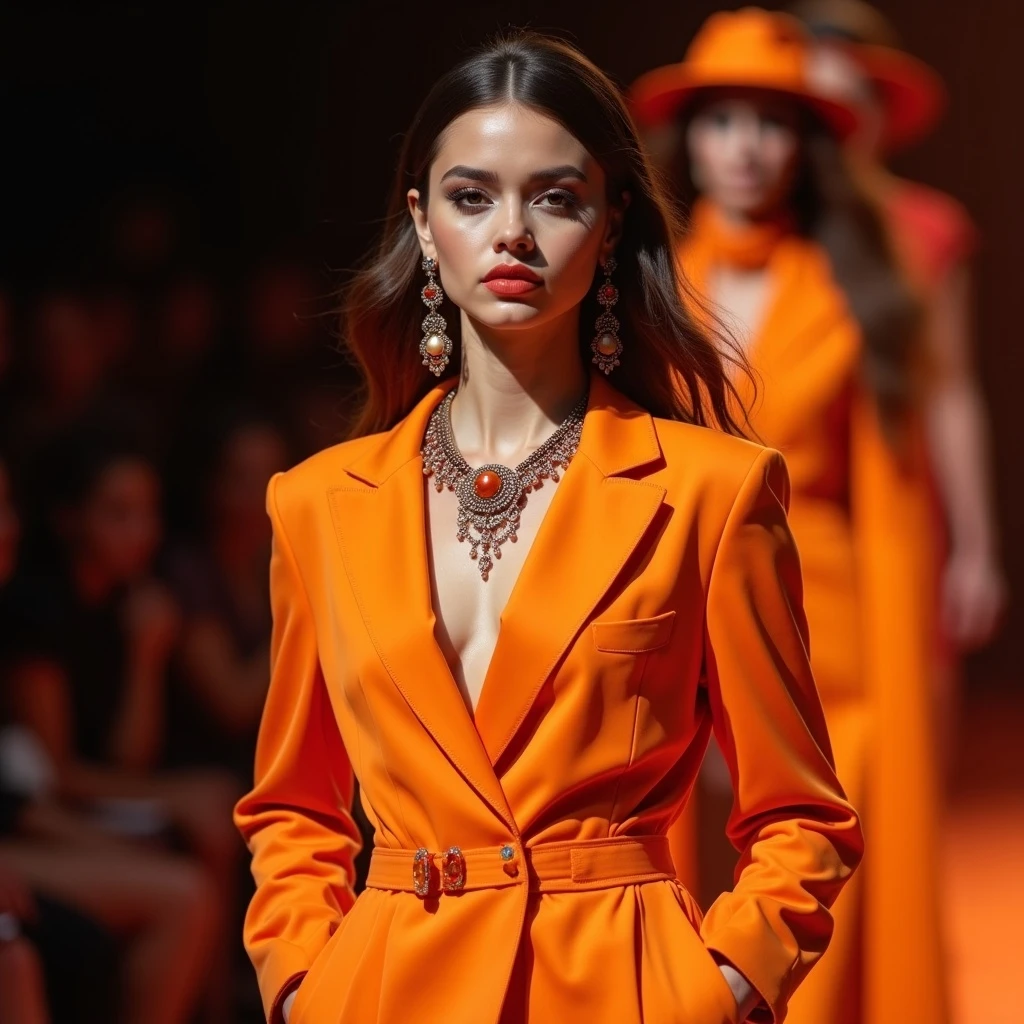
A stylish model, fashion show, showcase a designer outfit, orange colour suit, conspicuous jewelry, fashion show background, vibrant color, dramatic makeup

Girl in red dress, hilltop, white deer, rabbits, sunset, japanese anime style
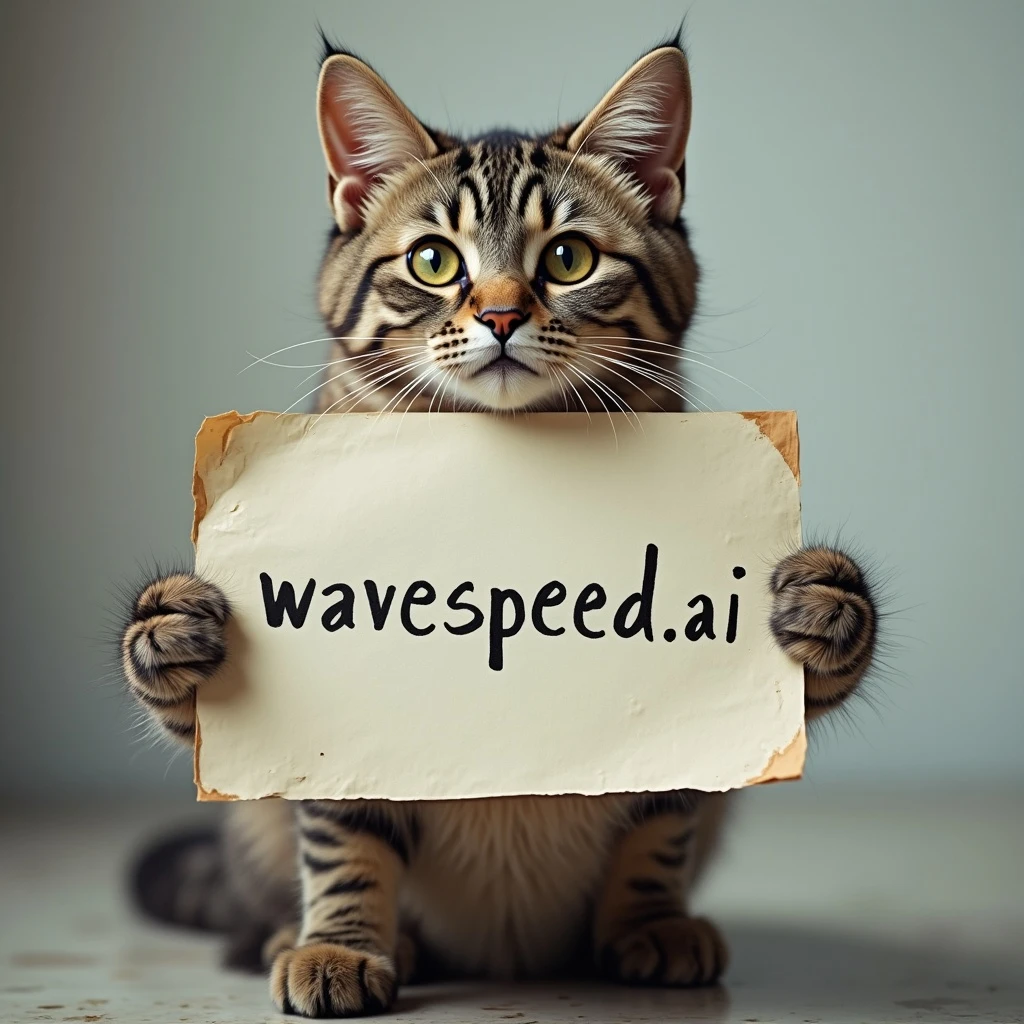
A cat holds a sign saying "wavespeed.ai"

白云蓝天下一群绵羊在吃草

Hello World

Inside a narrow antique bookstore in Prague, a woman in a wool coat runs her fingers across a shelf of leather-bound novels. Dust particles dance in the golden afternoon light filtering through stained-glass windows. The scene is quiet, textured, and intimate—camera glides over piles of books, ticking clocks, and her thoughtful gaze. It's as if time has slowed in a forgotten corner of the world.

A young man in a denim jacket and aviator shades leans on a vintage motorcycle at a desert gas station under a blazing sun. Heat waves ripple across the horizon, and an old jukebox plays classic rock through the open window of the diner. He lights a cigarette, looks into the distance—the camera captures the grit, texture, and restless spirit of retro Americana.

A couple drives a vintage convertible along a winding coastal road in southern France during golden hour. The wind tousles their hair, and the sea sparkles beside them. The camera captures them in soft, grainy light—sunlight flaring over the lens like old 35mm film. Their laughter mixes with the sound of the engine and seagulls. It’s cinematic, nostalgic, effortlessly romantic.
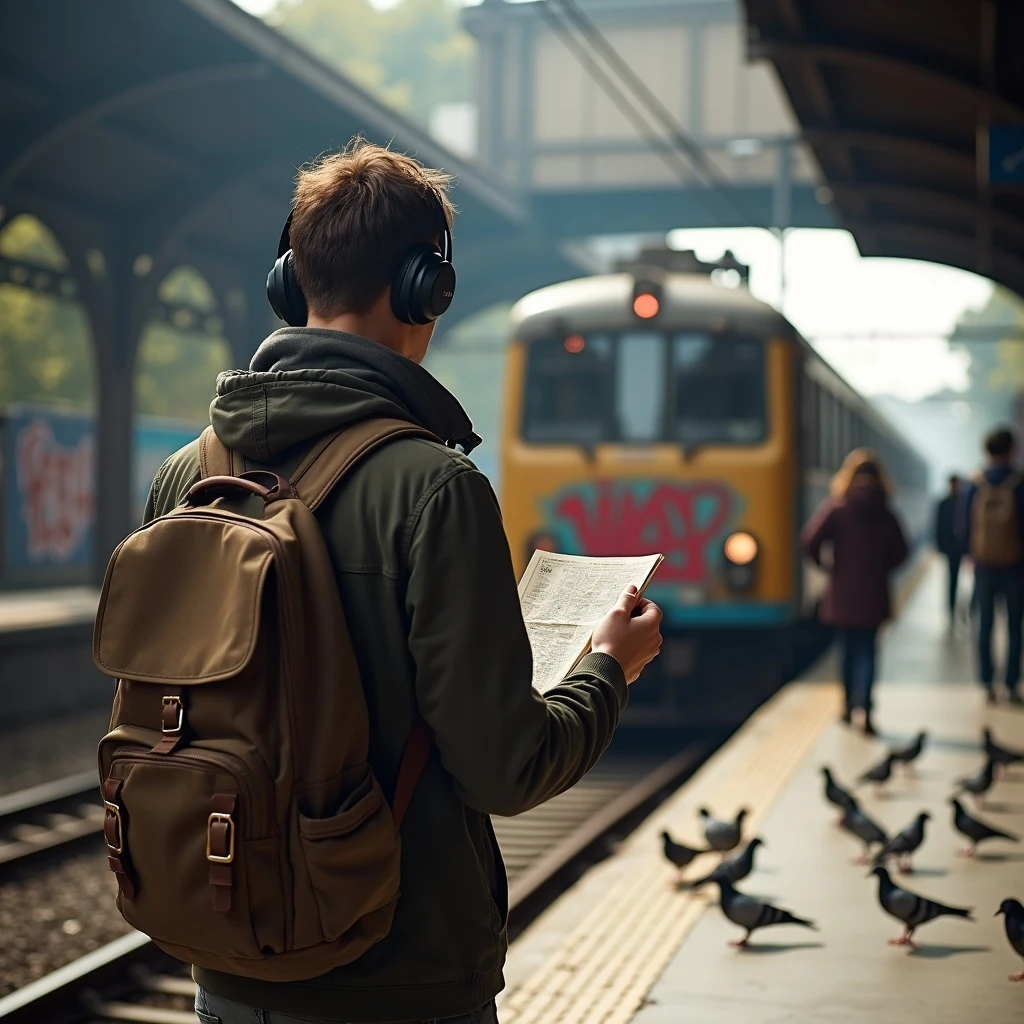
A backpacker in his twenties stands at a railway platform in Lisbon, gazing at an old graffiti-covered train as it pulls in. He wears headphones and carries a weathered map. The station is filled with soft natural light, pigeons fly past, and people blur around him. The atmosphere is meditative and sincere—a moment of transition and silent story.

A couple wrapped in a plaid blanket sits on a cliff overlooking the Atlantic Ocean under a sky scattered with stars. Waves crash below, and their silhouettes are outlined by moonlight. The camera slowly rotates around them as they point at constellations, wind tousling their hair. The motion is minimal yet deeply emotive—capturing intimacy, stillness, and wonder.

A girl in a soft white dress stands beneath a cherry blossom tree at twilight, her eyes closed as petals drift gently around her. The sky glows with hues of lavender and gold, and a slow breeze moves her hair and dress like silk. Her hand reaches out to catch a falling petal, and the camera lingers on the motion. The atmosphere is delicate, dreamlike, and filled with quiet longing—like a memory suspended in golden light.

A high-fashion editorial shot of a poised woman in avant-garde attire, standing confidently in a minimalist, architecturally designed interior. Clean lines, indirect lighting, and bold shadows create a striking contrast, emphasizing elegance and geometry.

A soft-lit, nostalgic portrait of a young woman seated beside a large window in a cozy vintage café, absorbed in thought. Light filters through sheer curtains, highlighting the warm tones of wooden furniture and the retro ambiance of the setting.

A dramatic fantasy scene of a fierce female warrior clad in intricately detailed silver armor, standing tall in a windswept golden field. Her sword gleams under the stormy sky, and her cloak billows in the wind, evoking the mood of a heroic epic.

A candid street-style photo of a teen boy wearing a slightly oversized retro windbreaker, hands in pockets, standing near a crosswalk. The city background is softly blurred, focusing attention on his pose and wardrobe, echoing urban fashion blogs.

A serene countryside portrait of a smiling girl sitting cross-legged in a lush green meadow dotted with daisies. The late afternoon sun wraps the scene in soft, warm light, and her simple dress billows slightly in the breeze.
Modèles associés



README
FLUX.1 [dev]
Generate high-quality images with FLUX.1 [dev], a versatile and powerful image generation model. Whether you need text-to-image creation, image-to-image transformation, or precise inpainting — this model delivers stunning results with exceptional detail and prompt adherence.
Why It Stands Out
- Multi-mode generation: Supports text-to-image, image-to-image, and inpainting workflows in one model.
- High resolution output: Generate images up to 1024×1024 with sharp detail and clarity.
- Prompt Enhancer: Built-in AI-powered prompt optimization for better results.
- Flexible aspect ratios: Customize width and height independently for any format.
- Batch generation: Create multiple images in a single request.
- Reproducibility: Use the seed parameter to recreate exact results or explore variations.
- Multiple output formats: Export as JPEG or PNG based on your needs.
Pricing
| Output | Price |
|---|---|
| Per image | $0.012 |
Total cost = $0.012 × num_images
Parameters
| Parameter | Required | Description |
|---|---|---|
| prompt | Yes | Text description of the image you want to generate. |
| image | No | Source image for image-to-image or inpainting mode. |
| mask_image | No | Mask image for inpainting (white areas will be regenerated). |
| strength | No | How much to transform the source image (0.0–1.0, default: 0.8). |
| width | No | Output width in pixels (default: 1024). |
| height | No | Output height in pixels (default: 1024). |
| num_inference_steps | No | Quality/speed trade-off (default: 28). |
| seed | No | Set for reproducibility; -1 for random. |
| guidance_scale | No | Prompt adherence strength (default: 3.5). |
| num_images | No | Number of images to generate (default: 1). |
| output_format | No | Output format: jpeg or png (default: jpeg). |
| enable_base64_output | No | Return base64 string instead of URL (API only). |
| enable_sync_mode | No | Wait for result before returning response (API only). |
How to Use
Text-to-Image:
- Write a prompt describing the image you want. Use the Prompt Enhancer for AI-assisted optimization.
- Set width and height for your desired aspect ratio.
- Adjust guidance_scale and num_inference_steps as needed.
- Click Run and download your image.
Image-to-Image:
- Upload a source image.
- Write a prompt describing the transformation you want.
- Adjust the strength parameter — higher values allow more dramatic changes.
- Click Run and download your image.
Inpainting:
- Upload a source image and a mask image.
- White areas in the mask will be regenerated based on your prompt.
- Write a prompt describing what should appear in the masked region.
- Click Run and download your image.
Best Use Cases
- Creative Art & Illustration — Generate unique artwork, concept art, and digital illustrations.
- Product Visualization — Create product mockups and lifestyle imagery.
- Marketing & Social Media — Produce eye-catching visuals for campaigns and posts.
- Photo Editing & Enhancement — Transform or repair images with inpainting.
- Design Prototyping — Quickly visualize ideas before committing to full production.
Pro Tips for Best Quality
- Be descriptive in your prompt — include style, mood, lighting, composition, and specific details.
- For image-to-image, use lower strength (0.3–0.5) to preserve more of the original, higher (0.7–0.9) for dramatic changes.
- Use inpainting with precise masks for seamless object removal or replacement.
- Fix the seed when iterating to compare the effect of different parameters.
- Generate multiple images (num_images > 1) to explore variations quickly.
Notes
- If using image URLs, ensure they are publicly accessible.
- Processing time varies based on resolution and current queue load.
- Please ensure your prompts comply with content guidelines.
Flux Dev API — Quick start
Grab a WaveSpeedAI API key, then call POST https://api.wavespeed.ai/api/v3/wavespeed-ai/flux-dev with your input as JSON. The endpoint returns a prediction id. Start polling the result endpoint around every 2 seconds, increase the interval for long-running tasks, and stop on any terminal status. On completed, read output values from data.outputs. Examples for Flux Dev below.
HTTP example
set -euo pipefail

: "${WAVESPEED_API_KEY:?Set WAVESPEED_API_KEY}"

REQUEST_BODY=$(cat <<'JSON'
{
    "prompt": "A cinematic shot of a city at sunset, soft golden light",
    "strength": 0.8,
    "size": "1024*1024",
    "num_inference_steps": 28,
    "seed": -1,
    "guidance_scale": 3.5,
    "num_images": 1,
    "output_format": "jpeg"
}
JSON
)

# 1. Submit the prediction.
SUBMIT_RESPONSE=$(curl --silent --show-error --fail-with-body \
  -X POST "https://api.wavespeed.ai/api/v3/wavespeed-ai/flux-dev" \
  -H "Content-Type: application/json" \
  -H "Authorization: Bearer $WAVESPEED_API_KEY" \
  -d "$REQUEST_BODY")

TASK=$(printf '%s' "$SUBMIT_RESPONSE" | jq 'if has("data") then .data else . end')
PREDICTION_ID=$(printf '%s' "$TASK" | jq -r '.id')
if [ -z "$PREDICTION_ID" ] || [ "$PREDICTION_ID" = "null" ]; then
  printf 'Submission response did not contain a prediction id
' >&2
  exit 1
fi
RESULT_URL=$(printf '%s' "$TASK" | jq -r '.urls.get // empty')
if [ -z "$RESULT_URL" ]; then
  RESULT_URL="https://api.wavespeed.ai/api/v3/predictions/$PREDICTION_ID/result"
fi

# 2. Poll until the prediction finishes.
while true; do
  RESPONSE=$(curl --silent --show-error --fail-with-body "$RESULT_URL" \
    -H "Authorization: Bearer $WAVESPEED_API_KEY")
  RESULT=$(printf '%s' "$RESPONSE" | jq 'if has("data") then .data else . end')
  STATUS=$(printf '%s' "$RESULT" | jq -r '.status')
  case "$STATUS" in
    completed) printf '%s\n' "$RESULT" | jq '.outputs'; break ;;
    failed|cancelled|timeout) printf '%s\n' "$RESULT" | jq . >&2; exit 1 ;;
    created|processing) sleep 2 ;;
    *) printf 'Unexpected status: %s
' "$STATUS" >&2; exit 1 ;;
  esac
done
Node.js example
const submitUrl = "https://api.wavespeed.ai/api/v3/wavespeed-ai/flux-dev";
const apiKey = process.env.WAVESPEED_API_KEY;
if (!apiKey) throw new Error('Set WAVESPEED_API_KEY');

async function requestJson(url, options = {}) {
  const response = await fetch(url, options);
  if (!response.ok) throw new Error(await response.text());
  return response.json();
}

// 1. Submit the prediction.
const body = await requestJson(submitUrl, {
  method: "POST",
  headers: {
    "Authorization": `Bearer ${apiKey}`,
    "Content-Type": "application/json",
  },
  body: JSON.stringify({
        "prompt": "A cinematic shot of a city at sunset, soft golden light",
        "strength": 0.8,
        "size": "1024*1024",
        "num_inference_steps": 28,
        "seed": -1,
        "guidance_scale": 3.5,
        "num_images": 1,
        "output_format": "jpeg"
}),
});
const task = body.data ?? body;
if (!task.id) throw new Error("Submission response did not contain a prediction id");
const resultUrl = task.urls?.get ||
  `https://api.wavespeed.ai/api/v3/predictions/${task.id}/result`;

// 2. Poll until the prediction finishes.
while (true) {
  const resultBody = await requestJson(resultUrl, {
    headers: { "Authorization": `Bearer ${apiKey}` },
  });
  const result = resultBody.data ?? resultBody;
  if (result.status === "completed") {
    console.log(result.outputs);
    break;
  }
  if (["failed", "cancelled", "timeout"].includes(result.status)) throw new Error(JSON.stringify(result));
  if (!["created", "processing"].includes(result.status)) throw new Error("Unexpected status: " + result.status);
  await new Promise(resolve => setTimeout(resolve, 2000));
}
Python example
import json
import os
import time
from urllib.request import Request, urlopen

api_key = os.environ["WAVESPEED_API_KEY"]
headers = {"Authorization": f"Bearer {api_key}", "Content-Type": "application/json"}
payload = {
    "prompt": "A cinematic shot of a city at sunset, soft golden light",
    "strength": 0.8,
    "size": "1024*1024",
    "num_inference_steps": 28,
    "seed": -1,
    "guidance_scale": 3.5,
    "num_images": 1,
    "output_format": "jpeg"
}

def request_json(url, data=None):
    request = Request(url, data=data, headers=headers, method="POST" if data else "GET")
    with urlopen(request) as response:
        return json.load(response)

# 1. Submit the prediction.
body = request_json("https://api.wavespeed.ai/api/v3/wavespeed-ai/flux-dev", json.dumps(payload).encode())
task = body.get("data", body)
if not task.get("id"):
    raise RuntimeError("Submission response did not contain a prediction id")
result_url = task.get("urls", {}).get("get") or f"https://api.wavespeed.ai/api/v3/predictions/{task['id']}/result"

# 2. Poll until the prediction finishes.
while True:
    result_body = request_json(result_url)
    result = result_body.get("data", result_body)
    status = result.get("status")
    if status == "completed":
        print(result.get("outputs", []))
        break
    if status in {"failed", "cancelled", "timeout"}:
        raise RuntimeError(result)
    if status not in {"created", "processing"}:
        raise RuntimeError(f"Unexpected status: {status}")
    time.sleep(2)
Flux Dev API — Frequently asked questions
What is the Flux Dev API?
Flux Dev is a WaveSpeedAI model for image generation, exposed as a REST API on WaveSpeedAI. FLUX.1 [dev] is a 12-billion-parameter rectified-flow transformer for text-to-image generation. Ready-to-use REST inference API, best performance, no coldstarts, affordable pricing. You can call it programmatically or try it from the playground above.
How do I call the Flux Dev API?
POST your input parameters to the model's REST endpoint (shown in the API tab of this playground) with your WaveSpeedAI API key in the Authorization header. Submission returns a prediction ID. Poll the result endpoint starting around every 2 seconds, increase the interval for long-running tasks, and stop on any terminal status. The playground generates production-oriented Python, JavaScript, and cURL examples with timeouts, transient-error handling, and safe GET retries. Full request/response shape is documented at https://wavespeed.ai/docs/docs-api/wavespeed-ai/flux-dev.
How much does Flux Dev cost per run?
Flux Dev starts at $0.012 per run. That figure is the base price — the final charge scales with the parameters you set in the form (output size, length, count, references, or whatever knobs this model exposes), so a higher-quality or larger output costs more than a minimal one. The exact cost for your current input is shown live next to the Generate button before you submit, and the actual per-call charge is recorded on the prediction afterwards.
What inputs does Flux Dev accept?
Key inputs: `prompt`, `image`, `size`, `seed`, `guidance_scale`, `num_inference_steps`. The full JSON schema (types, defaults, allowed values) is rendered above the Generate button and mirrored in the API reference at https://wavespeed.ai/docs/docs-api/wavespeed-ai/flux-dev.
How long does Flux Dev take to generate?
Median end-to-end generation time on WaveSpeedAI is around 4 seconds per request, based on recent successful runs. Queue time varies with global demand; live status is visible in the prediction record.
Can I use Flux Dev outputs commercially?
Commercial usage rights depend on the model's license, set by its provider (WaveSpeedAI). The license summary appears on the model card above; see WaveSpeedAI's Terms of Service for platform-level conditions.