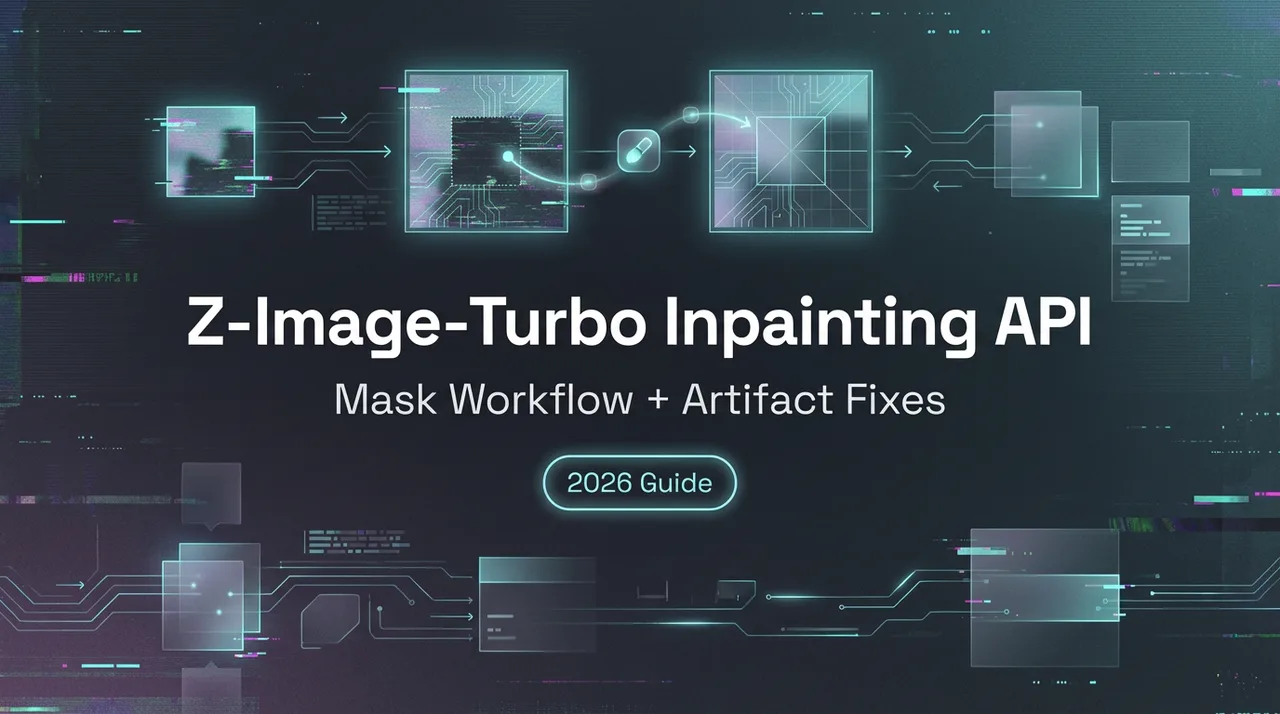
Z-Image-Turbo Inpainting API: Mask Workflow + Artifact Fixes
Complete Z-Image-Turbo inpainting guide. Learn mask creation, natural-language prompts, seamless blending techniques, and how to fix common artifacts. $0.02/image.
Hey, I’m Dora. A small thing tripped me up last week, a glare spot on a product photo I needed to reuse. I didn’t want a full retouching session, just a gentle edit. I opened my usual tools, then paused. I’d been seeing mentions of the Z-Image-Turbo Inpainting API and wondered if it could slot into my routine without turning a five‑minute fix into a project. So I tried it, slowly, across a few real tasks, and took notes along the way.
What is AI Inpainting?
Inpainting is the clean-up crew of image editing. You hide a region with a mask, describe what you want there instead (or that you want nothing), and the model fills it in to match the rest of the image.
What I like about inpainting is that it feels surgical. You’re not asking the model to invent a whole scene, just to respect the one you already have. When it goes well, the edit disappears. When it doesn’t, you see seams, weird textures, or a small “AI fog” where the patch lives, and you know you pushed it too far.
How Z-Image-Turbo Inpaint Works
I tested Z-Image-Turbo’s inpainting in January–February 2026, across a handful of tasks: glare removal, background cleanup, and a couple of object swaps. The flow is standard: send an image, a binary mask, and a prompt to the Z-Image-Turbo Inpainting API. The model only edits the masked area and tries to blend it with the context around it.
Two details mattered in practice:
- The mask edges: soft edges blended better. Hard edges made seams.
- The prompt: short, literal prompts worked best. Over-describing made the model guessy.
Speed-wise, results came back in seconds, which was plenty fast for an async task in my workflow. According to WaveSpeed’s documentation, Z-Image-Turbo Inpaint is optimized for low latency and clean results, making it production-ready for batch processing and rapid iteration. Quality held up for small to medium edits. Larger, complex replacements needed a couple of tries or smaller masks.
API Workflow
I kept the workflow simple: keep the source image as-is, mask only what I want changed, and prompt in plain language.
Required Inputs: Image + Mask + Prompt
Here’s the minimum set I used over and over:
- Image: PNG or JPEG. I kept the original resolution to avoid up/downscaling artifacts.
- Mask: same width and height as the image. White = editable. Black = protected. If your API version flips that, there’s usually a flag to invert.
- Prompt: one sentence is enough. “Remove glare on the countertop.” Or “Replace the mug with a plain white ceramic cup.”
Optional knobs that helped:
- Guidance/strength: lower for subtle cleanup, higher for full replacements.
- Seed: set a seed to reproduce a good result.
- Steps: I kept it moderate: more steps didn’t always mean better.
Mask Format Requirements
This part made the biggest difference to quality:
- Use a binary mask (pure white and pure black). If you need softness, feather the edge a little, but avoid gray mush across the whole region.
- Match dimensions exactly. If the mask is a pixel off, the API will complain or misalign.
- Keep the masked region tight. Smaller masks give the model fewer chances to hallucinate.
- Mind thin details. For hair strands or cables, a slightly larger soft mask blended better than a razor-thin hard mask.
If you’re editing near edges, extend the mask just past the boundary. It gives the model room to paint under the seam and avoids that “sticker” look.
Python Implementation
I didn’t turn this into a full library. I used a short request in a small utility script. The gist:
- Send a POST request to the Z-Image-Turbo Inpainting endpoint with multipart form data.
- Attach: the image file, the mask file, the prompt string, and any optional params (guidance, steps, seed, output size if needed).
- Handle the response: a base64 image or a URL to fetch. Save it, then preview before committing it to your pipeline.
A couple of practical notes from setup:
- Watch for rate limits. I batched edits and added backoff to avoid retries.
- Log the exact prompt, seed, and parameters with each saved image. When I got a clean result, this made it trivial to reproduce it.
- If you’re building a UI, preview the mask overlay on the source image. I caught two mask misalignments this way before sending requests.
Writing Effective Inpaint Prompts
Most of my success came from shorter, more literal prompts. The mask does most of the talking: the prompt should steer, not narrate.
Removal Prompts (“clean surface”)
When I just needed to remove something, I wrote prompts that described the absence and the finish I wanted: “Remove the reflection: keep a matte, even surface,” or “Remove dust specks: preserve wood grain.” The model respected the surrounding texture more when I mentioned it.
A small tip: call out the lighting when it matters. “Keep soft afternoon lighting” prevented bright patches.
Replacement Prompts (describe new content)
For swaps, I was specific but compact:
- “Replace the red mug with a plain white ceramic cup, similar size, neutral lighting.”
- “Fill the gap with matching concrete texture: no pattern.”
I avoided adjectives that invite style (e.g., “beautiful,” “cinematic”). They encouraged the model to invent. Measurements helped too. “Similar size” or “same angle” reduced awkward perspective shifts.
Context-Aware Prompting
When the scene had a strong look, warm light, soft shadows, shallow depth, I told the prompt that. According to community testing on RunComfy, Z-Image-Turbo Inpainting shows strong texture continuity, realistic lighting, and accurate perspective handling when prompts explicitly reference the existing scene context. The Z-Image-Turbo Inpainting API seemed to key off those cues. “Match the existing warm light, soft shadow to the left” did more than an abstract “realistic.”
If the surrounding context was weak (busy patterns, low detail), I’d shrink the mask and do two passes: first structural (shape), then surface (texture/light). It took an extra minute, but the final looked less AI-ish.
Practical Applications
These are the spots where the Z-Image-Turbo Inpainting API earned a place in my week.
Product Photo Cleanup
I ran a small batch of tabletop shots through it: stray scuffs, a crease in a backdrop, and a weird hotspot from a lamp. Removal prompts were enough. Time-wise, I shaved maybe 3–4 minutes per image compared to manual healing. The real win was mental effort, fewer micro-decisions.
Remove Unwanted Objects
I tested with street photos: a trash can near a storefront and a partial passerby at the frame edge. With tight masks and a note about “continue brick pattern” or “extend sidewalk texture,” the fills blended well. Large removals across complex textures still took a couple of tries.
Background Replacement
Full background swaps are touchier. For simple scenes, desk items on paper, I could replace the background with a plain gradient and keep natural shadows by masking under the objects, not around them. Complex hair against a messy background was harder. I’d only reach for inpainting here if the mask is clean and the new background is simple.
Fixing Common Artifacts
When something looked “off,” it was usually one of these.
Visible Seams at Mask Edges
Symptom: a faint outline where the patch meets the original.
What helped:
- Feather the mask edge slightly and rerun.
- Increase the masked area by a few pixels so the model paints under the seam.
- Lower guidance a notch if the fill is over-stylized against a plain scene.
Color/Lighting Mismatch
Symptom: the patch is the right shape, wrong light.
What helped:
- Mention light direction and warmth in the prompt: “match warm light from right, soft shadows.”
- Reduce steps slightly. I found heavier sampling sometimes drifts color.
- If the whole photo is color graded, do inpainting before the grade, then reapply the grade to the final.
Texture Inconsistency
Symptom: surfaces look smudged or too uniform.
What helped:
- Describe the texture explicitly (“fine canvas texture,” “subtle wood grain”).
- Shrink the mask and fill in stages: structure first, texture second.
- Add a tiny bit of noise or grain after the fact to blend. Not purist, but effective.
, Why this matters to me: inpainting isn’t flashy, but it cuts friction on small, unglamorous edits. The Z-Image-Turbo Inpainting API didn’t change my process: it slipped into it. If you do a lot of light cleanup or occasional object swaps and you’re comfortable drawing masks, it’s a good fit. If you want heavy scene rewrites, you’ll still spend time nudging masks and prompts.
One last note from testing: the best results came when I treated prompts like stage directions and masks like boundaries. Clear roles. The model did fine with that. And I’m still curious how far I can push tiny masks on tricky textures without the telltale fog, that’s next on my list. How about you?
Related Articles
GPT Image 2.5 Review 2027: Quality, Editing, Speed, and Cost
GPT Image 2.5 vs GPT Image 2: Is It Worth Upgrading?
Grok Imagine Video Pricing and Cost per Clip
H3 Max Benchmark: Speed, Quality, and Prompt Tests
K2 Horizon Review 2027: What the Open Model Family Includes