
imageToImage.h1
imageToImage.subtitle
imageToImage.grid-title
imageToImage.grid-intro
1. Style Transfer
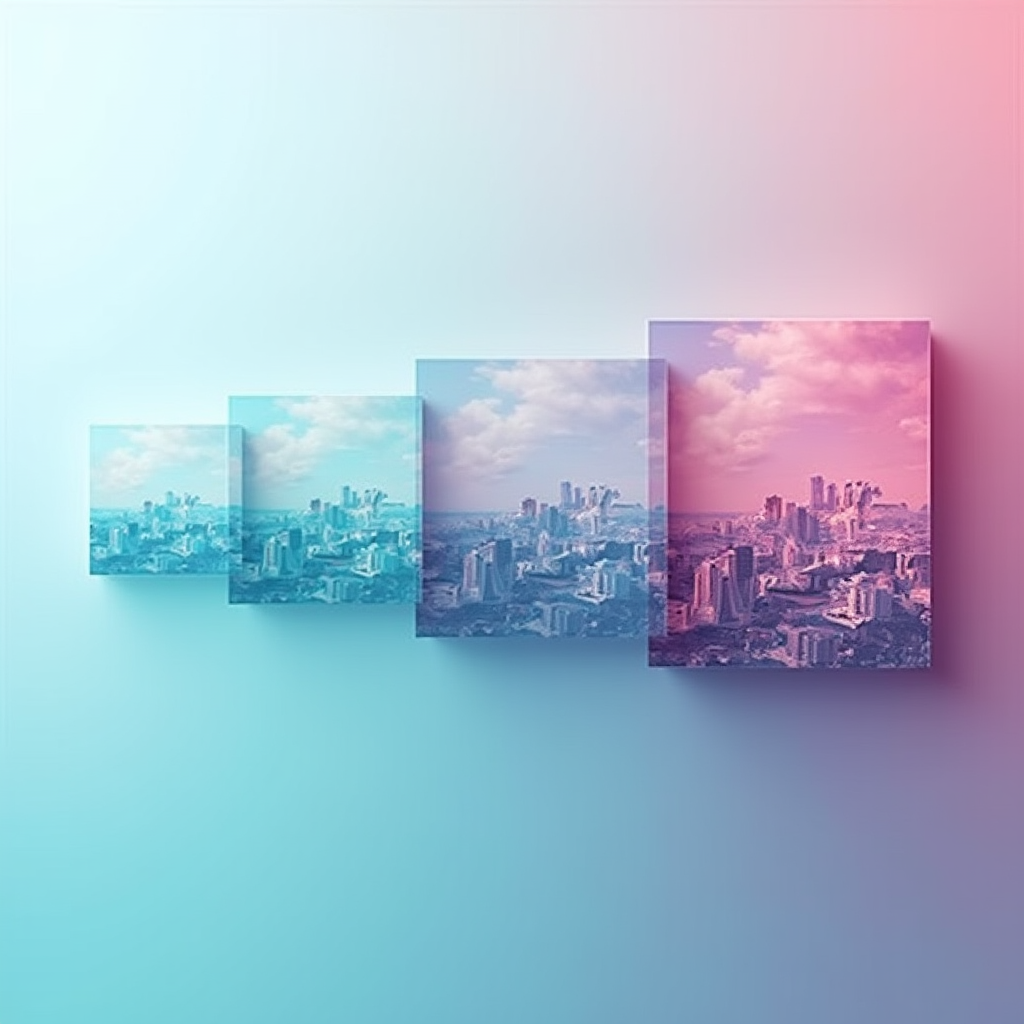
Transform photos into artwork, change seasons, or apply aesthetic filters while preserving the original composition. Works with FLUX and SDXL models for high-quality output.
2. Guided Editing
Use text instructions to modify specific aspects of an image. FLUX Kontext understands context and applies changes only where appropriate. See Image Editing Models for all options.
3. Variation Generation
Generate multiple variations of an image with different styles, lighting, or compositions. Use with LoRA adapters for brand-consistent variations at scale.
imageToImage.usecases-title
imageToImage.usecases-intro
Creative Exploration
Explore different visual styles and aesthetics by transforming a single reference image into dozens of variations.
Product Visualization
Generate product variations in different colors, materials, or environments from a single base image.
Art Direction
Transform mood boards and reference images into production-ready visuals matching a specific creative direction.
Content Adaptation
Adapt a single visual asset for different platforms, seasons, or regional markets automatically.
Q & A
imageToImage.faq-q-1
imageToImage.faq-a-1
imageToImage.faq-q-2
imageToImage.faq-a-2
imageToImage.faq-q-3
imageToImage.faq-a-3
imageToImage.faq-q-4
imageToImage.faq-a-4
imageToImage.faq-q-5
imageToImage.faq-a-5