
AI Video Upscaler Online 1080p: Best Options Tested

Hey, guys. I’m Dora. A tiny friction pushed me into this: a 42‑second product clip from 2018 that only existed in 720p. It looked fine on a phone, but flat on a laptop. I didn’t want to re‑edit the whole thing. I just wanted it to feel less fuzzy. So I spent a weekend running it through a handful of AI video upscaler online tools to see if 1080p would help, or if I was about to create a sharper mess.
What to expect from online 1080p upscaling
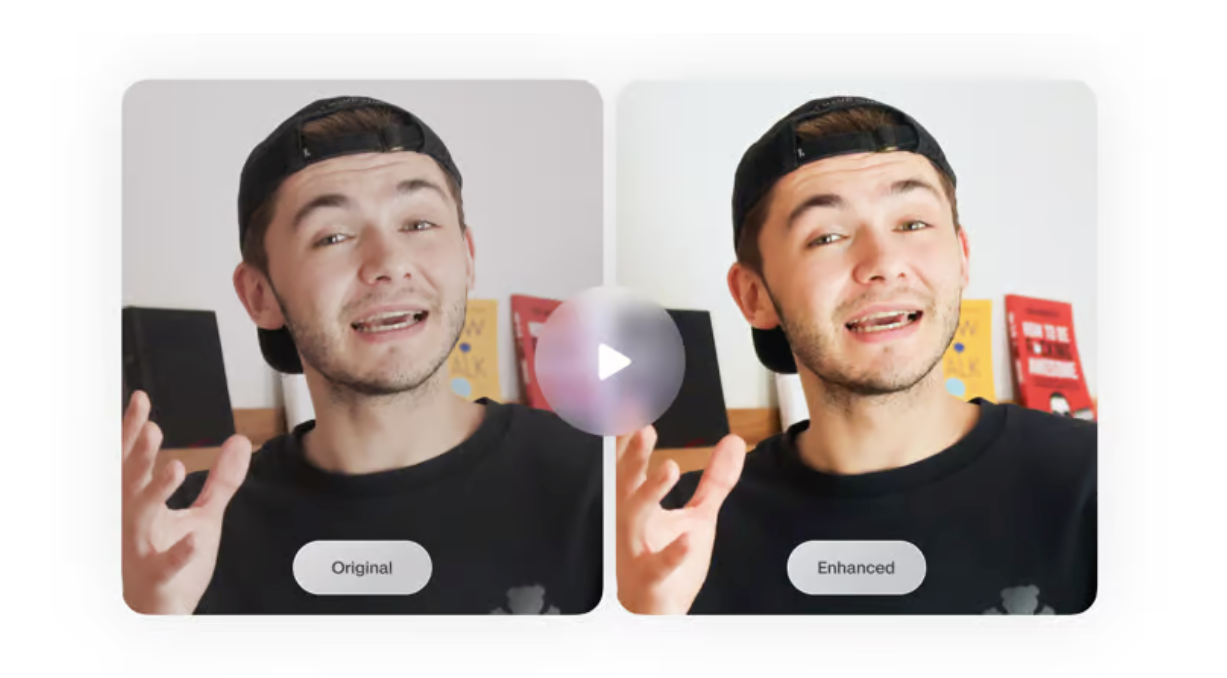
Native 1080p vs upscaled 1080p, quality difference
Native 1080p usually wins. It carries true detail, cleaner edges, and more stable motion. Upscaled 1080p can look convincing at a glance, especially on smaller screens, but it often relies on sharpening and guesswork. I noticed this most on hands and text. Native footage kept skin texture: upscaled footage sometimes turned it into a smooth, almost waxy surface. Text edges got crisper, yes, but fine diagonals sometimes picked up halos.
If your source is decent 720p with little noise, AI upscaling to 1080p can pass in social feeds and even on YouTube at normal viewing distances. If your source is noisy or highly compressed, the upscaler may amplify problems you’ve been ignoring.
When upscaling is worth it vs not
Worth it:
- You’re standardizing a mixed-resolution timeline and want everything at 1080p without a re-edit.
- You have archival clips that are slightly soft but clean.
- You’re delivering for mobile or web, not a theater screen.
Usually not worth it:
- The clip is already blocky or noisy: upscalers sharpen blocks into “detail.”
- There’s fast motion with thin lines (bike spokes, hair in wind). AI often hallucinates shimmer.
- You need color fidelity more than edge sharpness. Some tools denoise by smearing color.
My rule after this test: if the source is watchable but a touch dull, upscaling helps. If the source is bad, upscaling makes it a sharper kind of bad.
How we tested
Test clips (motion types, original resolution)
I tested on March 15–16, 2026. I used three short clips (each 20–45s):
- Talking head at 24 fps, 720p H.264, clean lighting.
- Street b‑roll at 30 fps, 720p GoPro‑style, lots of micro‑motion and foliage.
- UI screen capture at 60 fps, 720p, crisp lines and tiny text.
Evaluation criteria (sharpness / artifacts / speed / watermark)
- Sharpness: edge definition without over‑cranking contrast.
- Artifacts: halos, ringing, flicker, plastic skin, mosquito noise.
- Temporal stability: does detail hold across frames or shimmer.
- Speed: minutes of processing per minute of footage.
- Watermark/limits: is 1080p possible on free tier, and with what restrictions.
Best online AI video upscalers for 1080p
Best overall quality
Pixop gave me the most natural 1080p results across all three clips. In broader comparisons, tools like SeedVR2 and Topaz often come up when evaluating high-end video enhancement quality. Their AI upscalers combined with deblock/denoise felt restrained, edges were cleaner, faces didn’t turn to plastic, and the street b‑roll held together with less shimmer. It’s not free, and it feels more like a pro render farm than a quick web tool. But if I cared about quality over convenience, this is where I’d send a tough clip.
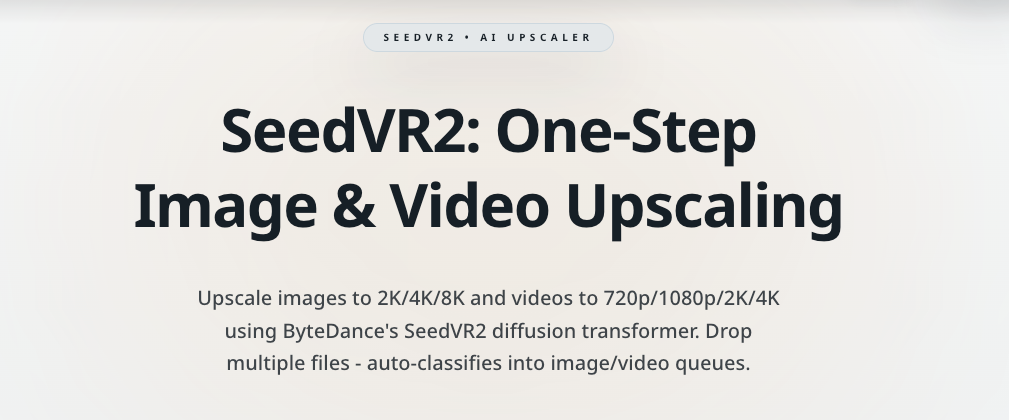 Why it mattered in practice: the talking‑head shot kept skin texture while taming compression. The UI clip stayed crisp without stair‑stepping on diagonals. Render time was about 1.2–1.6× real‑time on my tests (cloud‑dependent).
Best free no-watermark option
A strict “online, no install, 1080p, no watermark” was rare, although some newer tools are trying to bring full video upscaling workflows directly into the browser. The one path that worked for me in March 2026 was a hosted Google Colab running Real-ESRGAN, which is often compared with tools like Topaz for quality and workflow differences. It’s not a polished product, you upload, frames process, then it reassembles the video, but exports were watermark‑free. Speed was slower (roughly 3–6× real‑time depending on the runtime and settings), and motion stability depends on your pipeline (frame‑wise upscaling can introduce slight flicker). If you’re comfortable with a notebook and want zero watermark without paying, this was the cleanest route I found.
Best for speed
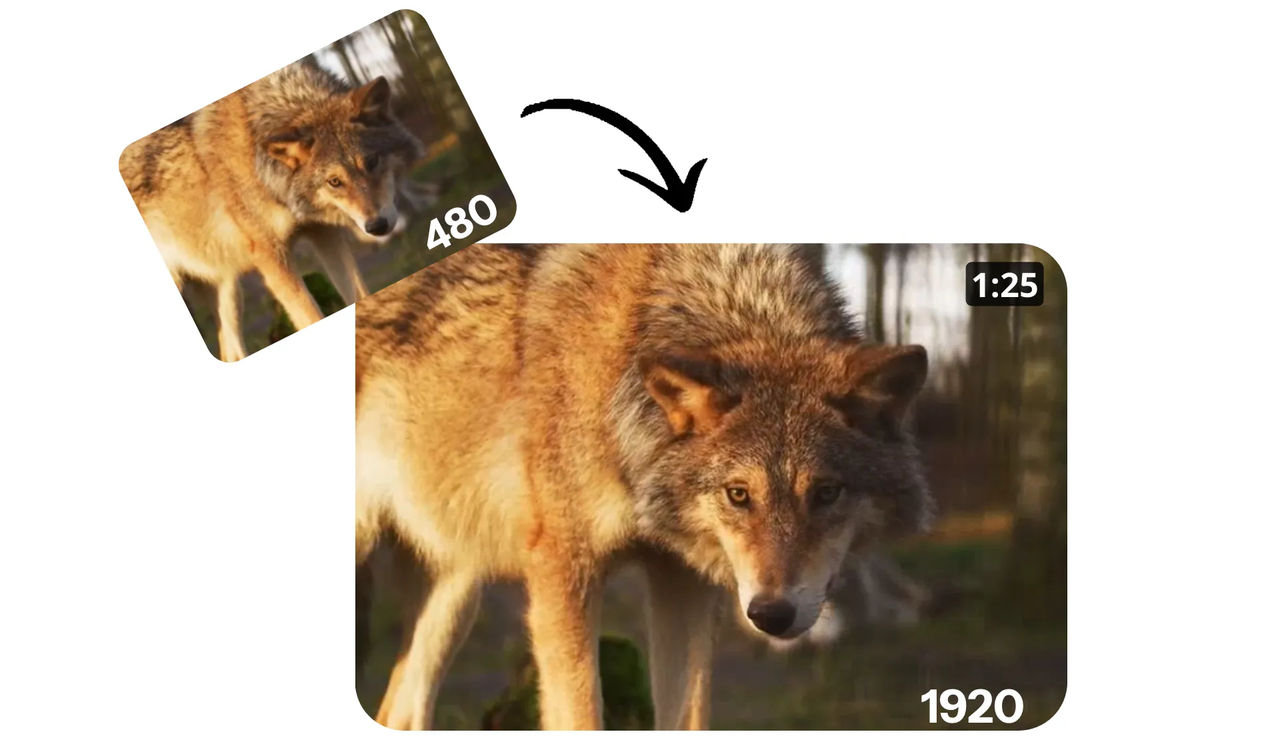 Kapwing was consistently quick from upload to download. For my 42‑second product clip, I got a 1080p result in under a minute after processing began. Quality leaned on sharpening and mild denoise, which helped the UI clip but pushed faces a bit too smooth. If I needed to turn around social‑bound clips fast, I’d reach for this. Note: free plan conditions may add watermarks: check current limits before relying on it.
Comparison table
Max resolution / watermark / speed / free tier / API
| Tool | Max output (tested) | Watermark on free | Speed (min per min) | Free 1080p? | API |
|---|---|---|---|---|---|
| Pixop | 4K+ | No free tier: pay per render | ~1.2–1.6× | No | Yes |
| Kapwing | 1080p | Often yes on free: varies by plan | ~0.7–1.0× | Sometimes with limits | Yes |
| VEED | 1080p | Often yes on free: check current terms | ~1.0–1.3× | Sometimes with limits | Yes |
| Media.io (Wondershare) | 1080p | Typically watermark on free | ~1.0–1.5× | Limited | No |
| neural.love | 1080p | Watermark on free credits (observed) | ~1.5–2.5× | Limited by credits | Yes |
| Real‑ESRGAN (Colab) | 1080p–4K | No watermark | ~3–6× | Yes (not a product) | No |
Notes: Speed varied with server load and clip content. Policies change: verify on the linked pages.
Common artifacts and when they appear
- Halos/ringing: high‑contrast edges after aggressive sharpening, common on text and UI lines.
- Temporal shimmer: foliage, hair, or fabric patterns in motion when frame‑wise methods disagree frame to frame.
- Plastic skin: over‑denoise on faces: looks “clean” but uncanny.
- Mosquito noise: dancing pixels around edges when compression is boosted by sharpening.
- Stair‑stepping (aliasing): diagonal lines in UI or line art: shows up if scaling kernels are too simple.
I saw more halos on UI clips and more shimmer in the street b‑roll. Talking heads suffered most from plastic skin when tools tried to denoise before upscaling.
Recommendation by clip type
Short social clips
If speed matters and the audience is on mobile, Kapwing or VEED are fine. Keep clips under a minute and avoid heavy sharpening on faces. I’d export and sanity‑check on a laptop before posting.
Long-form or cinematic footage
If you have time and budget, Pixop’s restraint pays off. It treats footage like footage, not a thumbnail. I’d still test 10–15 seconds first, then batch.
Footage with a lot of motion
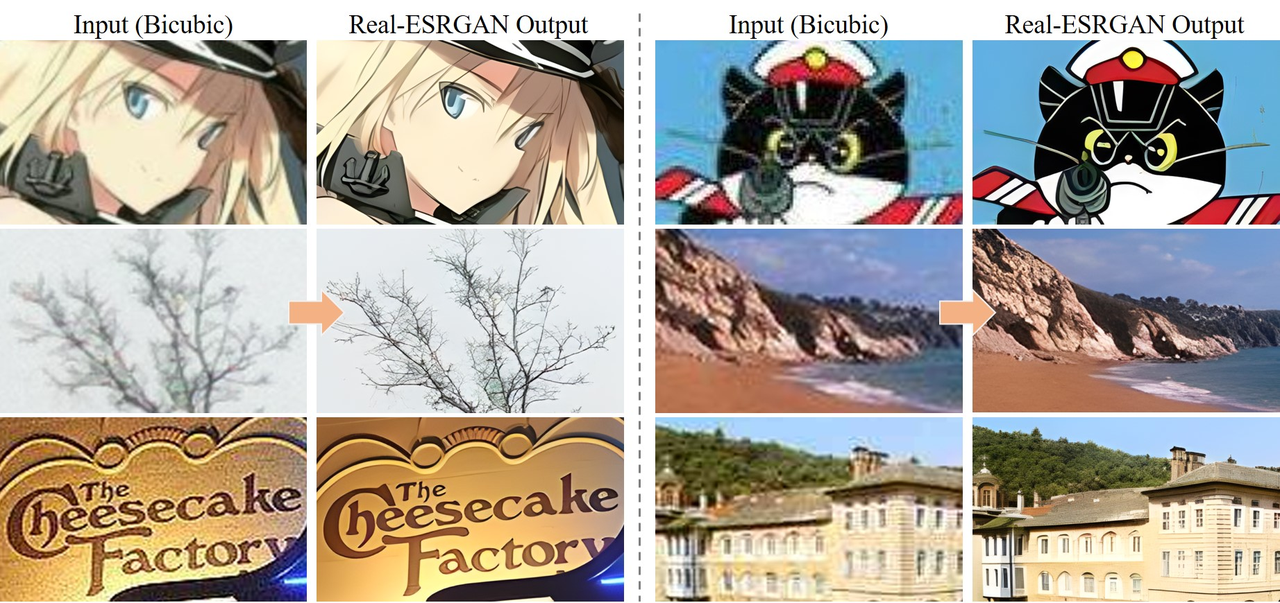 Colab + Real‑ESRGAN can work, but watch for flicker. For cleaner motion, consider tools that handle temporal consistency or add a light denoise before upscaling. If the source is noisy action‑cam b‑roll, sometimes leaving it at 720p and focusing on color and audio is the kinder move.
One last note I kept circling back to: upscaling didn’t save me time at first, but after a few runs, it did make decisions easier. Either the clip held up, or it told me to leave it alone. That quiet yes/no was the real win.
Frequently Asked Questions
What’s the real difference between native 1080p and AI‑upscaled 1080p?
Native 1080p keeps true detail, cleaner edges, and steadier motion. AI‑upscaled 1080p can look crisp at a glance, but may rely on sharpening and guesswork—skin can turn waxy, diagonals may halo, and motion can shimmer. On phones it often passes; on laptops, flaws show faster.
When should I use an AI video upscaler online 1080p—and when should I skip it?
Use it to standardize mixed timelines, clean archival 720p, or deliver to web/mobile. Skip it if footage is noisy, blocky, or has fast thin‑line motion—AI may exaggerate artifacts or hallucinate shimmer. If a clip is watchable but dull, upscaling helps; if it’s bad, it becomes sharper bad.
Which AI video upscaler online 1080p tool is best for quality, speed, or free no‑watermark?
In March 2026 tests: Pixop delivered the most natural quality (paid). Kapwing was fastest for short social clips but could smooth faces; free plans may watermark. A hosted Real‑ESRGAN Colab was the cleanest free, no‑watermark route, though slower and prone to slight flicker. Always check current plan limits.
What artifacts appear after AI 1080p upscaling, and how can I reduce them?
Common issues: halos/ringing on text, temporal shimmer in foliage or hair, plastic skin from over‑denoise, and mosquito noise around edges. Reduce them by avoiding aggressive sharpening, adding light denoise before upscale on clean sources, testing 10–15 seconds first, and reviewing on a larger screen before publishing.
Does YouTube penalize AI‑upscaled 1080p videos, and will they look better after upload?
YouTube doesn’t penalize AI‑upscaled 1080p by default; it re‑encodes everything. Quality depends on your master’s clarity and bitrate. If the upscale is clean, it can look better than soft 720p. Upload a high‑bitrate 1080p file, avoid oversharpening, and preview the processed stream at normal viewing distances.
Related Articles

LTX-2.3 API Guide: 7 Endpoints, Access Options & Production Use
LTX-2.3: What's New in Lightricks' 22B Video Model (2026)
WaveSpeedAI vs Media.io Watermark Remover: Which One Actually Delivers?

Goodbye Sora: Top 5 Best Sora Alternatives for Making AI Videos in 2026

Google Veo 4: What We Might See From Google's Next AI Video Model